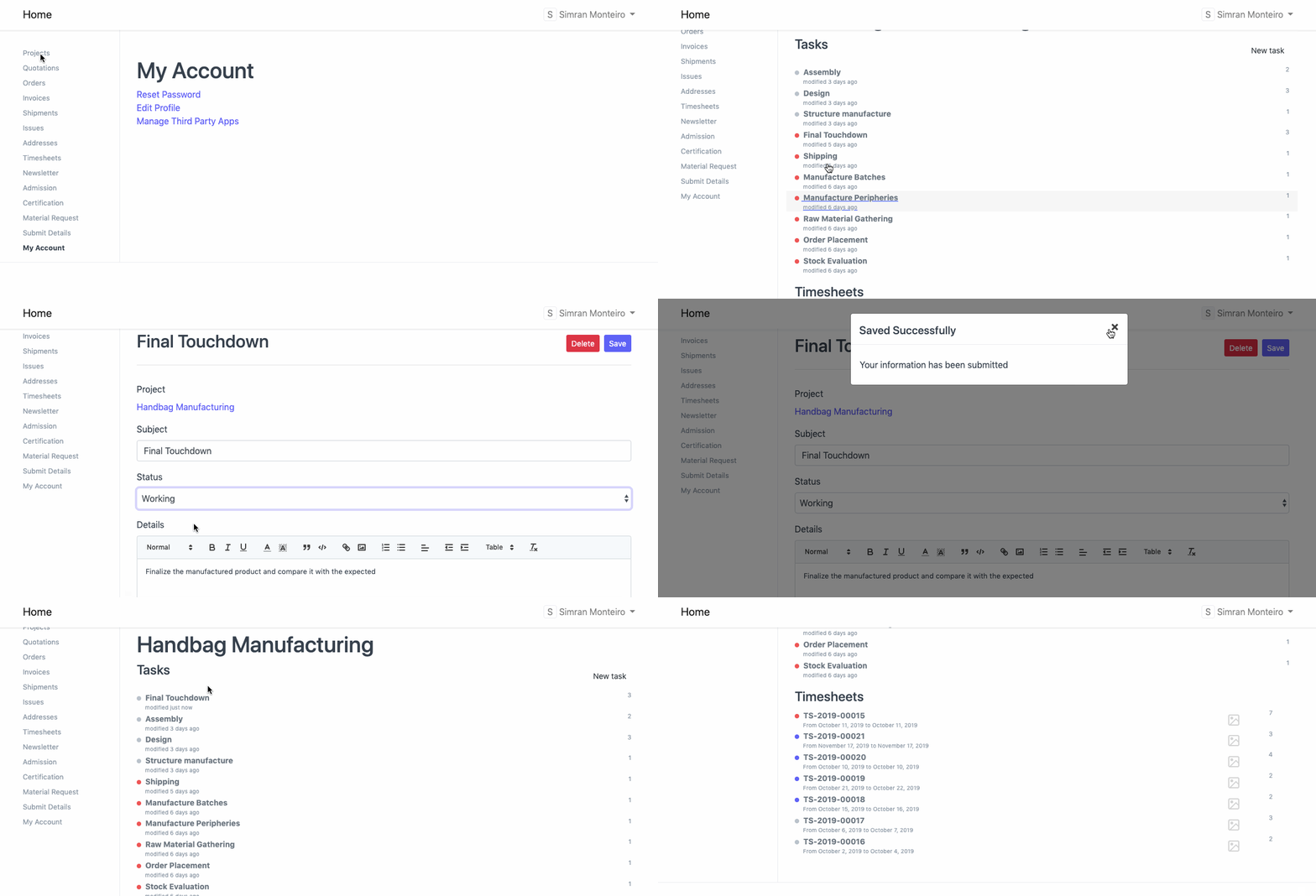
Project from Customer Portal
Project from Customer Portal
When working on a project for a customer, they must occasionally be informed of its status. Via the Client Portal in ERPNext, you may accomplish this.
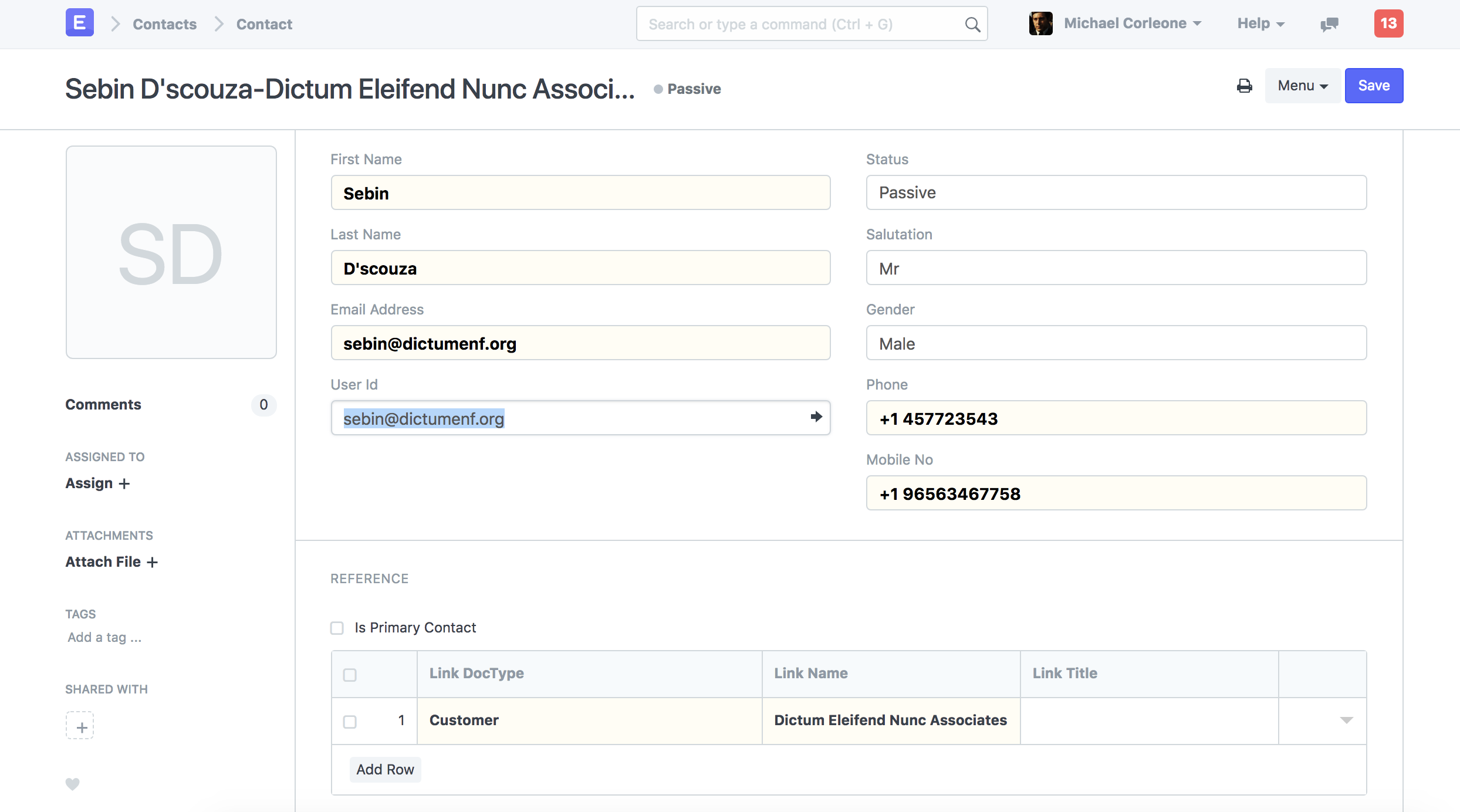
Add User as a Website User A customer must be added as a Website User in order to access a project through the portal. With the same Email ID as stated in the Contact, a Customer can also join up through your ERPNext account's Login Page. Using the Invite User button under Contact, you may also invite the contact.
Add Customer and User in Project Check the Client Information section of the project. Choose the Client and Sales Order that are related to this Project.
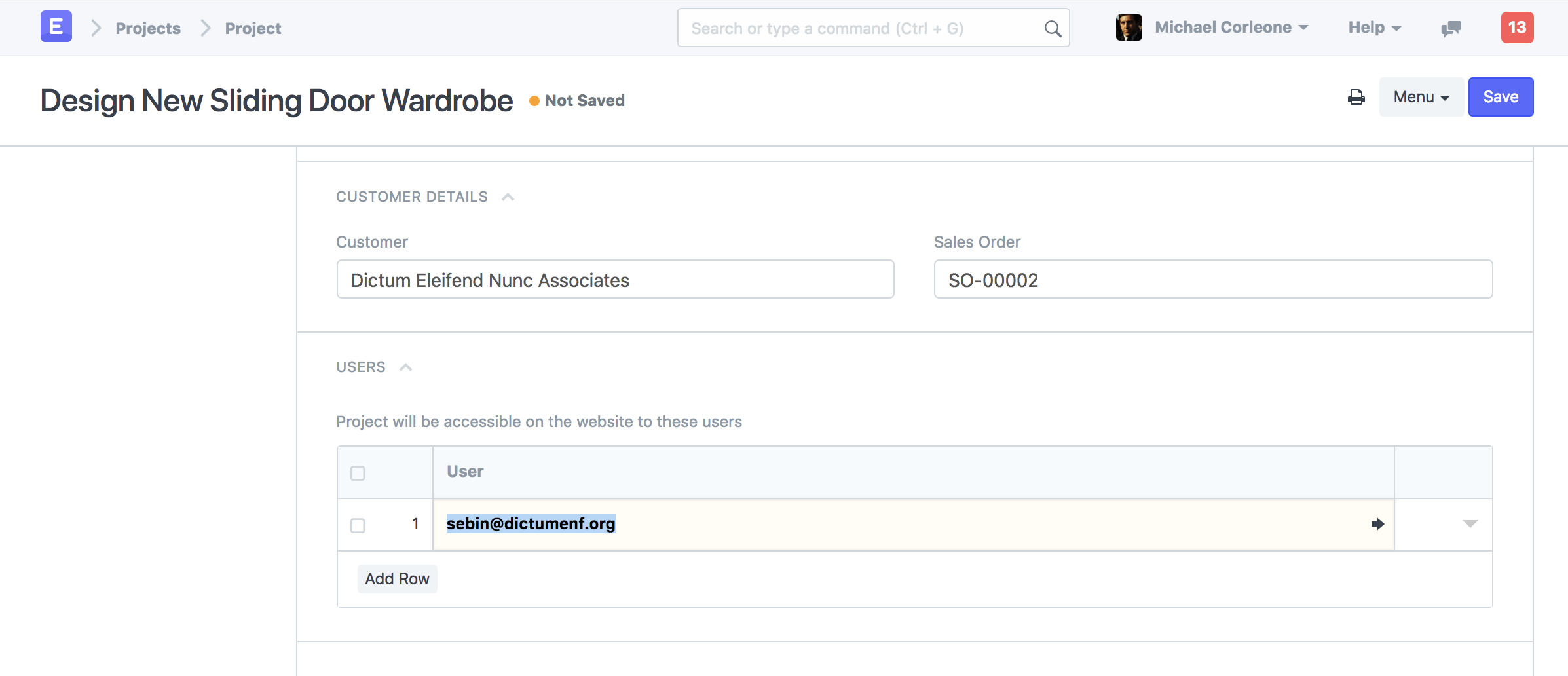
Choose the contacts who have access to this project from the User table.
Portal View of Project A customer can examine all of the tasks for that project and the accompanying timesheets by logging in from the portal. The customer will also be able to comment or amend the task status as necessary.