Email Domain
An email domain is the name of the network/service you're using for your email account.
If you are already using one of the services listed above, you can move directly to creating an email account.
Geer ERP allows you to set up your email domain for simple email account setup. Go here: to access the Email Domain settings.
Home > Settings > Email Domain
What is my Email Domain? : Your internet service provider or your IT services provider may have sold you an email service. Yourcompany.com is your email domain, for instance, if you visit your corporate inbox at http://mail.yourcompany.com.
You must appropriately configure an email domain if you wish to send and receive emails through your Geer ERP account. You can be making use of free mail providers like Yahoo or Gmail. Instead of creating a domain in this situation, choose a service provider from the list. You might need to give Geer ERP permission to access your Gmail account, though.
For your convenience, Geer ERP provides a template email domain using example.com. If you wish to use your new domain with Geer ERP, you should add it.
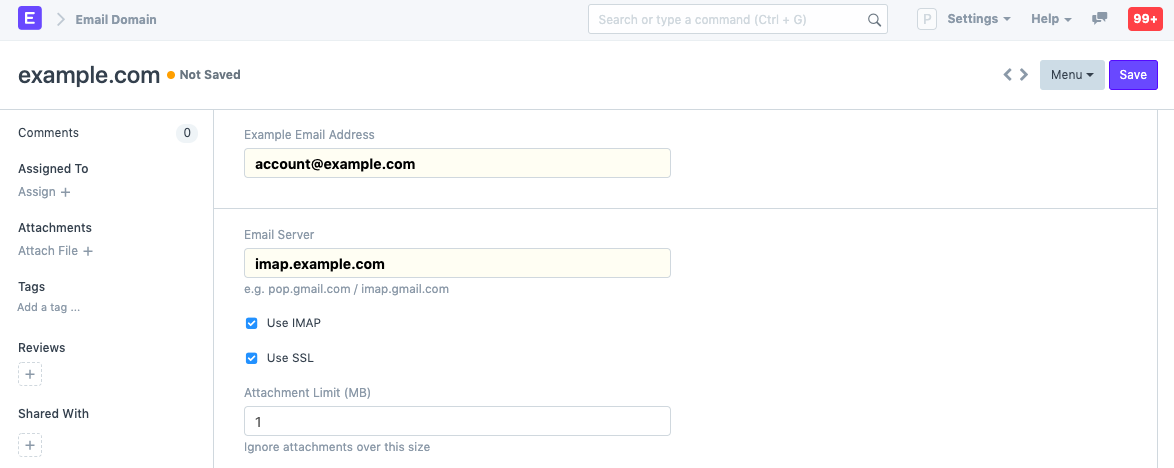
1. How to create an Email Domain
- Click New from the Email Domain list.
Type the Sample Email Address here. You should provide your company email address here. You should provide this, for instance, if your email address is yourname@yourcompanyname.com. Server for email. This is the web address for your email service or mail server, whichever you have paid for. It might be mail.yourcompany.com or imap.yourcompany.com, for instance.
Apply IMAP. Most mail servers utilize one of two services for incoming emails: IMAP or POP. Keep this selected if your email server permits IMAP service for incoming emails. Otherwise, do not select this.
Apply SSL. Keep this selected if your mail server employs SSL (Secure Socket Layer) for communication.
Do I have SSL? Your IT service provider may have installed SSL for your mail server after you obtained an SSL certificate from them. You may have SSL installed if you visit your mail server using "https" in your browser.
Use SSL for sending data. Activate this to explicitly use SSL for outgoing emails if your mail server uses SSL for that purpose. Usually uses port 465.
Add Sent Email to Outgoing Email. To append all outgoing emails to the email account's inbox, you might need to select this option if you are not utilizing the conventional mail servers offered by gmail and similar services. (Suggested for email servers such as Zimbra and CPanel).
Attachments Only (MB). The size of file attachments in emails sent from Geer ERP can be restricted.
The outgoing email service address for your email server is SMTP Server.
Tick If your SMTP service offers TLS for security, use it.
standard port SMTP is often configured on port 25. You can configure this if your email server is configured to use a different port number.
1.1 After saving the domain
After you click "Save," Geer ERP verifies these adjustments and the email domain is saved. You might have to wait a few seconds if this takes a while. This email domain is then accessible in the Email Accounts screen's Domain dropdown menu.

Entered everything but still unable to setup Email Domain?
After entering and confirming the aforementioned options, if you're still unable to set up an email domain, you can ask Geer ERP support for assistance from within your account.