Compensatory Leave Request
Compensatory Leave Request
An employee may be granted compensatory leave as payment for working extra or on a holiday.
Via the Compensatory Leave Request document, ERPNext enables Employees to request Compensatory Leaves. The Employee's attendance must be reported as Present, and the days specified in the Compensatory Leave Request must be on the default holiday list.
The Compensatory Leave Request only allows you to select Leave Types that are designated as "Is Compensatory."
Go to: to access Compensatory Leave Request.
Request for Compensatory Leave under Human Resources' Leaves section
1. Prerequisites
The following documentation must be produced prior to making a request for compensatory leave:
- Employee
- Leave Period
- Leave Type
- Leave Policy
- Leave Allocation
- Holiday List
- Attendance
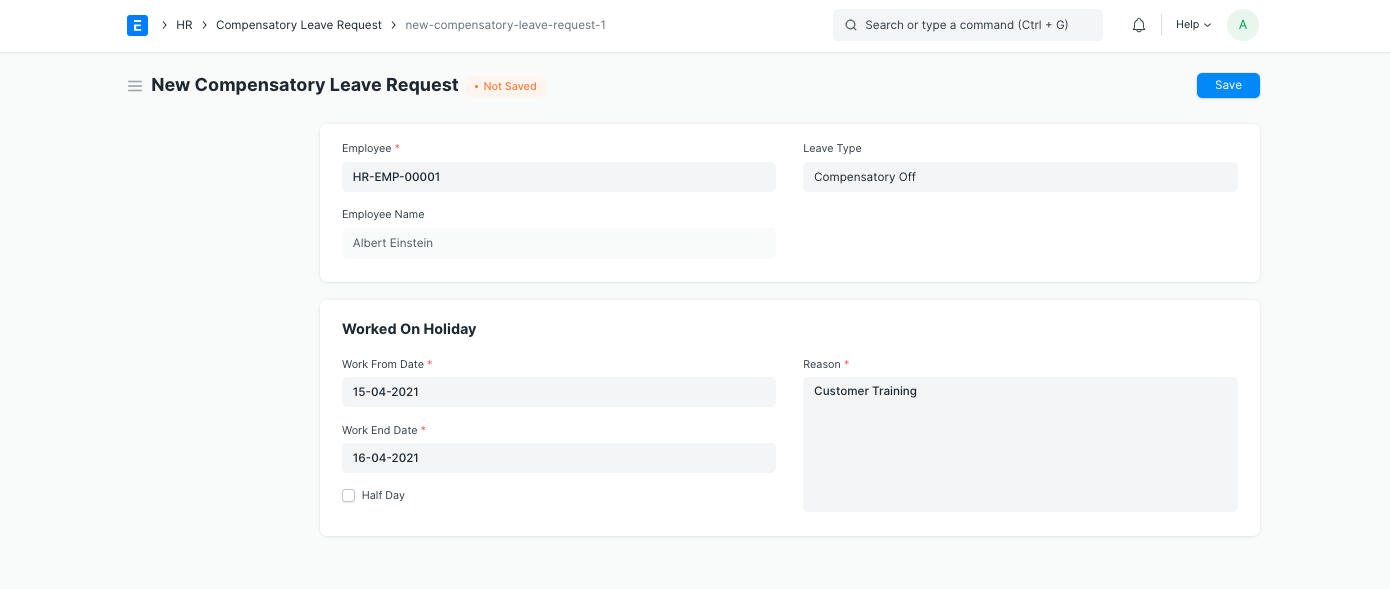
2. How to create a Compensatory Leave Request
1.Click New on the Compensatory Leave Request list page.
2.the Employee ID option. After being chosen, the employee's name and department will be fetched automatically.
3.Decide on a leave type.
4.Choose the work start and end dates. This is the day(s) that the employee worked on when the day was a holiday.
5.Type the Reason in.
6.Publish and save.
The Leave Allocation record for the Compensatory leave type is updated by ERPNext following submission of the Compensatory Leave Request, enabling the Employee to apply for Compensatory leaves at a later time depending on the remaining number of leaves.