Auto Email Reports
Auto Email Reports automatically sends reports for the selected document.
Auto Email Report can be configured to deliver reports on a schedule. All reports must be saved in this manner (Report Builder, Script or Query Report).
Auto Email Report can be found at:
Home > Settings > Auto Email Report
1. How to create an Auto Email Report
- Click New from the Auto Email Report list.
- Choose the Report you want to send emails for.
- Decide which user you wish to create this report for (permissions will apply for this user).
- Set the Email Addresses and Report Frequency that you want to receive this report at. At midnight, emails will be sent out. If the frequency is weekly, monthly, or yearly, the date will be repeated. The email will be sent, for instance, on the seventh of every month if the frequency is set to monthly and the date chosen is 7.
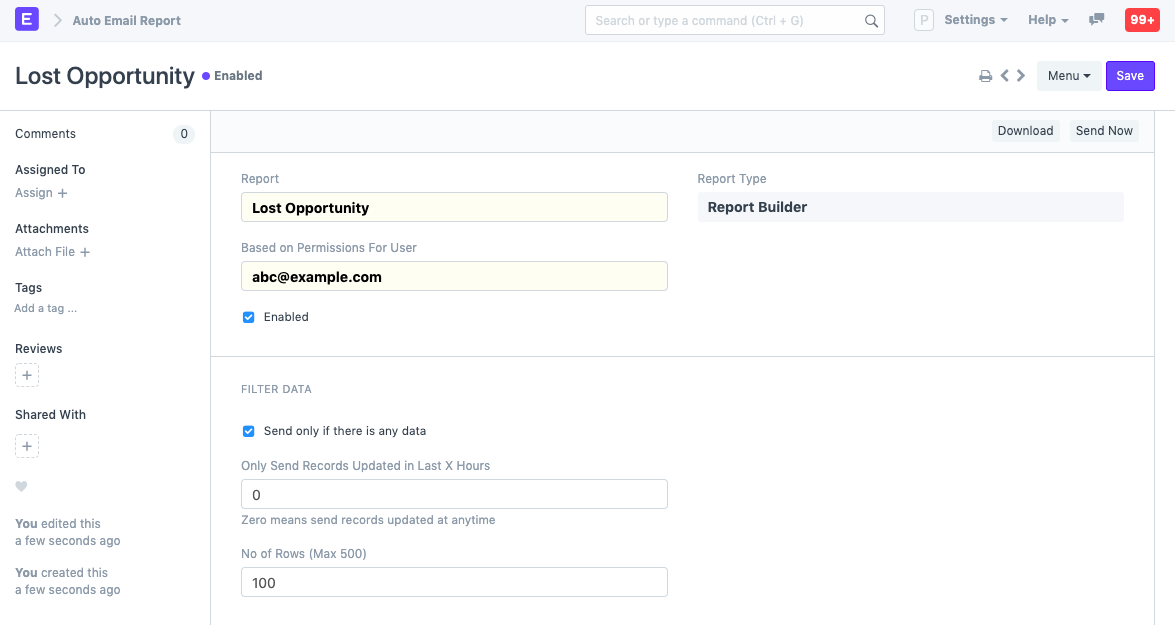
- Save.
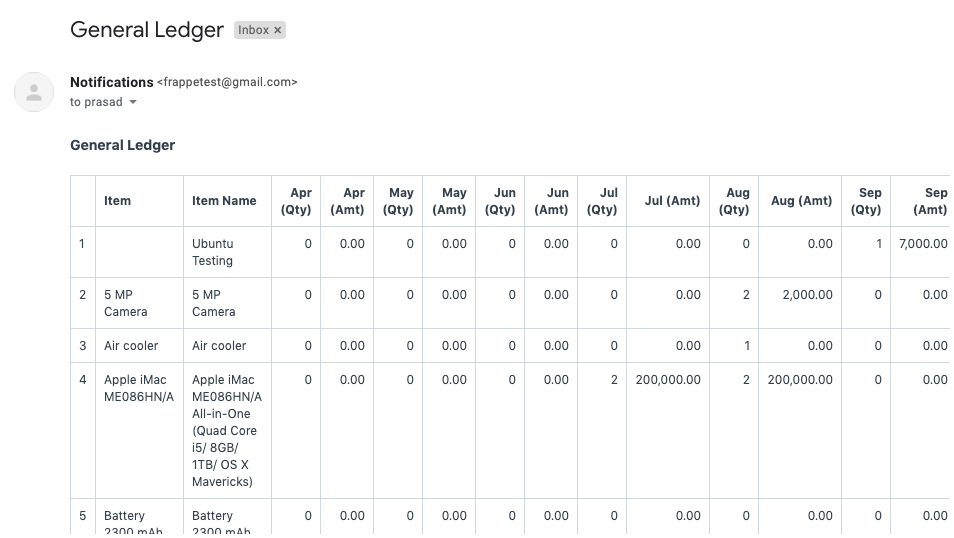
The report can be tested by selecting "Download" or "Send Now." Here is an illustration of the general ledger report email you will get:
2. Features
2.1 Filter Data
- If enabled, emails won't be sent if the report contains no data. Send only if there is data.
- If set to 24, the only records included in an email are those that have been modified during the last 24 hours.
- Numb. of Rows how many rows will be included in the email. 500 is the maximum.
2.2 Report Filters
You will be able to see the filters if your report includes them. To edit the table, click on it:
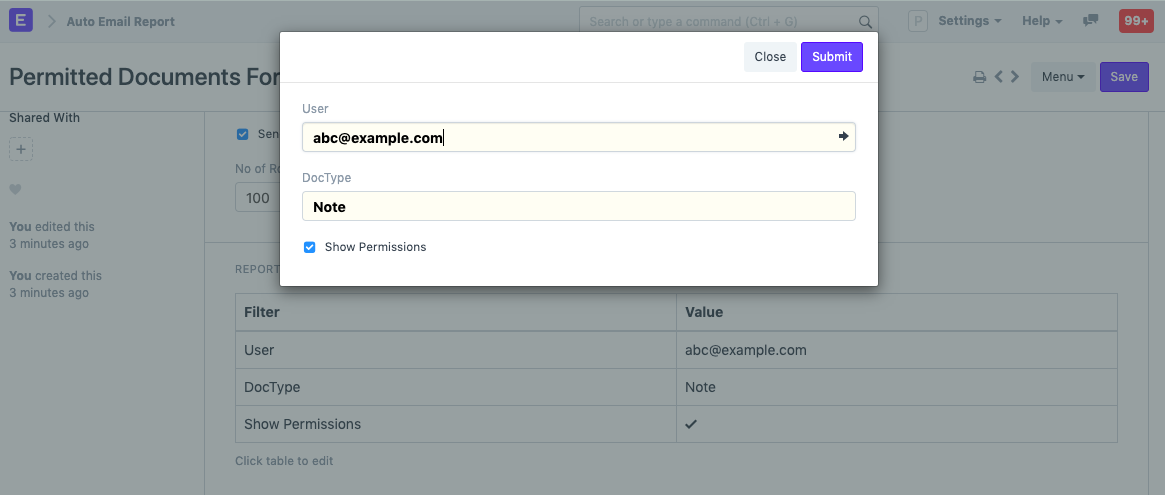
Select the Project, for instance, if the email is listed on the report "Project Billing Summary." This date range corresponds to the 'Project Billing Summary' date range.
2.3 Message
Additionally, a note can be inserted and sent along with the email report. This is your monthly Project Billing Summary Report, for instance:
Additionally, you have the option of changing the report's original file format. You have the choice between HTML, XLSX, and CSV.