Warehouse
Warehouse
A warehouse is a type of commercial structure used to store products. Manufacturers, importers, exporters, wholesalers, transport companies, customs, etc. all use warehouses.
These are often huge, plain structures located in urban, rural, and industrial regions. For unloading and loading cargo from vehicles, they mostly feature loading docks.
However, ERPNext's definition of "Warehouse" is a little broader and may be viewed as "storage sites." You can designate a shelf inside your actual location as a sub-Warehouse.
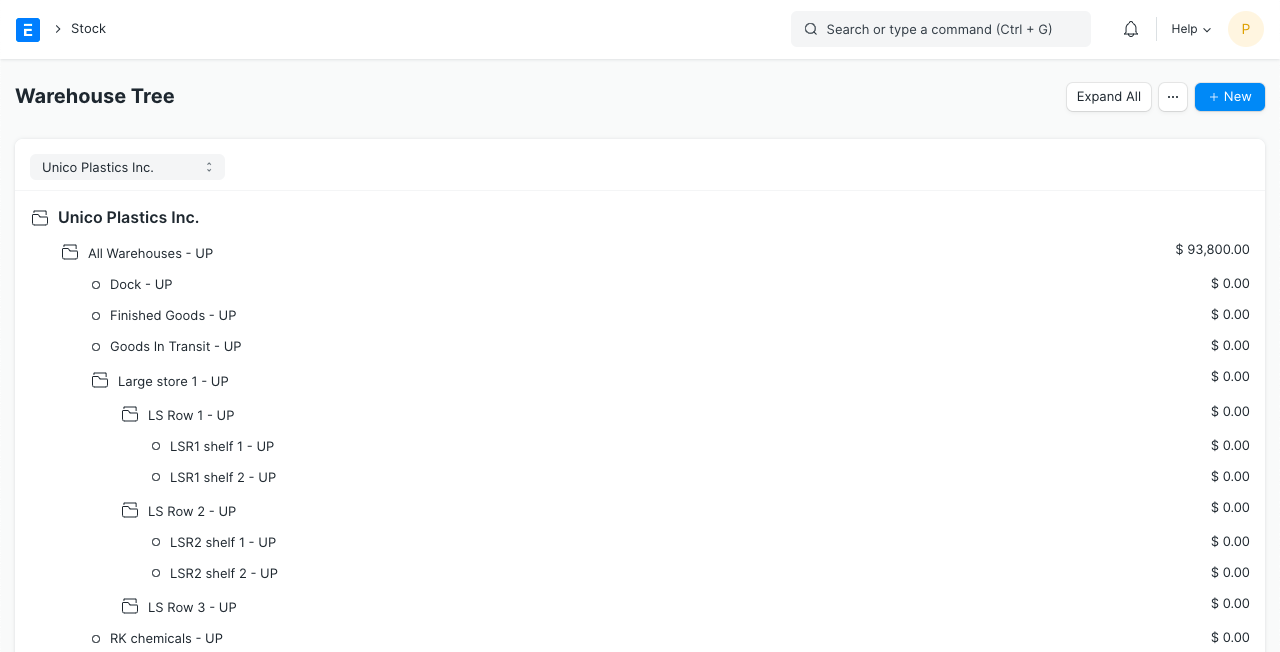
This can develop into a very intricate Tree like the one seen below:
Warehouse > Room > Row > Shelf > Bin
To access the Warehouse list, go to:
Home > Stock > Settings > Warehouse
1. How to create a Warehouse
Click New from the Warehouse list.
Give the Warehouse a name.
Toggle the Parent Warehouse on or off. You can add sub-Warehouses to the group Warehouse if you check the "Is Group" box.
Save.
Warehouses are saved with the acronyms of their respective Companies. This makes it easier to quickly determine which Warehouse belongs to which firm.
1.1 Additional options when creating a Warehouse
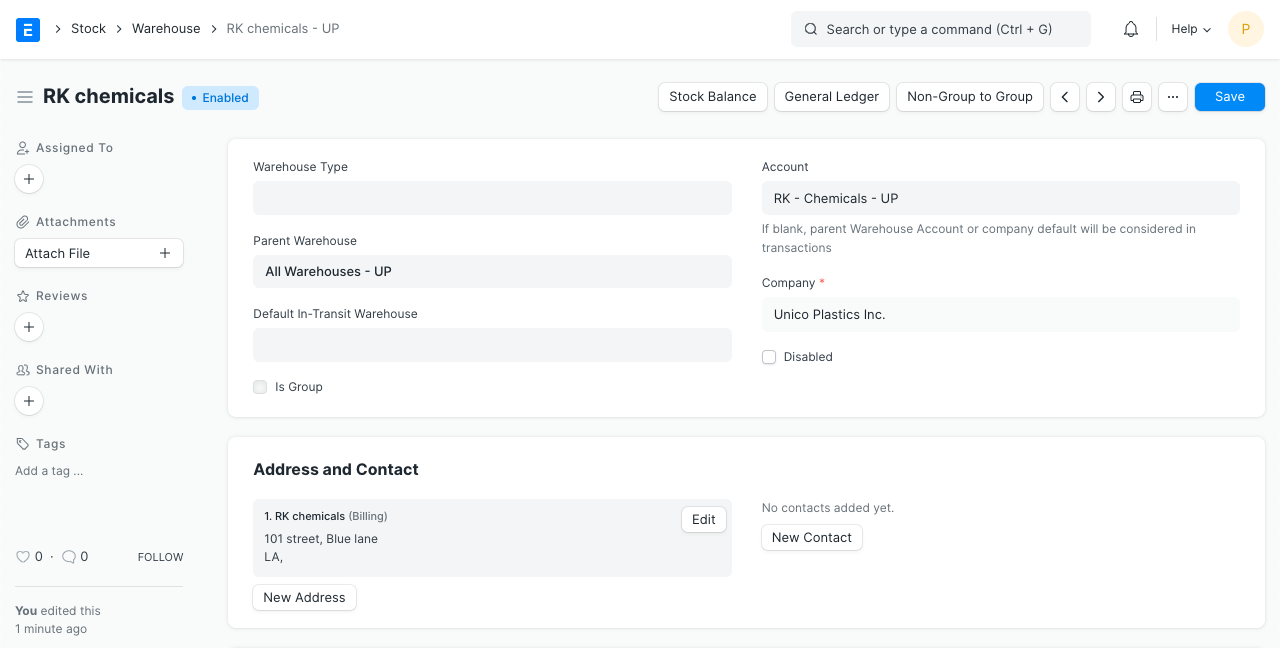
Account: Create a default account for use with this Warehouse's transactions here. By setting this account, the Accounting Ledger will display transactions from this Warehouse. You can categorize warehouses using a warehouse type, which you can build. For instance, tags can be applied to Supplier Warehouses, Stock Warehouses, WIP Warehouses, Rooms, etc. This classification is helpful for some stock transactions and report generation.
Address and contact For the Warehouse, you can enter billing, shipping, and other types of addresses. A contact can also be added; for instance, the warehouse manager.
1.2 After Saving
Following the saving of a Warehouse, the following choices will appear:
Stock Balance: The Stock Balance report will then be opened to show the quantity, value, balance, etc.
General Ledger: The General Ledger will open in order to show the accounting transactions.
Non-Group to Group: This button will convert a Non-Group Warehouse, or one that cannot accommodate additional Warehouses underneath it, into a Group Warehouse.
2. Features
2.1 Tree View
The "Tree" View, which displays all group and child Warehouses, is another option.
2.2 Warehouse Account
If you activate Perpetual Inventory in ERPNext, every warehouse must be a part of a certain company in order to keep track of company-specific stock levels. To do this, a Chart of Accounts Account needs be linked to each Warehouse (the same name as the Warehouse itself). This account records the monetary value of the items or supplies kept in that particular warehouse.
Although the majority of scenarios do not call for calculating the value of stock items per shelf or bin, it is probably a good idea to link the sub-locations (room, row, shelf, etc.) to the account of the actual warehouse (the root warehouse of that Tree). Link B and C to the account for Warehouse A, for instance, if the room's rows are B, C, etc.
Tip: ERPNext keeps track of the stock balance for each unique item and warehouse combination. As a result, you may find out the stock balance for each certain item in a certain warehouse on any given day.