Payroll Entry
Payroll Entry
Payroll is the total of all benefits that an employer must provide to each employee for a specific time period or on a specific date.
Payroll Entry in ERPNext facilitates processing of employee paychecks in bulk. Alternatively, processing the pay stubs for every employee at once. The bulk processing may be carried out Company-wide or in accordance with the Branch, Department, or Designation categories.
Go to: to access Payroll Entry.
Home > Human Resources > Payroll > Payroll Entry
1. How to create a Payroll Entry
Click New in the Payroll Entry list.
Choose the Payroll Frequency option.
To exclude employees, choose the Branch, Designation, and Department options (optional).
If you want to run the payroll against a project, choose Project (optional).
Check the boxes next to "Validate Attendance" and "Salary Slip Based on Timesheet" if you want to base your pay deductions on an employee's timesheets as well as their attendance, respectively.
To create a bank entry, choose the payment account.
Save.
Once the data has been saved, pick the Get Employees option to obtain a list of the Employees for whom the salary slips will be generated in accordance with the chosen parameters.
Click the Generate Salary Slips button to produce salary slips after the list of employees has been fetched.
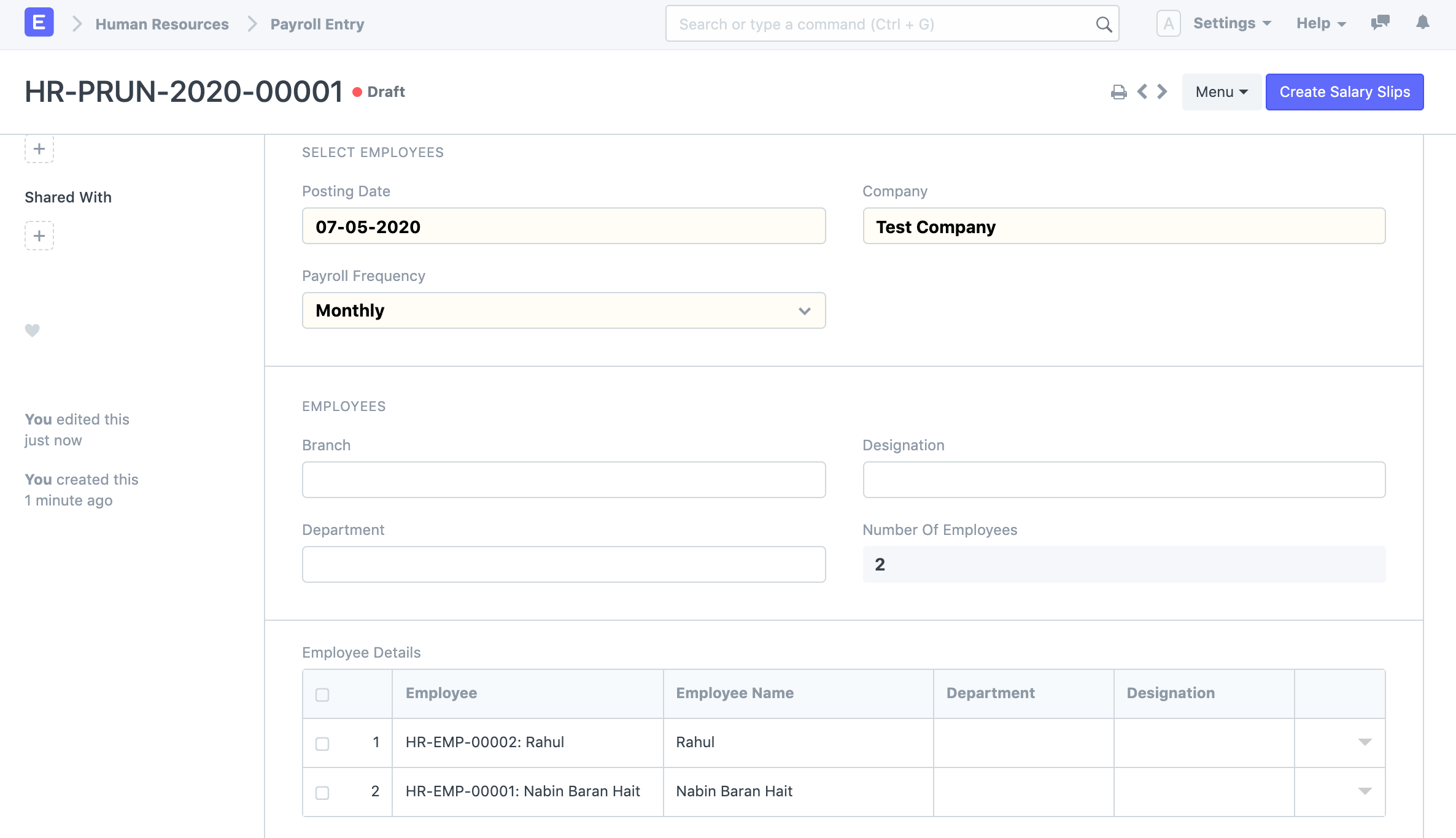
Note: If the system has previously created the Salary Slips, it won't create them again. The form can also be saved as a draft so that the salary slips can be created later.
2. Features
2.1 Salary Accrual2.
Once the salary slips have been verified, you may submit them all at once by selecting the Submit Salary Slip option.
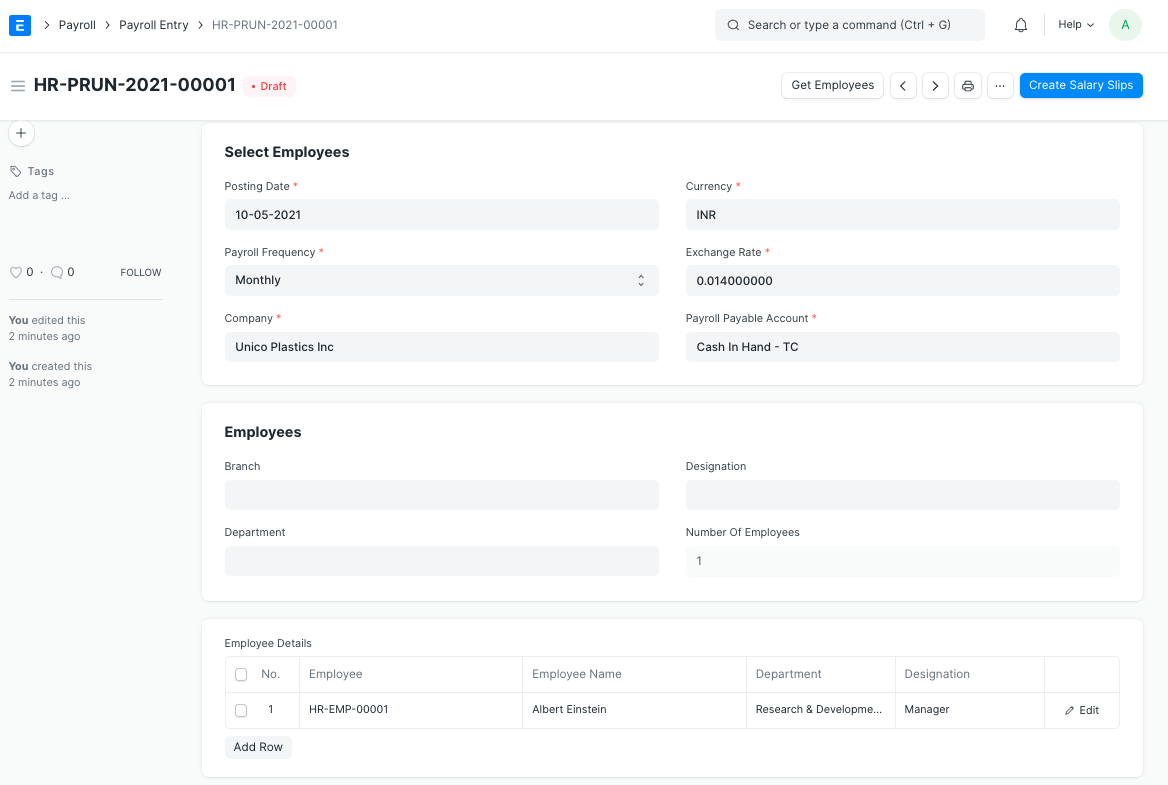
Additionally, this will record the accrual of salary to employees and book the default Payroll Payable account against the relevant Expenditure Heads (as set up in Salary Components).
Cost Center: In the payroll entry, you can choose the cost center against which the expenses will be posted.
By configuring Payroll Cost Center in the Employee/Department master, you can record expenses against multiple cost centers based on Employee/Department.
You can use the Pay Structure Assignment document to assign even several cost centers to a single employee.
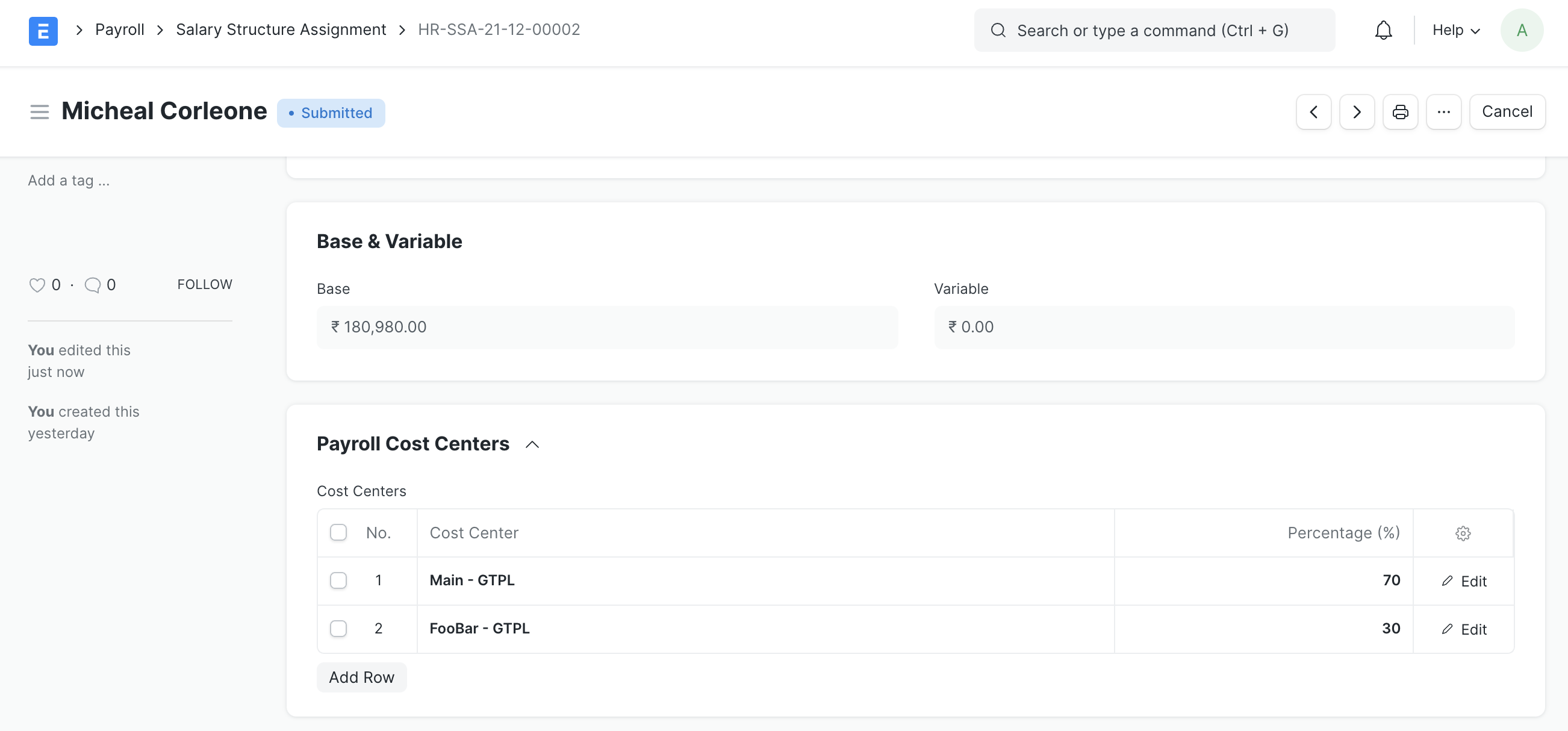
The cost center assigned in the salary structure assignment is given top priority, followed by the employee and, finally, the department master. The Cost Center picked in Payroll Input is given the lowest priority.
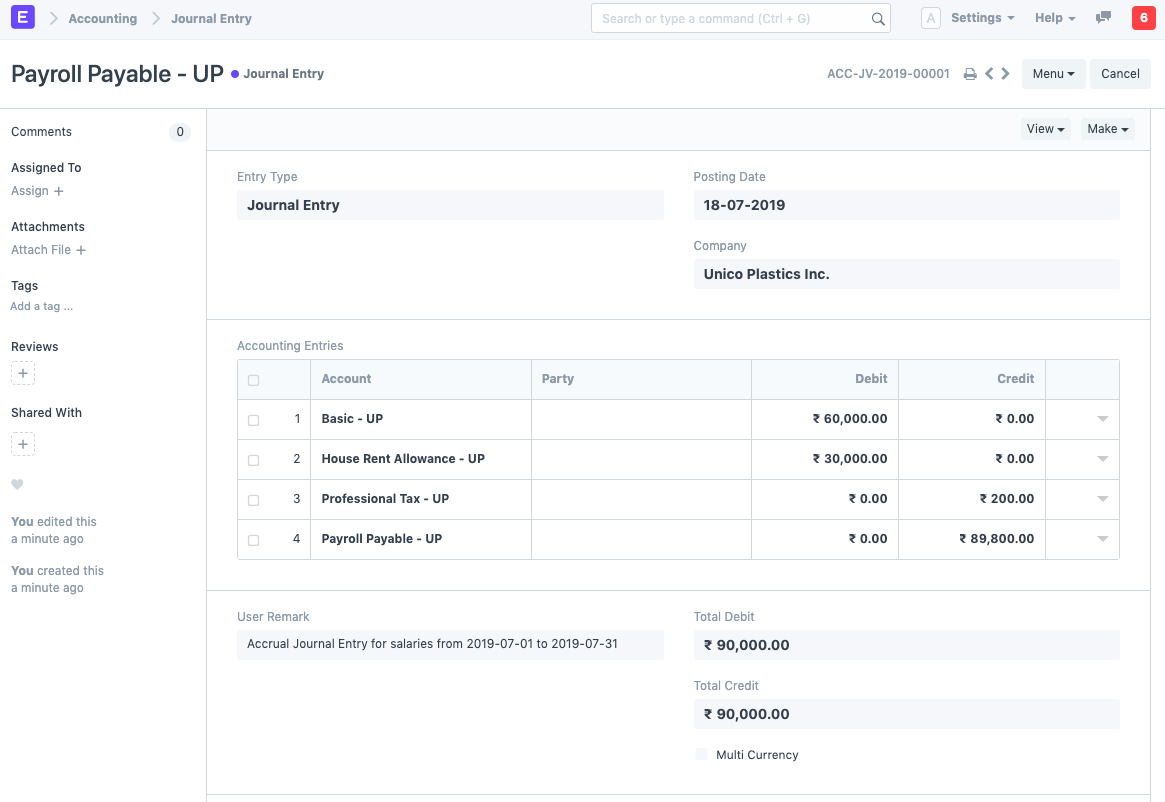
Note: Manually submitting salary slips one at a time won't result in the creation of the journal entry needed to track salary accrual.
2.2 Salary Payment
The salary payment must be booked as the last step.
Businesses typically deal with salaries in the strictest of confidence. The bank then distributes the payments to each employee's salary account. Typically, employers submit a single payment to the bank containing all salaries.
As a result, there is only one payment entry in the company's books of accounts, and the individual salaries are protected from anyone having access to the accounts.
The entry for the salary payment is a journal entry that debits the total of the Earnings type salary component and credits the total of the Deductions type salary component for all Employees to the default account defined at the Salary Component level for each component.
Click the Create Bank Entry button to create your salary payment voucher from Payroll Entry.
Payroll Entry will direct you to Journal Entry with the appropriate filters so that you may view the prepared draft Journal Vouchers. You must enter the transactions' reference number and date before submitting the journal entry.
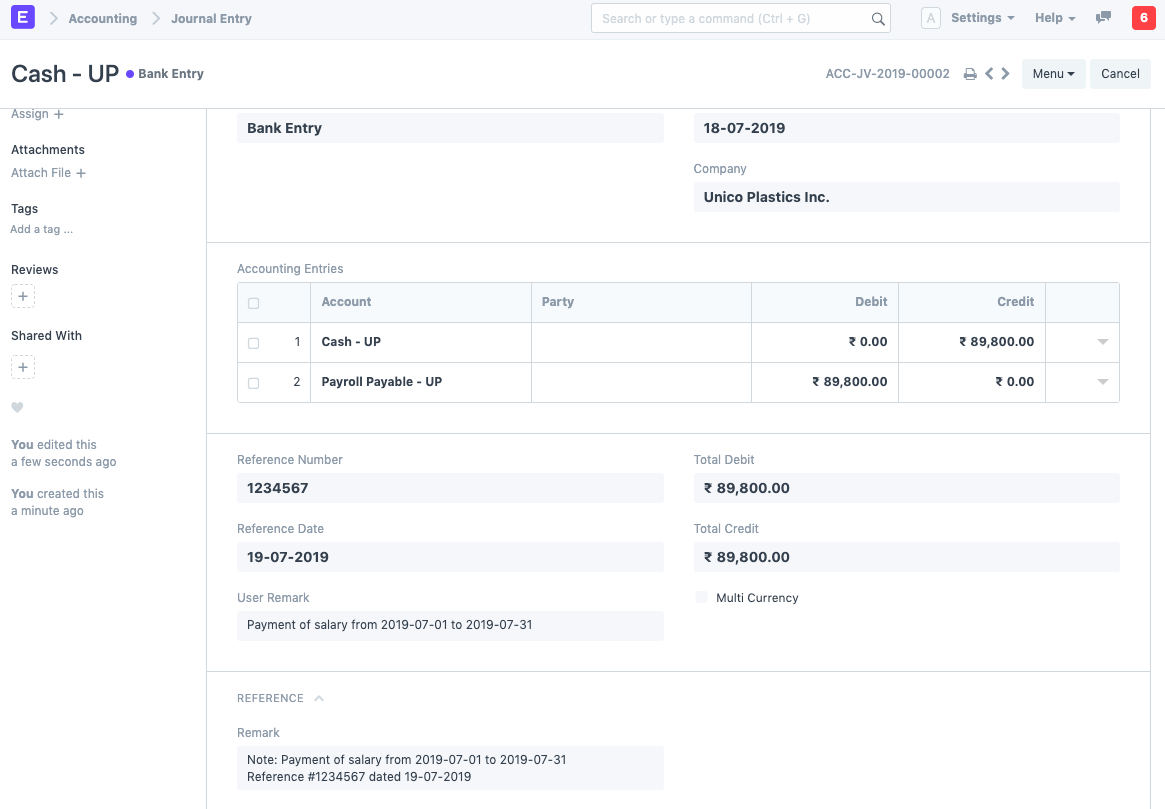
It should be noted that ERPNext will create separate draft journal entries for salary components that are flexible benefits and have the Generate Separate Payment Entry Against Benefit Claim checkbox selected.