Discount Accounting
Discount Accounting
Additional ledger entries for discounts are posted using discount accounting, in a different discount account. This is possible for:
1.Discounts are applied to specific items.
2.Extra discounts are added to each item in a bill.
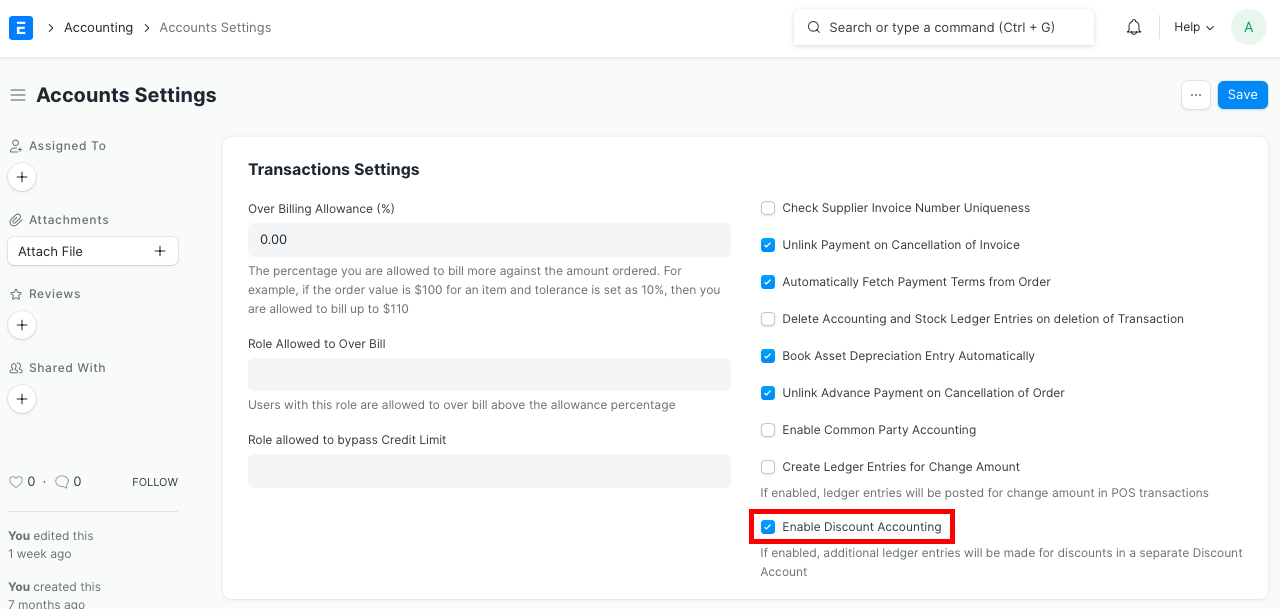
Steps 1.Check the Enable Discount Accounting box in the Accounts Settings page.
2.Create a Sales/Purchase Invoice as usual.
3.To post ledger entries for discounts applied on individual Items:
*Expand the row for that Item in the Items table
*Enter discount in the Discount and Margin section
*Scroll down to the Accounting Details section and enter the Discount Account
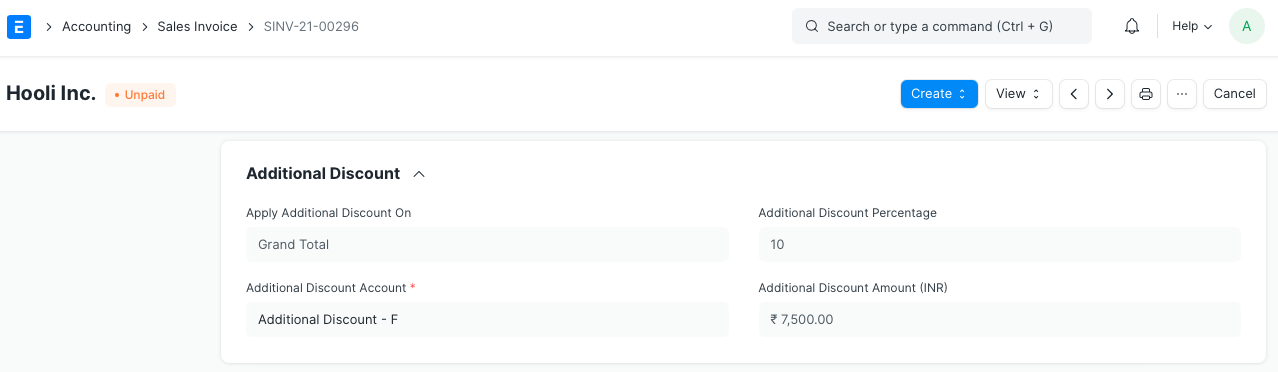
4.To post ledger entries for Additional Discounts applied on all the Items in an invoice:
*Go to the Additional Discount Section
*Enter the Additional Discount Amount/Percentage and the Additional Discount Account
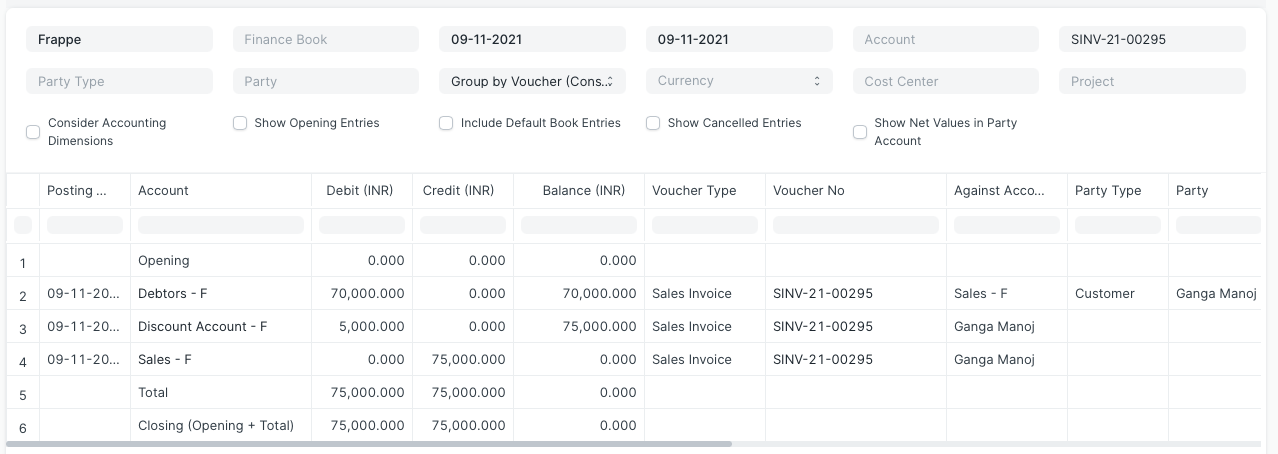
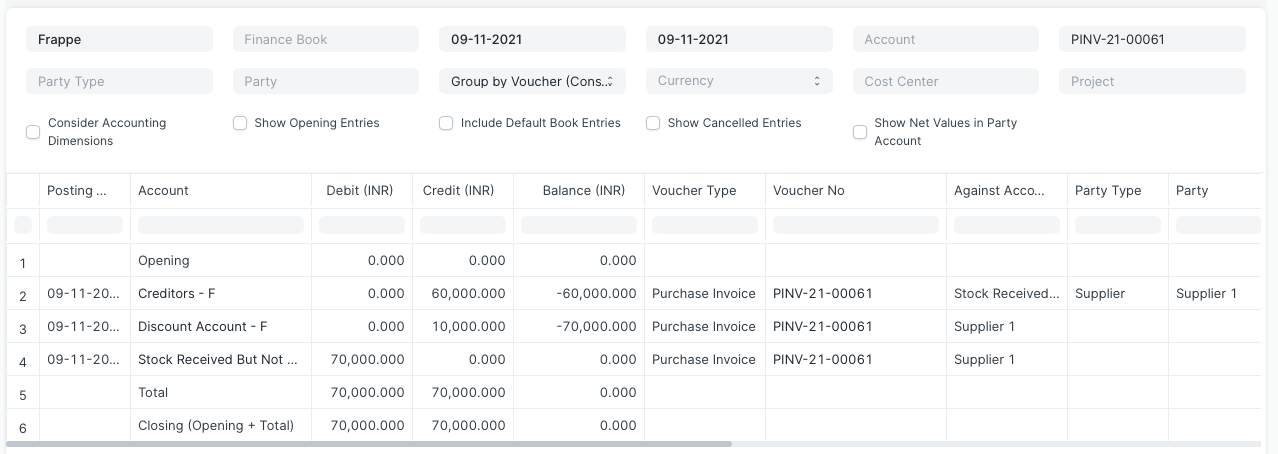
5.Save and submit the invoice to create ledger entries as shown below:
*For Sales Invoices: *
*For Purchase Invoices: *
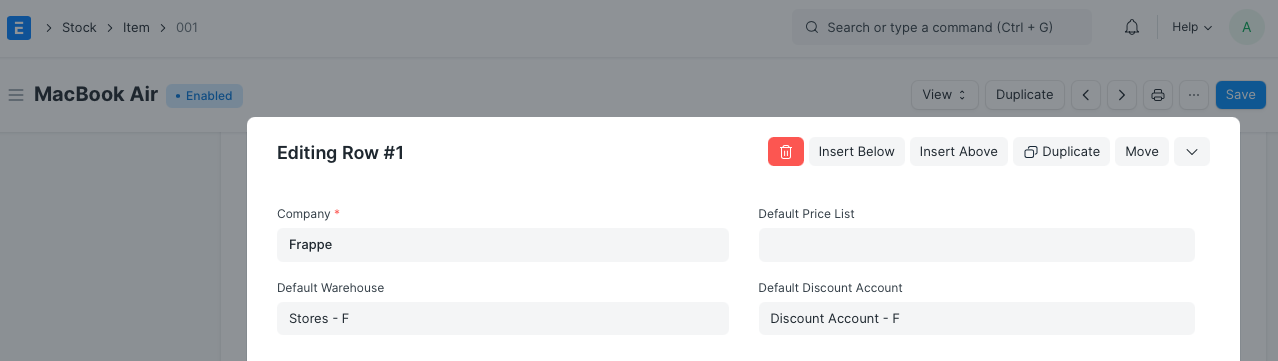
Default Discount Accoun A Default Discount Account for an Item can also be entered, and it will be automatically obtained when creating the Invoice. The Enable Discount Accounting checkbox in Accounts Settings affects this field's appearance.
1.Open the Item doc.
2.Go to the Item Defaults table in the Sales, Purchase, Accounting Defaults section.
3.Expand the row of your choice and enter the Default Discount Account for the Item