Linking Emails to Document
Introduced in v12
An email can be linked to multiple documents in Geer ERP.
There are two ways to accomplish this:
- Aggregation of emails under Contact, Customer, and Supplier.
- Linking Emails Automatically.
1. Email Aggregation for Customer and Supplier
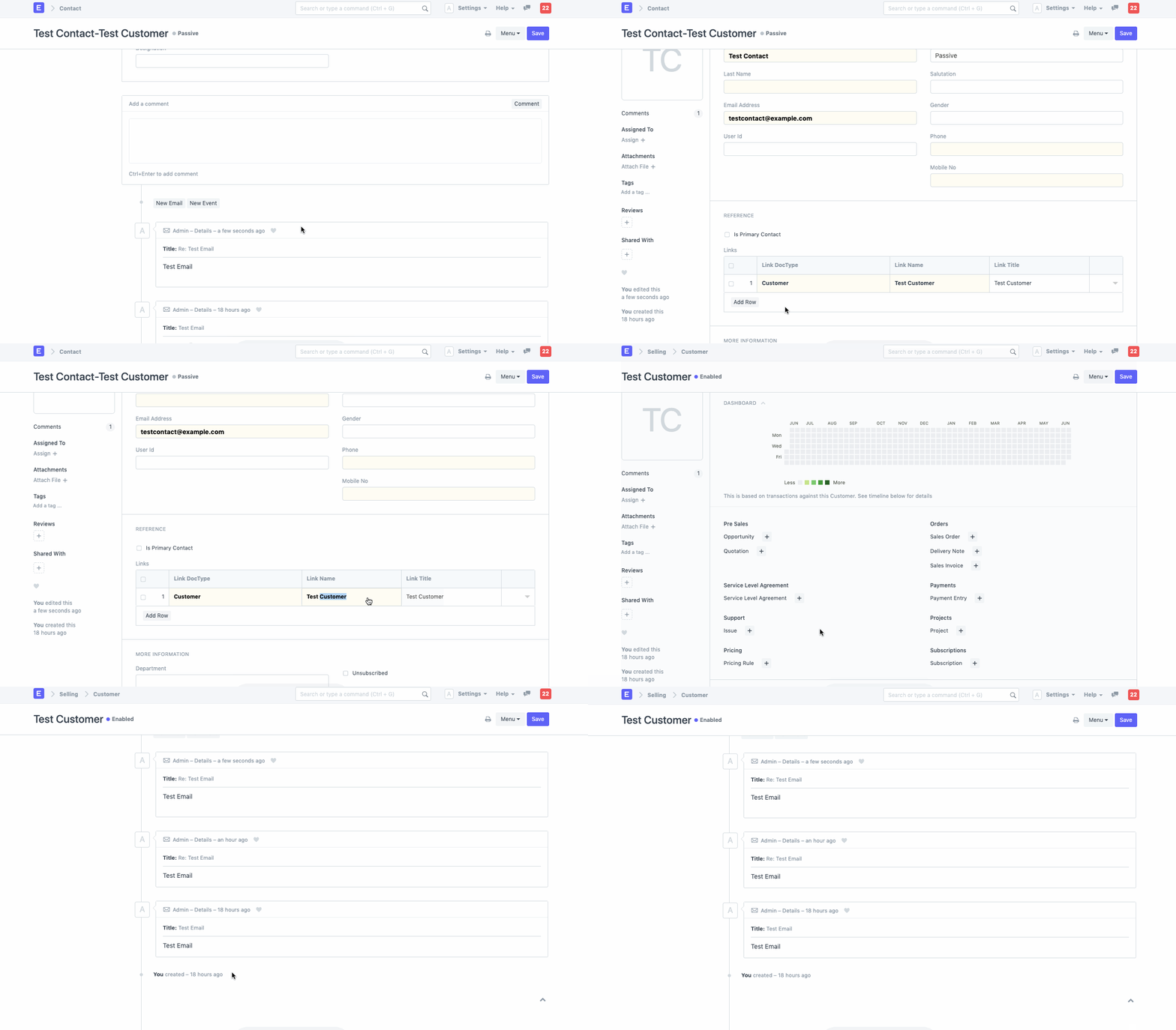
Emails are aggregated in the Contact, Customer, and Supplier databases. The Timeline of a Contact, along with any associated Customers' or Suppliers' Timelines, both allow seeing all Emails sent or received from that Contact. Take the following actions to enable Email Aggregation:
Add Links for the Customer or Supplier to the Contact, as appropriate.
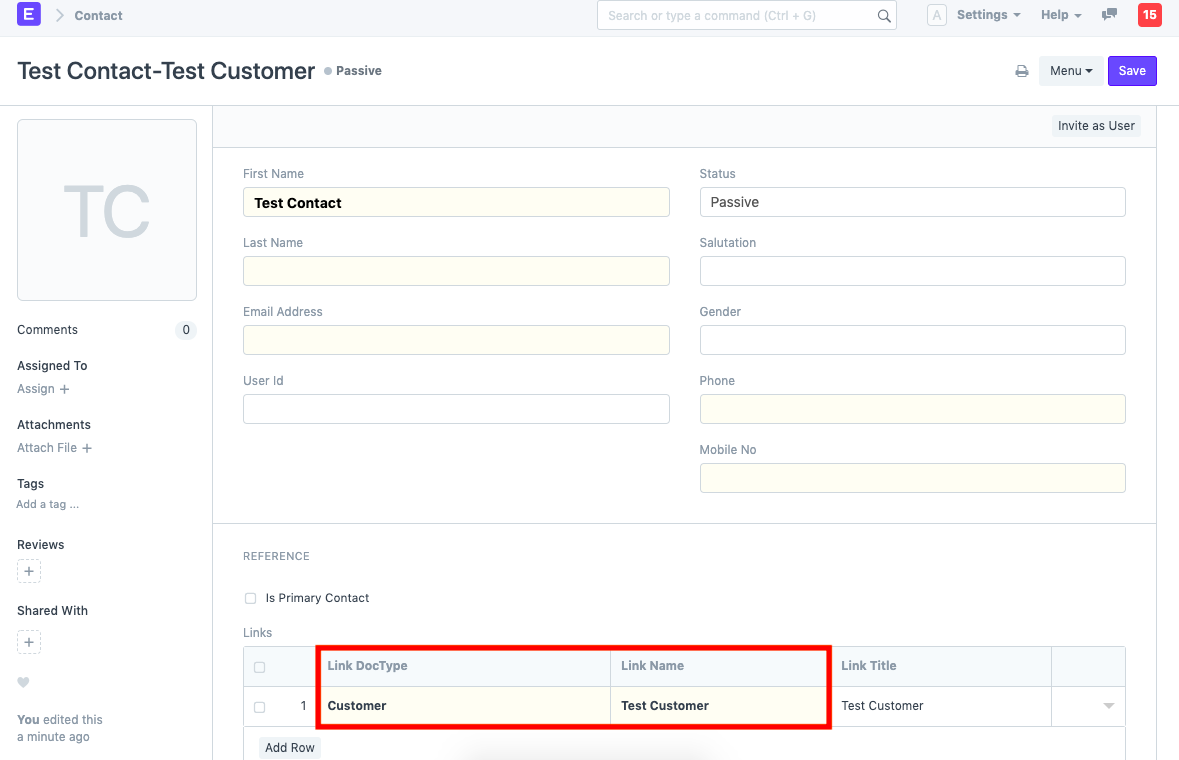
The email is now linked to the Customer or Supplier stated in the Links section of the Contact whenever it is sent to or received from the Contact associated with a Customer or Supplier.
2. Automatic Email Linking to a Document
Automatic Email Linking automatically associates an email with the document that is referenced in the special email address that the system creates for a document. The system will associate all emails sent or received using the specific email address with the Document.
In your email account, enable automatic email linking. Only one Email Account may be used with this functionality at once.
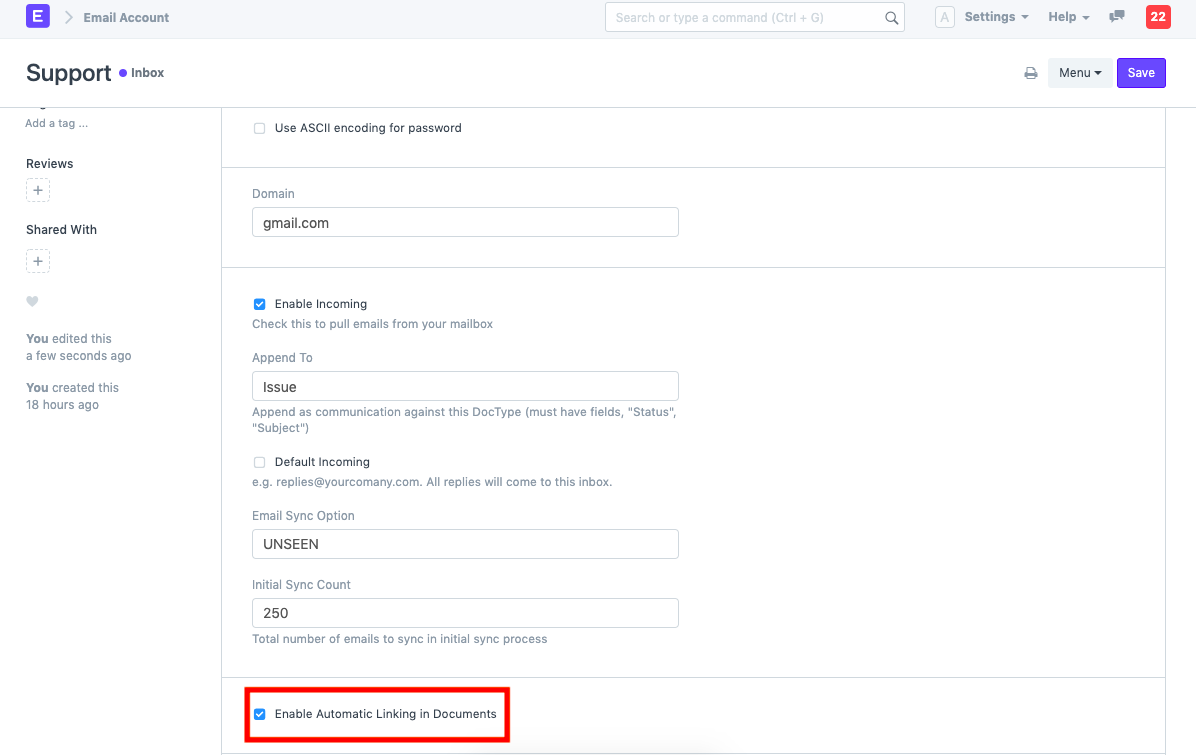
You will notice a distinct Email ID generated using the Email ID specified in the Email Account after this functionality has been activated.
Now that you have clicked on the email ID, you can copy it and use it to send or receive emails. The system will associate an Email with the designated Document if it has this specific Email ID in the Recipients, Cc, or Bcc section
