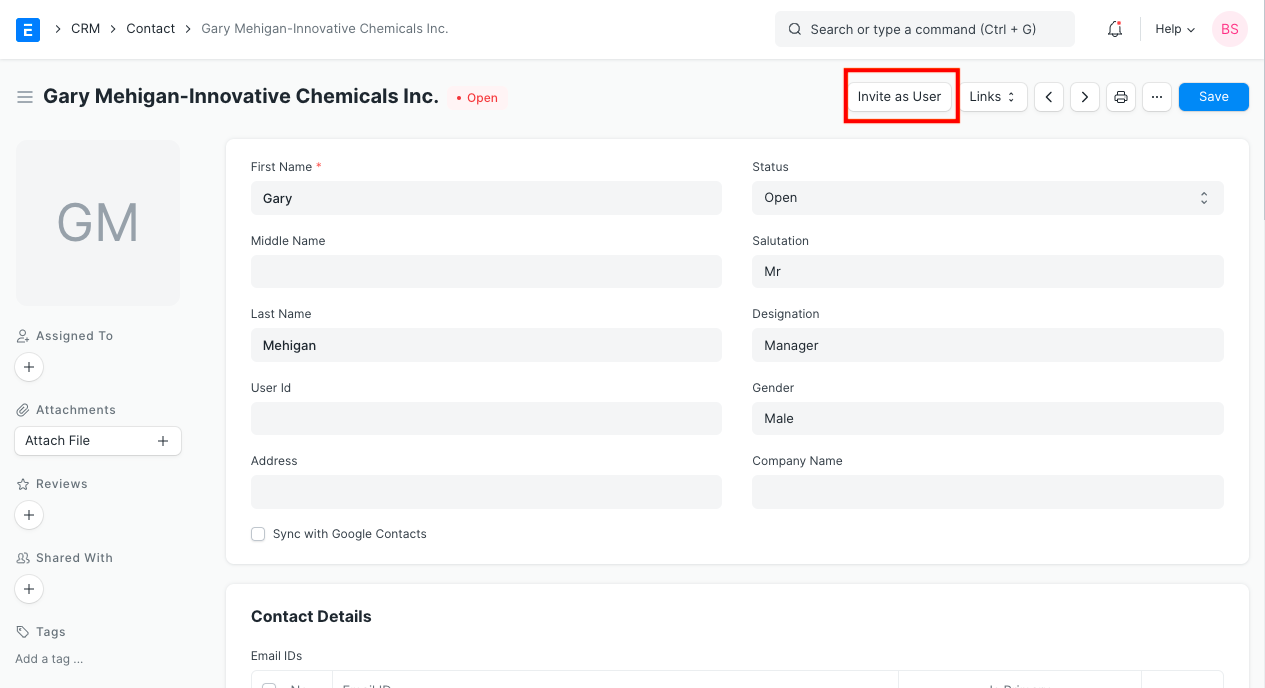
Contact
Contact
Contact is an individual.
A lead, customer, supplier, shareholder, sales partner, or user may all be connected to the same contact.
Without connecting it to any of the aforementioned entities, you may also add contact as a stand-alone record.
Go to: to access the Contact list.
Home > CRM > Sales Pipeline > Contact
1. How to create a Contact
1.Choose New from the Contact list.
2.Type in your first and last names.
3.Choose if the contact is inactive, available for contact, or has already responded.
4.Add your contact information, including phone and email.
5.Save.
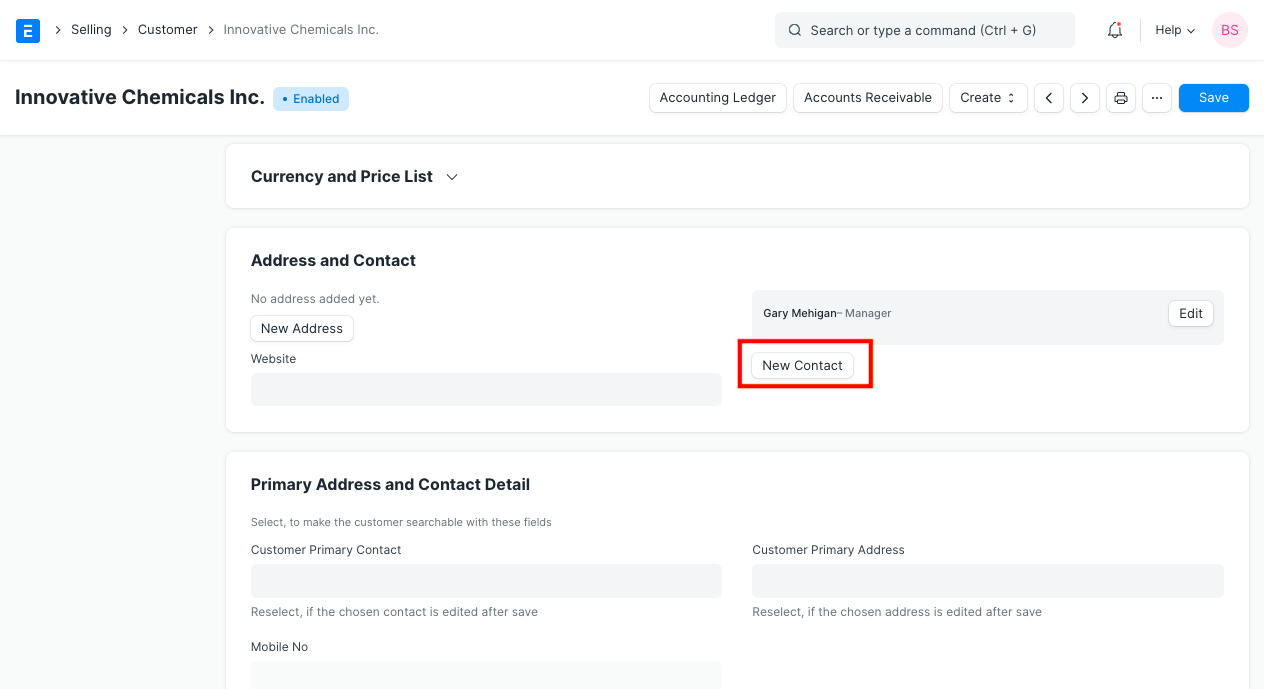
By selecting the "New Contact" button as displayed below, you may easily add a Contact from the Customer or Supplier record.
If an entity, such as a client or supplier, has many contacts, you can tick "Is Main Contact" to designate the preferred contact. When completing transactions like sales orders and sales invoices, the key contact will be selected automatically.
Use the Data Import Tool to import several contacts from a spreadsheet.
2. Features
2.1 Link a Contact to Multiple Entities
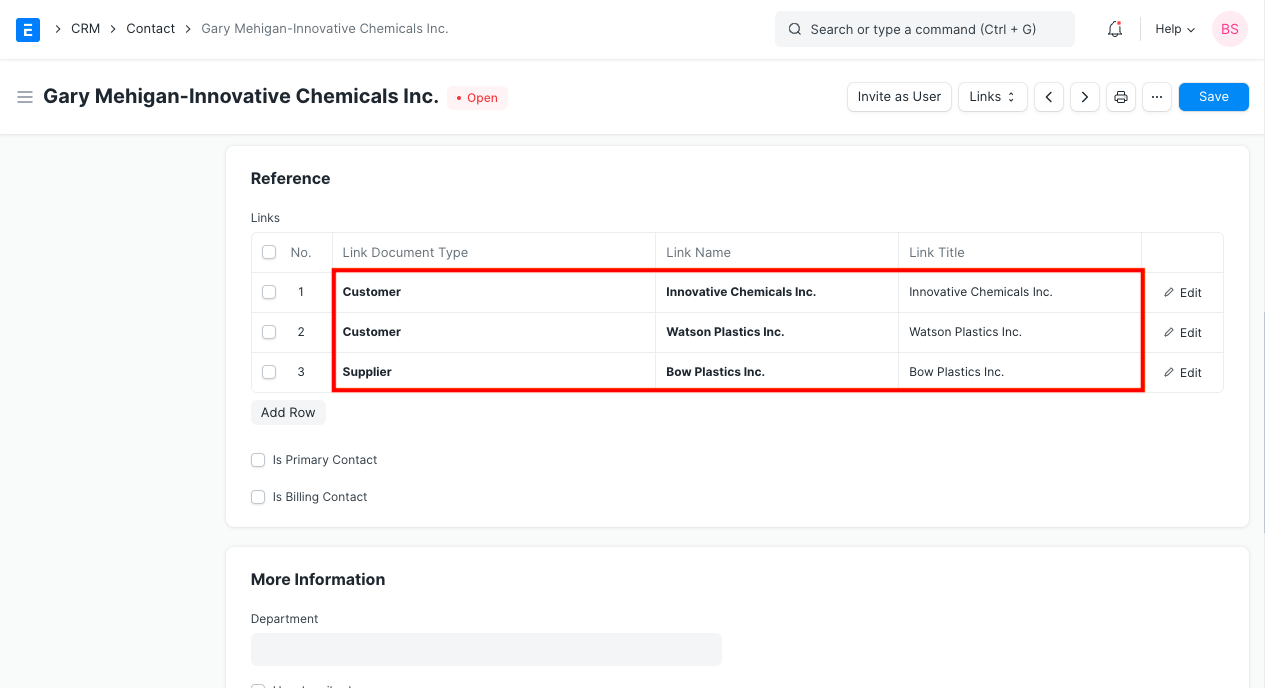
A contact may be connected to numerous clients or suppliers.
A contact may be connected simultaneously to both customers and suppliers.
2.2 Invite the Contact as a User
You can grant access to your ERPNext system to contacts of your clients and suppliers so they can examine information pertinent to them. For more information on this, visit the customer portal. By choosing the "Invite as User" button, you can send an email invitation to a contact.