Multi Currency Accounting
Multi Currency Accounting
Multi Currency Accounting is the practice of transacting in two separate currencies.
Accounting entries can be made in several currencies in ERPNext. For instance, if you have a bank account in a foreign currency, the system will only display your bank balance in that currency when you make transactions.
You can have foreign currency bank accounts for subsidiaries of your own business or debtor/creditor accounts for international clients and suppliers.
1. Setup
1.1 Set currency in Chart of Accounts
You must assign accounting currency in the Account record in order to begin using multi-currency accounting. When creating an account, you can define the currency from the chart of accounts.
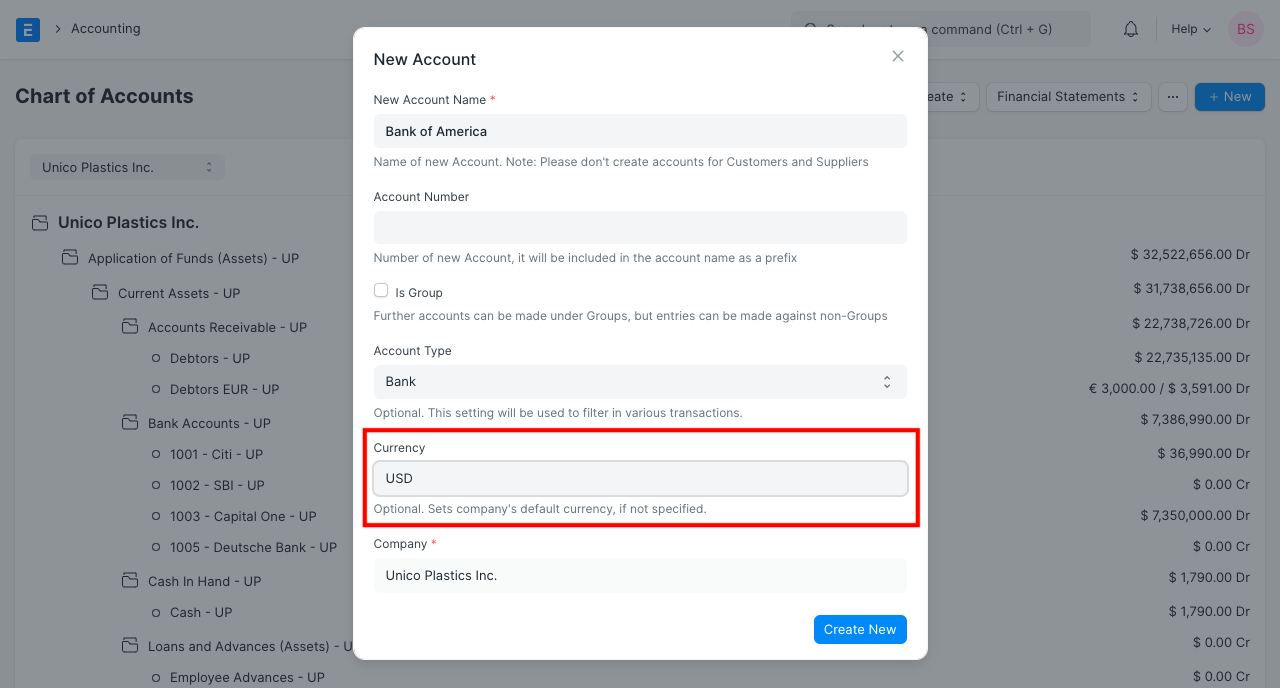
1.2 New account with different currency
Open particular Account records for existing Accounts to allocate or adjust the currency.

1.3 Currency for Customer/Supplier
You can specify the invoicing currency for the Customer/Supplier (Party) in the party record. If the party uses a different accounting currency than the company, you must provide the Default Receivable/Payable Account in that currency.
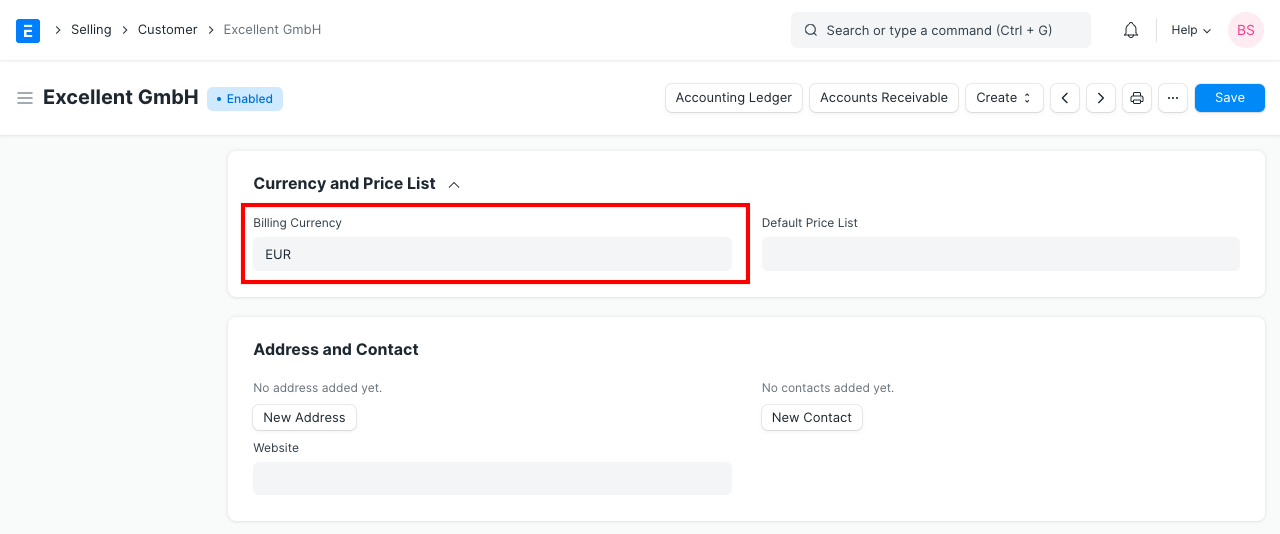
1.4 After setup
You are prepared to conduct transactions against them after defining Currency in the necessary account(s) and choosing pertinent accounts in the Party record. The system will prevent you from conducting transactions with that party if the party's account currency differs from the company currency.
The currency in the transaction (Sales or Purchase Order/Invoice) needs to be changed to the party currency. You can conduct business for that Party in any currency if the currency of the party account matches the currency of the company. GL Entries, however, will always be made in Party Account Money.
Note: Ensure that the correct account with currency is set in the 'Debit To' field when making invoices/payments.
Before you perform any transactions against a party or account, you can modify the accounting currency in that record. The system will prevent you from changing the currency for both Party/Account records once accounting entries have been made. The party's accounting currency must be the same for each business in a multi-company configuration.
2. Exchange Rates
ERPNext offers the Currency Exchange page for controlling exchange rates when working with different currencies. It enables you to save the necessary exchange rate quotes. Visit the Currency Exchange page to learn more.
1.ERPNext looks up exchange rates for transactions involving foreign currencies at:
2.For any pertinent records, from the Currency Exchange (if created by a User).
3.If this is unsuccessful, ERPNext will try to contact Frankfurter to obtain the current market exchange rate. .NOTE: Exchangerate.host will take the place of Frankfurter as of ERPNext version 13.10.0.
4.The currency rate will need to be manually entered if this still fails.
If "Allow Stale Exchange Rate" is enabled in Accounts Settings determines how the rates in the Currency Exchange master are obtained. Visit the Accounts Settings page to learn more.
3. Transactions
3.1 Sales Invoice
If the customer's accounting currency is different from the company currency, the transaction currency in the sales invoice must match that difference. On the other hand, a Sales Invoice lets you choose any currency. The system will retrieve a Receivable account from the Customer or Company upon selection of the Customer. The Receivable Account's Currency and the Customer's Accounting Currency must match.
Paid Amount will now be entered in transaction currency rather than the previous company currency in the invoice. The transaction currency will also be used to enter the Write Off Amount.
Always be aware that the Outstanding Amount and Advance Amount are calculated and displayed in the Customer's Account Currency. The payment entry will show the amounts paid:
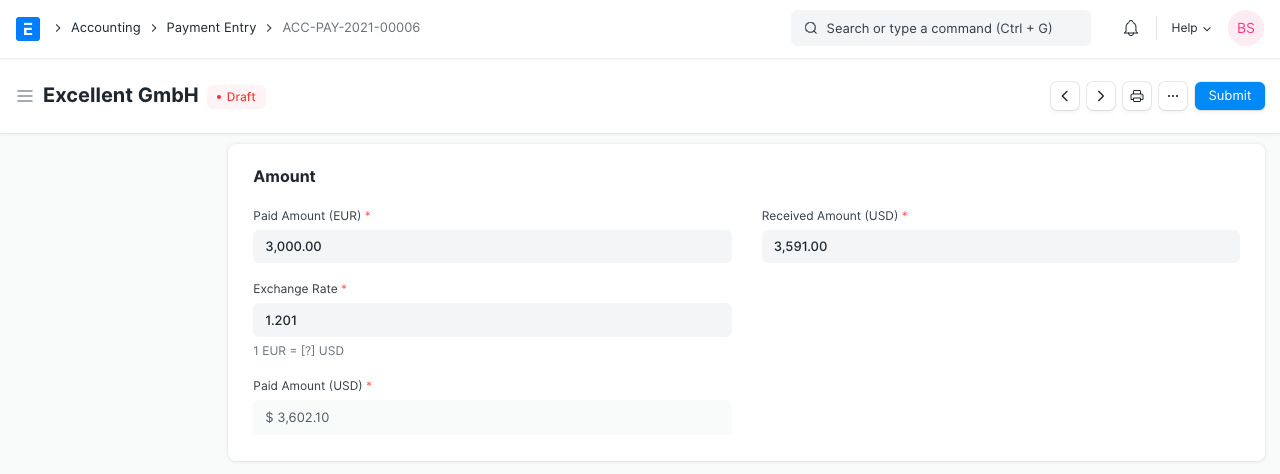
3.2 Purchase Invoice
Comparable accounting entries will be made on a purchase invoice using the supplier's accounting currency. Moreover, the Outstanding Amount and Advance Amount will be displayed in the accounting currency of the supplier. We'll now input the write-off amount in the transaction currency.
3.3 Journal Entry
You can enter transactions in several currencies in Journal Entry. To allow multi-currency entries, there is an option labeled "Multi Currency." Only when the "Multi Currency" option is chosen will you be able to choose accounts with various currencies.
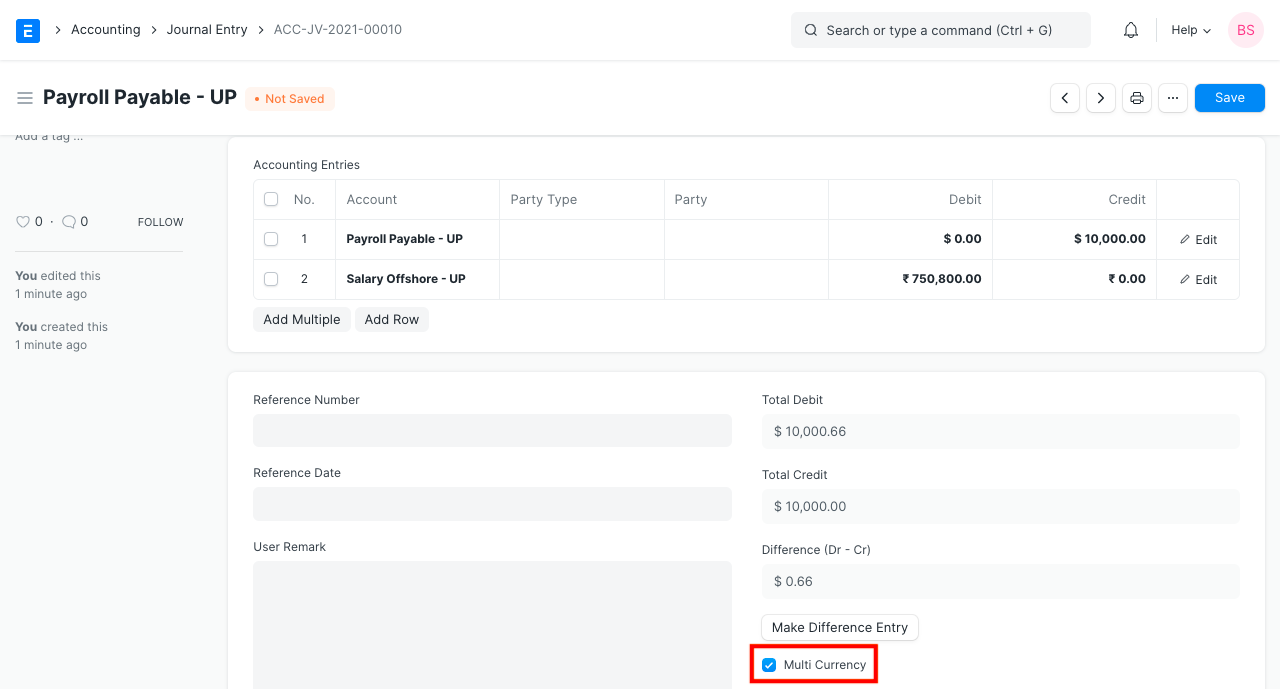
When a foreign currency account is selected in the Accounts table, the system will display the Currency section and automatically fetch the Account Currency and Exchange Rate. The Exchange Rate can be manually modified at a later time. The system will automatically compute and display the debit/credit amount in company currency after the debit/credit amount has been entered in account currency.

4. Reports
4.1 General Ledger
The system displays debit/credit amounts in party currency in the general ledger when filtered by an account whose currency is different from the company's.

4.2 Accounts Receivable/Payable
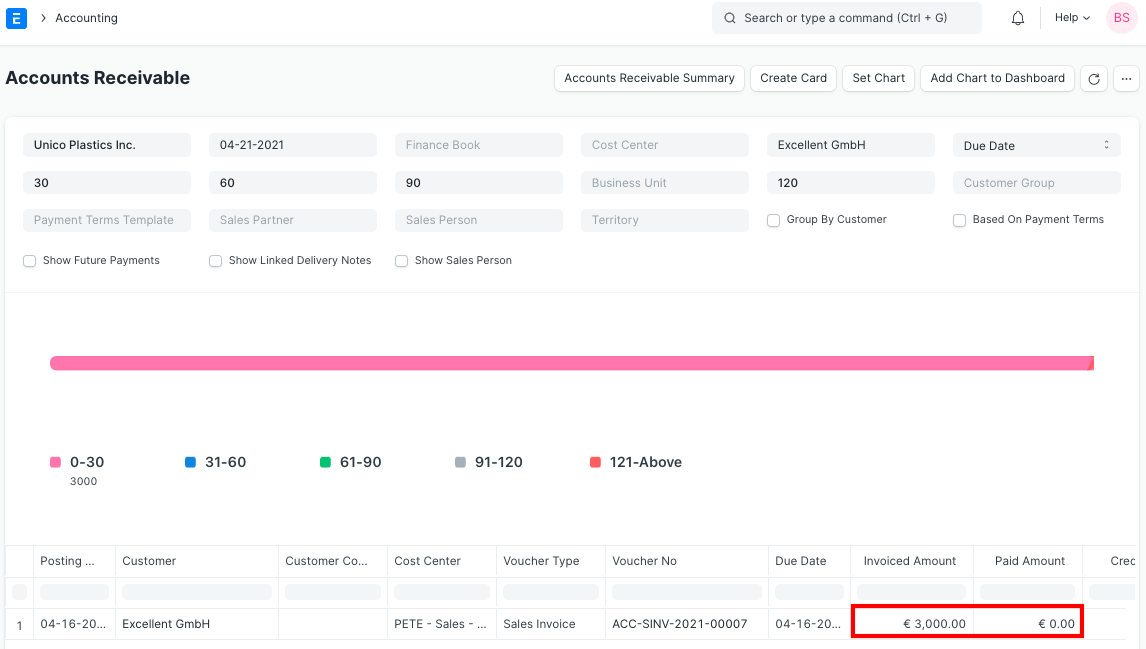
All amounts are displayed in Party/Account Currency in the Accounts Receivable/Payable report by the system.