Using Auto Attendance
Using Auto Attendance
Our solution enables automatic marking of attendance based on employee check-in data. There are a few things you should be aware of:
A. Make an employee check-in or import one:
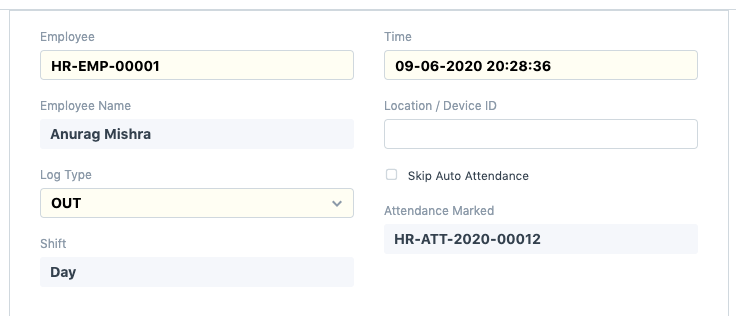
Carefully choose the timing for log type IN and OUT.
Commence checking in prior to the start of the shift for Log Type IN time, which should be greater than Shift Type Start Time.
In order to allow check-out after the shift end time, the log type OUT time should be smaller than the shift type end time.
Just Shift would then be correctly mapped, and your Checkin would be valid.
B. Verify the shift type:
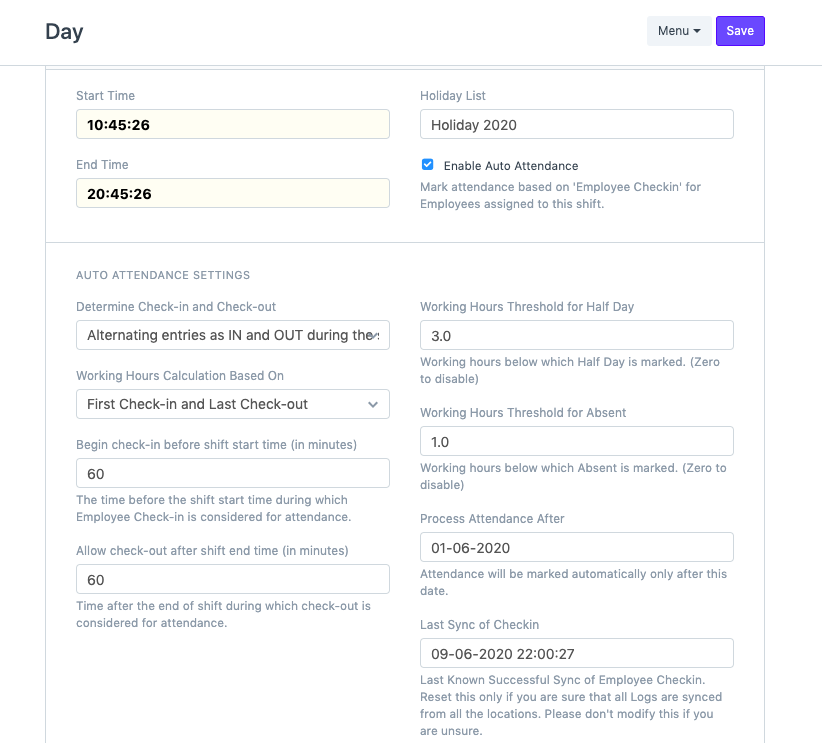
Process Attendance Is Established After (Attendance will be marked Only after this date)
Adjust the Last Sync of Checkins (That is the period frame prior to which all check-ins will be taken into account. Note that if the time is less than the shift finish time, that day's check-in will not be taken into account because the shift is still in progress.
C. Choose Mark Auto Attendance to see if it's operational.
Observe: Taking into account that our scheduler will automatically record attendance tracking system will be launched by our scheduler will automatically mark time. But, you must verify your Process Attendance After and Last Sync of Checkins in Shift Type after uploading or making check-ins.