Guardian
*Guardian
You can enter information about a student's guardians in Guardian.
Each student may have more than one parent, such as a mother, father, brother, or sister.
Go to: to access Guardian.
Home > Education > Student > Guardian
1. Prerequisites
It is suggested to first create the following before making a Guardian:
Student
User
2. How to create a Guardian
On the Guardian List, select New Guardian.
Click on Save after adding the Guardian's name.
2.1. Additional Options while creating a Guardian
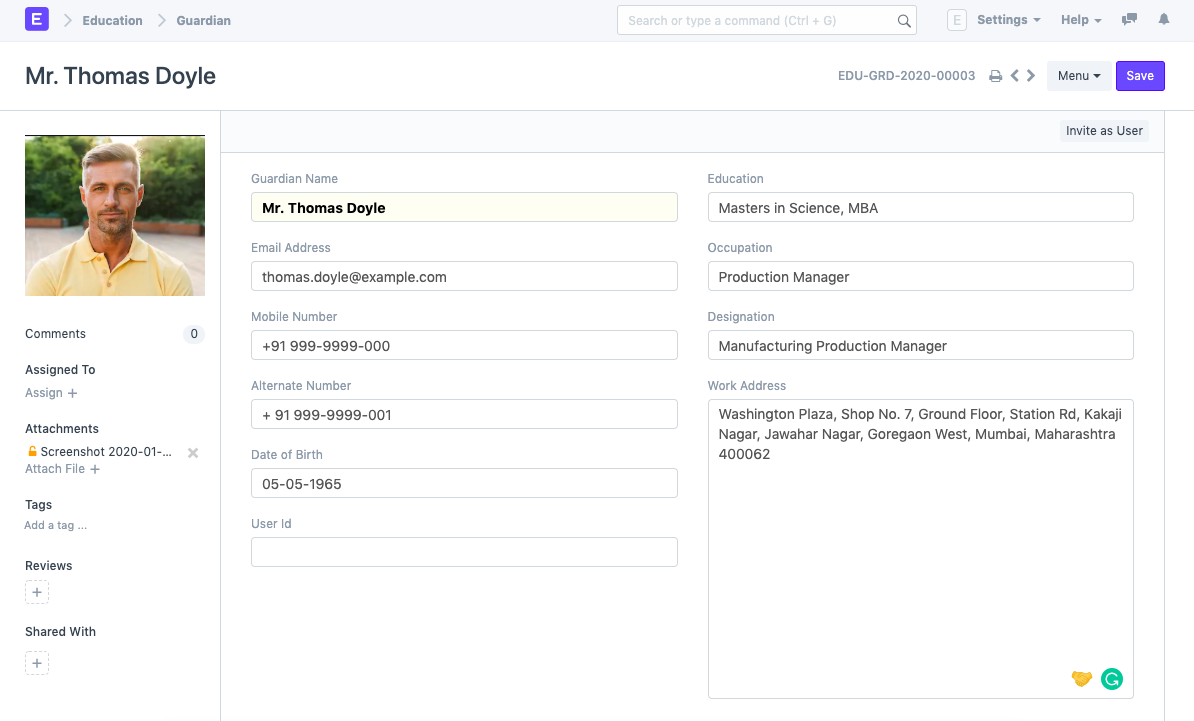
In addition to the Guardian's mandatory information, you may also include the following information:
- Email: Type the Guardian's email address here. The email address can be connected to an email list to send announcements or newsletters.
Mobile Number: The Guardian's mobile number is listed here.
Alternative Mobile Number: For emergencies, you can add the Guardian's alternate mobile number here.
- Date of Birth: The Guardian's birthdate may be found here.
The Guardian's User ID may be mentioned here if they are a System User.
Education: This section contains the Guardian's academic and educational background.
Occupation: This is a good representation of the Guardian's occupation.
Designation: This field allows you to specify the Guardian's designation.
Work Address: The Guardian's work address might be noted here in case of an emergency.
3. Features
3.1. Guardian Of
If you chose a specific guardian when creating the student, the student's name will be immediately retrieved here. The same person may serve as the guardian for multiple students. In that situation, this section will have many entries. On the front end, additional students cannot be added to this section.
.png)
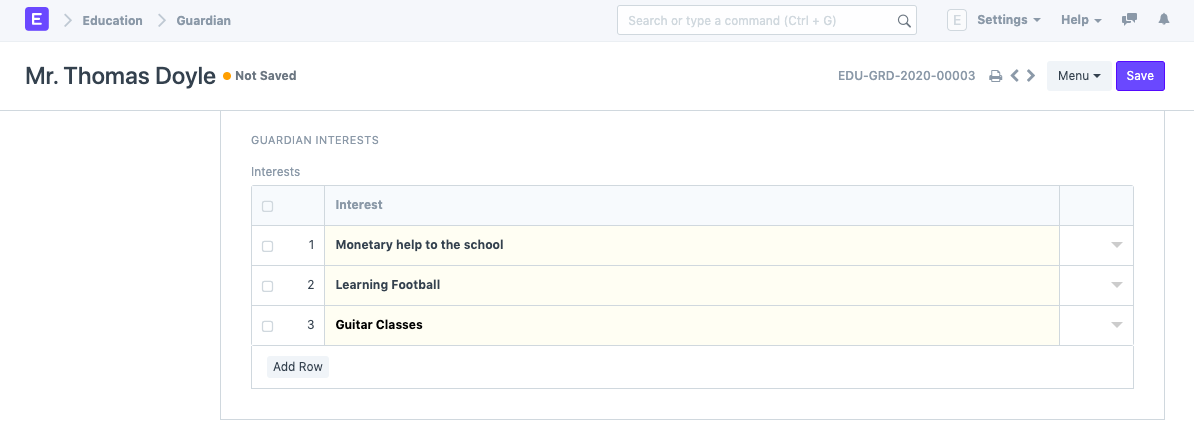
3.2. Guardian Interests
The Guardian's list of interests may include things they are willing to do for the organization or things they would like their dependent or ward to participate in as extracurricular activities.
4. Making the Guardian A User
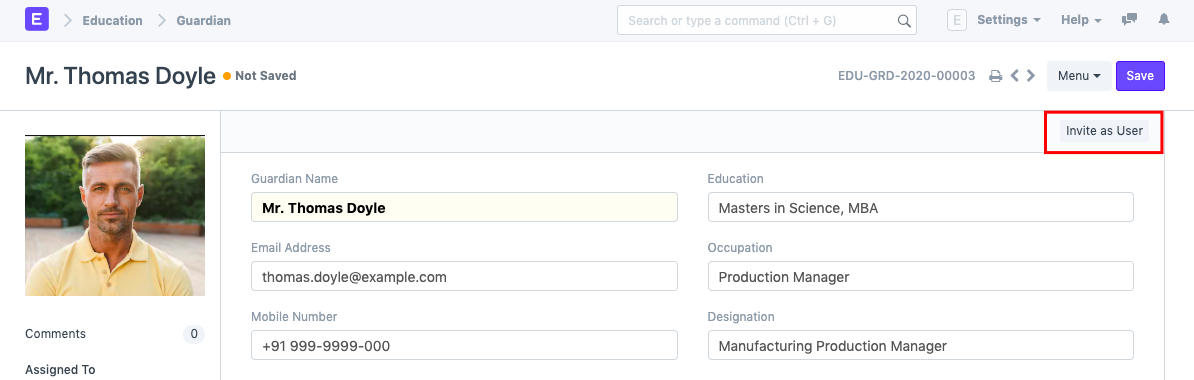
Once Guardian has been saved, a button labeled "Invite As User" can be seen in the form's upper right corner. By clicking this button, you can send the guardian an invitation email to join ERPNext on the registered email address.