Letter Head
A Letter Head contains your organization's name, logo, address, etc which appears at the top portion in documents.
Every business has a standard letterhead. In most documents, the Header and Footer values for Letter Head are set. These specifics can be included into the Letter Head master in ERPNext.
Transactions like Sales Order, Sales Invoice, Salary Slip, Purchase Order, etc. would have these details in the Print Format. The Letter Head setting in Geer ERP only affects the top portion of the page; all other material is already pre-formatted and may be customized using Print Format and Print Headings.
Go to: to access Letter Head.
Home > Settings > Letter Head
1. How to create a Letter Head
- Go to the Letter Head list, click on New.
- Enter a name for the Letter Head. You can create a separate Letter Head for different office locations.
- Choose whether based on image or HTML.
- You can enter details in a Letter Head by using:
- Logo Image: Click on the Attach button to attach an image. Once the image is inserted, HTML for it will be generated automatically.
- Other information (like Address, tax ID, etc.) that you want to put on your Letter Head.
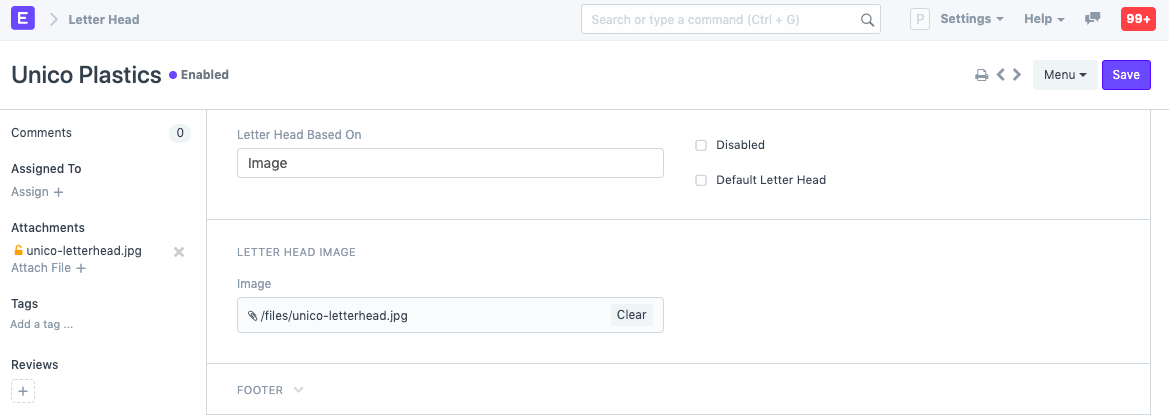 Click "Default Letter Head" to set this as the default letterhead.
- Save the Letter Head after entering values in the Header and Footer sections.
To make adjustments, you can set the Letter Head's HTML basis to:
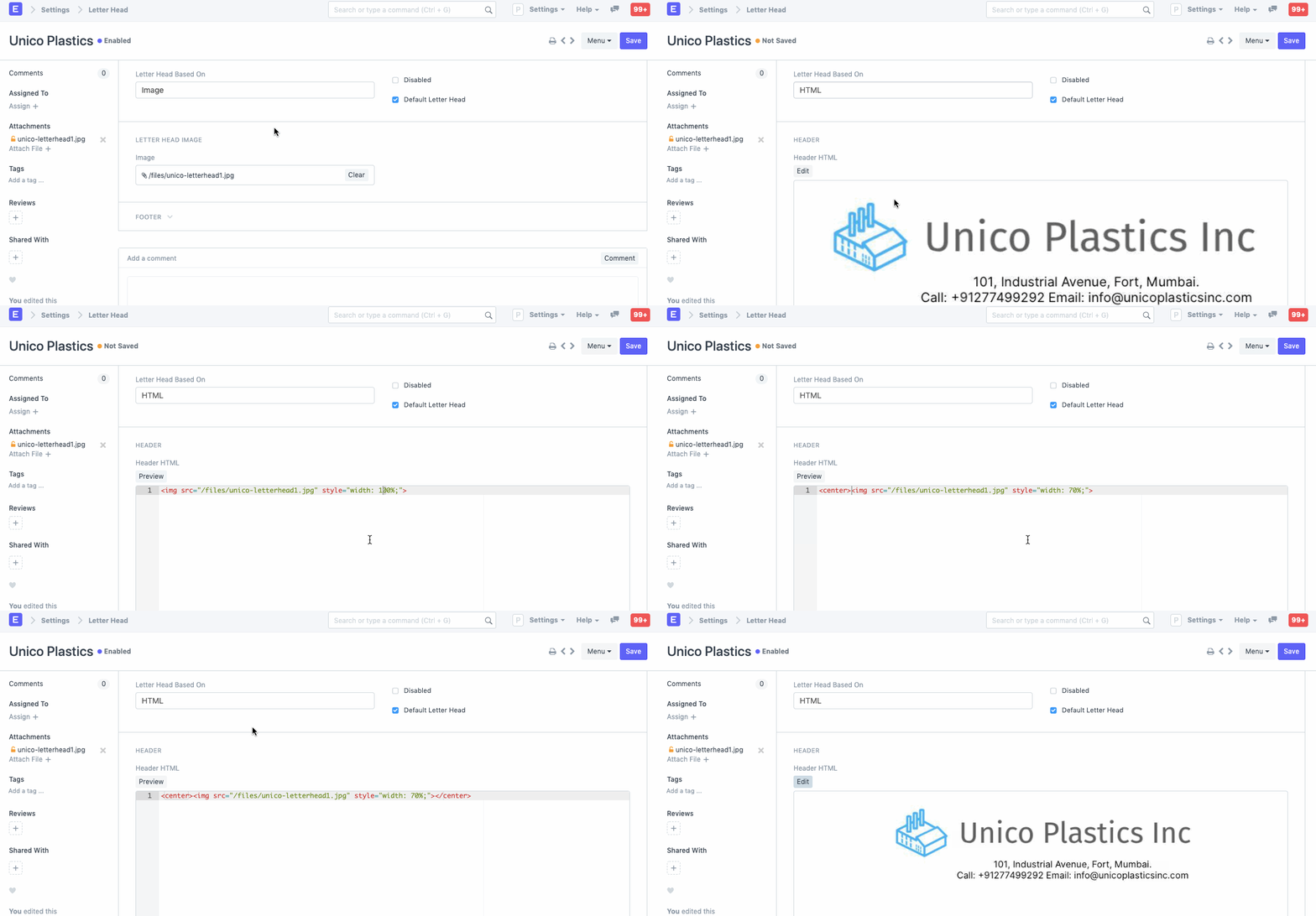
This is how the Letter Head appears in printed documents.
.png)
Note that Footer will be visible only when the document's print is seen in the PDF. Footer will not be visible in the HTML based print preview.