Energy Point System
Energy Points System is a rating/karma system that you can enable for your organization.
It is possible to monitor each user's performance using this method.
To enable Energy Point System go to Energy Point Settings check Enabled.
1. How to use the Energy Point System?
In order for users to receive energy points based on their activity, you must first develop some energy point rules (see section 3. How to create energy point rules?).
2. What are Energy Point Rules?
Information about the action and the number of points to be awarded is stored in Energy Point Rules.
The following fields are part of Energy Point Rule:
| Field | Description |
|---|---|
| Reference DocType | You can apply the rule to any document type, such as a task, to-do item, issue, etc. |
| For Document Event | Save, Submit, Cancel, and Custom are available options. |
| Note: The "Conditions" column becomes required if the "Custom" option is chosen. | |
| Points | To be distributed points. |
| Allot Points To Assigned Users | Users assigned to the reference document will receive points if checked. Users Reema and Jai, for instance, will both receive points if the document meets the criteria if they are assigned to a certain assignment. |
| User Field | Resolved By, Modified By, Owner, and other fields can be used to select the user. The last individual to meet the doc criteria will receive the points if Modified By is chosen. |
| Multiplier Field | field that houses the multiplier's value. This field can accept decimal and arithmetic values that will be multiplied by the number of points specified in the rule. |
| For instance: 10 points from the rule plus 2 multiplier equals 20 points. | |
| Condition | requisite for awarding points. |
for example, doc.status == "Closed" The aforementioned condition will determine whether the document's status field is set to "Closed" and, if it is, the user will be awarded the points. | | Apply Only Once | The restriction will only be imposed once per document. |
Note: User Field and Multiplier Field are fetched from the reference doctype
3. How to create Energy Point Rules?
Search for Energy Point Rule > create new Energy Point Rule
Look at the following illustration of a rule:
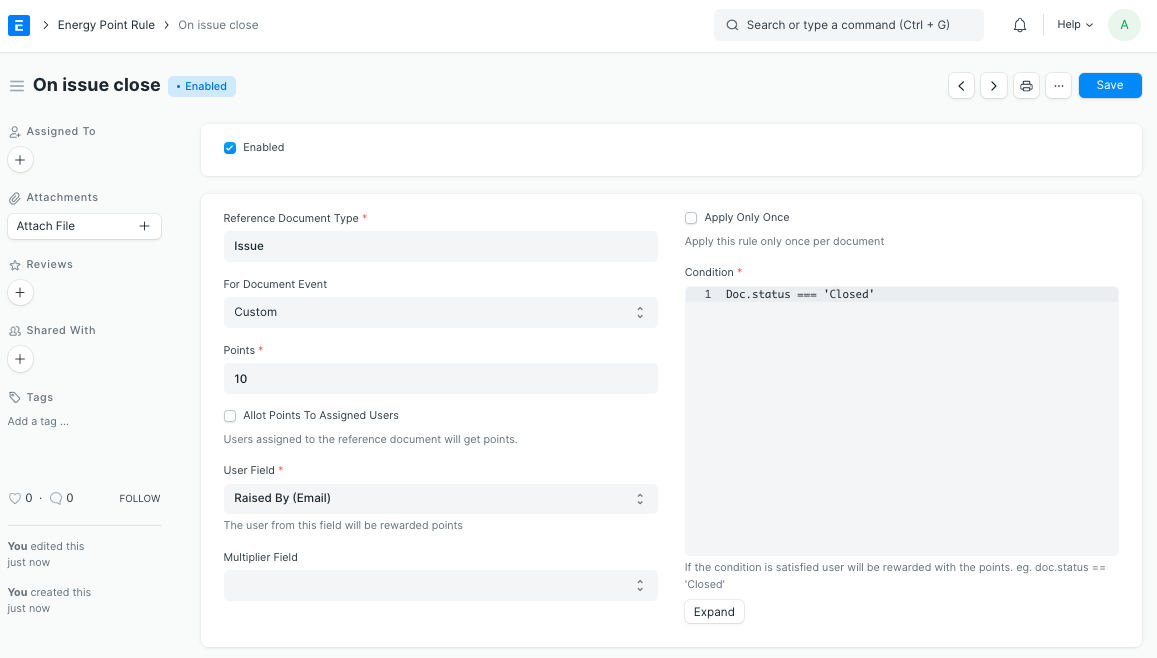 The policy for issue closure is shown in the screenshot above. Therefore, each time a user closes an issue, they receive 10 points.
The same can be said for other situations.
If you want to build a rule where a user receives points for completing a task, create the rule below.
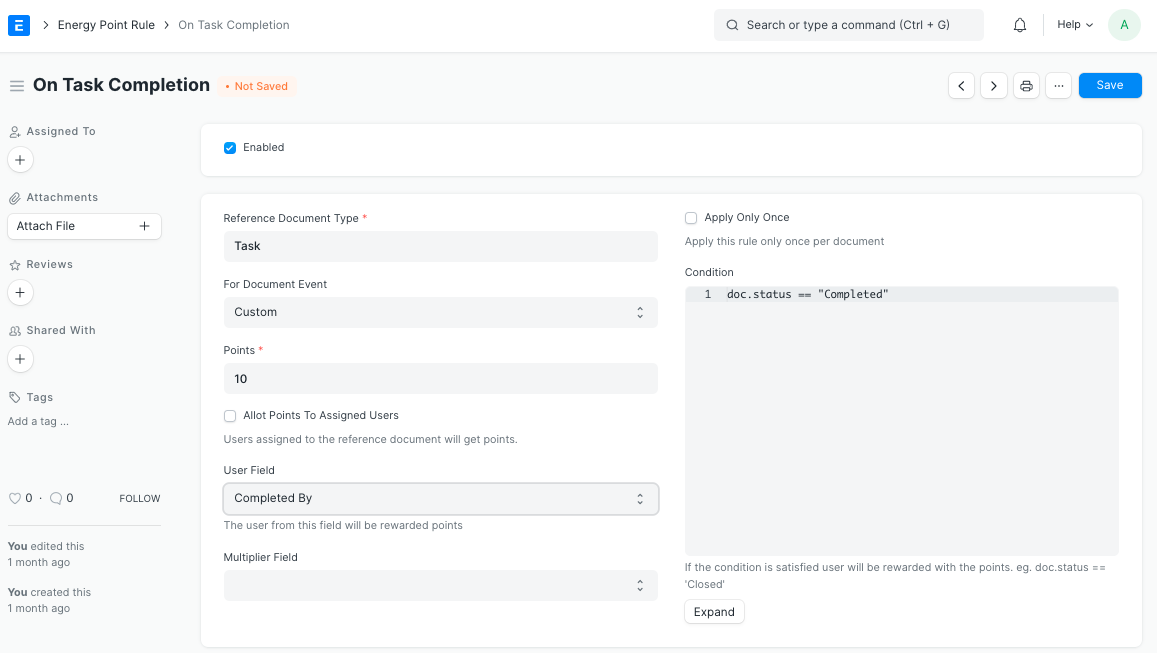
4. Features:
4.1 Auto Point allocation
Users will automatically receive points for completing actions that are recorded using the Energy Point System based on the energy point rules that have been defined.
4.2 Review System
You can "Appreciate" or "Criticate" someone's work using the review system.
See the GIF below for further information on the review procedure.
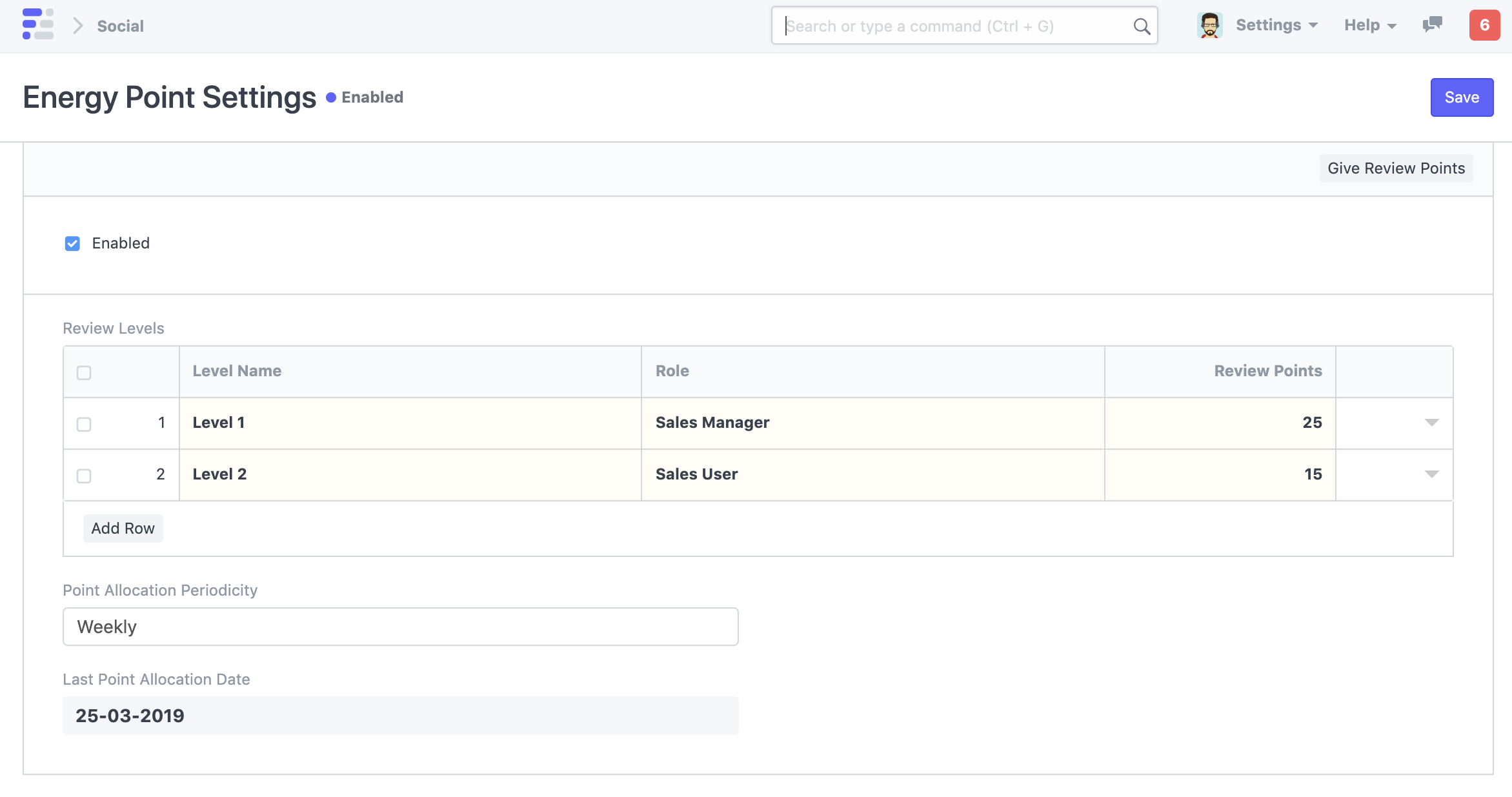
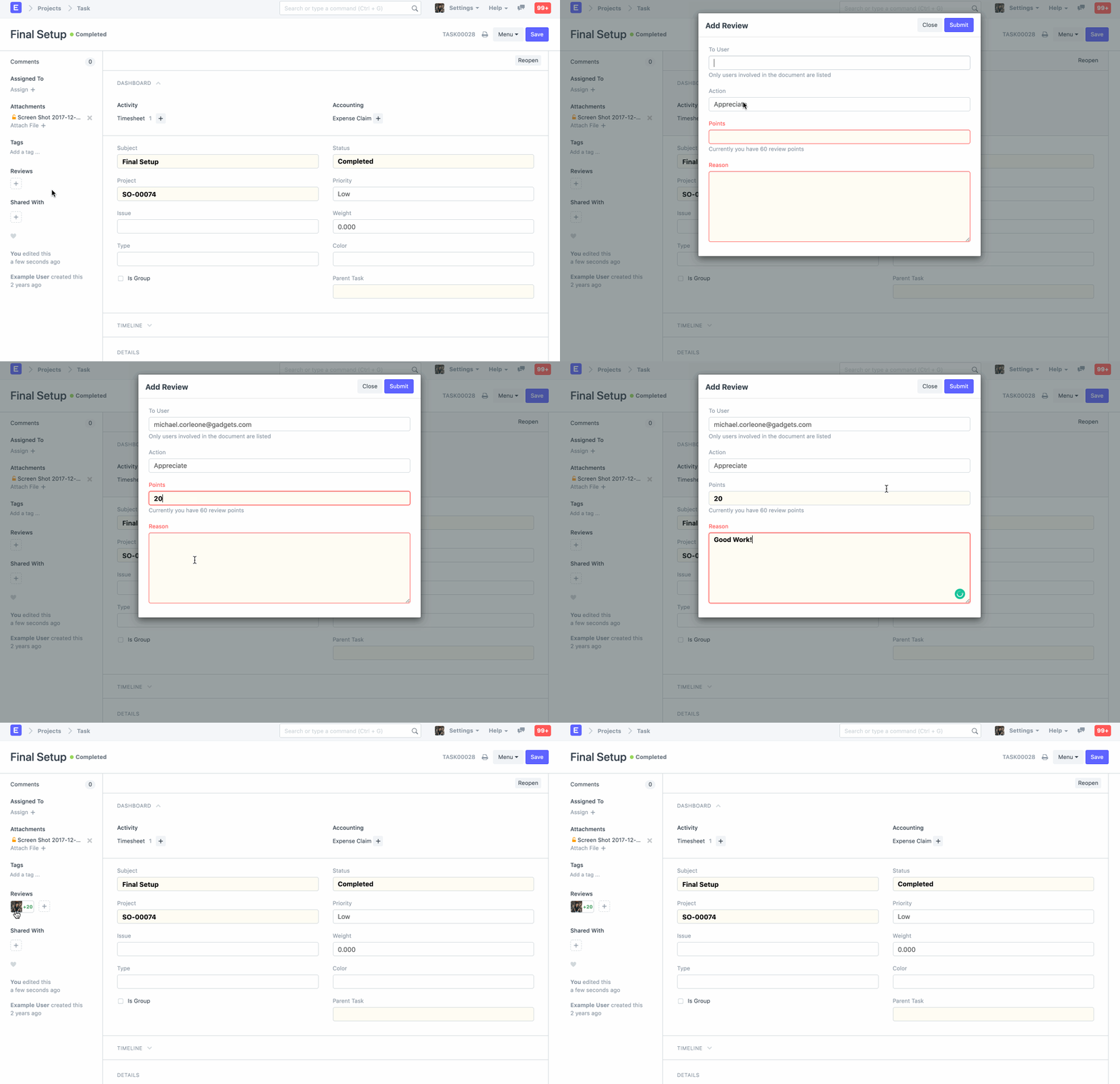 The user needs review points, which System Manager can grant using Energy Point Settings, in order to evaluate.
From the "Energy Point Settings," you can additionally set up automatic review point allocation:
4.3 Leaderboard
Navigate to Social > Leaderboard (side navigation bar)
The leaderboard displays the user's position within the company.
