Fee
Fees
We can keep track of the students' fees in this document.
Each time a student submits their fees, a new Fees Record is produced with all of their information, including their name, the program they are enrolled in, accounting data, etc.
Go to: to access Fees.
Home > Education > Fees > Fees
1. Prerequisites
It is recommended that you first create the following records before creating the Fees record:
Student
Fee Category
Fee Structure
2. How to Create Fees
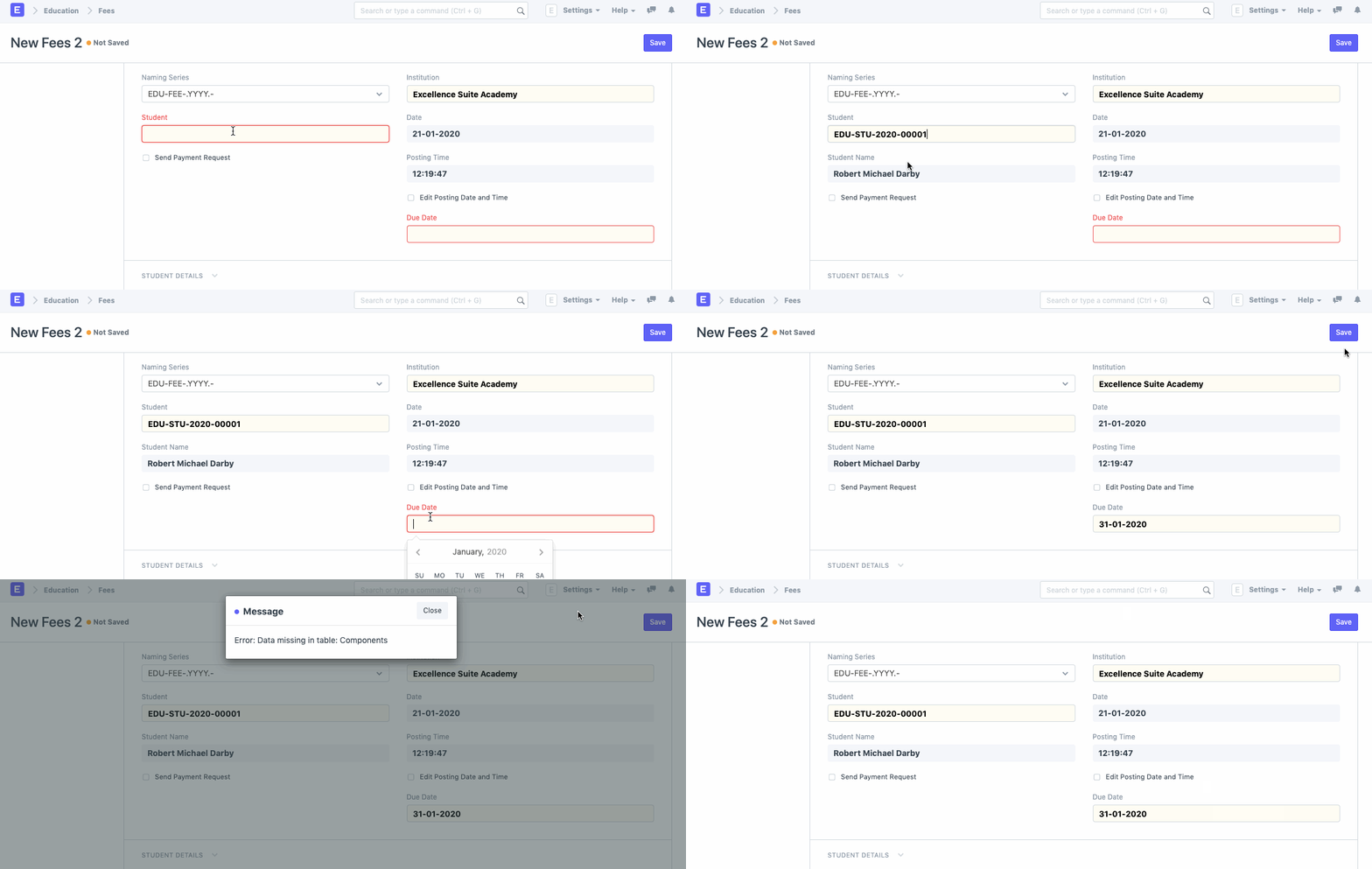
Choose New from the Fees list by going there.
By default, the Institution will be chosen; if necessary, it can be changed.
The student for whom the fees record is being created should be chosen and added. The student's name will be retrieved concurrently.
Provide the deadline for paying the fees.
Save.
2.1. Additional Options while Creating Fees
According to the time and date the record is being made, the Date and Posting Time will automatically be appended. The same can, however, be manually entered if necessary by selecting the option for Modify Posting Date and Time.
By selecting the box for Send Payment Request, the Student will be informed of their fee payment due date.
3. Features
3.1. Student Details
Provide all of the student's pertinent information, such as program enrollment, program, academic term, and academic year. The student information provided earlier is used to retrieve the student's email address.

3.2. Fee Structure
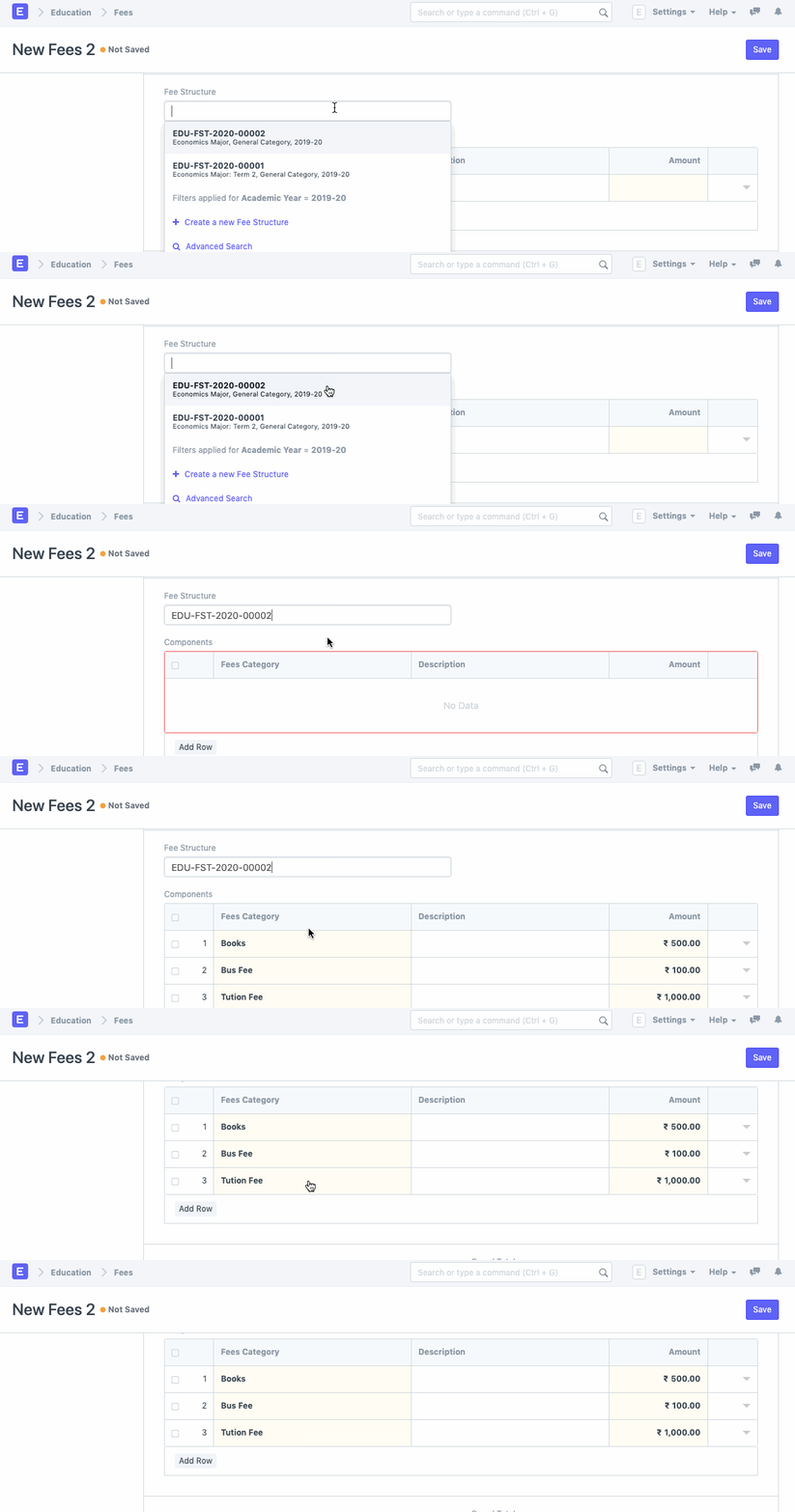
For the specified Fees Record, you can choose a fee structure. As soon as you do, the Fee Structure will automatically populate all of the Fee Components.
3.3. Fee Components
The fee category, description, and amount can all be added as additional fee components.

3.4. Printing Settings
To print the fee receipt, choose and include the letterhead.
The Fee Receipt Print Headline should be chosen and added.
3.5. Accounts
You may edit your account entries quite easily while using ERPNext. Your Accounts will be updated at the same time that a student provides their fees and the system records it.
You can add your Accounts details to the charge structure to make that process go more smoothly.
Receivable Account: Insert the institution's receivable account name here.
Income Account: Choose and add the Institution's Income Account.
Company: Choose and include the company that receives all payments. If your ERPNext account contains numerous institutions or if a sister company manages the accounts.
3.6. Accounting Dimensions
- Cost Center: Choose and enter the name of your Institute for Accounting Dimensions's cost center.

Payment
Make a payment directly from the fee, choose the mode of payment during payment input, and then send the payment.