Leave Application
Leave Application
An employee must submit a formal Leave Application in order to request leaves for a specific duration.
Your staff members can submit leave requests using Leave Applications to be reviewed by Leave Approvers using ERPNext.
Go to: to access the Leave Application.
Home > Human Resources > Leaves > Leave Application
1. Prerequisites
It is advised that you have the following paperwork before you create a leave application:
- Department
- Leave Period
- Holiday List
- Leave Type
- Leave Policy
- Leave Allocation
2. How to create a Leave Application
Go to the list of leave applications and select New.
Allocated Leaves will be listed in a table. The available leaves for each leave kind are shown based on the leaves taken.
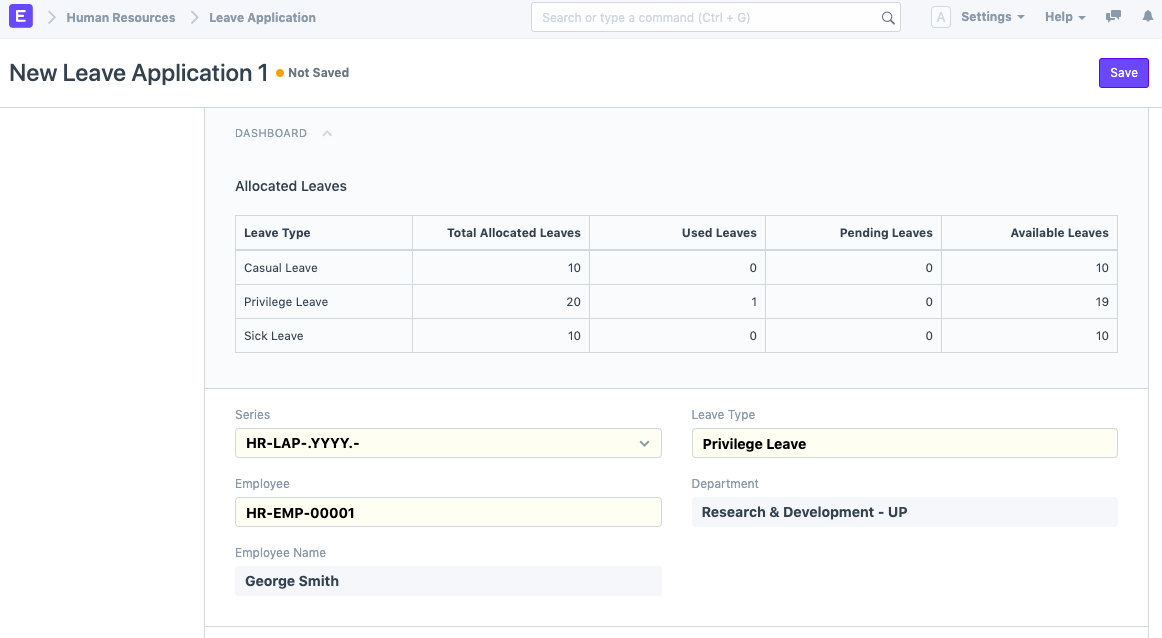
Choose the Leave Type and Employee Name.
Use the From and To dates to set the length of the leave. The "Total Leave Days" and "Leave Balance Before
Application" fields will be shown based on the dates chosen.
Choose the "Half Day" checkbox if the requested leave is for a half-day only. Indicate your reason for leaving.
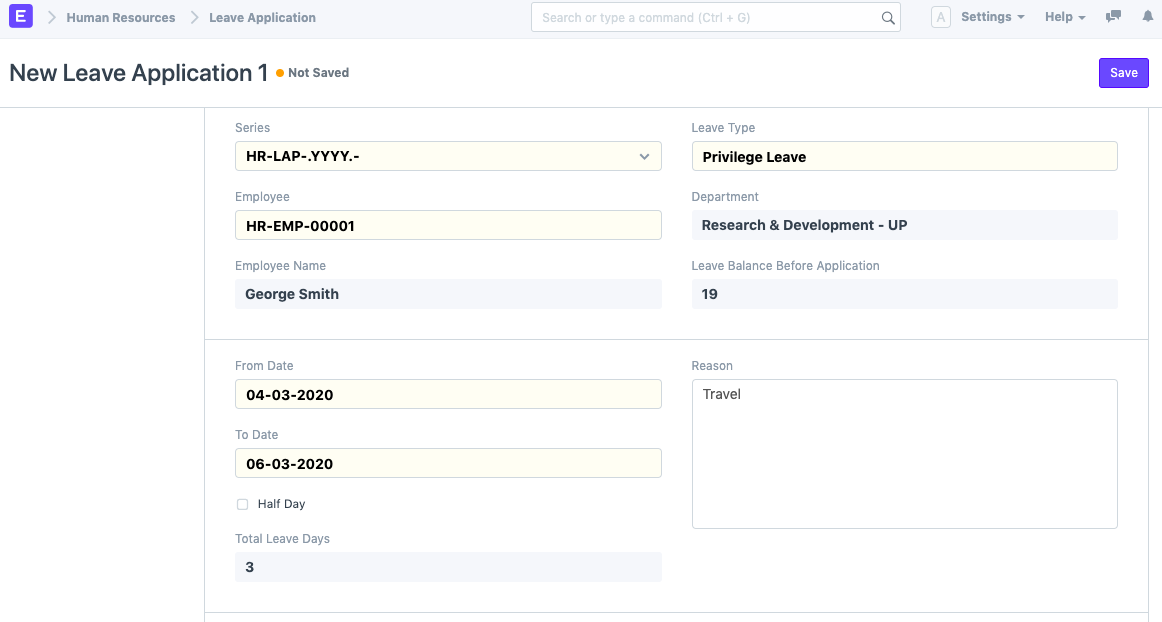
Choose Leave Approver from the menu.
Choose the date that the leave application will be posted.
9.For the Leave Approver to receive notified of the Leave Application, choose the "Follow through Email" button.
- For added convenience, you can link the employee's pay stub to the leave applicatio
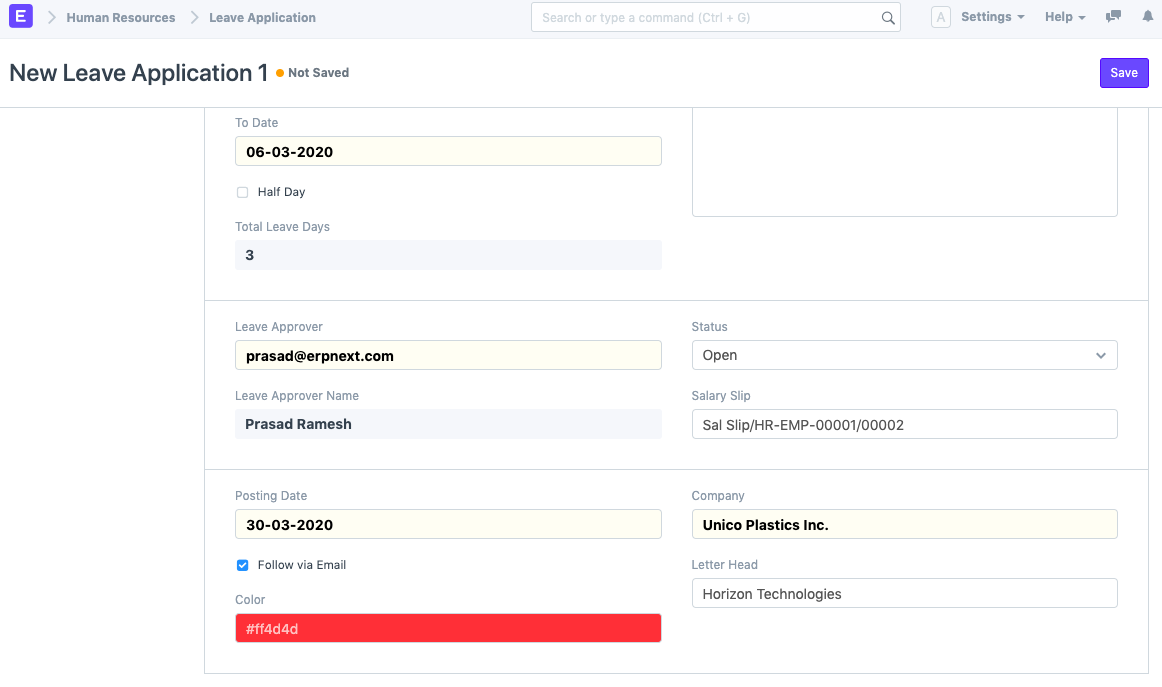
Choose Save. The status of the leave application switches to "Open" after the employee saves it, and an email is sent to the leave approver requesting permission. In the Leave Settings area of HR Settings, the Leave Approval Notification Template can be customized.
After receipt of the email, the leave approver has three options: approve, reject, or cancel the leave application. The Leave Approver may then submit the Leave Application after completing this step. Following submission, the document's status is updated appropriately, and the Employee is notified via email.
Note: If the salary has already been processed for the leave period, a leave application cannot be submitted.
The process flow for a leave application is outlined below:
- Through the Leave Application, the employee requests time off.
- Email notification is sent to the approver. The "Follow through Email" checkbox needs to be selected for this.
- Reviewer of Leave Applications
- Approver accepts, rejects, or cancels. Application for Leave
- The worker is informed of the status of his or her leave application.
3. Features
3.1 Setting Leave Approver
An employee's leave application can be approved by a user known as a leave approver. There are two levels of leave approvers in ERPNext version 12:
- Department Level: Each department's leave approvers can be set up in the Department master. There can be several leave approvers set up in a department. The default leave approver will be the name that appears first on the list.
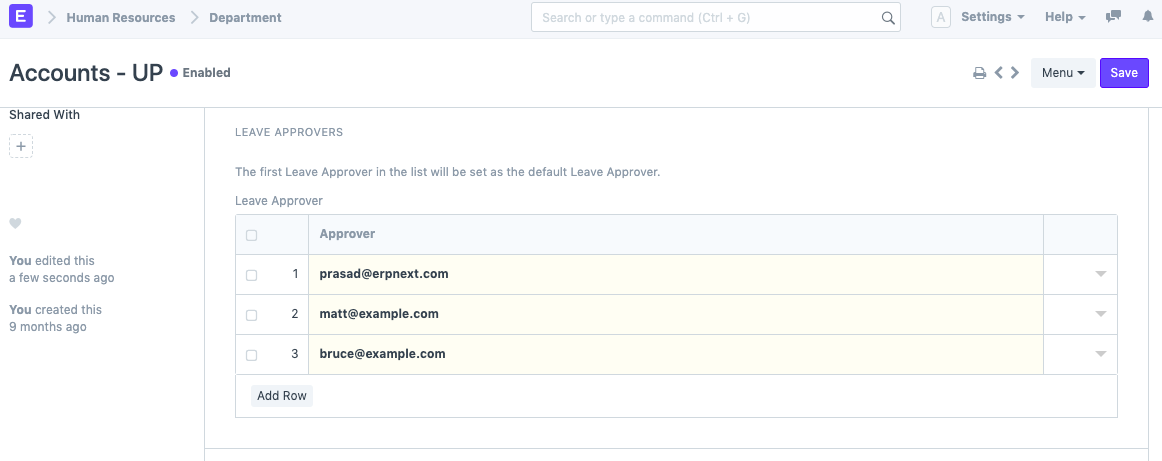
When an employee from a certain department requests time off, the Leave Approvers listed in that employee's department master are taken into account.
- Employee Level: In the employee master, leave approvers can also be set up by employee.
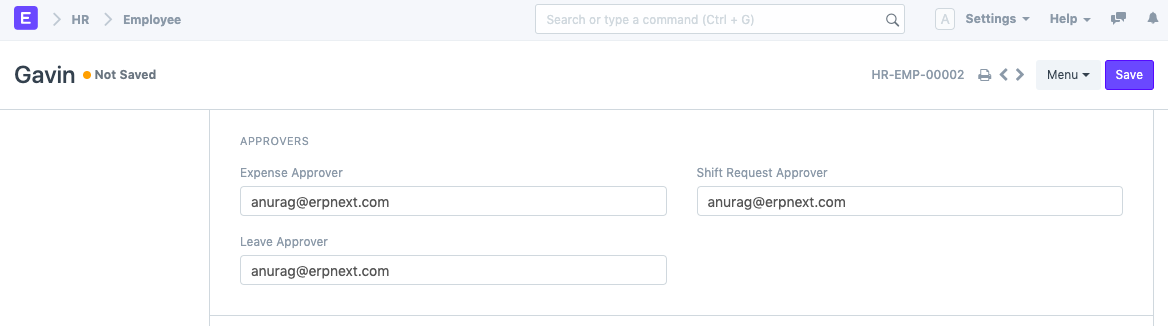 The Employee-level Leave Approver will be regarded as the Default Leave Approver in this situation if Leave Approvers are set at both the Employee-level and Department-level.
If the chosen leave approver does not already have access to the newly produced Leave Application, the document is shared with them with "submit" permission.
Using the "Employee ID" as a match rule in the Leave Application Permission settings will allow all users to make their own leave applications. For further info, see Setting Up Permissions.
The Employee-level Leave Approver will be regarded as the Default Leave Approver in this situation if Leave Approvers are set at both the Employee-level and Department-level.
If the chosen leave approver does not already have access to the newly produced Leave Application, the document is shared with them with "submit" permission.
Using the "Employee ID" as a match rule in the Leave Application Permission settings will allow all users to make their own leave applications. For further info, see Setting Up Permissions.
Additional Notes:
- A single leave allocation period must encompass the leave application period. You must generate two Leave Application records if you are requesting leave within the leave allocation period.
- The most recent leave allocation period must be in the leave application period.
- Employees are not permitted to request leave on the days that have been added to the Leave Block List.
Check Leaves to learn more about how you can configure leaves for employees using ERPNext.