Attendance Request
Attendance Request
Employees can make an attendance request using the Attendance Request for days when their attendance wasn't recorded for a variety of reasons, such as on-site duty or working from home.
Go to: to access Attendance Request.
Home > Human Resources > Attendance > Attendance Request
1. Prerequisites
It is recommended that you first create the following things before generating an attendance request:
- Employee
2. How to create an Attendance Request
Click New under the Attendance Request list.
Choose the worker who wishes to submit an attendance request.
Choose the Attendance Request From and To dates.
Choose Reason, then enter an explanation (optional).
Publish and save.

Note 1: If the attendance is for a half-day, you can choose the "Half Day" checkbox and enter the date.
Note 2: Attendance records for the days you specified as stated will be created upon submission of the same.
Note 3: Only unmarked attendance may be submitted as an attendance request.

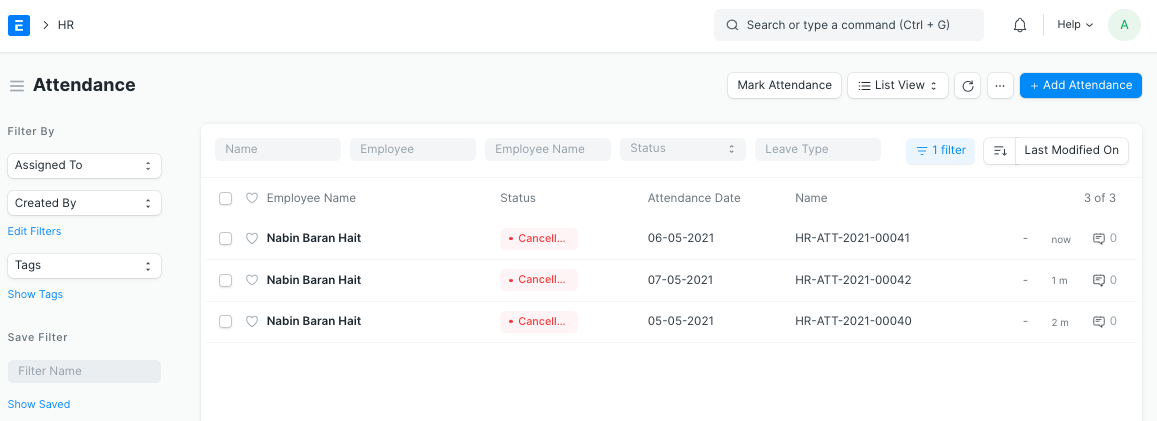
As may be seen below, the filed Attendance Request is linked to the appropriate Attendance records.
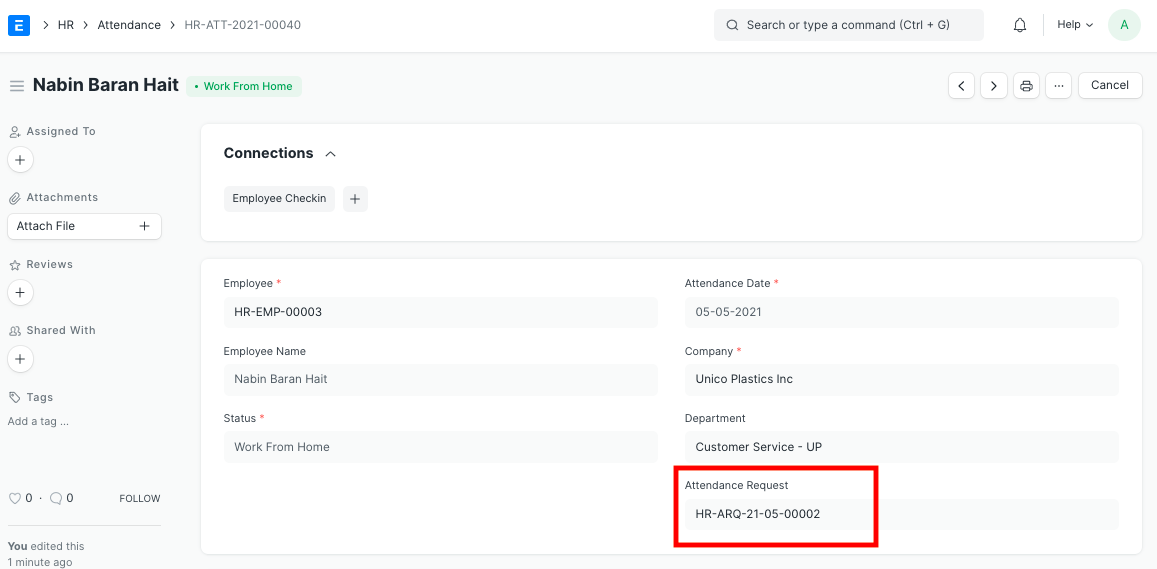
The associated Attendance papers that were prepared will also be deleted if you cancel the Attendance Request.