Shift Type
Shift Type
You can specify the various shift types in your organization using the Shift Type document, and you can also set up automatic attendance for the shift. Employees assigned to a shift have their attendance marked via auto attendance based on Employee Checkin records.
Go to: to access Shift Type.
Home > Human Resources > Shift Management > Shift Type
Choose "New" from the menu.
Put in the shift name, start time, and end time.
Save
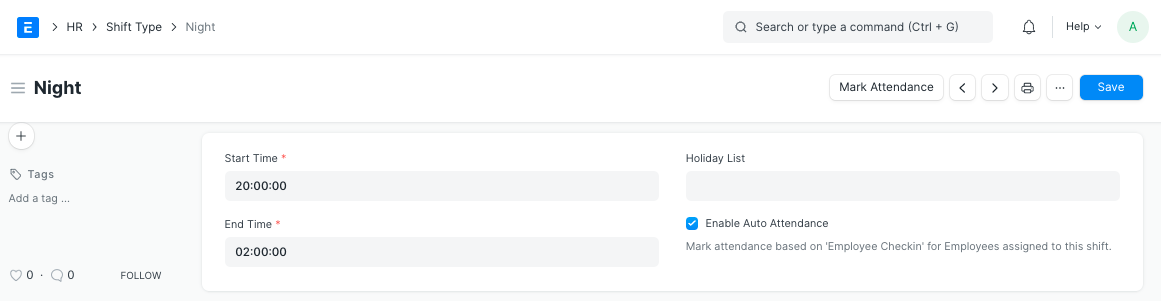
The parameters for auto attendance are included in the Shift Type document, which also defines the various shifts in your company. Based on information in the "Employee Checkin" Document, auto attendance records the attendance for the employees allocated to this shift. Every hour, attempts are made to mark all shift type records with auto attendance. By clicking the "Mark Attendance" button in the shift type document, you can also manually start the auto attendance feature for a specific shift type.
1. Basic Set Up
Start Time: what time of day this shift begins. The time must be entered in a format of 24 hours.
End Time: when this shift concludes for the day. The time must be entered in a format of 24 hours.
3.Holiday List: Here, you can choose which holidays are appropriate for this shift. If left unfilled, the corporate document or the employee master's default holiday list is used. If it's a holiday, the scheduler does not note attendance.
4.Enable Auto Attendance: By selecting this option, you will be able to have the employees working this shift have their attendance marked automatically based on their Employee Checkin data.
It should be noted that when the "End Time" is less than the "Start Time," it is presumed that the shift is a night shift that begins on one calendar date and finishes on the following.
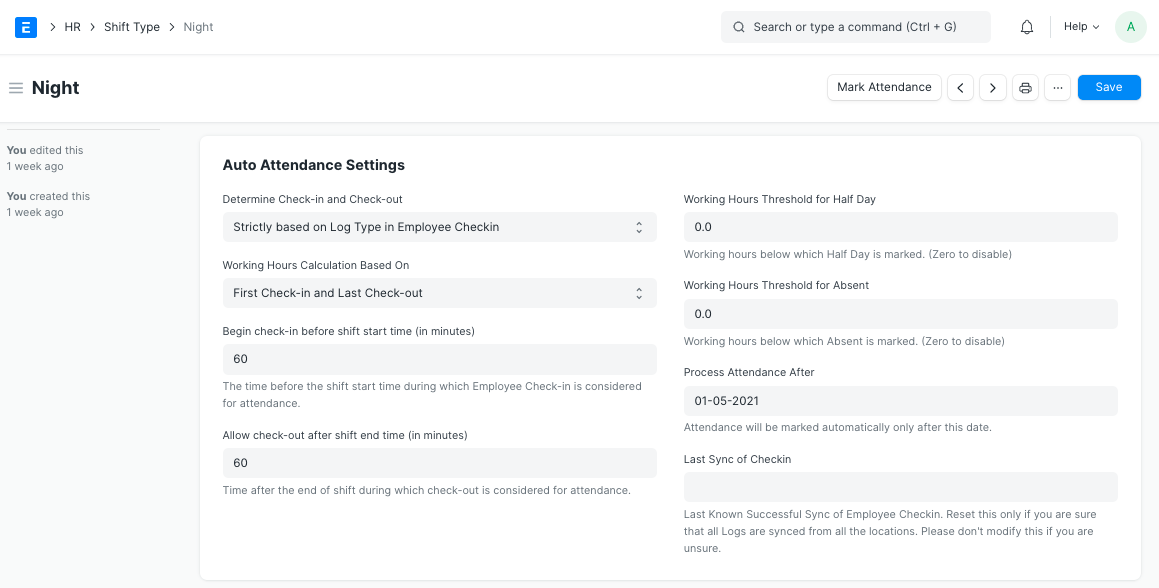
2. Auto Attendance Settings
To configure the Auto Attendance according to your needs, utilize the following settings:
- Determine Check-in and Check-out:This parameter specifies how the auto attendance system should read your check-in logs.
- Alternating entries as IN and OUT during the same shift:The first entry is considered to be IN, the second as OUT, the third as IN, and so on. There might not always be an IN/OUT log type for employee check-in. Not every log from a biometric device receives the same Log Type. You can use this option in such circumstances.
2.Strictly based on Log Type in Employee Checkin:The 'Log Type' in the Employee Checkin record is the only factor used to determine whether the check-in is IN or OUT. When the logs being recorded in ERPNext have the precise log type, this should be used.
- Working Hours Calculation Based On:The breaks in between shifts can either be included in the calculation of working hours or left out. The following settings are available for configuring this:
1.First Check-in and Last Check-out:
When you want to include breaks or all out/in entries in your working hours, choose this option.
By choosing this option, the working hours are determined by taking into account the first IN and last OUT Employee Checkins during the shift. The real working hours are the time differential between the two.
The first employee check-in is taken into account as IN and the last employee check-out is taken into account as OUT for the purpose of computing working hours in the event that the IN/OUT is decided by alternating entries.
- Every Valid Check-in and Check-out:
When this option is chosen, the Employee's check-out period is excluded.
i.e. Only the period of time the employee is checking in is considered to be work time.
Begin check-in before shift start time (in minutes):Frequently, workers would arrive a few minutes before their shift began. You can configure this value so that it takes these check-ins into account when calculating working hours and recording attendance.
Allow check-out after shift end time (in minutes):Employees frequently left when their shift ended. You can adjust this value so that these check-outs are taken into account when determining attendance as part of the shift.
Working Hours Threshold for Half Day: The employee attendance is designated as "Half Day" if the actual number of working hours is less than the value entered in this field. Set this value to 0 if you never want to designate a Half Day based on working hours.
Working Hours Threshold for Absent: The employee's attendance is indicated as "Absent" if the actual number of working hours is less than the value entered in this field. Set this value to 0 if you never want to mark someone absent based on working hours.
Process Participation After: The time when "Auto Attendance" will begin recording attendance. A date after which you have Employee Checkin data for this shift is the one you should choose.
Last Sync of Checkin: The records for Employee Checkin have been synchronized up to this timestamp. The script or person (in the case of manual entry) creating the Employee Checkin Records must update this field. This timestamp will be automatically updated for you if you use the sync tool to automatically submit your logs to ERPNext. This should be set to a time and date that the Employee Checkin has been synced up to.