Role and Role Profile
A Role defines the permissions for accessing various documents in Geer ERP.
The Roles Permission Manager allows users to set the permissions that roles define. The system can be utilized with the roles that are most frequently used because they are defined in ERPNext. You can add more roles if necessary. For instance, if you give a user the Sales User position, they will have access to documents like quotations and sales orders because that role already has those rights established.
Role profiles store different roles so that multiple roles can be assigned at once.
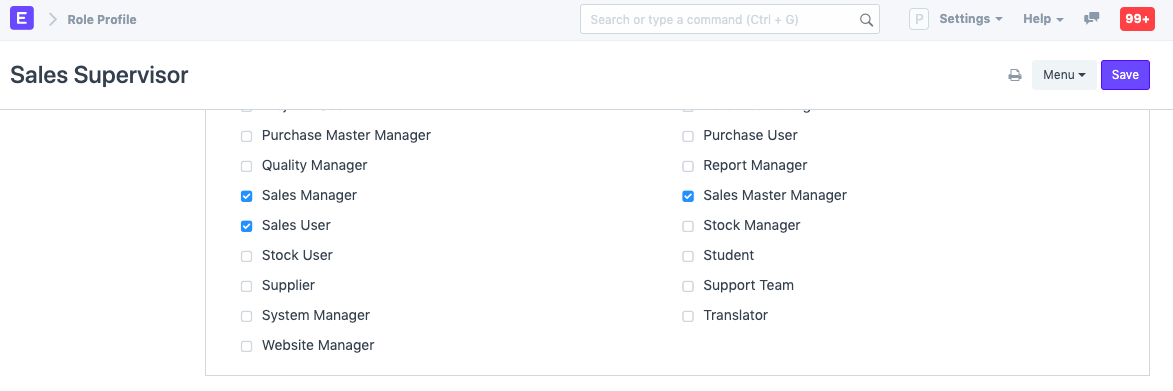
Role Profiles provide as a template for multiple roles to be stored and chosen. The user can then be given this Role Profile. A Sales Supervisor, for instance, might also play the parts of Employee, Sales Manager, Sales User, and Sales Master Manager. When adding several employees, role profiles come in handy for assigning multiple roles at once.
Go to: to access Role.
Home > Users and Permissions > Role
- Go to the Role list, click on New.
- Enter a name for the Role.
- Choose whether the Role has desk access. A role that has desk access can access ERPNext modules and the company's documents. The level of access depends on the roles assigned to the user.
- Save.
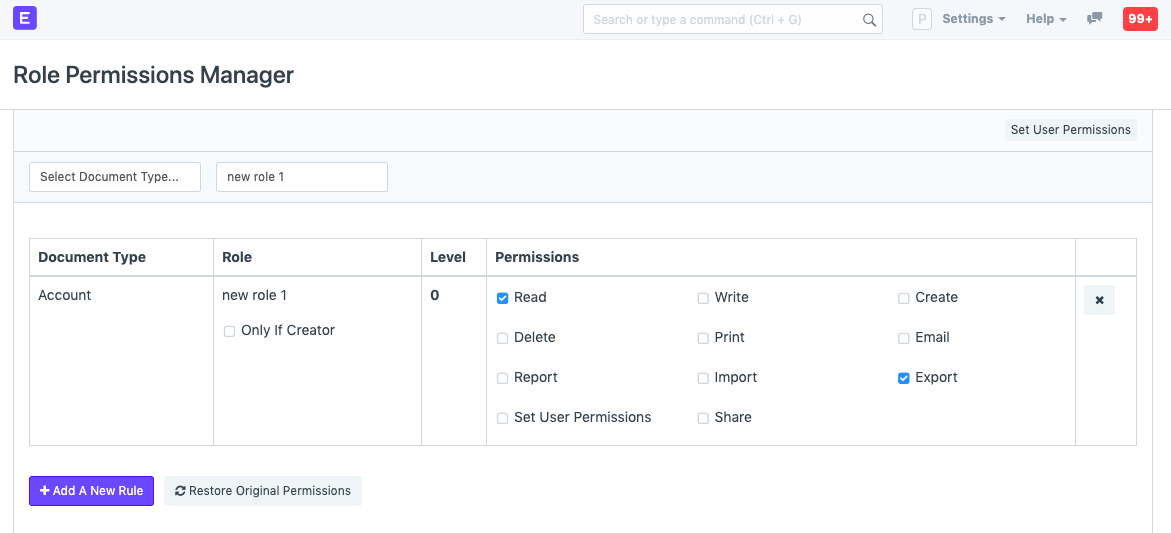
The role can be restricted to a certain domain and given two factor authentication. From this point, you can access the Roles Permission Manager and configure the role's permissions for various DocTypes.
2. How to add a Role Profile
Go to: to access Role Profile.
Home > Users and Permissions > Permissions > Role Profile
- Go to the Role Profile list, click on New.
- Enter a name.
- Select the roles you want to assign to this profile.
- Save