Customer
Customer
A customer is someone who purchases goods, services, products, or ideas from a vendor in exchange for money. A customer is also referred to as a client, buyer, or purchaser.
Each client must receive a special identification number. Under Selling Options, you can provide a naming sequence for ids to be generated, or you can use the customer name itself as the id.
Go here: to access the Customer list.
Home > CRM > Sales Pipeline
Or
Home > Selling > Customers
1. How to create a Customer
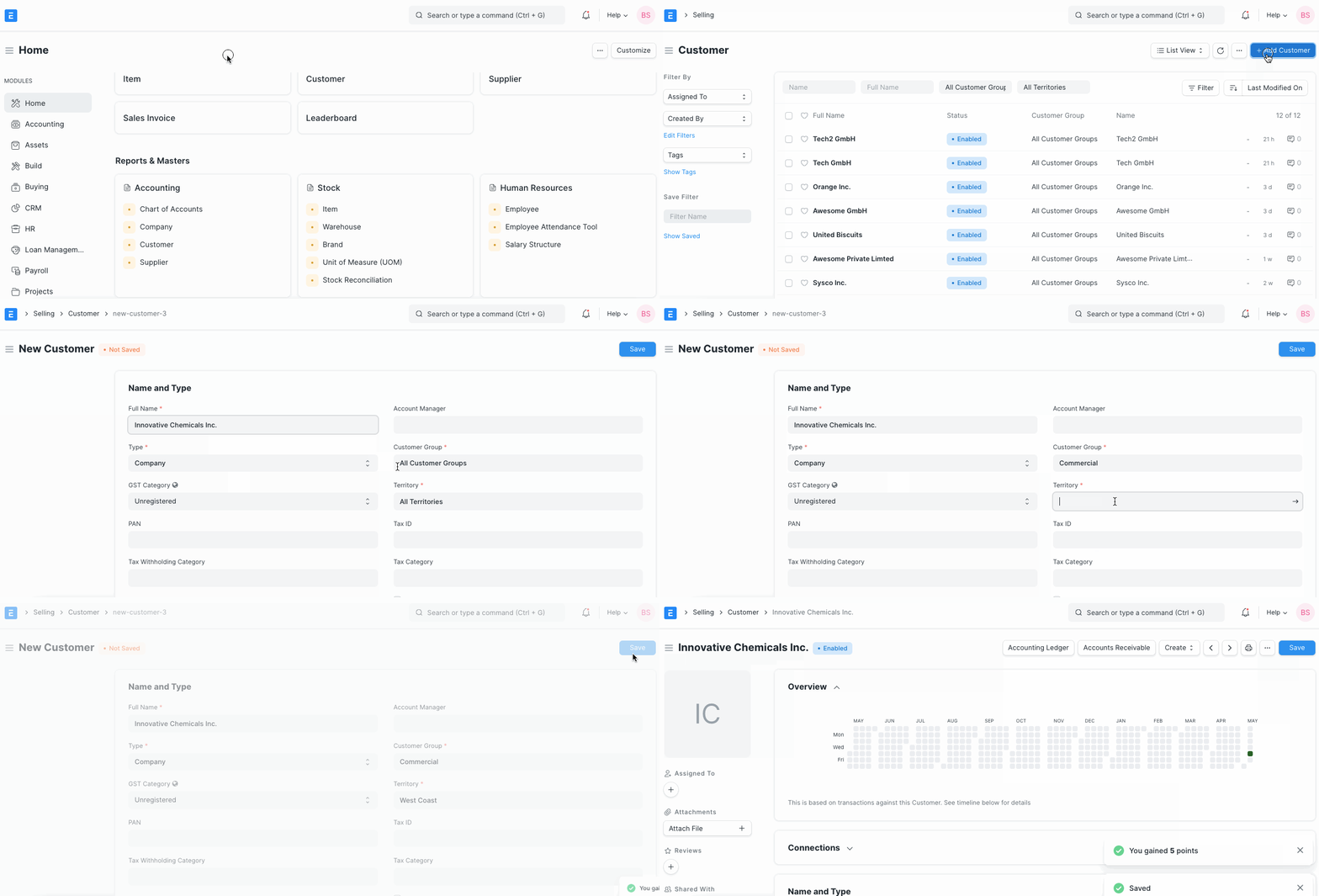
Click New from the Customer list.
Please enter the customer's full name.
In the Type section, choose Individual if the customer is an individual or Company if the customer is a firm.
Choose a clientele group. Available by default are Individual, Business, Non Profit, and Government. If you require more groups, you can make them.
Choose a territory.
You can choose the same option in the From Lead field if the customer is being created in response to a lead.
Save.
By selecting "Disabled," you can prevent sales orders and sales invoices from being filed against a customer.
Advanced Tip: Choose "Is Internal Customer" if the client is an employee of one of your own firms. For further information, consult the Inter Company Invoices.
Moreover, the Data Import Tool allows you to upload customer information.
2. Features
The general transactional flow for a customer is as follows:
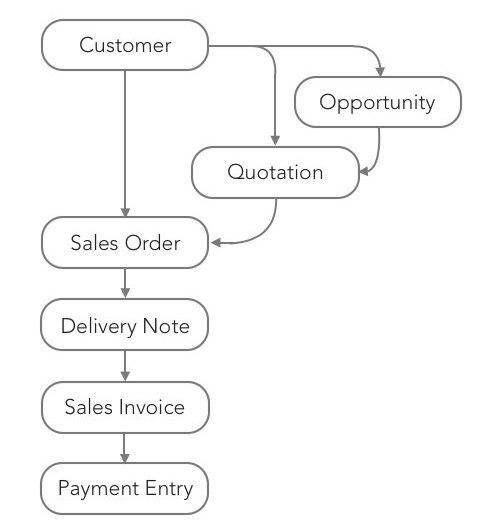
Customers are distinct from Contacts and Addresses, please note. Several Contacts and Addresses are possible for a Customer.
2.1 Multiple Contacts and Addresses
You can attach several Contacts or Addresses to the customer because Contacts and Addresses are maintained independently.
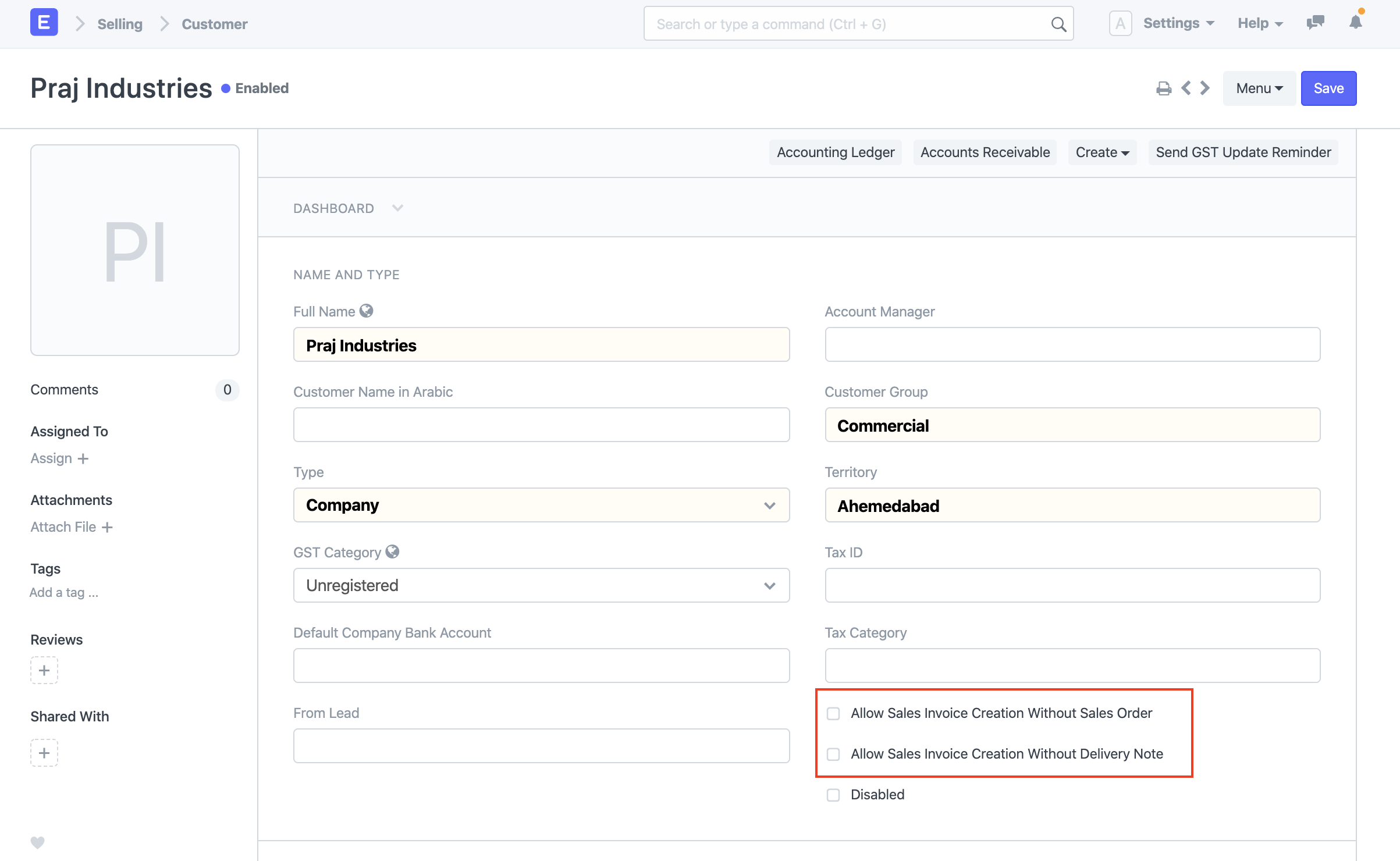
2.2 Allow creation of Sales Invoice without Sales Order and Delivery Note
Allowing "Allow Sales Invoice Creation Without Sales Order" or "Allow Sales Invoice Creation Without Delivery Note" in the Customer Master will override the "Delivery Note Needed" or "Sales Order Required" option if it is set to "Yes" in Selling Options for a specific customer.
2.3 Set Tax Withholding Category
If you can, set up TCS for qualified clients using the Tax Withholding Category. See the Tax Withholding Category page for further details.
2.4 Default Currency and Price List
Price Lists and Multiple Currencies are supported by ERPNext.
By choosing the right currency in Billing Currency, you may specify the default currency to be used for this customer in sales orders and sales invoices.
By choosing the appropriate currency in Default Price List, you can similarly specify that the default price list be used for this customer in sales orders and sales invoices.
2.5 Integration with Accounts
You do not need to construct a unique accounting ledger for each customer, in contrast to many accounting software programs. A unified ledger named Debtors is automatically formed.
But, if a client expressly requires a separate ledger, first establish one under Accounts Receivable in the Chart of Accounts, and then add it to the customer's ACCOUNTING section.
Advanced Tip: Multi-company Accounting is supported by ERPNext. The same consumer records may be utilized by various businesses. As an accounting ledger is company-specific, if you decide to have a distinct accounting ledger for a customer, you must choose the company and the appropriate ledger in the ACCOUNTING section.
2.6 Credit Limit and Payment Terms
By entering the desired amount in the "Credit Limit" section, you can establish the credit limit. For further information, see Credit Limit.
In the "Default Payment Terms Template" column, you may choose the default payment terms that will be used for sales orders and sales invoices.
2.7 Sales Team and Sales Partner
You can add them to the SALES TEAM area if you have one or more salespeople managing customer sales. You can divide the contribution among the involved salespeople if there are several of them. Ensure that the total contribution from all salespeople is 100%.
For further information, see Sales People in Sales Transaction.
A sales partner is a third party reseller or distributor who facilitates sales of your goods or services in exchange for a commission. If you sell your goods or services to customers via a sales partner, you may include that information in the "Sales Partner" column and include the "Commission Rate" for commission computation.
2.8 Loyalty Program
Choose the same option in the Loyalty Program section if you want to offer the consumer a loyalty program.
2.9 View Accounting Ledger and Accounts Receivable
To view all accounting transactions with the customer, select the Accounting Ledger option.
To access full information of outstanding invoices, click the Accounts Receivable icon.
2.10 Set Customer Id, Default Customer Group, Territory, and Price List
In Selling Settings, you may specify how a distinct ID should be produced for each customer.
Naming Series: Choose "Naming Series" in Customer Naming By if you want a unique ID to be produced for each customer depending on the naming series.
Customer Name: Choose "Customer Name" under Customer Naming By if the customer name itself is to be used as an identifier. In this situation, if you create two customers with the same name, the second customer will be prefixed with - 1.
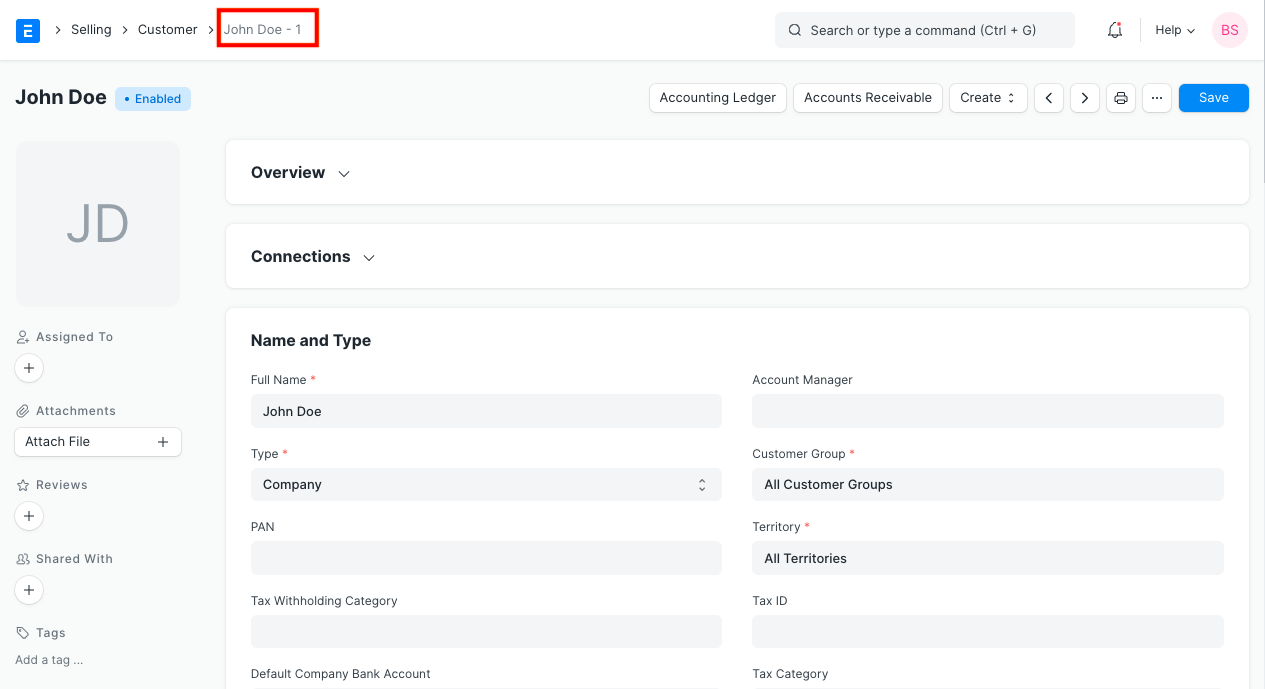
With Selling Settings, you can customize the default customer group, territory, and price list.
With the Modify Form tool, you may modify the Customer DocType.