Sending E-mail from any Document
After opening any document in Geer ERP, select Menu > Email to send it as an email with a PDF attachment.

Note: To use this, you must have configured outgoing email accounts.
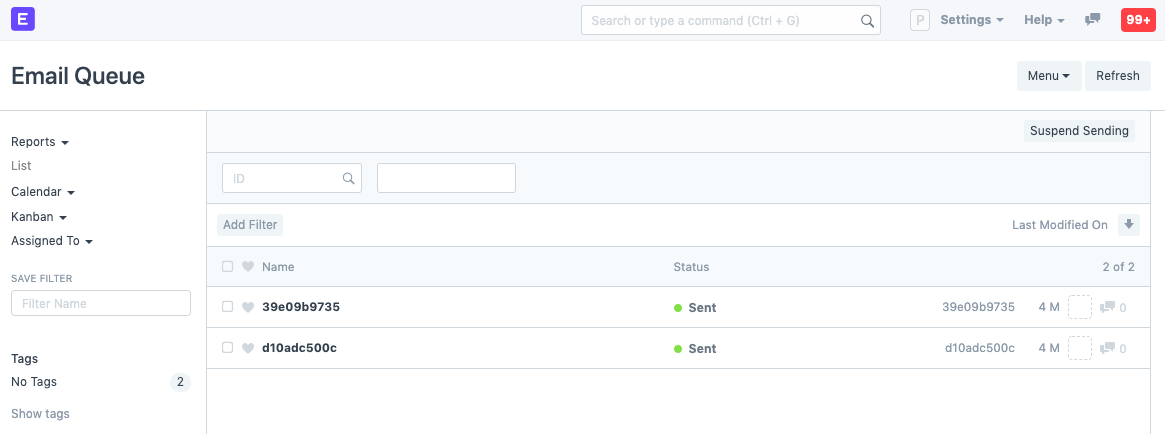
The email is added to the email queue once you click the send button. Up until it is sent, it will be in the sending status. If sending has failed, the email can still be sent by selecting Send Now, which displays the email's status in the queue.
When sending an email, the following options are available.
- The email's "Carbon Copy" field. Useful if you don't want to send the email directly to the recipient but still want to keep them in the know.
- Similar to CC, BCC prevents other email thread participants from seeing that the message was also delivered to the BCC recipients. If you're sending the email to numerous recipients who may not know each other, it can be helpful to conceal some recipients' email addresses.
- Email Template: To send out standardized responses, create pre-made templates. The system already has email templates for leave approval notifications, leave status notifications, and dispatch notifications. Via the Customize Form, you can set a default email template.
- Send a copy to me: A copy of this will be delivered to your email. Verifying that the email was sent flawlessly is helpful.
- Send Read Receipt: Selecting this checkbox will notify you if the recipient of your email has read it. If there are many recipients, you will be notified even if only one of them has viewed the email.
- Attach Paper Print: Include the PDF version of the document you're emailing.
- Select Attachments to add any other attachments.
The two fields that show up on the print screen are as follows:
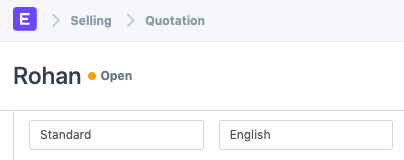
- Choose Print Format to view the document's print layout. Here is further information on print formats.
- The language in which the PDF is to be produced can be chosen under Languages.