Web Page
Web Page
The Web Page can be used to produce static content such as your Home Page, About Us, Contact Us, and Conditions pages.
To access Web Page go to:
Home > Website > Web Site > Web Page
1. How to create a Web Page
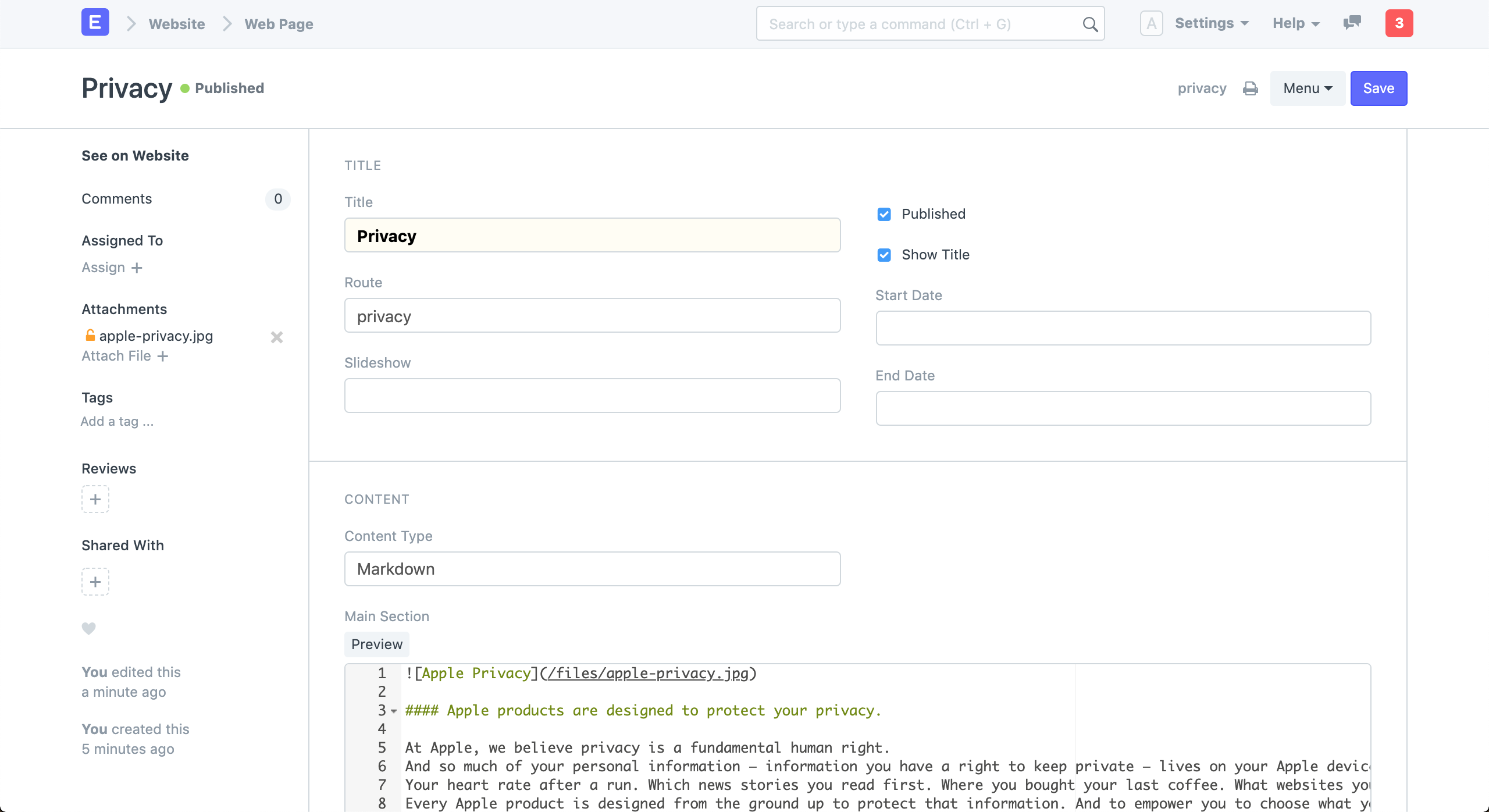
Click New from the Web Page list.
Add content to the Main Section after entering a Title. You can alter the route, which will be automatically generated.
Choose Save.
nly after Published is checked will the web page be published.
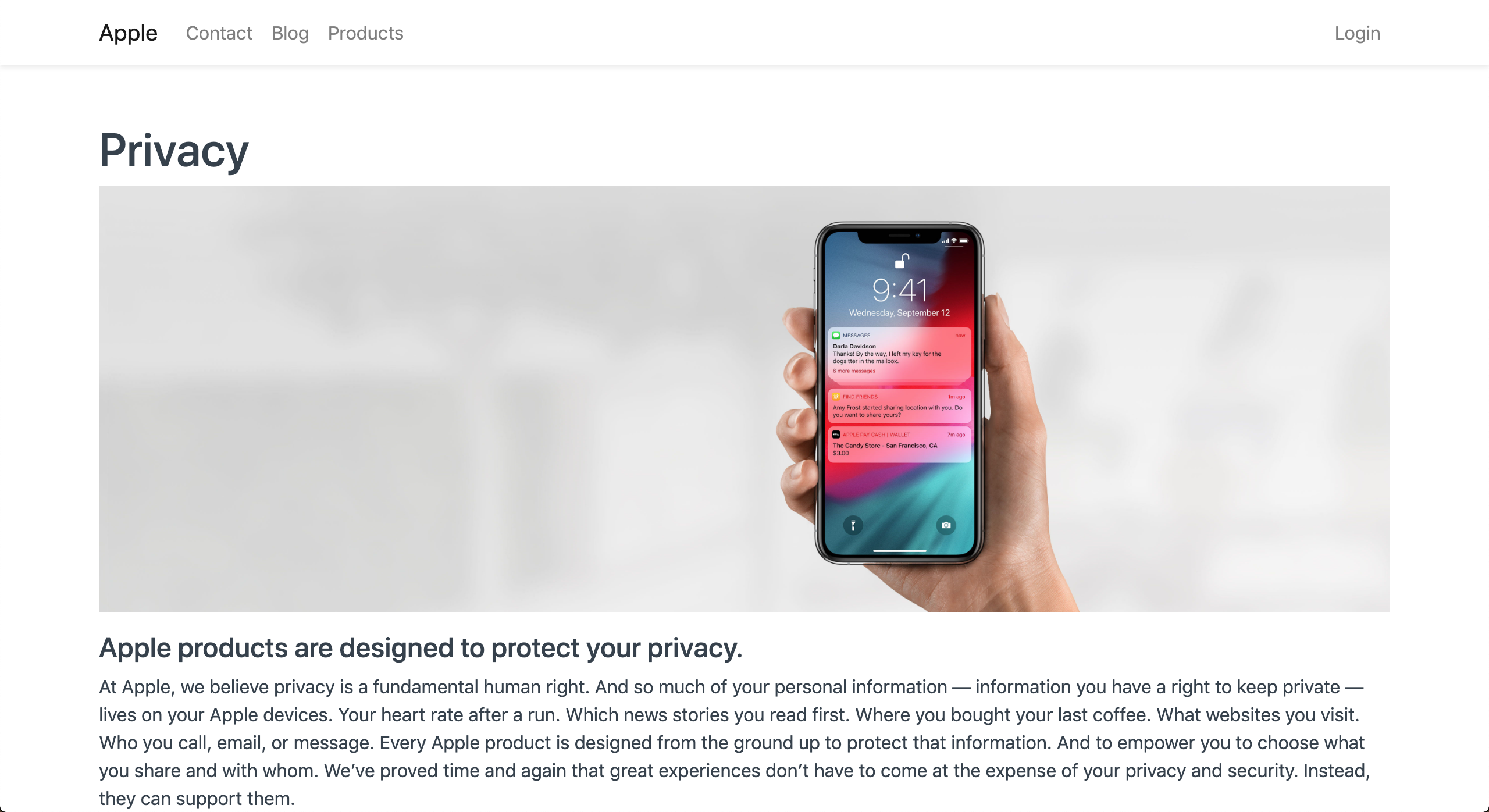
Click on See on Website in the sidebar to view your website.
1.1 Tips on making a good Web Page
Title The title of your page should be set initially. The title is given the most weight by search engines, so pick a title that incorporates the keywords you want to appeal to. The route (URL) will be produced automatically based on the title, but you can modify it.
Content Your content can be written in HTML, Markdown, or Rich Text. Rich Text and Markdown are excellent choices for creating straightforward content pages.
Learn markdown in a few minutes at Mastering Markdown.
Images
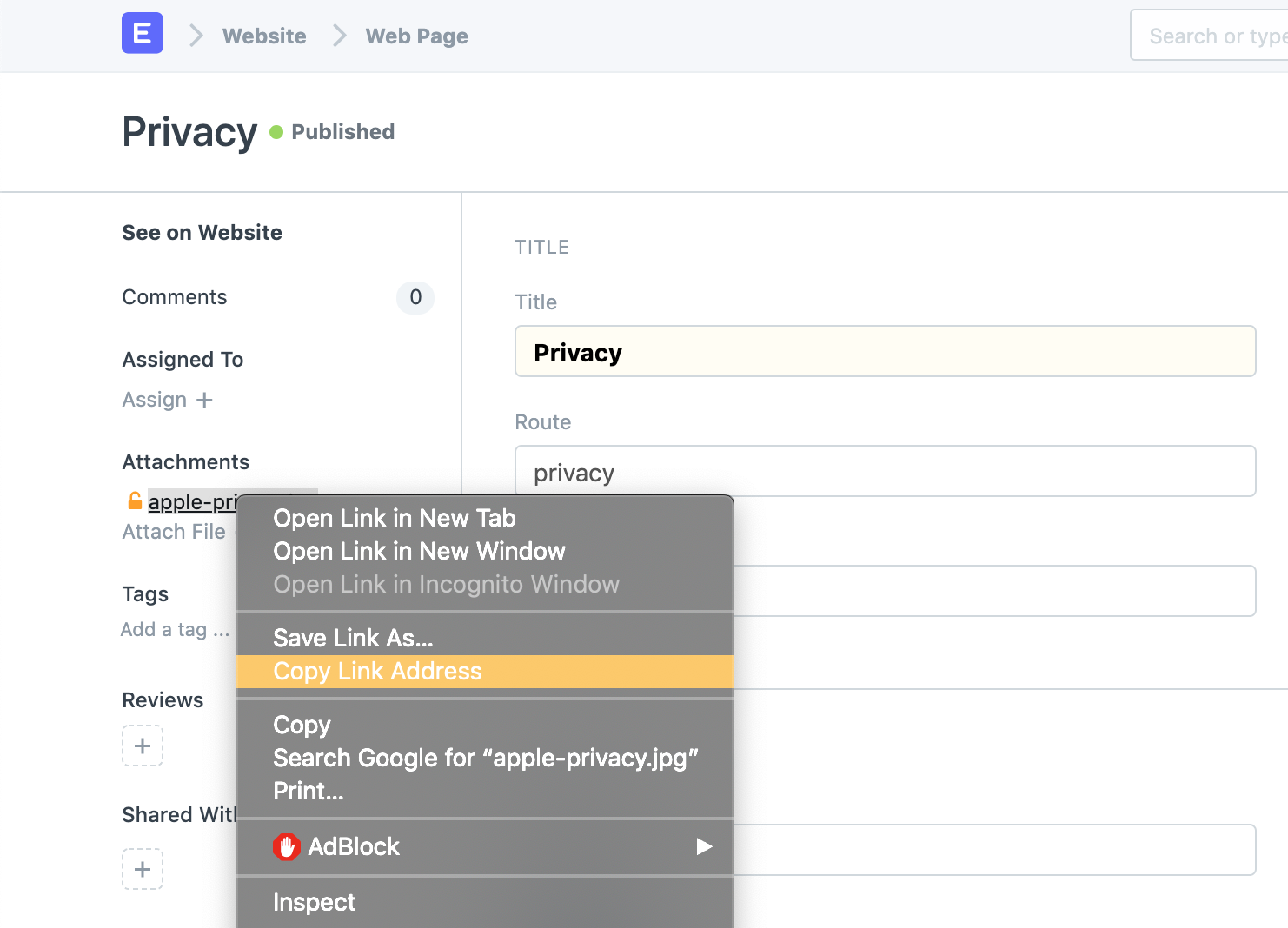
Images can be simply inserted into Rich Text Content using the editor. You must first attach the photos to the document for Markdown and HTML. By right-clicking on your attachment and copying the address, you can now retrieve the URL of your image.
Now, incorporate them into your HTML or Markdown document using the proper syntax.
2. Features
2.1 Slideshow
A slide show can also be added to your website. Visit Homepage Slideshow to learn how to make a slide show.
2.2 Scheduled Publishing
If you establish a Start Date and an End Date for your Web Page, you can schedule your Web Pages for publication. They will automatically become unpublished outside of the range and be set as published inside the date limits.
When accessed, unpublished pages will return a 404 error.
2.3 Javascript and CSS
Under the Script section of your Web Page, you can add a JS script. Write your script inside the frappe, please. callback when ready.
In the Style area of your Web page, you can add CSS styling. See what classes are available for styling by looking at the elements. You are free to use your own classes and style them here if you are using HTML content.
2.4 Sidebar
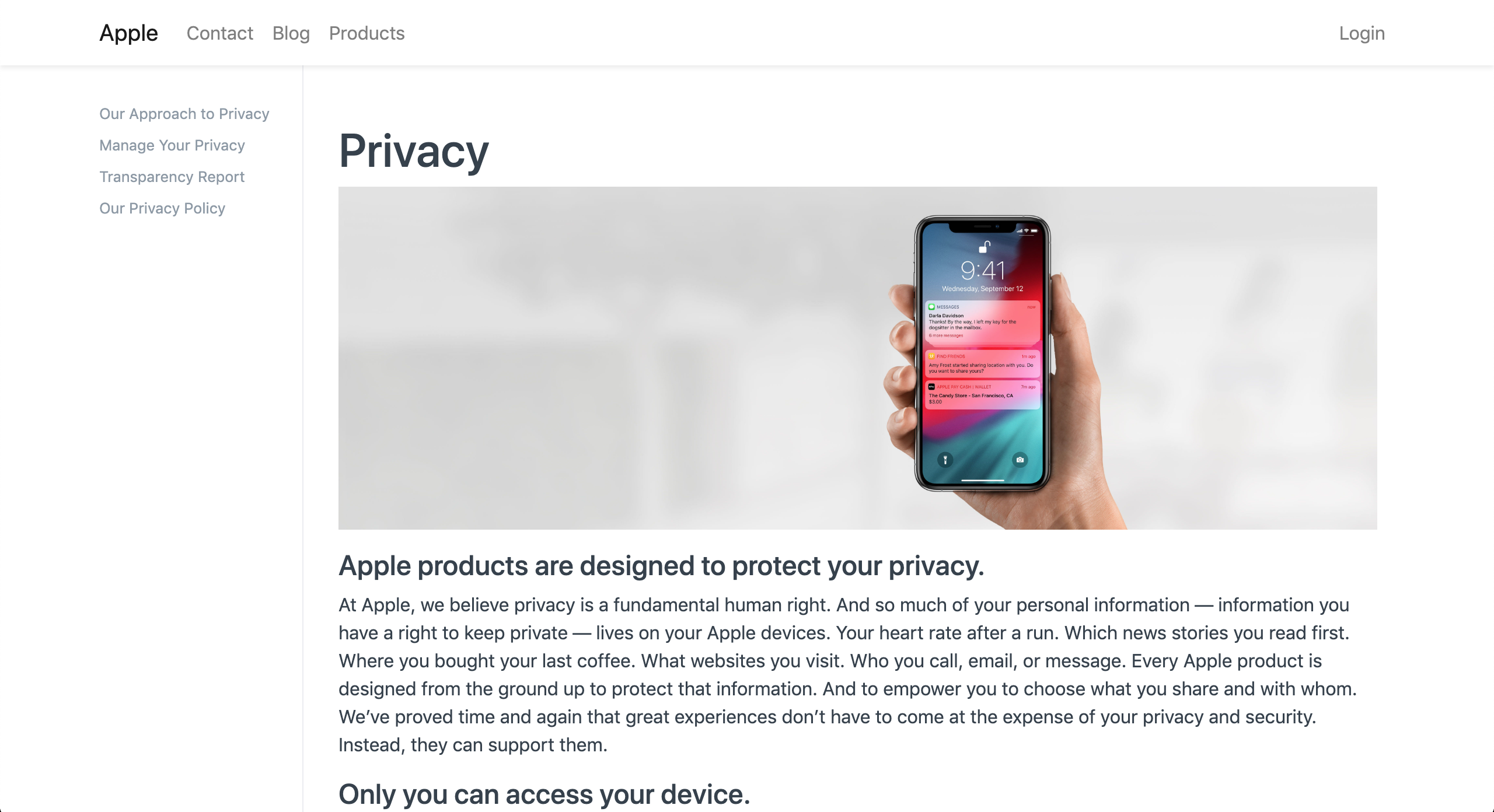
On your web page, you can include a website sidebar with personalized links. Enable Display Sidebar in the Sidebar and Comments section. Choose an existing Website Sidebar or start from scratch.
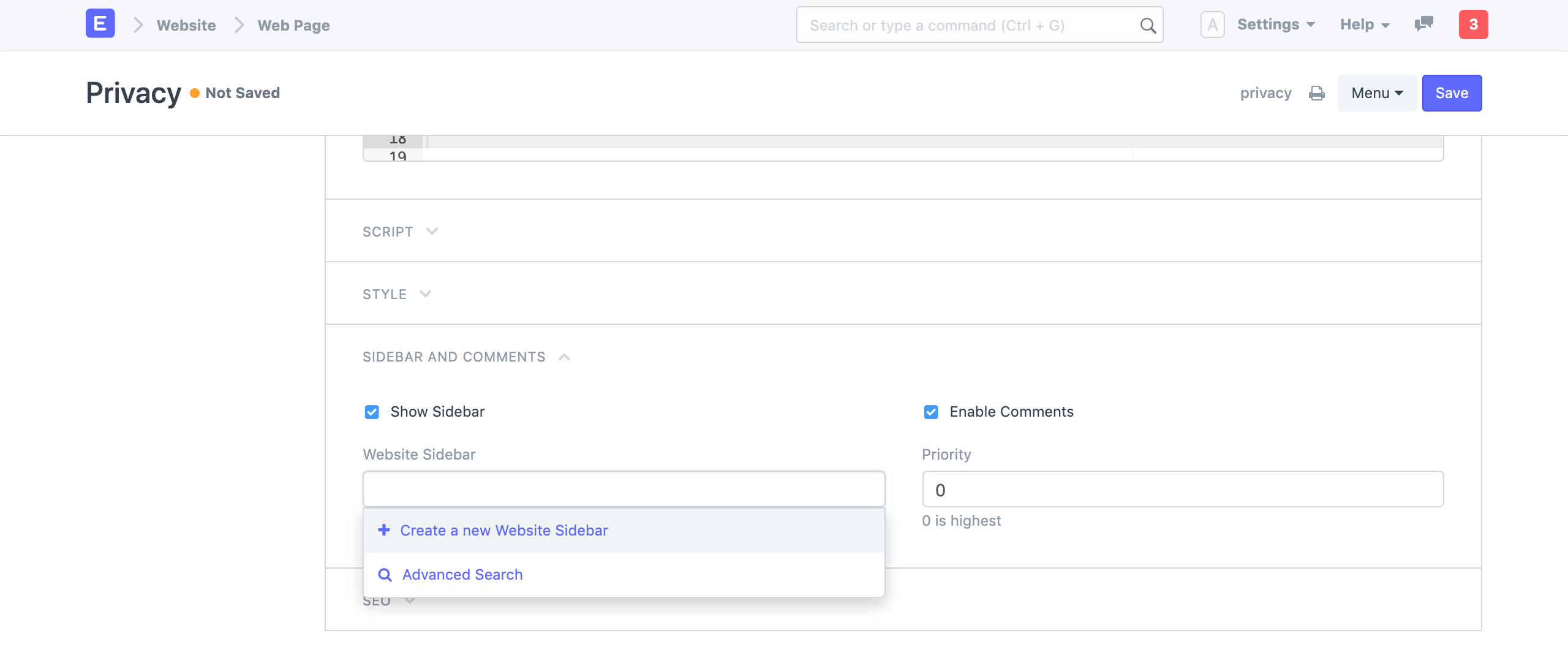
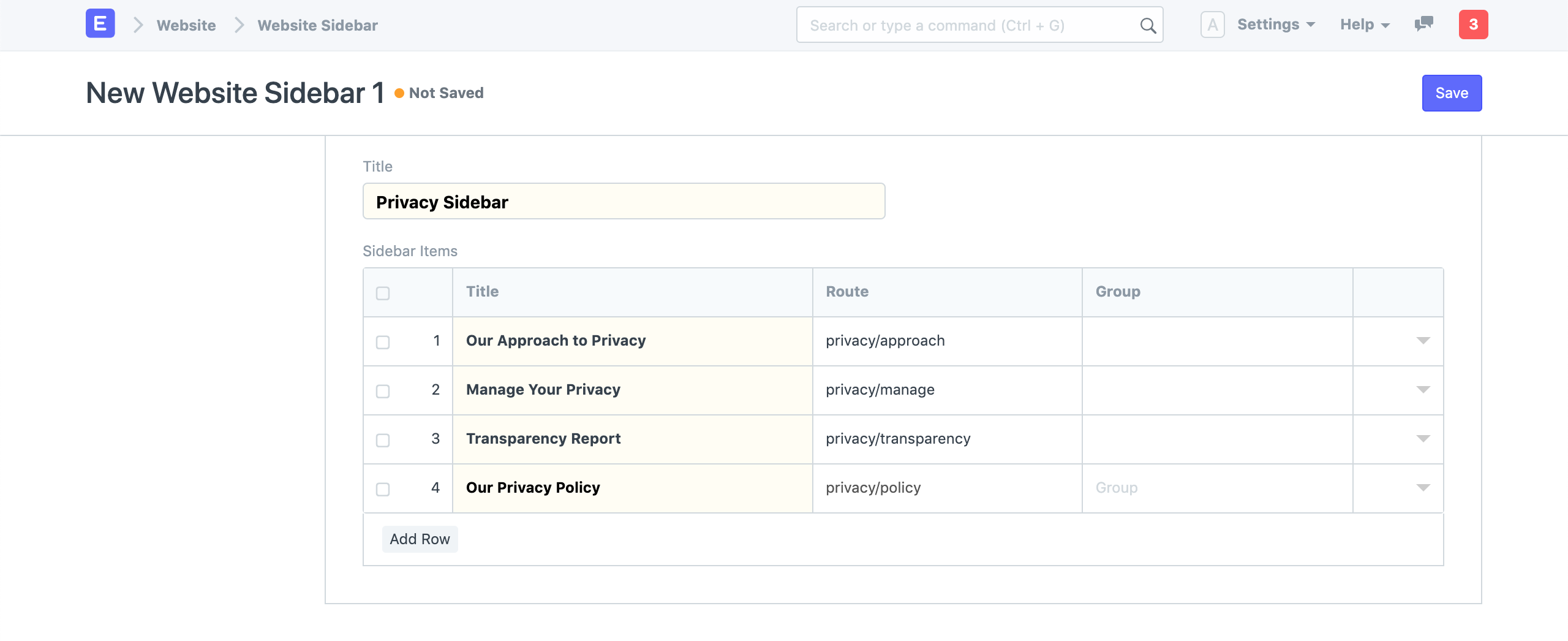
In the table of sidebar items, provide links and their path.
2.5 Comments
On your website, you can enable comments so visitors can post messages with their names and email addresses. Enable the Sidebar and Remarks section comments.

2.6 Header
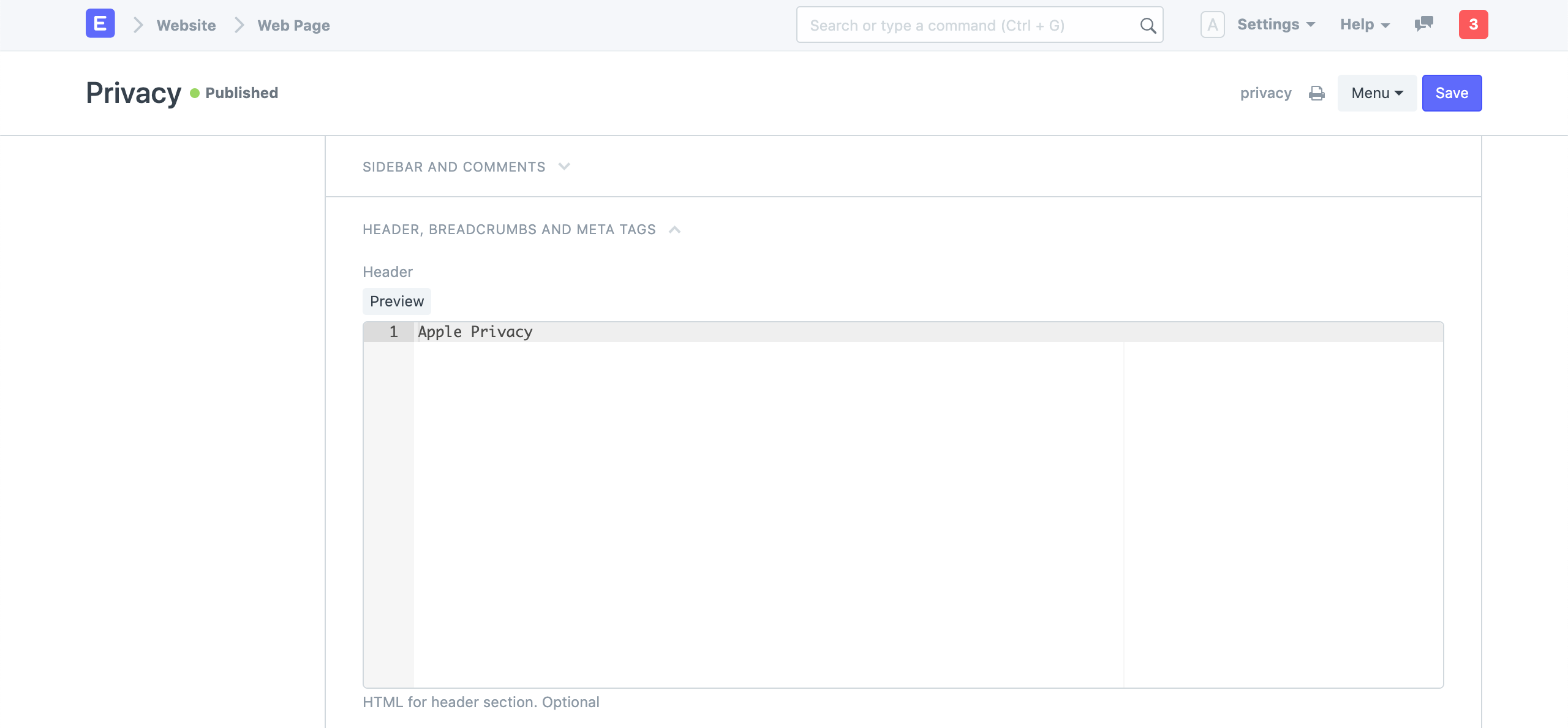
The header part of the page can have a custom HTML added to it. This will take precedence over the page's title.
2.7 Breadcrumbs
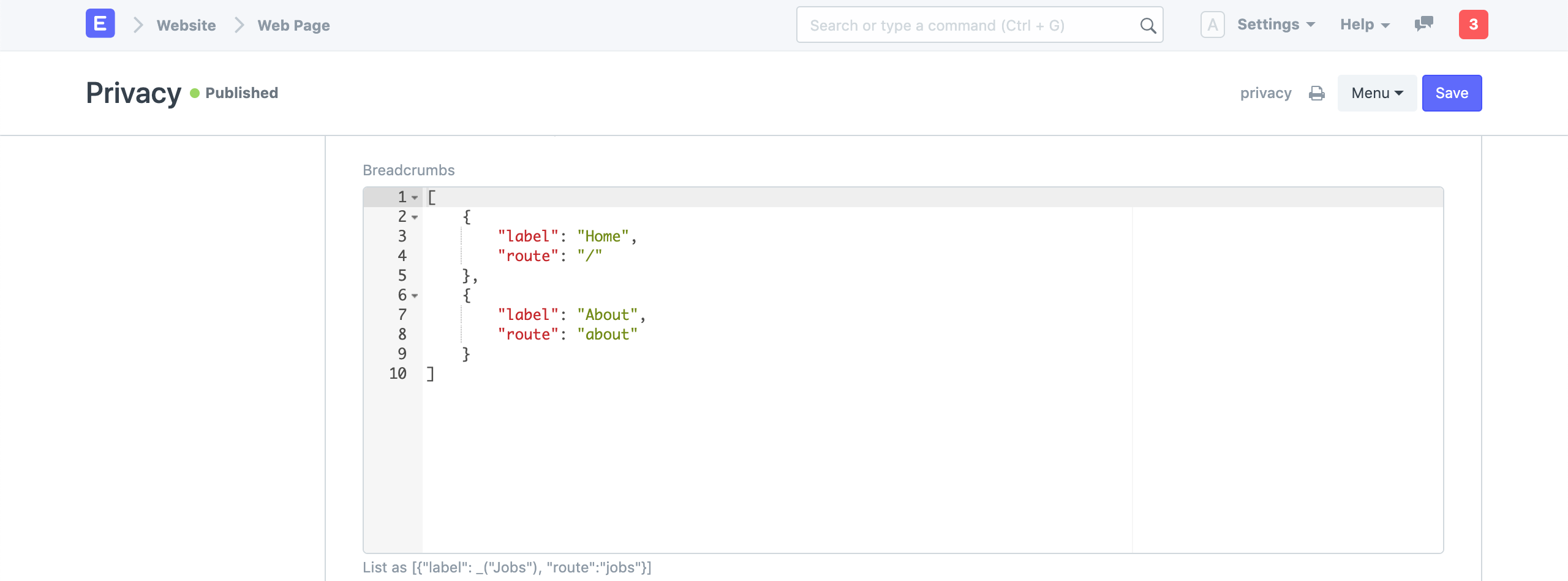
A list of breadcrumbs can be added to your website. They will be displayed first, prior to the header.

2.8 Meta Tags
Moreover, you can add Meta Tags to your website. The Meta Tag Table has to have the property key and its value added before it can automatically create HTML meta tags for your website.