HR Settings
HR Settings
Global options for HR-related documents are available in HR Settings.
Go to: to access HR Settings.
Home > Human Resources > Settings > HR Settings
The HR Settings menu offers a variety of options.
1. Employee Settings
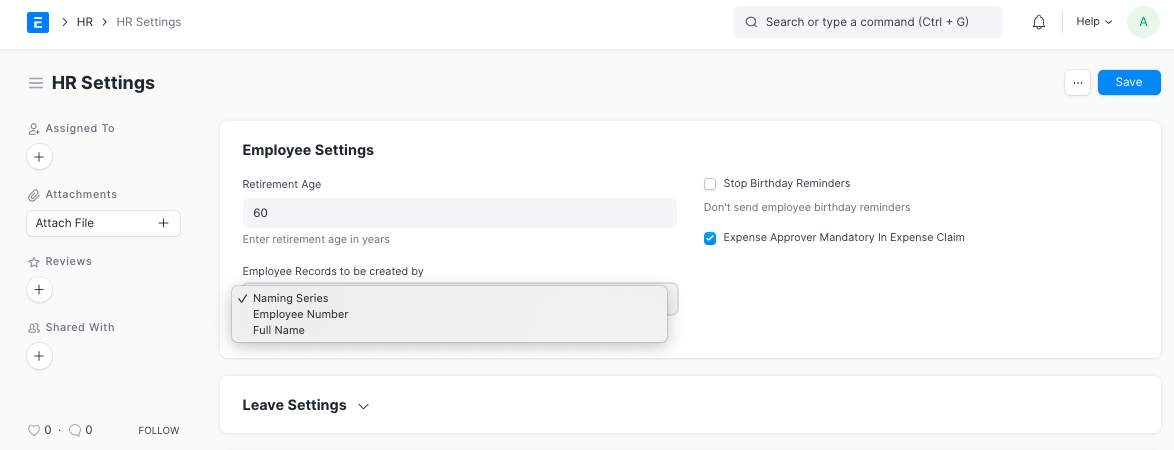
1.1. Retirement Age:
You can input the employees' retirement age (in years).
1.2 Employee Records to be created by
Depending on the value chosen in this field, employee document names will be generated.
Naming Series: The naming series chosen in the "Series" section will be used to name the employee documents that are created.
Employee Number: When this option is chosen, the Employee Number field becomes visible and is used to name the employee document.
Full Name: The entire name of the employee is used in the document's name.
1.3 Stop Birthday Reminders
When one employee celebrates a birthday, an email is sent to all of the company's employees. You can select this option to prevent the sending of this email.
1.4 Expense Approver Mandatory In Expense Claim
The "Expense Approver" field in the expense claim document is made required when this option is selected.
Up until version 12, payroll settings will be a component of HR settings. Payroll Settings will be a component of the brand-new Payroll module in version 13.
2. Payroll Settings
2.1 Calculate Payroll Working Days Based On
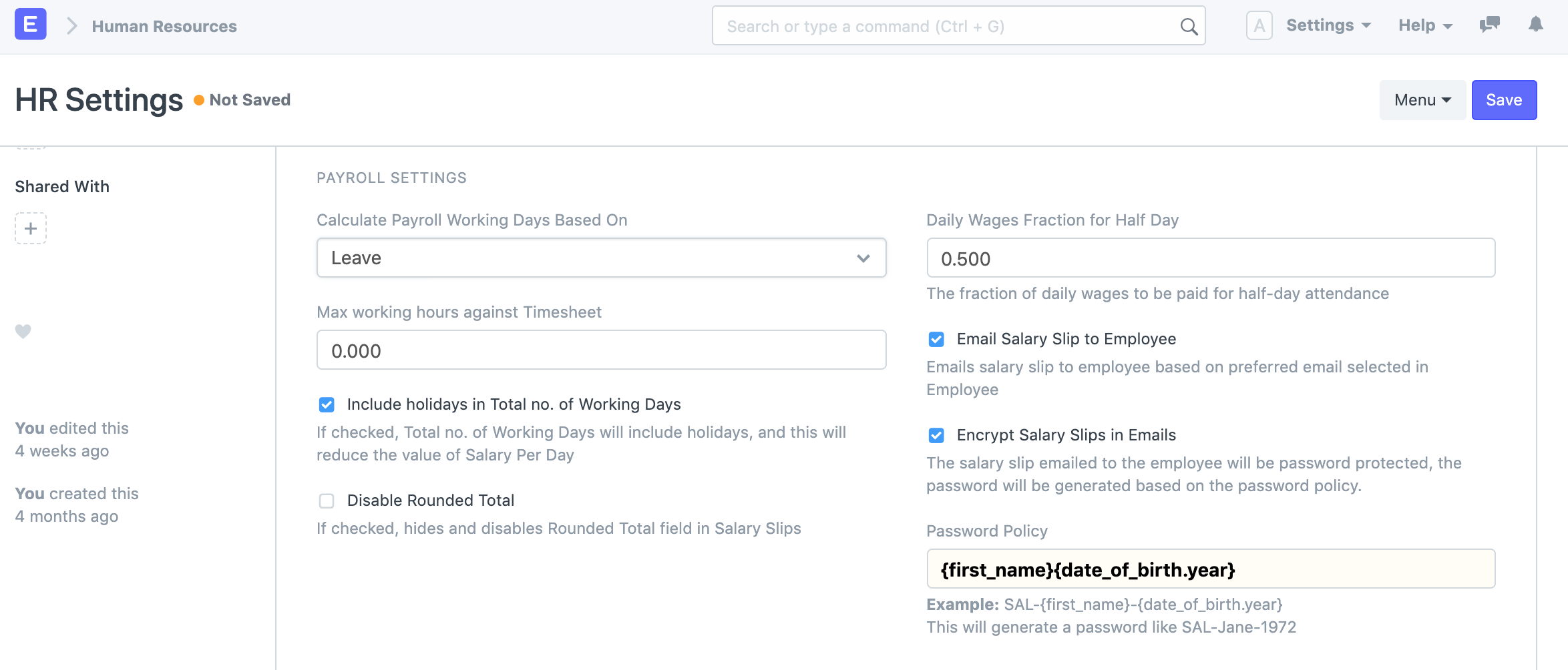
Based on leave applications or attendance records, working days in a salary slip can be computed. Depending on how you wish to calculate working days, you can choose the appropriate option.
2.2 Max working hours against Timesheet
You can set the maximum allowable hours against a single timesheet for salary slips based on the timesheet. To turn off this validation, set this value to zero.
2.3 Include holidays in Total no. of Working Days
If this box is ticked, holidays will be counted toward the total number of working days, which will lower the value of the daily wage.
2.4 Disable Rounded Total
This feature can be turned on to prevent salary slips from rounding off the total amount.
2.5 Daily Wages Fraction for Half Day
The compensation for Half Day will be computed based on this percent. For instance, if the value is set to 0.75, a half-pay day's will be awarded for attendance.
2.6 Email Salary Slip to Employee
Upon submission of the wage slip, an email containing it is sent to the specific employee's specified email address.
2.7 Encrypt Salary Slips in Emails
The specified Password Policy is used to encrypt the PDF salary slip that is provided to the employee.
2.8 Password Policy
When the aforementioned option for encrypting the pay stub in email is checked, this field becomes visible and required.
This is an illustration of how to set a salary slip PDF password policy.
Example:
Hence, a password similar to SAL-Jane-1972 will be created.
3. Leave Settings
3.1 Leave Approval Notification Template
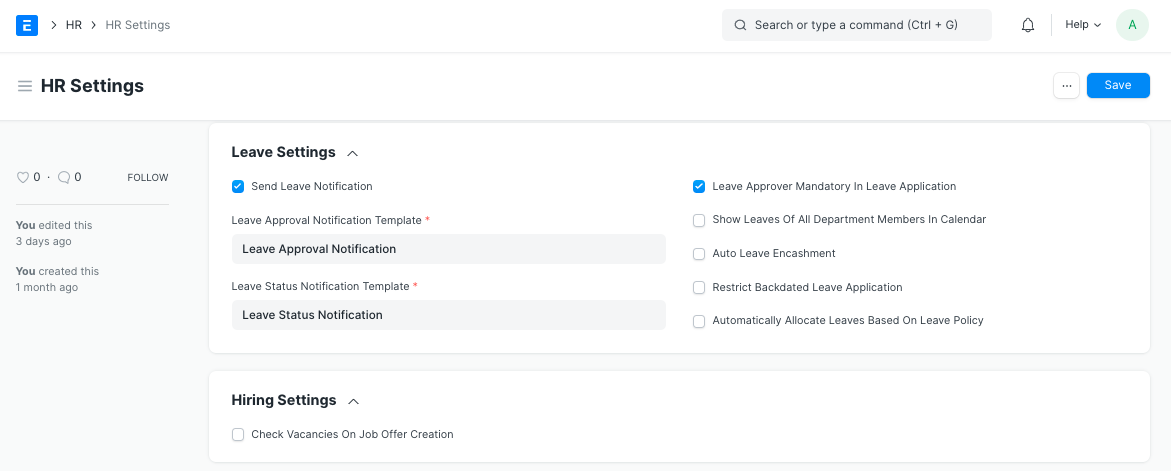
An email notifying the leave approver of the new leave application is sent when a leave application is created or updated. Here, you can choose the email template that will be used for this.
3.2 Leave Status Notification Template
The employee receives an email with the most recent status of their leave application upon submission or cancellation of a leave application. Here, you can choose the email template that will be used for this.
3.3 Leave Approver Mandatory In Leave Application
The "Leave Approver" field in the leave application document is made required when this option is selected.
3.4 Show Leaves Of All Department Members In Calendar
When this option is selected, all employees in the same department whose leaves have been approved are displayed in the calendar view.
3.5 Auto Leave Encashment
On the expiration of the leave allotment for all encashable leave types, the system generates a draft Leave Encashment record if the box is ticked.
3.6 Restrict Backdated Leave Application
If enabled, the system will not permit submitting a request for backdated leave.
Introduced in version 13
3.7 Automatic Allocate Leaves Based On Leave Policy
If selected, leaves will be automatically provided to employees based on the Effective From date in accordance with the current Leave Policy Assignment.
4. Hiring Settings
4.1 Check Vacancies On Job Offer Creation
To prevent the user from overhiring for a specific position, the staffing plan's open positions are checked when a job offer is created for that role.