Request for Quotation
A Request for Quotation is a document that an organization sends to one or more suppliers asking a quotation for items.
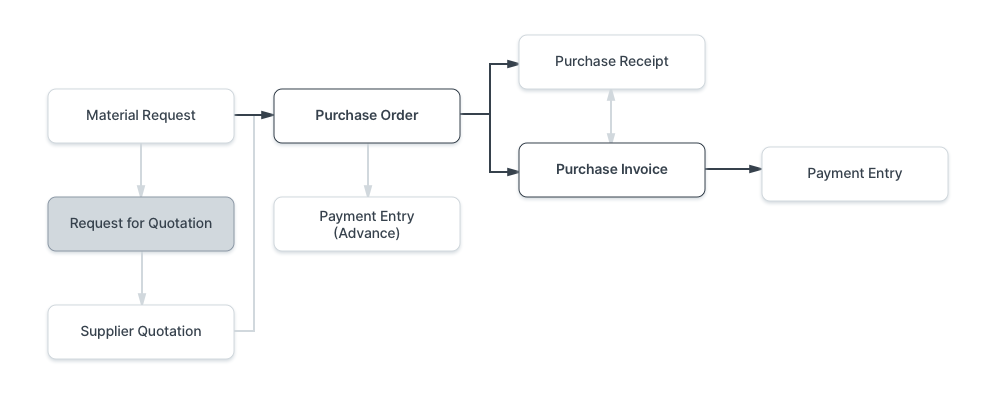
Go to: to access Request for Quotation.
Home > Buying > Purchasing > Request for Quotation
1. Prerequisites
It is suggested that you first create the following before making and using a request for quotes:
- Supplier
- Item
2. How to create a Request For Quotation
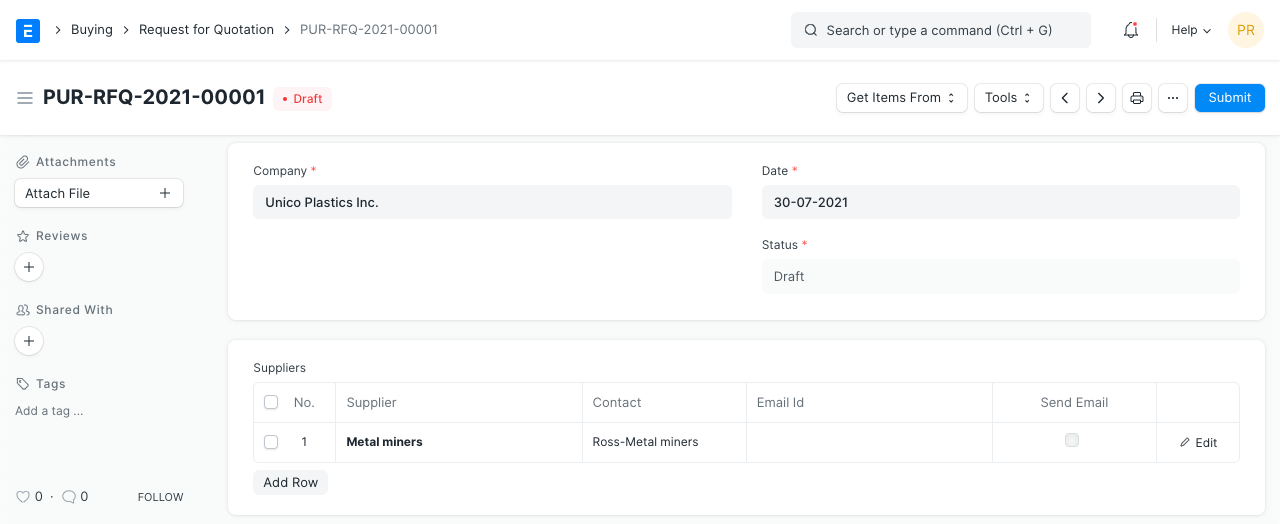
- Click New in the Request For Quotation list.
- Put the date in.
- Decide which Supplier will receive the Request for Quotation.
- Enter the products, amount, and target warehouse for the shipment in the following table.
- If "Maintain Stock" is not checked for the item, the warehouse field can be left empty.
- Publish and save.
The submission of a Material Request can also result in the creation of an RFQ. Following the creation of an RFQ, you can print and email suppliers the PDF, which contains all the information you supplied pertinent to the RFQ. See section 4.1, "Supplier Quotation by User," for information on how to obtain their response (Supplier Quotation) directly from ERPNext. However, your supplier might feel better at ease using an Excel file, etc., for a large number of things.
3. Features
3.1 Get items from
You can obtain the items in the items table from other documents. Material Request, Opportunity, and Potential Supplier are the available choices.
- Material Request: You will choose a submitted Material Request from which to acquire the items. A search for a material request can be done using some matching phrases, and the material requests can also be filtered by date range.
- Opportunity: A saved Opportunity will be used to fetch items. Additionally, a date range can be chosen here.
- Possible Supplier: Choose a potential supplier. Items can then be obtained from them if you've submitted any Material Requests against this supplier.

3.2 Get Suppliers
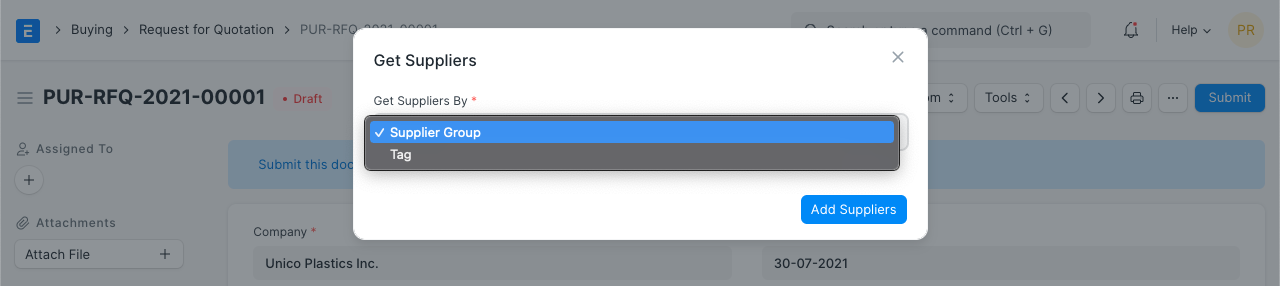
You may also use the 'Get Suppliers' button to acquire the suppliers rather than manually entering them in the table. The field "Get Suppliers By" can be found when you select Tools > Get Suppliers. The two ways to find suppliers are By Tag and By Group.
- By tag: Search for "Tag Category" using the search bar. In the Buying module, you must have first created tags and allocated them to Suppliers. Next, you can choose "By Tag." All suppliers will be retrieved after choosing Add "All Suppliers."
- By Group The supplier group from which suppliers should be added can be selected by clicking on "Supplier Group." If you choose Hardware, for instance, all of your hardware suppliers will be listed, allowing you to request quotes from each of them.
When you expand a row with an inverted triangle in the Supplier table, you'll find an option to "Download PDF," which opens a PDF of the RFQ.
3.3 Link to Material Requests:
The Request for Quotation is linked to any available Material Requests when you select Tools > Link to Material Requests. The Request for Quotation and the Material Request should both contain the same things.
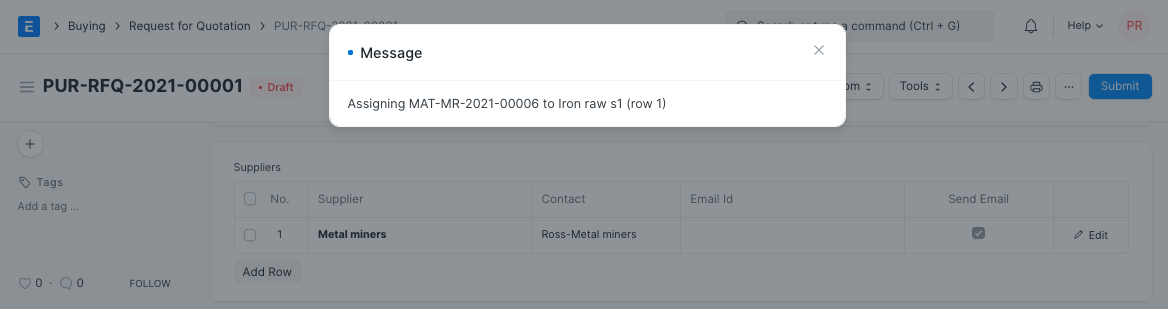
Now that it is connected to the Material Request, you can see on the Dashboard that the Request for Quotation has been saved. The link will be generated with the most recent Material Request if there are several Material Requests for the same products.
3.4 Email Preview
A draft request for quotation includes a section called "Email Details" where you may create and preview the email you'll be sending to the supplier.
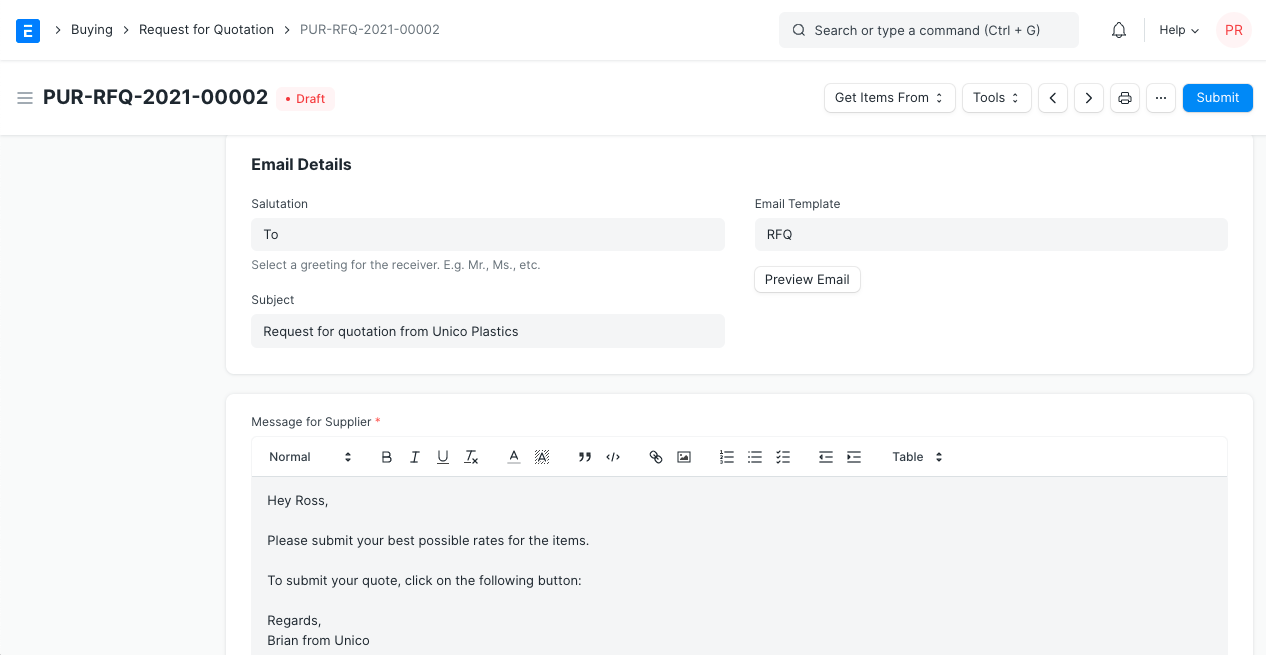
In the "Message for Supplier" field, type any extra notes for the supplier. The "Email Template" feature allows for the automatic filling of this field.
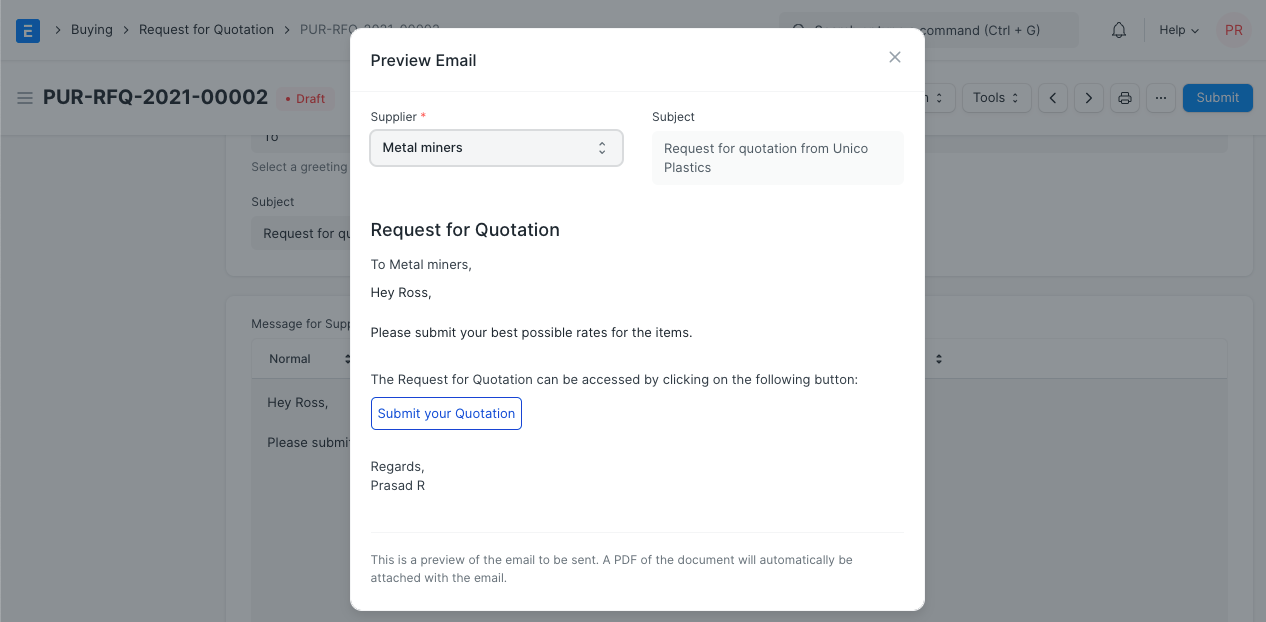
The "Subject" field can be altered, and a salutation can be added. When finished, click the "Preview Email" button to view a draft of the email that will be sent.
3.5 Terms and Conditions
There may be specific Terms and Conditions in Sales/Purchase transactions on the basis of which the Supplier supplies goods or services to the Customer. The Terms and Conditions may be applied to transactions, and they will be printed with the document. Click here to learn more about the terms and conditions.
3.6 Print Settings
Letterhead
Your purchase order or request for a quote can be printed on letterhead from your business. Find out more here.
The option "Group same things" will group identical items added more than once to the items table. When printed, this is evident.
Print Headings
Your documents' titles can be modified. Find out more here.
4. Creating a Supplier Quotation after RFQ
There are two ways to generate a supplier quotation from a request for quotation once it has been created.
4.1 Supplier Quotation by User
- Click Supplier Quotation > Create after opening the Request for Quotation.
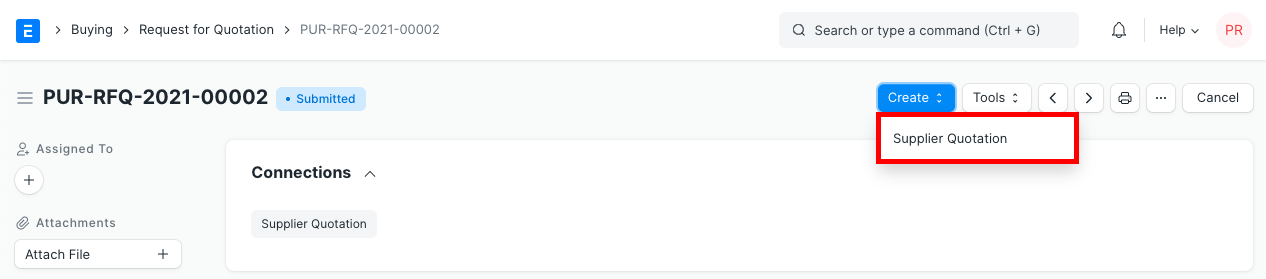
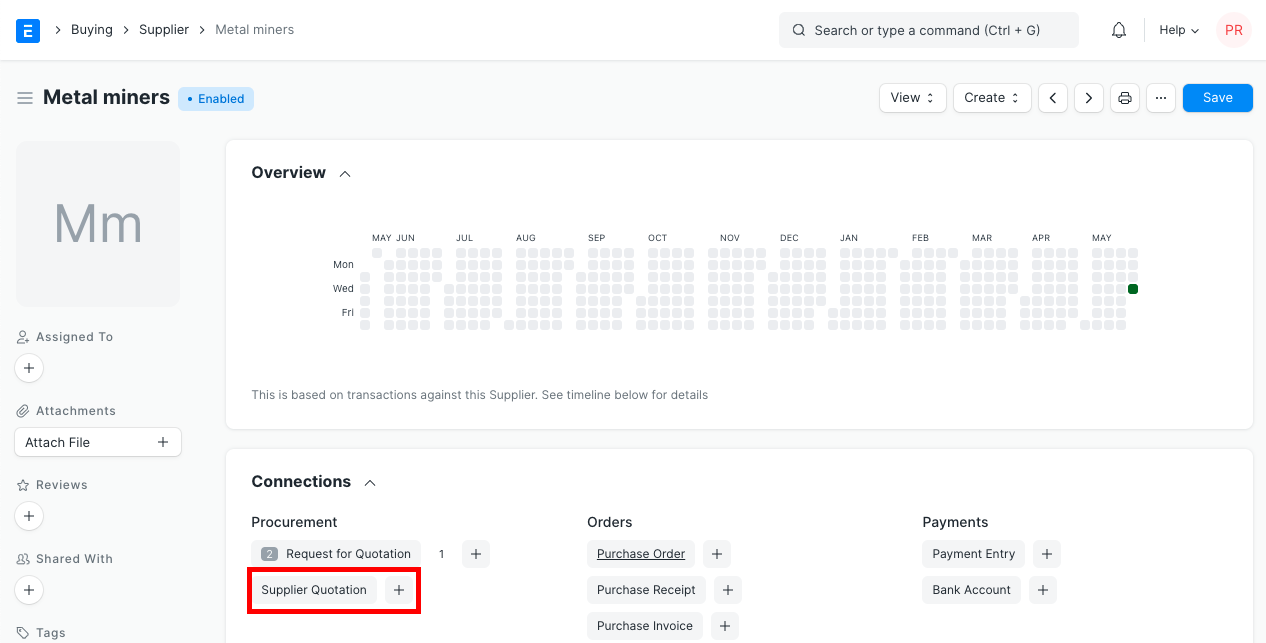
Click on the Supplier after selecting it once more. Click the plus sign (+) next to "Supplier Quotation" on this page. User must enter quantity, rate, and submit on a new Supplier Quotation page that will open.
4.2 Supplier Quotation from Supplier
When choosing the Supplier, the Contact information and the related email address will be retrieved if a Contact has been created for the Supplier. If they don't already exist, create a contact and an email address.
Select Tools > Send Supplier Emails from the menu.
If the Supplier's account is missing, the system will create it and give the Supplier information. The link (Password Update) in the email must be clicked by the Supplier. The Supplier can use the "Request for Quotation" form to access their portal following the password modification. A website user named the Supplier will be created.
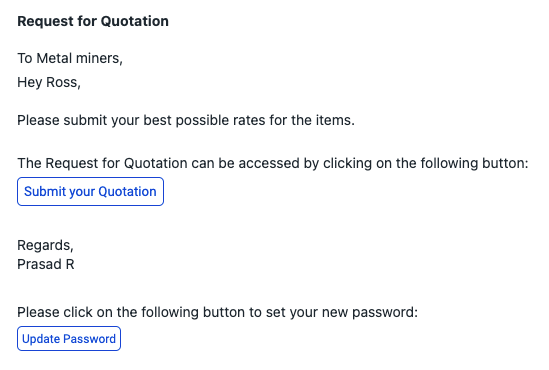
If Supplier's account is present: The supplier will receive a link to a request for quotes from the system. To view the Request for Quotation form on the site, the Supplier must log in using his credentials.
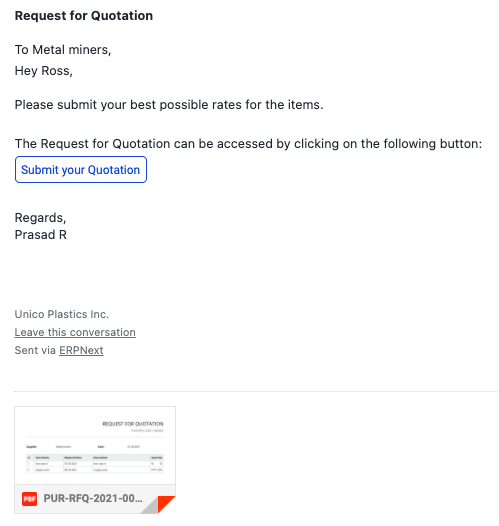
- In either case, the Supplier will get the following screen after logging in. They can send you a quote from here:
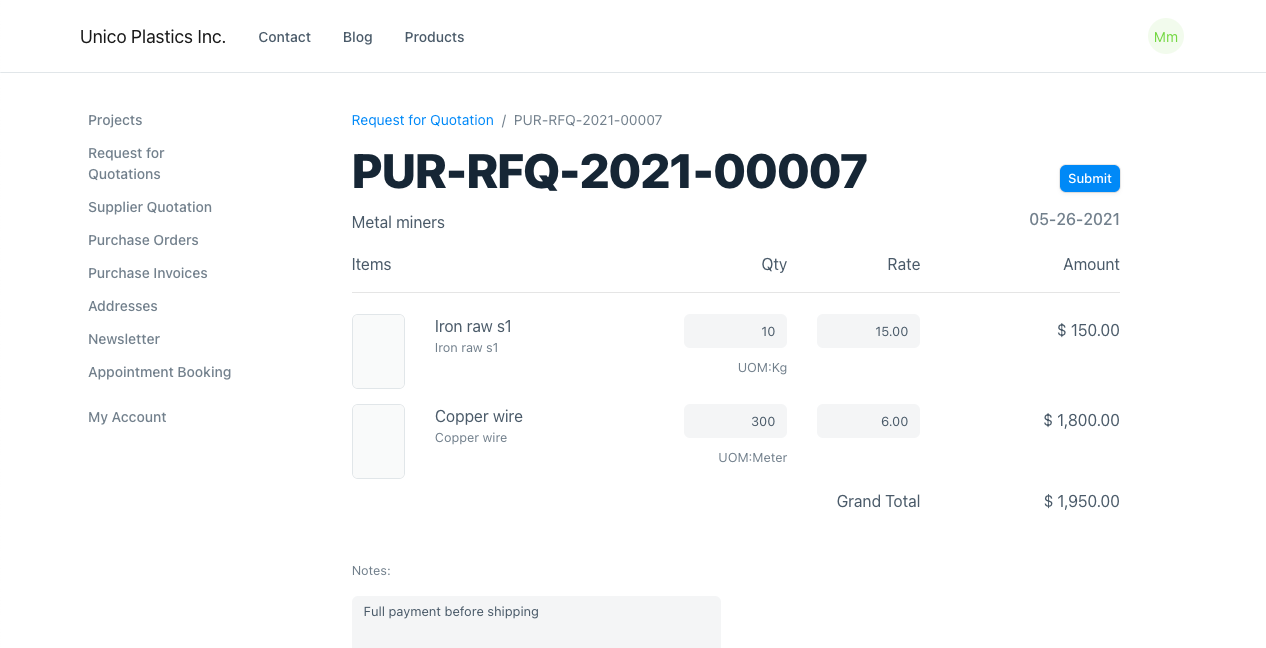
The Supplier must fill out the form, submit the requested information, and hit the "Submit" button. Previous quotations will be accessible in the Quotations section.
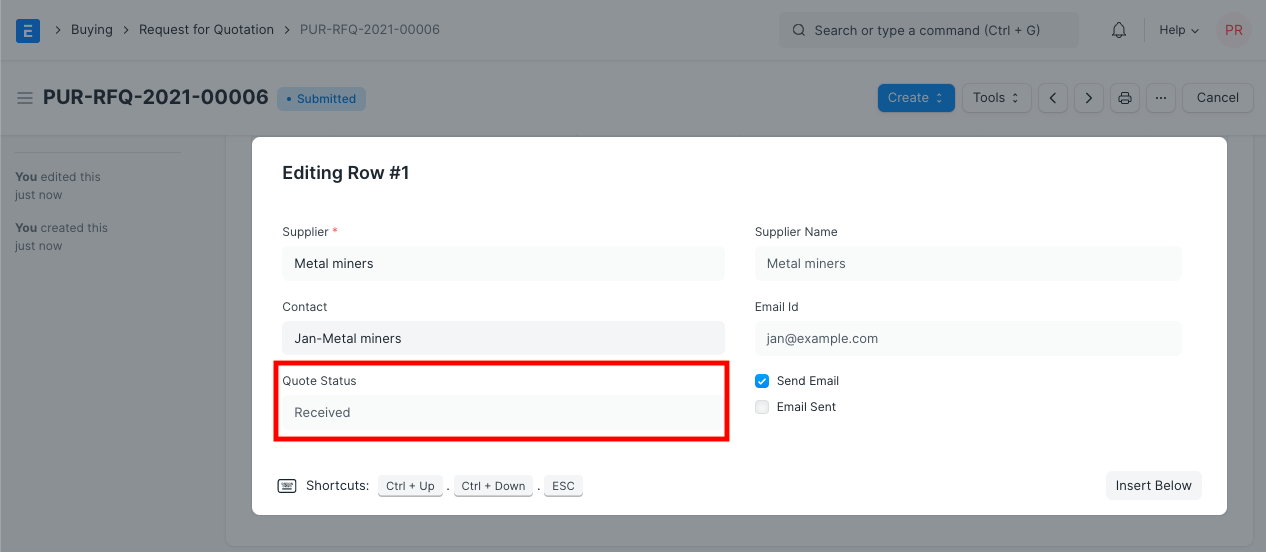
Geer ERP will generate a Supplier Quotation (draft mode) against the Supplier upon submission. The user must review and submit the supplier quotation. The quotation status is changed to "Received" in the "Suppliers" table of the Request for Quotation once every item from the Request for Quotation has been quoted by a Supplier.