Item Tax Template
Item Tax Template For item-wise taxes, the item tax template is helpful.
You can construct an Item Tax Template and attach it to an Item or Item Group if some of your Items have tax rates that differ from the default tax rate assigned in the Taxes and Charges table. The regular tax rate assigned in the Taxes and Charges table will not take precedence over the rate assigned in the Item Tax Template.
For instance, if tax GST 18% is added to the Sales Order's Taxes and Charges table, all of the goods in that Sales Order will be subject to that tax. However, the instructions are provided below if you need to apply a different tax rate to certain of the items.
Visit to access the list of Item Tax Templates.
Accounting Section > Taxes Section > Item Tax Template
Assume for the moment that we are writing a sales order. For GST 9%, we have the Sales Taxes and Charges Template master. Out of all the Sales Items, only 5% GST will be applied to one item, while the remaining Sales Items are tax-exempt (non taxable). You must choose the tax's account head and provide its overriding rate.
1. Prerequisites
It is suggested to first create the following before developing and using an item tax template:
1.Item 2.Enable 'Automatically add Taxes and Charges from Item Tax Template' in Account Settings
2. How to create an Item Tax Template
1.Go to the Item Tax Template list and click on New. 2.Enter a title for the Item Tax Template. 3.Select an account and set the overriding rate. Add more rows if required. 4.Save.
Now that it has been allocated to an item, the item tax template is ready. Go to the Item, Item Tax area and choose an item tax template to accomplish this:
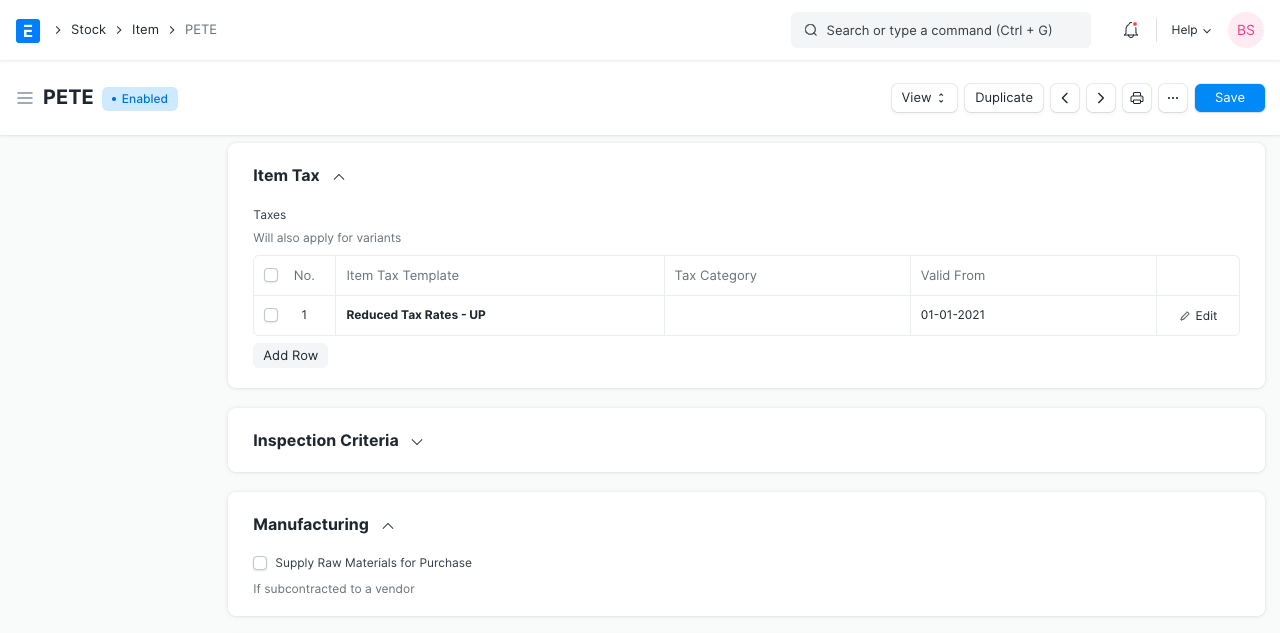
It is recommended not to use the Sales/Purchase Template chosen here in Tax Regulation since it could interfere. Use a different name for the Sales/Purchase Tax Templates if you wish to utilize the same tax rates for Tax Rule and Item Tax Template.
2.1 Mention Tax Applicable in the Item master
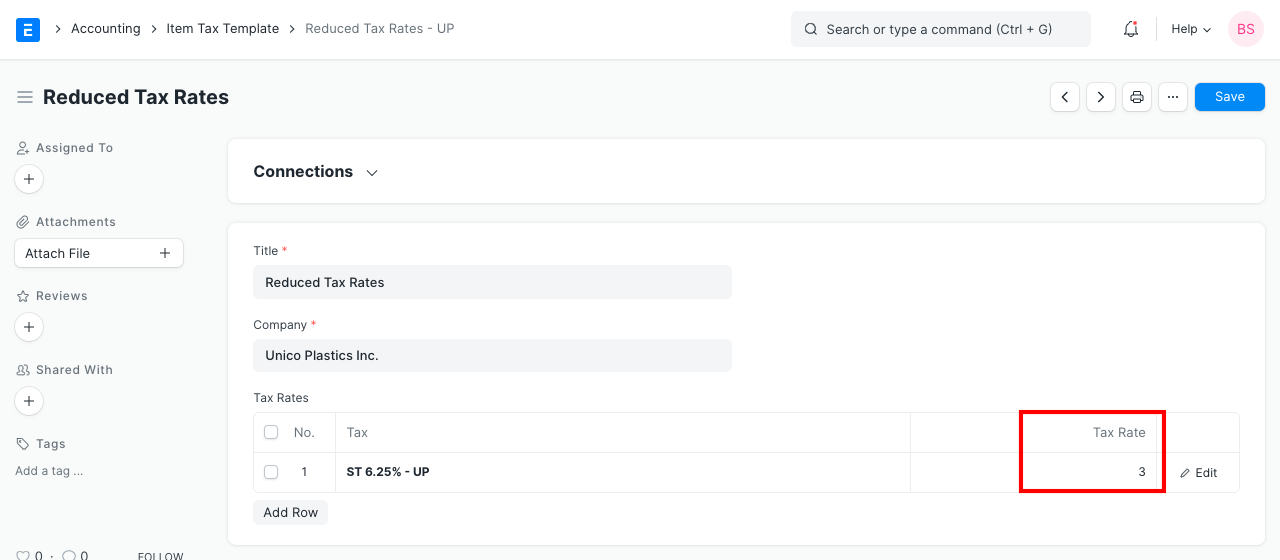
Values are pre-set in tax template files. You must modify it in the item master for items that have a different tax rate from the rest. Navigate to the item's tax table, add a row, choose the tax type, and modify the rate. Now, when creating an order or invoice, this new rate will take precedence over the template. For instance, you can see that the tax rate is set to 5 in the screenshot below, and that rate will be used in transactions.
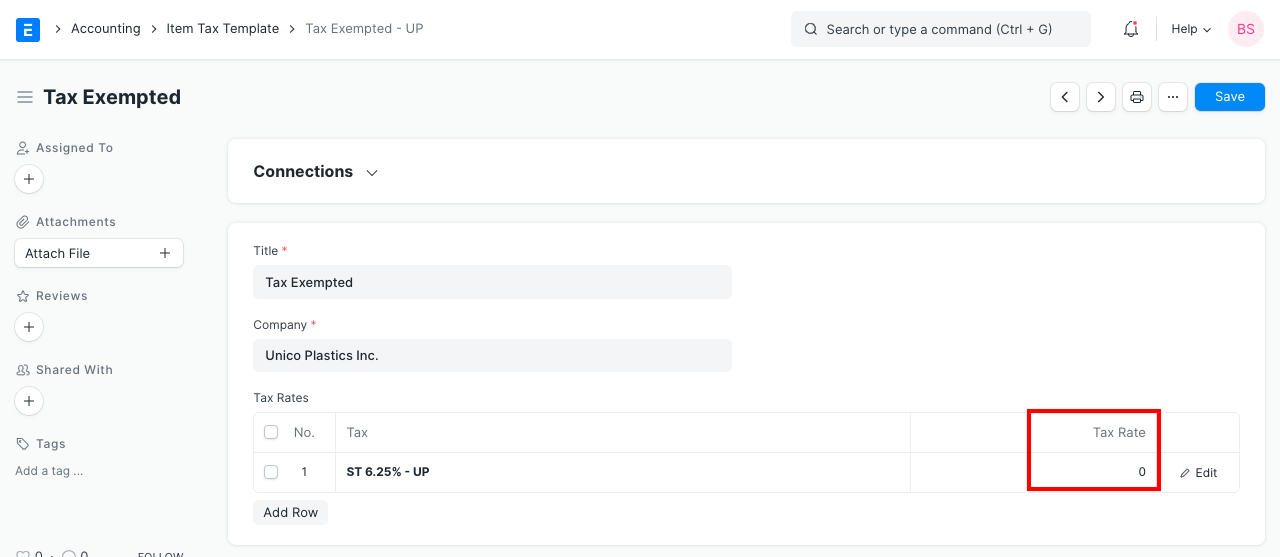
In the item master, indicate 0% as the tax rate for any item that is completely free from tax.
You must make sure that the tax types (accounts) specified in the item tax template (with the modified tax rates) are present in the sales taxes and charges template in order for it to function.
You must record each item under a different tax head if you want to include several goods with various tax rates. For instance, VAT of 14%, 5%, etc.
2.2 Tax Calculation in transaction
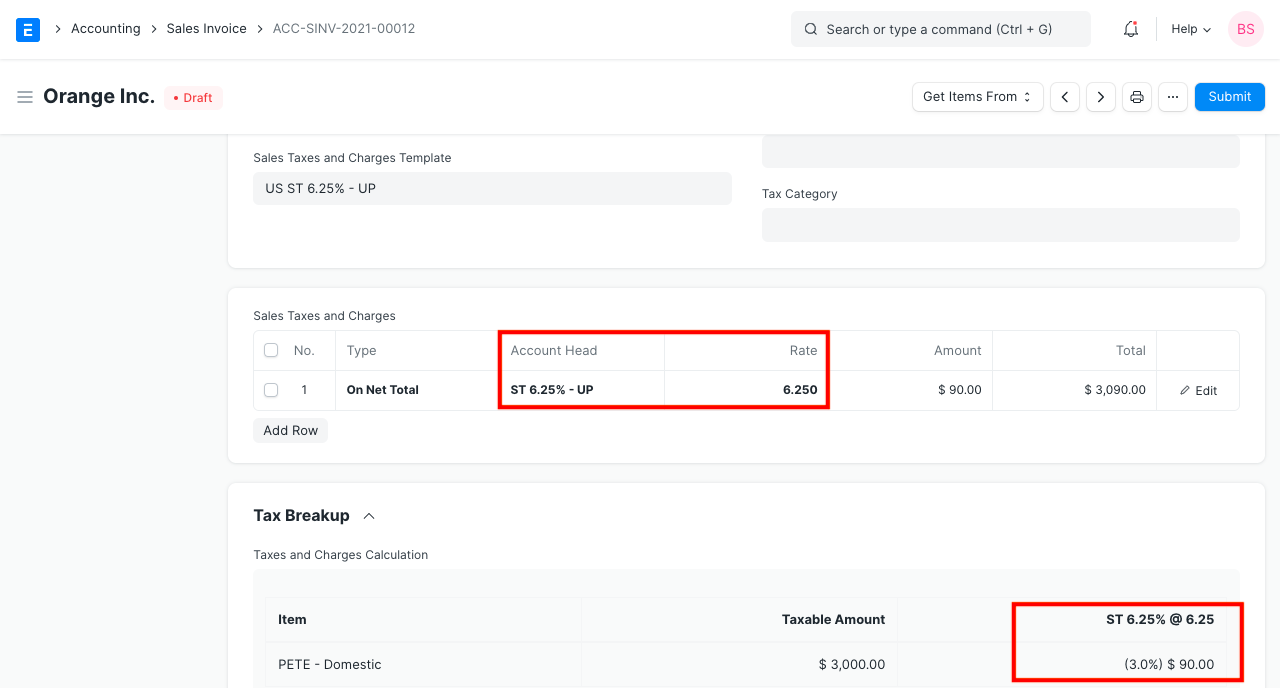
The taxes on the items are determined according to the Sales Taxes and Charges Template chosen in sales transactions like Quotation, Sales Order, and Sales Invoice. However, taxes are calculated on certain items using the rates listed in the item tax template rather than the rates listed in the sales taxes and charges template if those items are linked to an item tax template.
For instance, you can see that taxes are calculated at 3% in the screenshot below despite though the rate according to the Sales Taxes and Charges Template is 6.25%.
2.3 Item Tax Template for each Items
Moreover, each item in a transaction may have a distinct item tax template selected manually:
2.4 Item wise tax on an Item Group
By altering the Item Tax table in the Item Tax section of the Item Group document, you can assign the Item Tax Template to an Item Group.
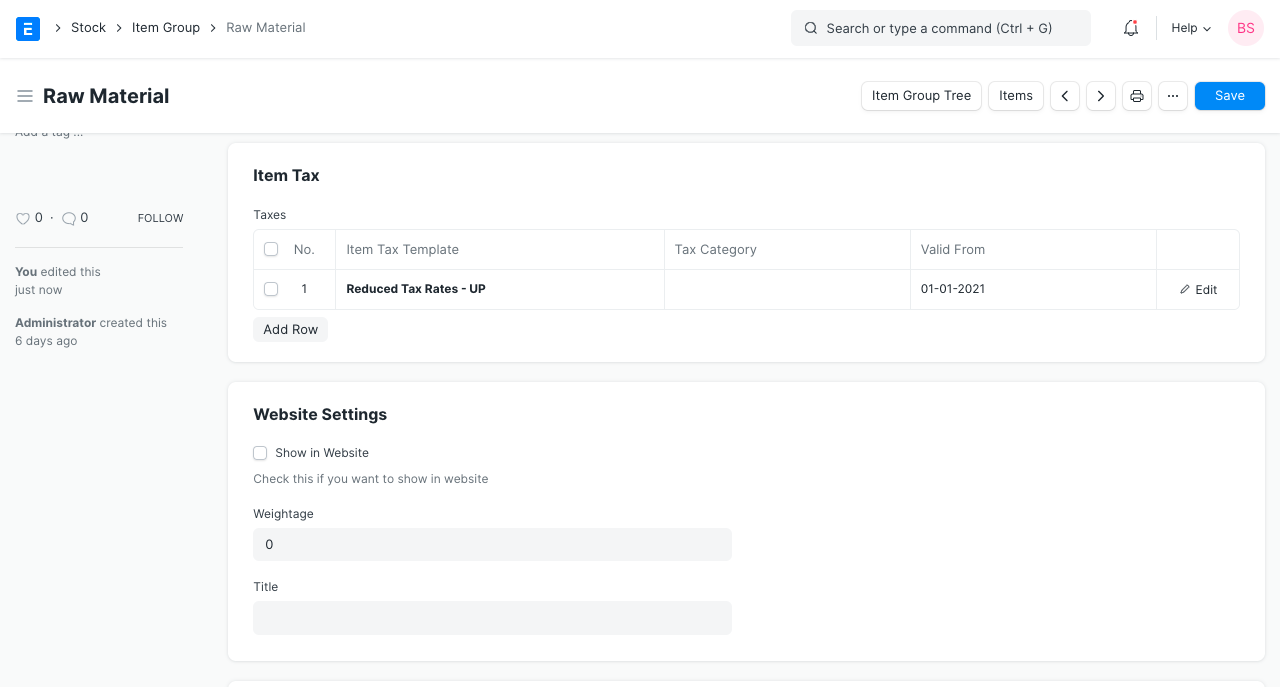
Unless a specific item in the item group has its own item tax template assigned to it, an item tax template applied to an item group will apply to all items within that group.
2.5 Validity of Item Taxes
As seen in the graphic above, tax templates can also have a validity assigned to them.
1.Based on the posting date of the transaction, a valid tax template will be automatically fetched. 2.If there are more than one valid tax templates then the first valid tax template from Item Tax table will be fetched. 3.In case when there are no valid tax templates then the first tax template with no 'Valid From' date in the Item Tax table will be fetched.
Note: When adding products to a purchase invoice, the "Supplier Invoice Date" will be given priority over the "Posting Date" in order to retrieve a valid item tax template.
2.6 Some points to note
1.If you set the Tax Category as empty, the default Item Tax Template will be applied to Items in transactions.
2.You can apply different Item Tax Templates for different Tax Categories.
3.For an Item Tax Template to override taxes, there must be a row in the Taxes and Charges table with the same tax Account Head with a standard tax rate.
4.If you wish to apply taxes only on the Items with an Item Tax Template then you can set the standard tax rate as 0.