Purchase Order
A Purchase Order is a binding contract with your Supplier that you promise to buy a set of items under given conditions.
It is comparable to a sales order, except that you keep it for internal purposes rather than forwarding it to a third party.
Home > Buying > Purchasing > Purchase Order
1. Prerequisites
It is suggested that you first create the following before establishing and using a purchase order:
- Supplier
- Item
2. How to create a Purchase Order
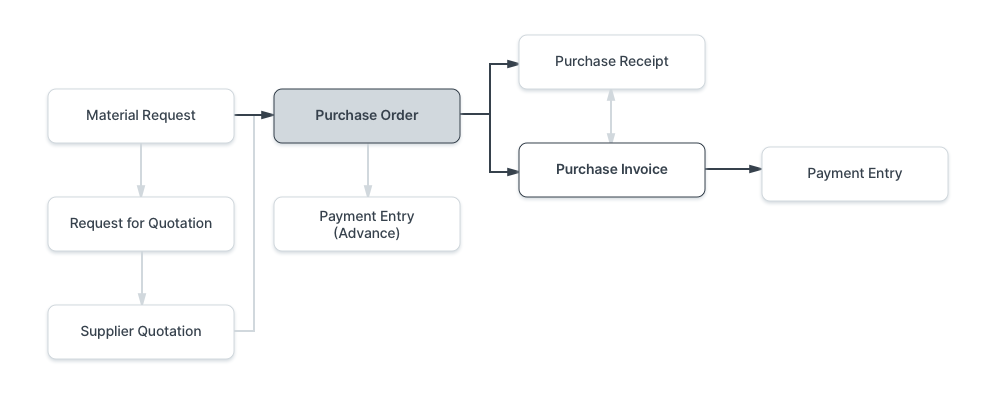
A material request or supplier quote can generate a purchase order automatically.
- Click New in the Purchase Order list.
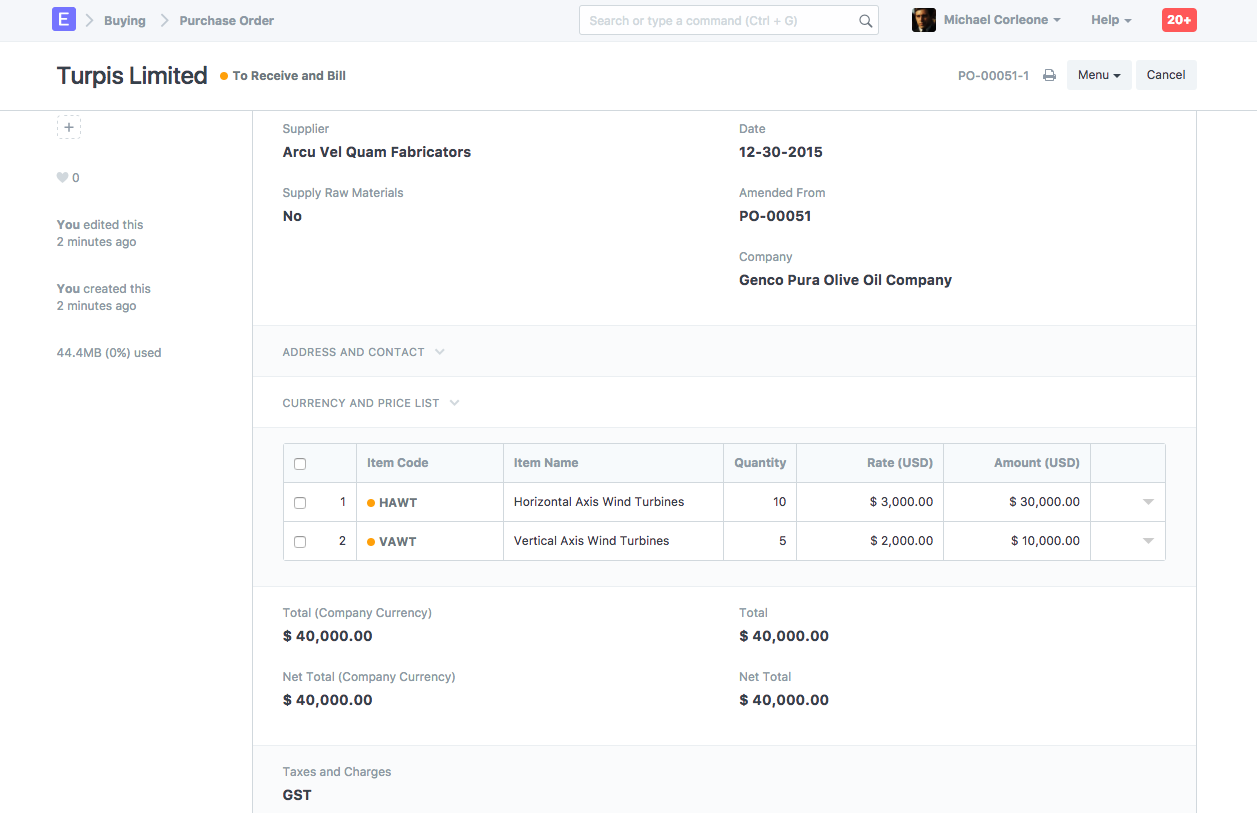
- Choose the Supplier, followed by the due date.
- Change the required by date for each item by selecting the item by code in the items table.
- If the quantity is set in the item master, the price will be fetched automatically.
- tax rates.
- Publish and save.
2.1 Setting Warehouses
- Set Target Warehouse: The default target Warehouse to which the ordered items will be delivered is an option. This will be added to the rows of the item table.
2.2 Fetching Items from Open Material Requests
Open Material Requests can automatically gather items for the Purchase Order. The actions listed below must be taken in order for this to work:
- In the purchase order, choose a supplier.
- In the Item form's Item Defaults section, select the default Supplier.
- There must be a Material Request of type "Purchase" present.
- Under the Supplier name, select the Get Items from open Material Requests button. A dialog box will now show Material Requests for Items whose default Supplier matches the one chosen for the Purchase Order. The Items will be collected from the Material Requests after selecting the Material Requests and clicking Get Items.
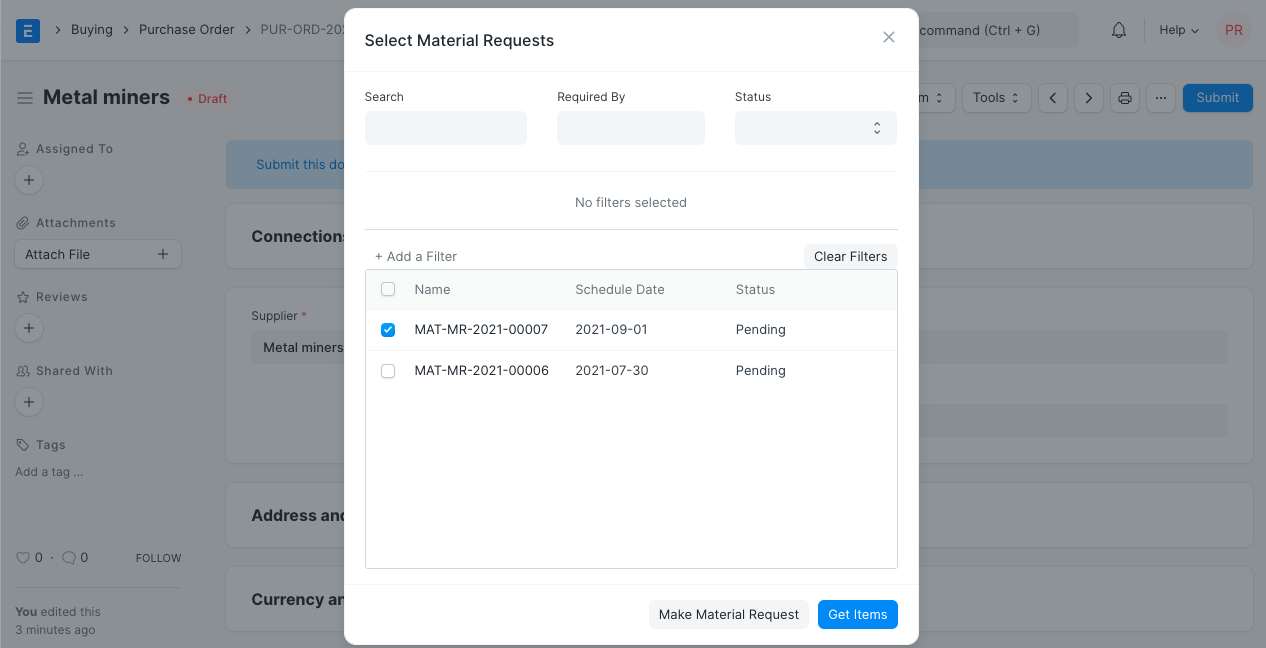
Note: The Get Items from Open Material Requests button is visible as long as the Items table is empty.
3. Features
3.1 Address and Contact
- Select Supplier Address: The billing address for the Supplier.
- Select Shipping Address: The place where the Supplier will be sending the goods for delivery.
- If saved in the Supplier master, the address, shipping address, contact information, and contact email will be retrieved.
For India:
- Supplier and Company GSTIN: the GST IDs for both your business and your supplier.
- Place of Supply: Place of Supply is required for GST. It includes the name and designation of the state.
3.2 Currency and Price List
The currency in which the purchase order is to be stored is configurable. The item prices will be obtained from a pricing list if one has been set. The Pricing Rules established in Accounts > Pricing Rule will be disregarded if Ignore Pricing Rule is checked.
To learn more, read about Price Lists and Multi-Currency Transactions.
3.3 Subcontracting or 'Supply Raw Materials'
For subcontracting where you supply the raw ingredients to manufacture an item, setting the "Supply Raw Materials" option is helpful. Visit the Subcontracting page to learn more.
3.4 The Items table
- Scan Barcode: If you have a barcode scanner, you can add items to the items table by scanning their barcodes. For further information, consult the barcode tracking documentation for products.
Quantity and Rate: The item's name, description, and UOM will be obtained when you choose the item code. By default, the 'UOM Conversion Factor' is set to 1, but you can adjust it according to the UOM that you received from the seller; more on this in the following section.
If a Standard Buying rate is set, the "Price List Rate" will be retrieved. The item's price from your most recent Purchase Order is displayed under "Last Purchase Rate." If configured in the item master, the rate is fetched. To apply a specific tax rate to the item, you can connect an item tax template.
Item weights if specified in the Item Master, will be fetched; else, input manually.
- Warehouse: If "Set Target Warehouse" was selected in the purchase order, the warehouse where the items would be delivered will automatically be filled in. A Blanket Order may be linked via a Blanket Order; for additional information, see here. You can link a "Project" to it to monitor development. To monitor progress, a "BOM" or bill of materials can be linked.
- The current stock as per the UOM established in the Item master is displayed via the option "Qty as per Stock UOM." When the items are billed, the value of "Received Qty" will be updated. -Accounting Details: For a purchase order, this field is automatically filled in. The "Expense Account" is the account that the PO is charged to, and the "Cost Center" is the CC that the PO is charged to.
Each item has a "Required By" date: Your Supplier will be aware of how much to deliver when and on what date if you are anticipating a partial delivery. You will be able to avoid oversupply with the aid of this. It will also enable you to monitor the timeliness of your Supplier.
Allow Zero Valuation Rate: By selecting "Allow Zero Valuation Rate," you can submit the purchase receipt even if the item has a zero valuation rate. This may be a result of a mutual understanding with your Supplier or a sample item.
3.6 Raw Materials Supplied
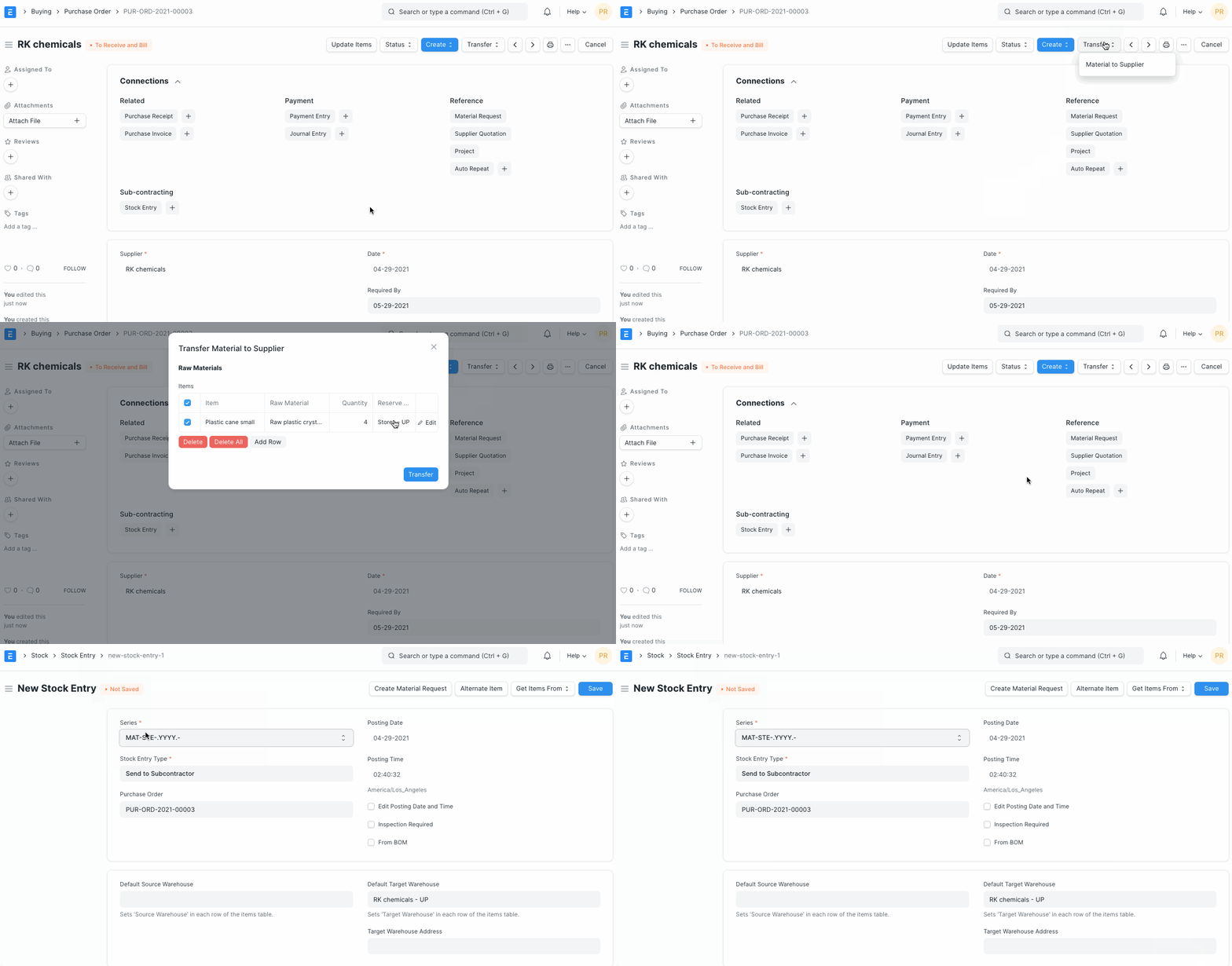
When the setting for "Supply Raw Materials" is set to "Yes," this section is displayed. The items that must be provided to the Supplier for the subcontracting procedure are listed in a table in this section.
- Set Reserve Warehouse: The raw materials can be set aside in a different Warehouse while subcontracting. The Raw Materials Supplied table's Item rows of the Reserved Warehouse will be obtained when this option is selected.
Supplied Items Table
- Required Quantity: The number of items necessary, as listed in the BOM, to finish the subcontracting.
- Supplied Quantity: When you use the Transfer button to create Stock Entries to move items from the Reserve Warehouse to the Supplier Warehouse, this will be changed.
3.7 Purchase UOM and Stock UOM Conversion
In the purchase order, you can modify your UOM in accordance with your stock needs.
You can do this when creating your purchase order, for instance, if you have purchased your raw materials in big quantities with UOM - boxes and wish to store them in UOM - Nos.
In the item master, enter UOM as Nos. The UOM in the item master is the stock UOM, so take note of that.
Mention UOM as well as Box in the purchase order. Since the material is delivered in boxes,
The UOM will be imported into the Warehouse and Reference area as Nos (from the Item form):

Mention the conversion factor for UOM. One box, for instance, might contain 1 kilogram.
The stock quantity will be updated accordingly, so take note.

3.8 Taxes and Charges
You can add it here if your Supplier will be charging you additional taxes or other fees, such as shipping or insurance. You can effectively track your expenses with its assistance. Additionally, you must include any of these fees that increase the product's value in the Taxes table.
To learn more about taxes, go to the Purchase Taxes and Charges Template page.
Below the table, the total taxes and fees will be shown.
Visit this page to learn how to automatically add taxes using a Tax Category.
For a correct valuation, ensure that all of your taxes are accurately marked in the Taxes and Charges table.
Shipping Rule
A shipping rule aids in determining an item's shipping cost. The price will often rise as shipping distance increases. Visit the Shipping Rule page to learn more.

Suppose you purchase Items costing X and sell them for 1.3X. Thus, the tax you pay to your Supplier is 1.3 times what your Customer pays. You only owe the government the tax on 0.3X because you previously paid tax to your supplier for X.
Since each tax head is also an account, Geer ERP makes it incredibly simple to keep track of this. Ideally, you should set up two Accounts with the names "Purchase VAT-X" (asset) and "Sales VAT-X" (liability) for each form of VAT you pay and collect.
3.9 Additional Discount
You can apply a discount to the entire purchase order in this section in addition to recording discounts per item. This discount may be based on either the Gross Total (i.e., after taxes and fees) or the Net Total (i.e., before taxes and fees). A percentage or dollar amount may be used to apply the additional discount.
For further information, see Applying Discount.
3.10 Payment Terms
Payment is not always made in full. Depending on the terms of the arrangement, you can pay half before shipping and the other half once you've received the goods or services. In this section, you can manually enter the terms or add a Payment Terms template.
For further information, see Payment Terms.
3.11 Terms and Conditions
There may be specific Terms and Conditions in Sales/Purchase transactions on the basis of which the Supplier supplies goods or services to the Customer. The Terms and Conditions can be applied to transactions, and they will show up when you print the paper. Click here to learn more about the terms and conditions.
3.12 Print Settings
Letterhead
Your purchase order or request for a quote can be printed on the letterhead of your business. Find out more here.
The option "Group same things" will group identical items added more than once to the items table. When you print, this will be evident.
Print Headings
Your documents' titles can be modified. Find out more here.
Your purchase order can include a note about the seller's additional discount, payment terms, and terms and conditions.
3.13 More Information
The status of the purchase order, the percentage of things received, and the percentage of items billed are all displayed in this section. Linked here is the Sales Order if this is an Inter Company Order.
3.14 After Submitting
When you "Submit" your purchase order, you can start the following processes:
By selecting the Update Items button, you can Add, Update, or Delete items from the Purchase Order. You cannot, however, delete things that have already been delivered.
Status: Following submission, a purchase order might be held or closed.
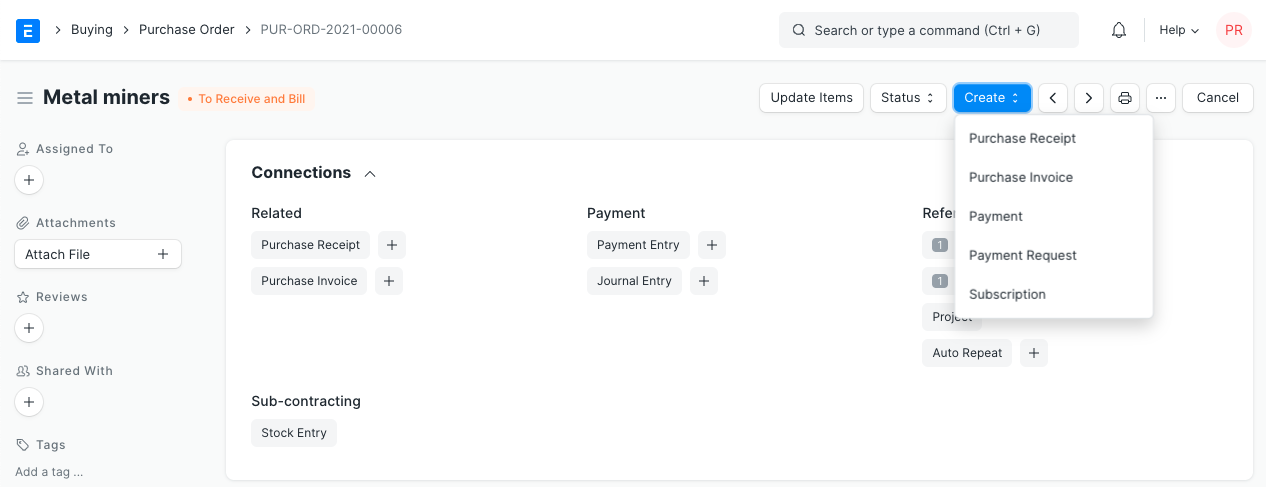
Create: The following can be produced from a submitted purchase order:
- Purchase Receipt - A receipt indicating you've received the items.
- Purchase Invoice - An invoice/bill for the purchase order.
- Payment Entry - A payment entry indicates that payment has been made against a purchase order.
- Journal Entry - A Journal Entry is recorded in the general ledger.