Raw Printing
Introduced in Version 12
Sending a string of commands to a printer directly in its native language is called Raw Printing
Many thermal printers require these raw commands to be provided to them in order to carry out tasks like printing barcodes, receipts, labels, etc. Most of the time, Raw Printing skips the printer drivers, which makes them incredibly quick and dependable. Additionally, Raw Printing has several sophisticated capabilities including the ability to cut receipt paper and open cash drawers.
1. Setting up Raw Printing in Geer ERP
1.1 Installing QZ Tray application on the client computer
The software for QZ Tray can be downloaded and installed on the computer to which your thermal printer is connected. On its official website, you may find this program. QZ Tray currently supports Windows, macOS, and Linux. If Java is not already installed, you will be prompted to do so throughout the installation. Do so to finish the process.
You may get more information about installing the QZ Tray Application here.
1.2 Create Raw Commands Print Format
You must first construct a print format in raw commands before you can transmit raw commands to a printer. Similar to the HTML custom print format, raw commands employ Jinja Templating Language.
In order to develop a fresh print format for Raw Printing:
- Go to print format list: Home > Settings > Printing > Print Format
- Click on New.
- Select the relevant DocType.
- Check the Custom format and Raw Printing options.
- Fill in the Raw Commands field with the required raw commands to be sent to the printer.
- Click Save.
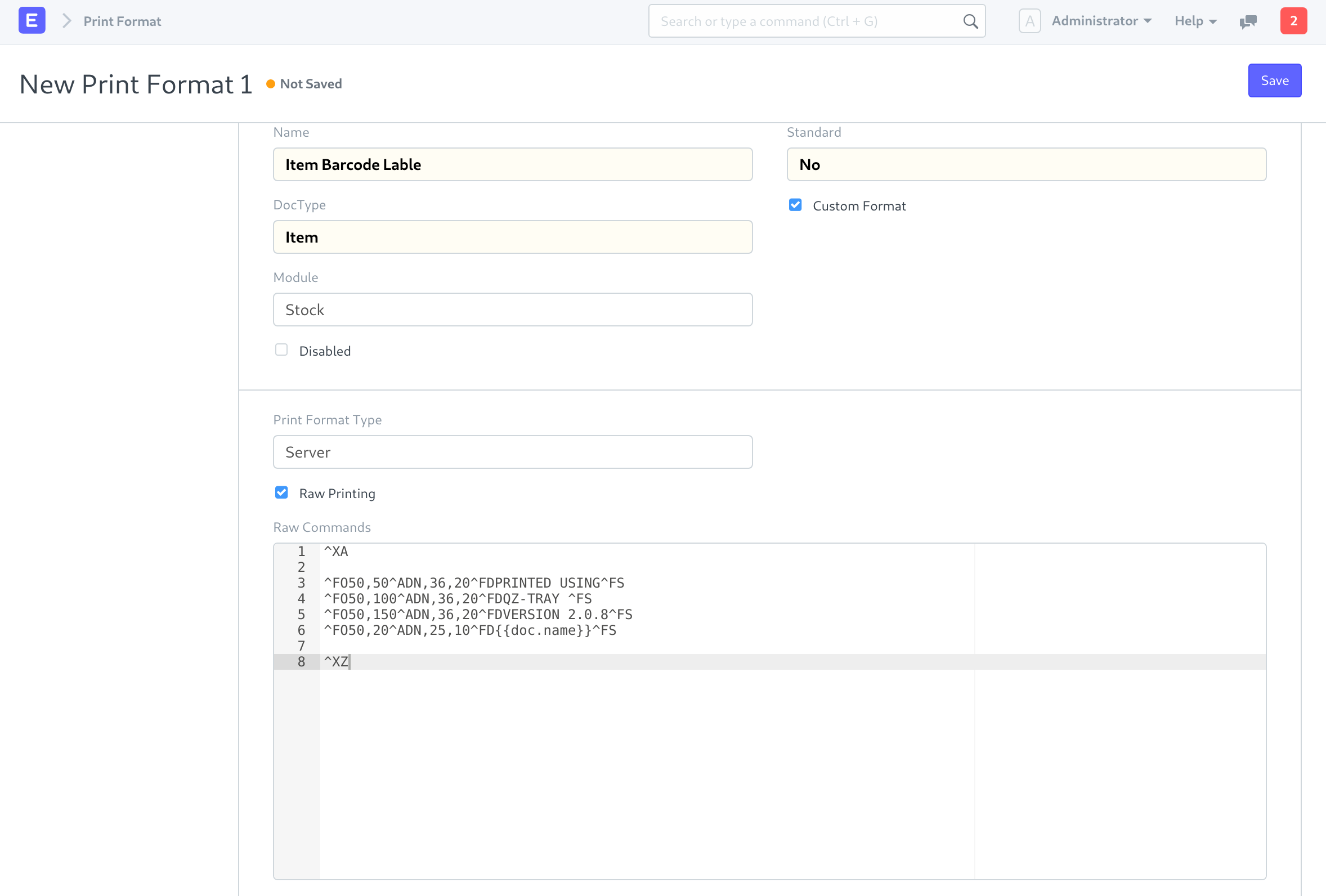
Right now, any string-based printer languages can be used in the print format's Raw Commands field. Writing raw commands requires familiarity with the manufacturer-provided native language of the printer. To learn how to write native commands for your printer, please refer to the developer documentation it came with.
1.3 Enable Raw Printing in the Print Setting
To enable Raw Printing:
- Go to: Home > Settings > Printing > Print Settings > Raw Printing.1
- Check the Enable Raw Printing option.
- Save.
2. Methods to utilize raw printing in Geer ERP
There are two ways to instruct your printer to print raw data.
2.1 Clicking print on the print view page
From the Document print view, print a raw command in the following format:
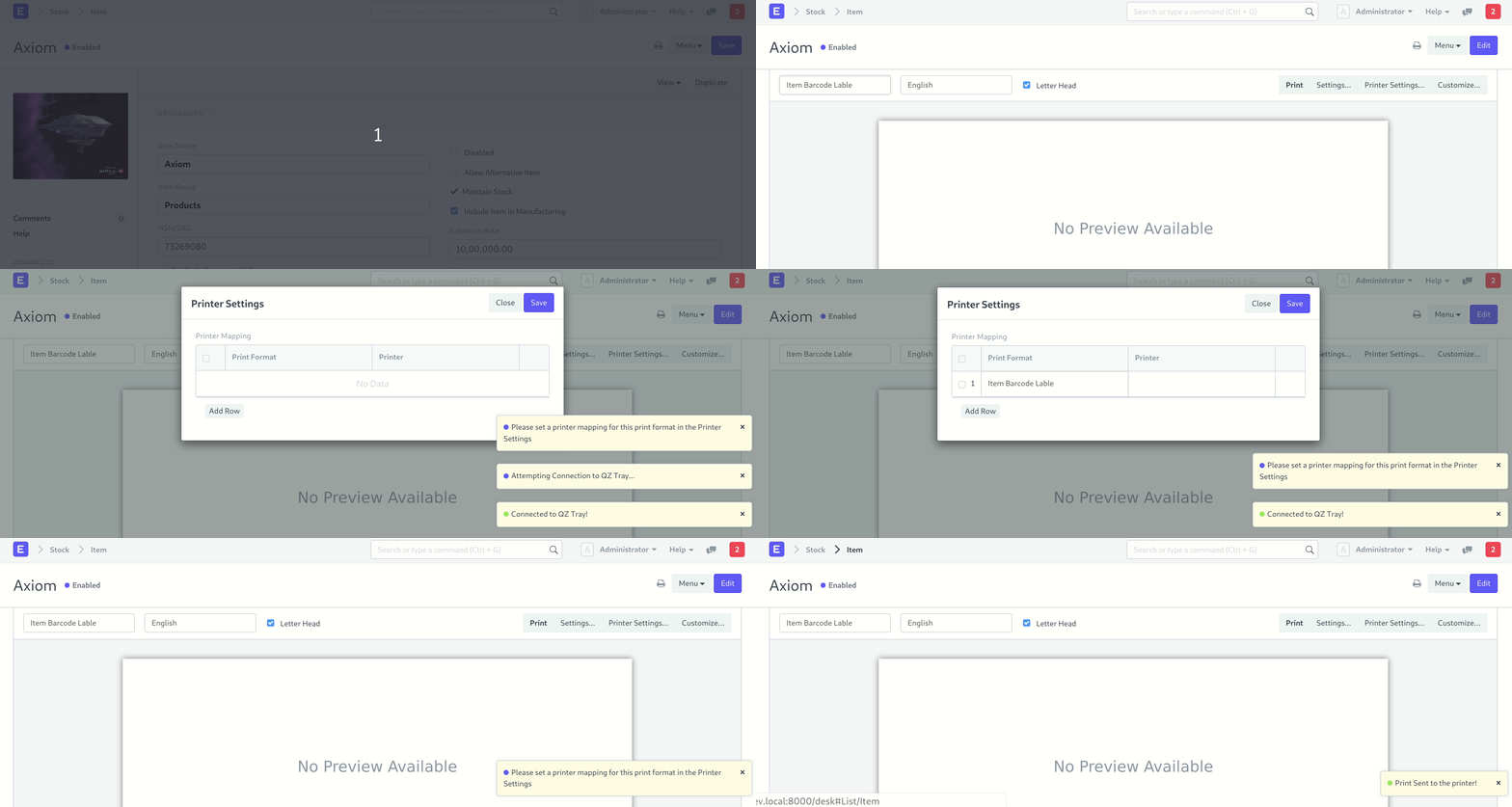
- Select appropriate print format. For print format in Raw Commands, "No Preview available" message is shown in place of the print preview.
- Click on the print button.
- Please allow the connection prompt from the QZ Tray for the actions that you initiated (Keyboard Shortcut: Alt + A).

- Choosing the "print format - printer mapping" may be required of you.
- This mapping is used to send the print commands to the appropriate printer.
- The printer needs to be installed on your computer to be able to map it to a print format.
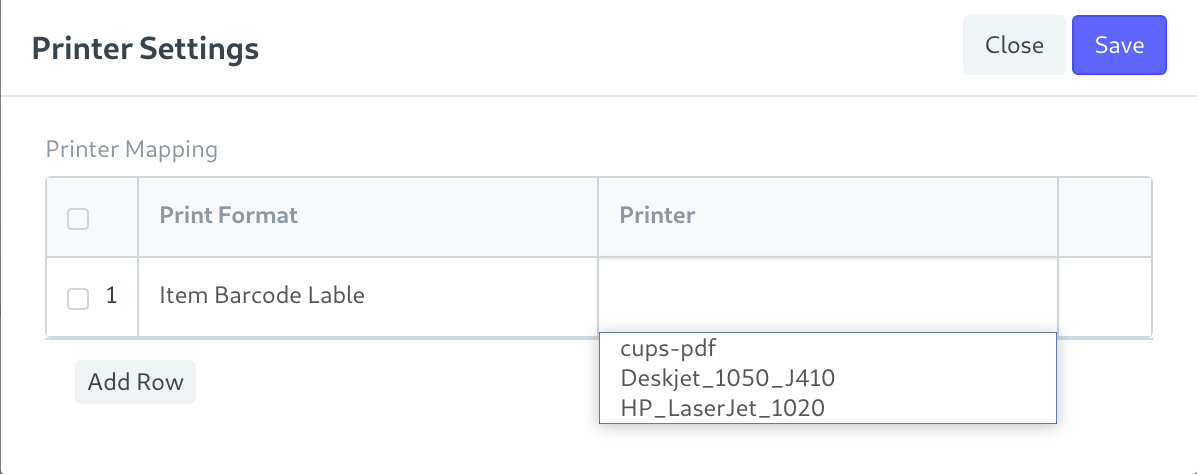
- This mapping is stored locally on the same computer and will have to be set on each client machine.
- You can also edit this by clicking on the Printer Settings button.
2.2 Calling Raw Print functions from a client script
Often, it is necessary to issue a print command in response to a certain event (like submit, save, amend, etc.). You could create a client script to perform this task on your behalf.
The pertinent Raw Print functions are as follows:
- function: frappe.ui.form.qz_connect
- A connection wrapper to establish a connection with the QZ Tray application.
- Returns a promise which resolves on successful establishment of a connection.
- Allows active and inactive connections to resolve regardless. Hence it can be called every time before sending a command.
- Usage example:
- The global object qz in this case is made available via the qz-tray.js module.
the following function: frappe.ui.form.qz get printer list
- provides a list of the printers that are compatible with the QZ Tray application.
- Returns a promise that can be used to print a list of printers
- frappe.ui.form.qz success is a function.
- shows the user a message that reads, "Print Sent to the Printer!" after the print command has successfully completed, called.
- frappe.ui.form.qz fail function
- shows the user the error message. Should be contacted if the QZ Tray connection fails.
The qz object can be used to directly access the functions offered by the qz-tray.js library. To view the qz-tray.js library's documentation, click here. Note: The frappe.ui.form.qz connect must be called once before the qz object is initialized. You can use frappe.ui.form.qz init if you need the qz object before then.