Shop by Category
Shop by Category
ERPNext comes includes a Shop by Category (/shop-by-category) page that enables visitors to find pertinent products depending on their needs without immediately using filters.
Go to: to configure the categories (in the tabs) for this page.
E Commerce Settings > Filters and Categories
Make sure Enable Field Filters (Categories) is enabled in the Filters and Categories area. The Website Item Fields table is where the categories are taken from. On this page, the field filters—such as Item Group, Brand, etc.—are utilized again as categories.
When you finish, tabs will appear in the appropriate places on the Shop by Category page (/shop-by-category).
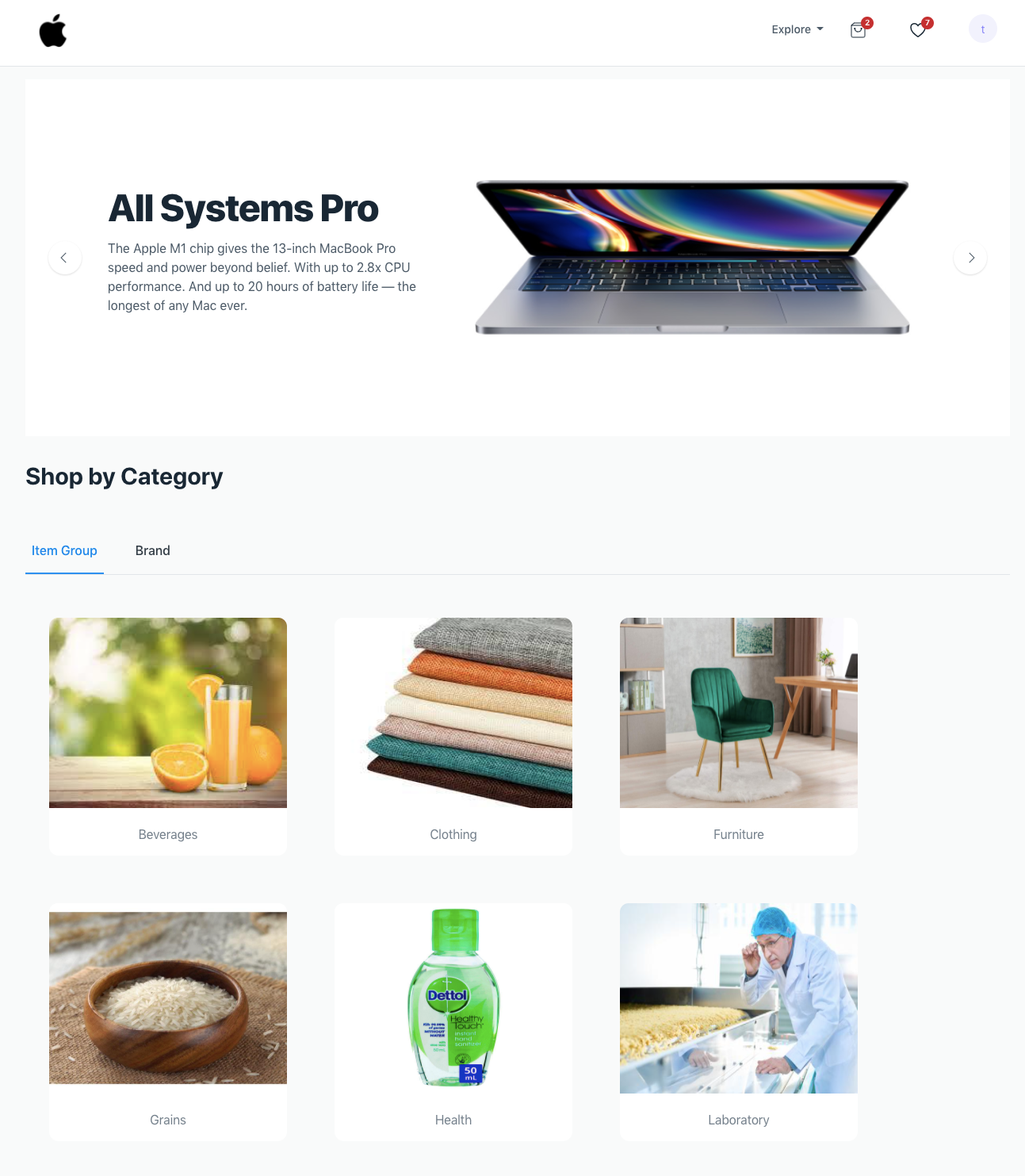
Moreover, the Shop By Category area of the E Commerce Options allows you to add a slideshow to this page (as displayed above).
Fetching records in categories
Item Groups
Due to its tree structure, item groups are handled a little differently. If every requirement is met, item group records are retrieved:
The Item Group's Show in Website field is turned on.
The parent group node is "All Item Groups," and the item group is the top-most group node. or the top-most leaf node (parent is "All Item Groups" and the group is deactivated).
Each card has a link to the corresponding Item Group page.
Other Categories
Simply fetch the records for the other categories. You can add a custom Show in Website field and it will filter out records that have this field disabled if you wish to conceal specific records here as well (for example, in Brand).
Together with Item Group, Brand, etc., custom doctypes that are related to Website Item via a link field may also be placed here.