Subscription
Subscription
You can use the Subscription feature in ERPNext to track any services you provide that need to be renewed after a predetermined amount of time or any regular monthly payments, such as rent. All the information needed for the automatic production of Sales or Purchase Invoices is captured in the Subscription master.
Let's think about an ERPNext subscription use case. Our hosting packages are offered on an annual basis. Each Customer's account has an expiration date for their subscription, after which they must renew with us.
We use the Subscription feature to handle the client's subscription expiration and the automatic preparation of Sales Invoice for the renewal.
Go to: to access the Subscription list.
Home > Accounting > Subscription Management > Subscription
1. Prerequisites
Prior to making and utilizing a Subscription, it is advised to first make the following: 1.Subscription Plan
2. How to set a Subscription
1.Go to the Subscription list and click on New.
2.Select Party Type as 'Customer' or 'Supplier' and select the party.
3.Set the Start Date from when the subscription will be active.
4.Optionally you can also enter the subscription end date if you know it before hand.
5.Days Until Due is the number of days within which Customer has to pay a generated Sales Invoice.
6.Select the Subscription Plans.
7.Save.
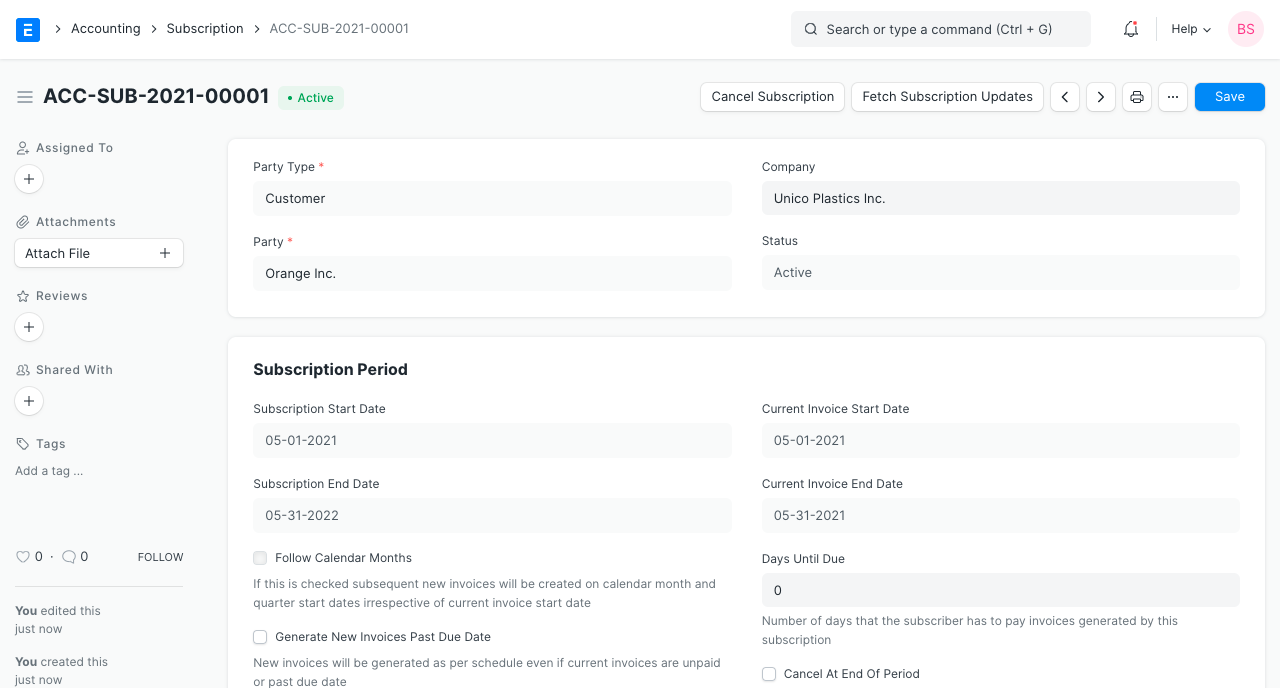
The precise dates for bills will be determined based on the start and end dates of the subscription.
3. Features
3.1 Trial Period
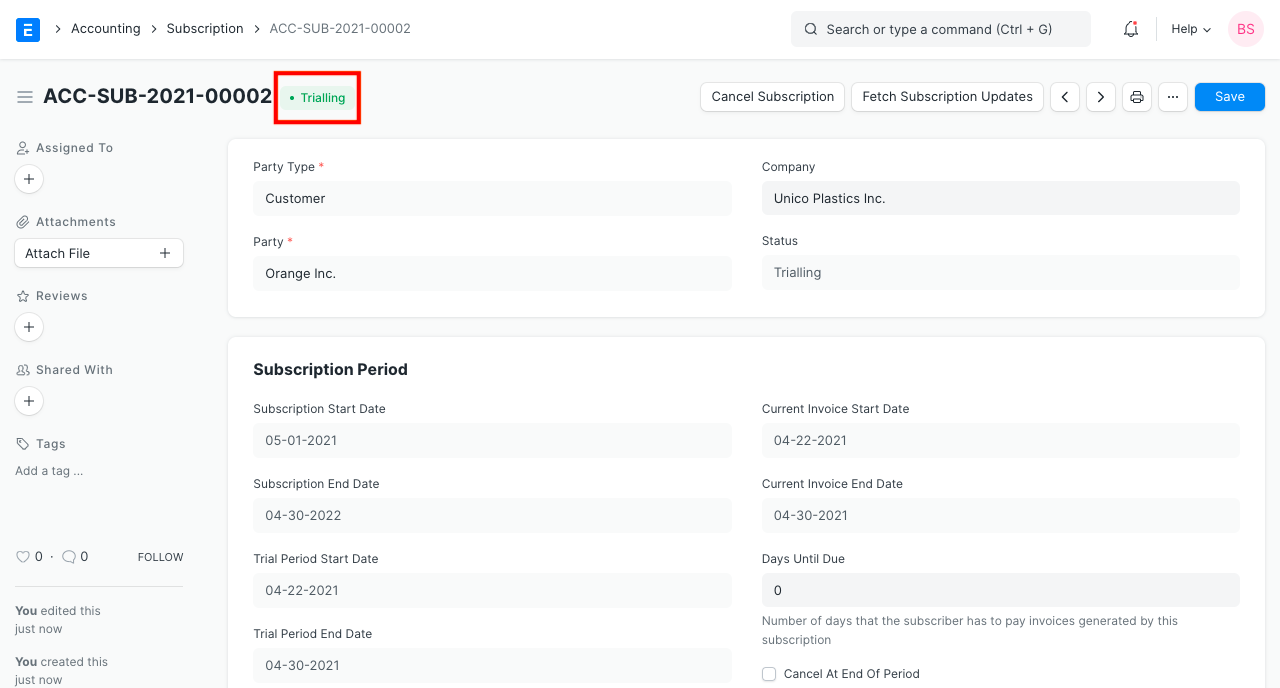
A Trial Period Start Date and a Trial Period End Date can be set if you're offering a trial period for the subscription. During the trial time, no invoices will be produced, and the subscription status will read "Trialling."
3.2 Cancel Auto Renewal
The subscription will be canceled at the conclusion of its period if the "Cancel At End Of Period" option is enabled. For instance, if the subscription is for a year, the system will stop issuing bills after the first year.
3.3 Taxes
With a Sales Taxes and Charges Template, you can add taxes to a subscription. For further information, go to the Sales Taxes and Charges Template page.
3.4 Applying discounts
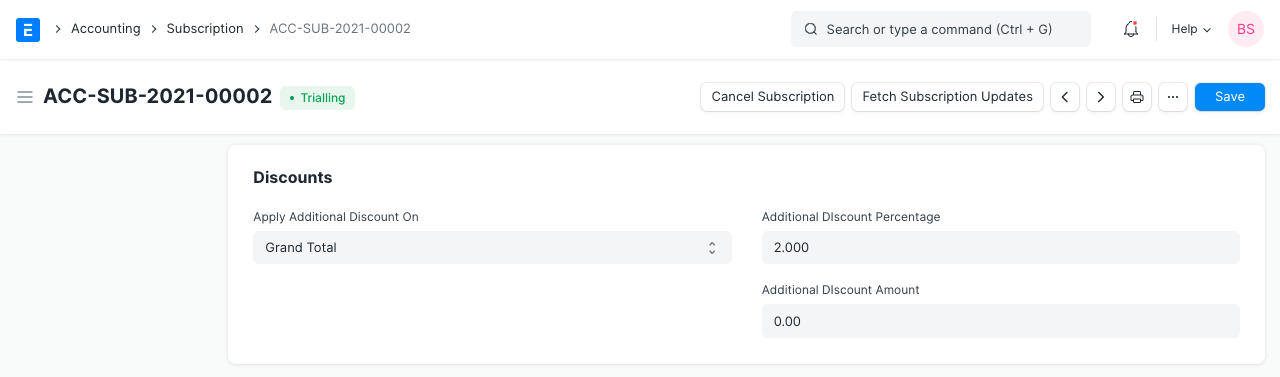
On the basis of the Grand Total (before tax) or the Net Total, you can apply extra savings to the Subscription (post tax). Moreover, a discount % can be set. For instance, a 2% discount on 12,000 would equal 240 in savings.
Visit the Applying Discount page for more details.
3.5 Automatically create invoices
Invoices will be generated automatically based on the Subscription Plans interval. If you wish to produce invoices as soon as the subscription is active, you must enable "Generate Invoice At Beginning Of Month". Invoices will continue to generate even if the current one is past due or underpaid if "Generate New Invoices Past Due Date" is activated. If "Generate Invoice Early" is enabled, an invoice will be generated by the number of days specified in "Generate Invoice Days Early" before the end of the month.
By default, the invoices that are generated will be submitted automatically. The invoice will be saved as a draft if "Submit Invoice Automatically" is deactivated.
3.6 Follow Calendar Months
Even if the Subscription Start Date falls in the midst of a month, suitable calendar months will be observed if "Follow Calendar Months" is enabled. For instance, if the subscription plan's billing interval count is three and the subscription start date is April 15, 2020, the first invoice will be created for April 15, 2020 to June 30, 2020 rather than April 15, 2020 to July 14, 2020 if the box labeled "Follow Calendar Months" is ticked.
3.8 Canceling a Subscription
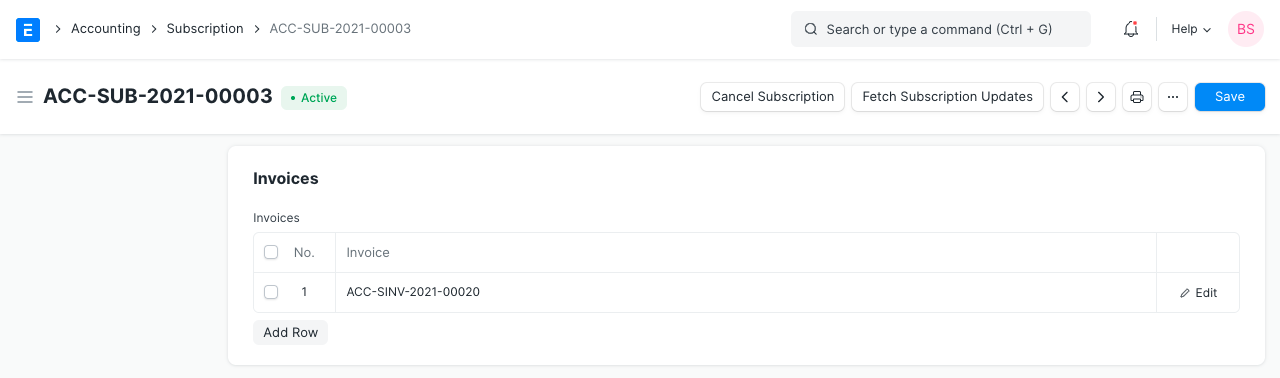
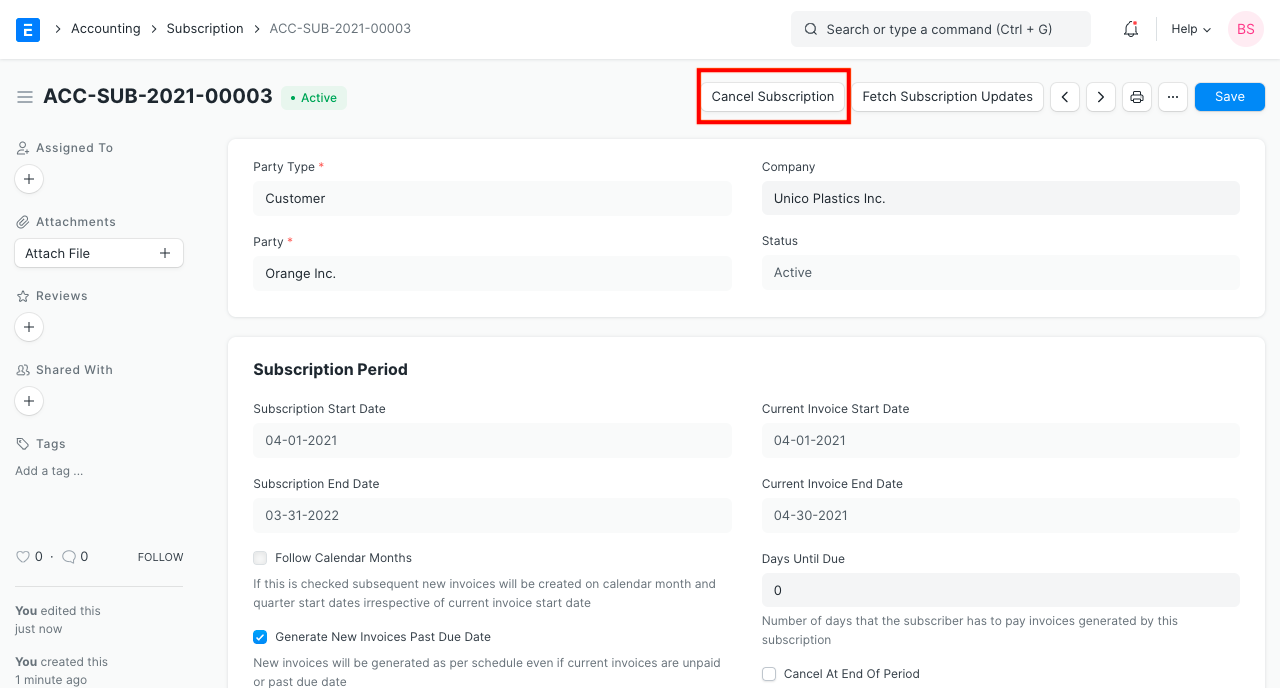
The Cancel Subscription button in the system can be used to end a subscription if the customer so chooses. When a Subscription is terminated, the system will stop creating invoices.
3.9 Updating a Subscription
The most recent produced invoices will be added to the Subscription when you click the Get Subscription Updates button.