Document Naming Settings
Masters and transactions can be given prefixes in the form of naming series.
You can add prefixes to your documents using Geer ERP, and each prefix forms a separate series. For instance, the numbers INV120001, INV120002, and so on will appear in a sequence with the prefix INV12####.
For each of your transactions, you might have a different series. For instance, the following Sales Invoice IDs can be created:
- ACC-SINV-.YYYY.-
- SINV12####
- SALESINV-00####
The Naming Series pattern can be chosen or defined from:
Home > Settings > Document Naming Settings
1. Setting up Naming Series for Documents
- Decide which transaction you wish to create the series for. The text box's current series will be updated by the system.
- Edit the series as necessary, giving each series a different prefix. The default prefix will be the initial one. A new line must be introduced for every new prefix Naming Series. The document will include the most recent addition to the naming series.
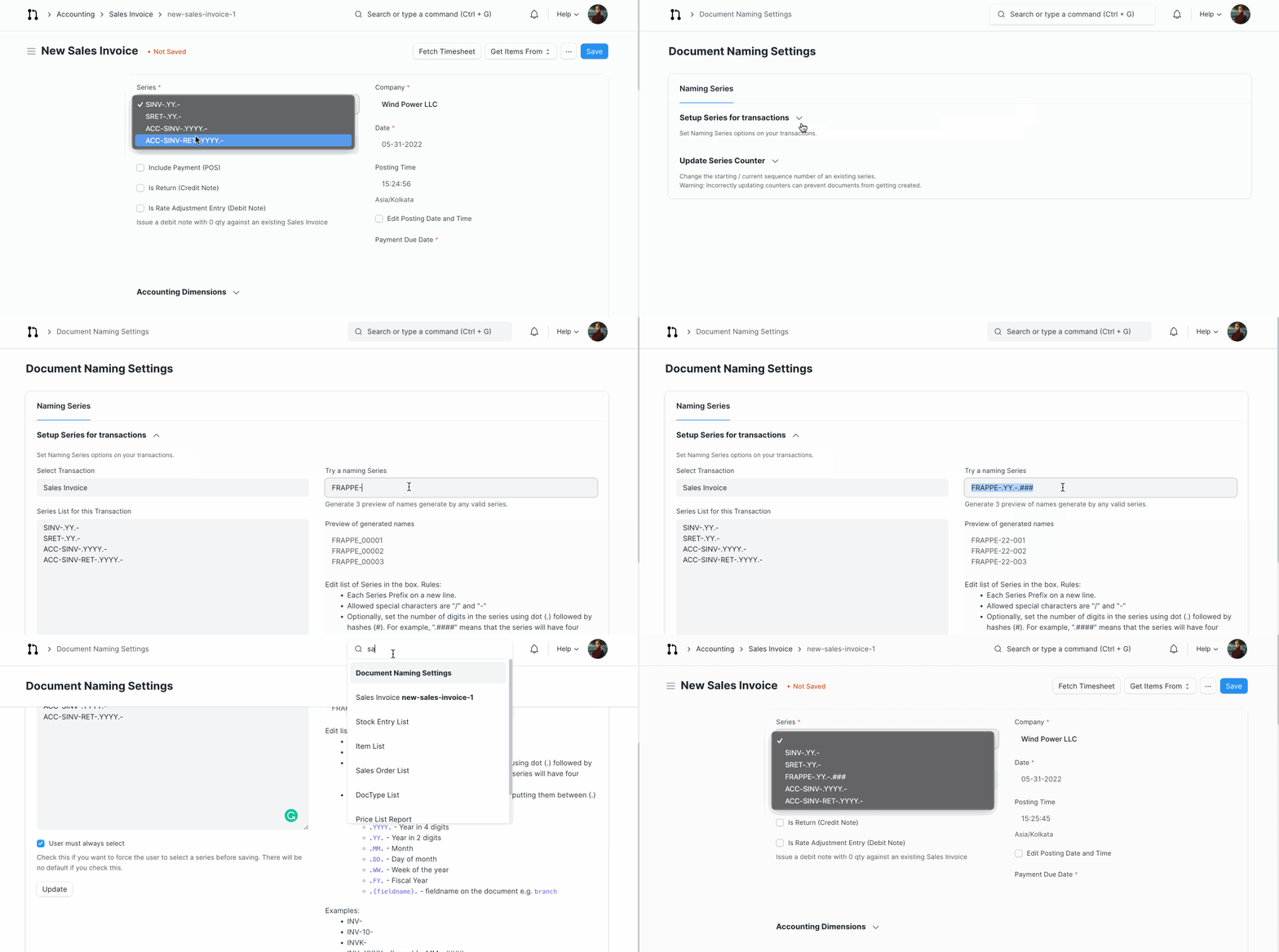
Check the "User must always select" checkbox if you want the user to manually choose a series rather than the default one. If option is checked, there won't be a default naming series.
By inputting the series name and the starting point in the "Update Series" area, you can easily change a series's starting point.
To update the set of Naming Series for the chosen document, click the Update button.
Note: To see the newly added Naming Series, click on Settings > Reload.
2. Financial Year in Naming Series
The financial year may also be displayed in the Naming Series. By default, the current year will be selected if you specify 'YYYY' in the naming series. Enter something along the lines of "ACC-SINV-.19-20.-" where 19-20 is the current Fiscal Year to set naming series based on the fiscal year. Each fiscal year often has its own series, which is standard.
As you can see, the year 2019 is displayed in the following screenshot of a sales invoice:

3. Updating the current value for existing Naming Series
A series that already exists can have its beginning/current sequence number changed.
- Select the prefix whose sequence has to be altered under the Update Series section.
- The most recent value will be retrieved and shown.
- If necessary, alter the starting or current sequence number.
- the Update Series Number button.
If the current Sales Order series number is 16, for instance, and you wish to reset it to 0 or set it to 50, respectively, enter 0 or 50. Any newly formed Sales Order will begin with the new Sequence Number.
Visit this article to learn more about it.
Tip: You could have a separate series for each type of Customer or for each of your retail outlets.
4. Using Field Values in Naming Series
Some businesses favor using "short-codes" for suppliers, such as WN for "Web Notes" from the company, which can then be used in naming series for simple identification.
For instance: