Fee Schedule
Fee Schedule
You might define a timeline for the students' fee payments based on the student group with the aid of the fee schedule.
To access Fee Schedule, go to:
Home > Education > Fees > Fee Schedule
1. Prerequisites
- Fee Structure
- Student group
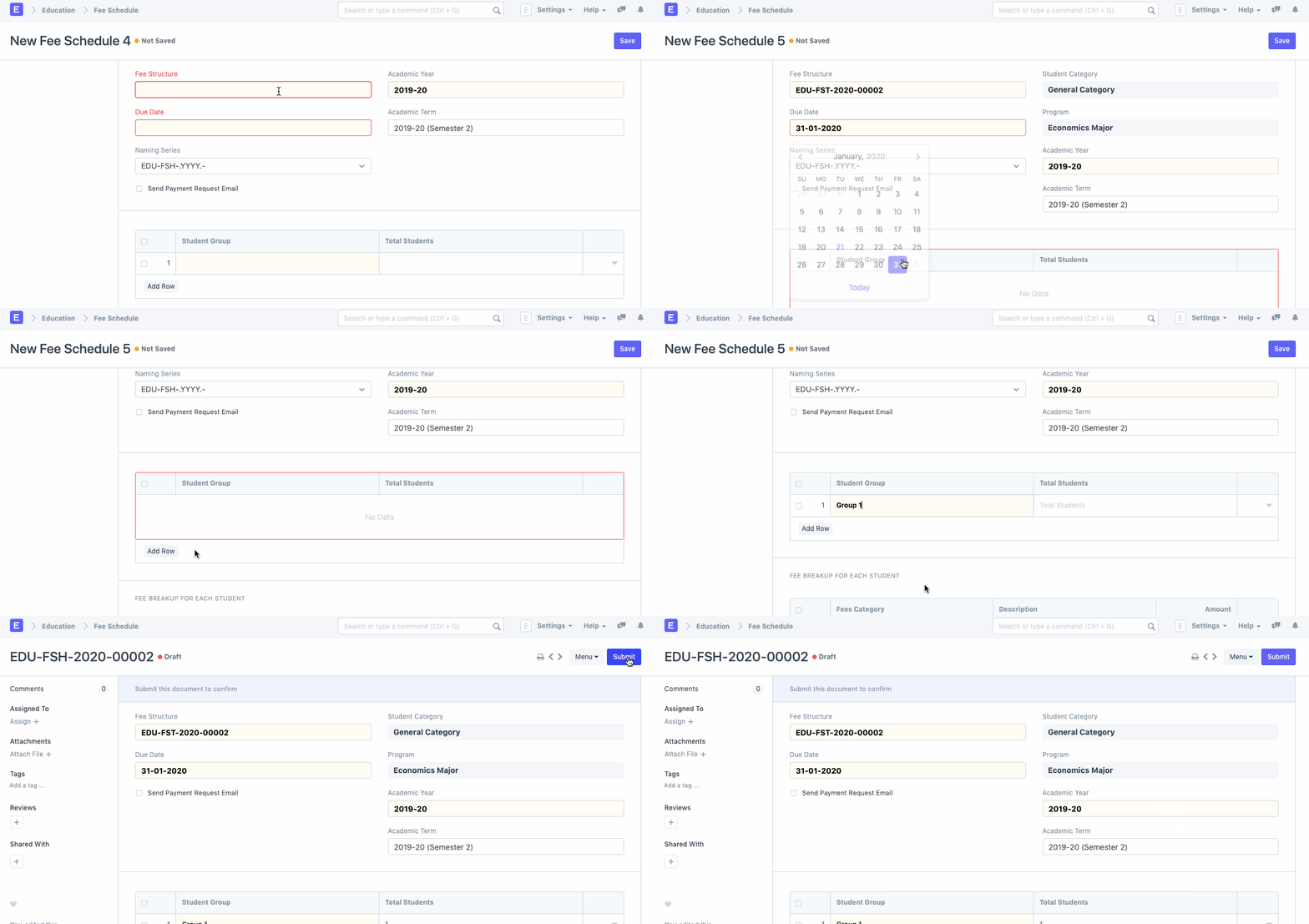
1. How to create a new Fee Schedule
- Click on New from the Fee Schedule list.
- Choose and include the fee structure. The Fee Break Up for Each Student will be pre-filled as soon as you set the fee structure.
- The academic year and the academic term should be chosen and added.
- Include the fee due date.
- Choose the Student Group, then add it.
- Publish and save.
2. Features
The fee structure will be used to retrieve the Accounting features and Accounting Dimensions in their current state.
2.1. Printing Settings
- To print the fee receipt, choose and include the letterhead.
- The Fee Receipt Print Headline should be chosen and added.
2.2. Accounting
You may edit your account entries quite easily while using ERPNext. Your Accounts will be updated at the same time that a student provides their fees and the system records it.
You can add your Accounts details to the charge structure to make that process go more smoothly.
- Receivable Account: Insert the institution's receivable account name here.
- Income Account: Choose and add the Institution's Income Account.
- Company: Choose and include the company that receives all payments. If your ERPNext account contains numerous institutions or if a sister company manages the accounts.
2.3. Accounting Dimensions
- Cost Center: Choose and include the name of your Institute for Accounting Dimensions's cost center.