Print Format Builder
The Print Format builder helps you quickly make a simple customized Print Format by dragging and dropping data fields and adding custom text or HTML.
The default print format, called "Standard," cannot be changed.
Go here: to access the Print Format Builder.
Home > Settings > Print Format Builder
Or via a document.
1. Using the Print Format Builder
1.1 Via the menu navigation
- Visit Print Format Builder.
- For a document type such an item, quotation, etc., you can change a current print format here or create a new print format.
Let's look at how to edit a Print Format that already exists in this section. See the next section to learn more about developing a new Print Format.
To edit, choose the Print Format.

When you click the Edit button, the Print Format Builder user interface will open.
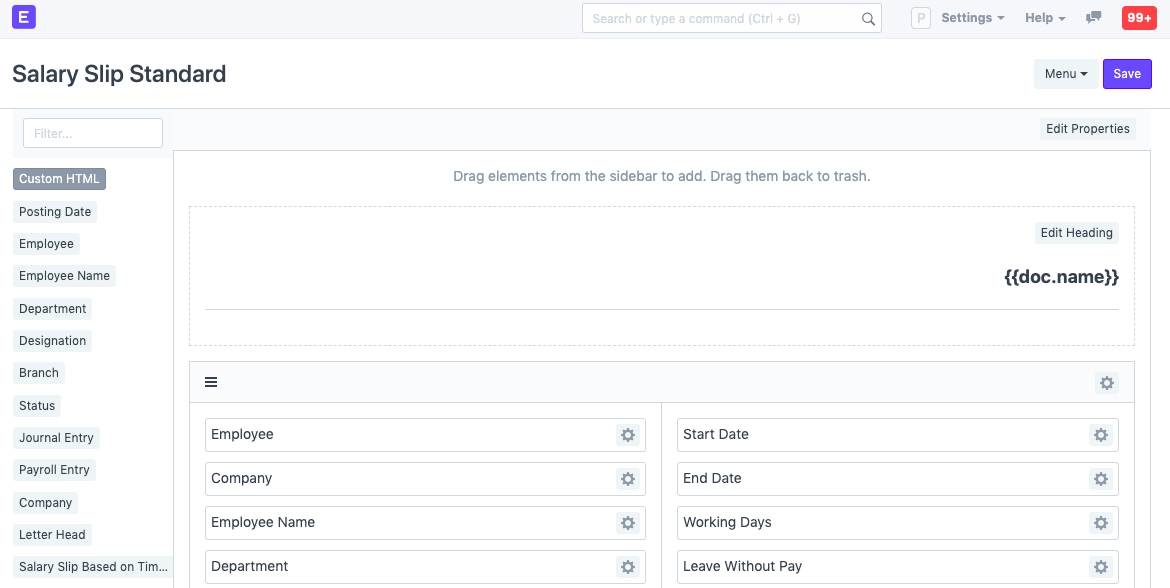
6.The fields can be moved around by dragging them from the sidebar to the page and vice versa.
- Click Save after making the necessary adjustments.
1.2 Via a document
- The document for which you wish to create a print format should be opened. Go to Menu > Print and select the Customize... button, or click the Printer icon. Note: To perform this, you must have System Manager authorization.
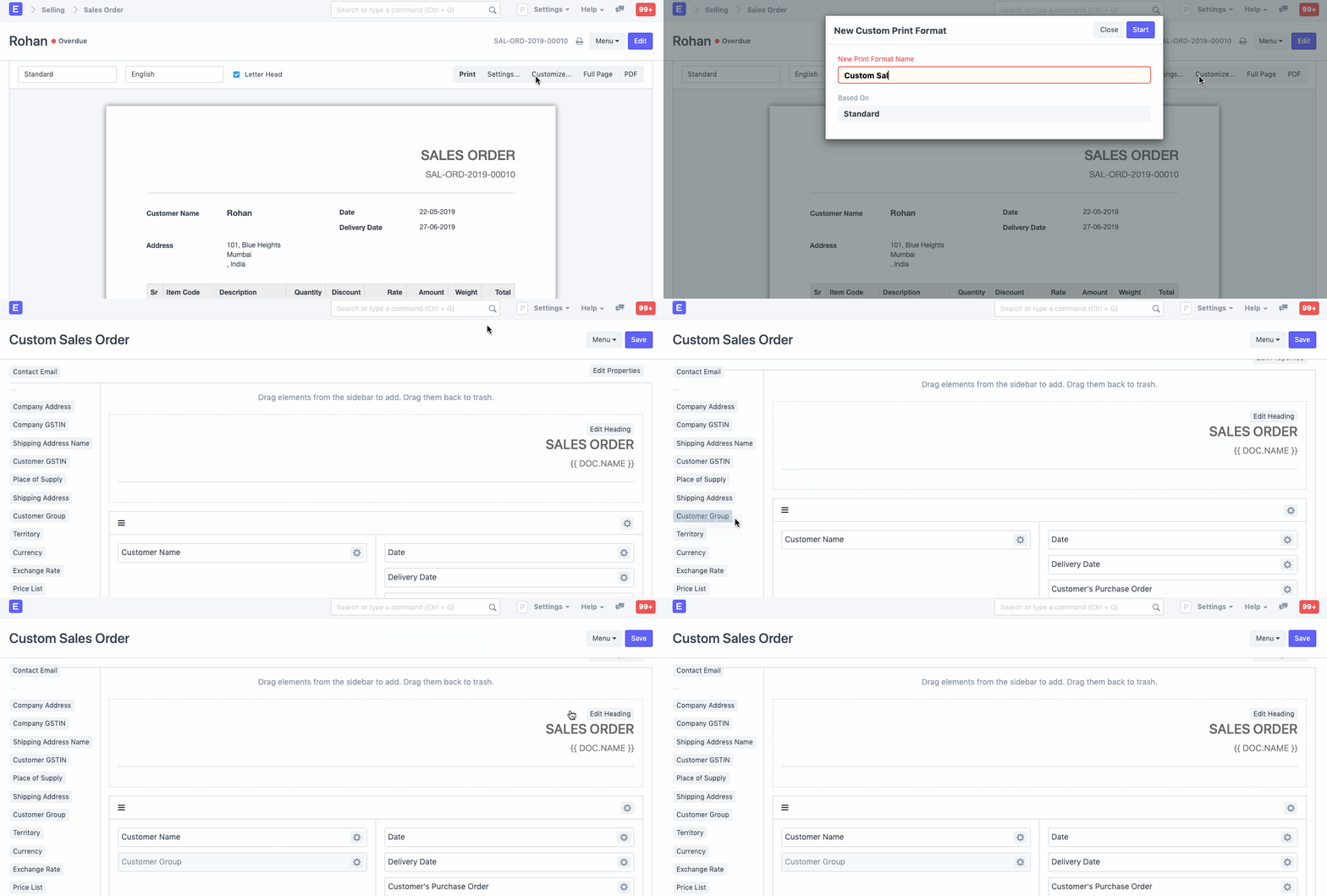
To add a field, just drag it from the left sidebar and add it in your layout. You can edit the layouts in sections or individual fields by clicking on the settings icon.
To remove a field, just drag it back into the fields sidebar.
Save.
Drag & drop the Custom HTML field (in dark color) to the location where you want to add the Custom HTML information in order to add customized text and HTML to your print format.
then select Edit HTML to make changes to your content.