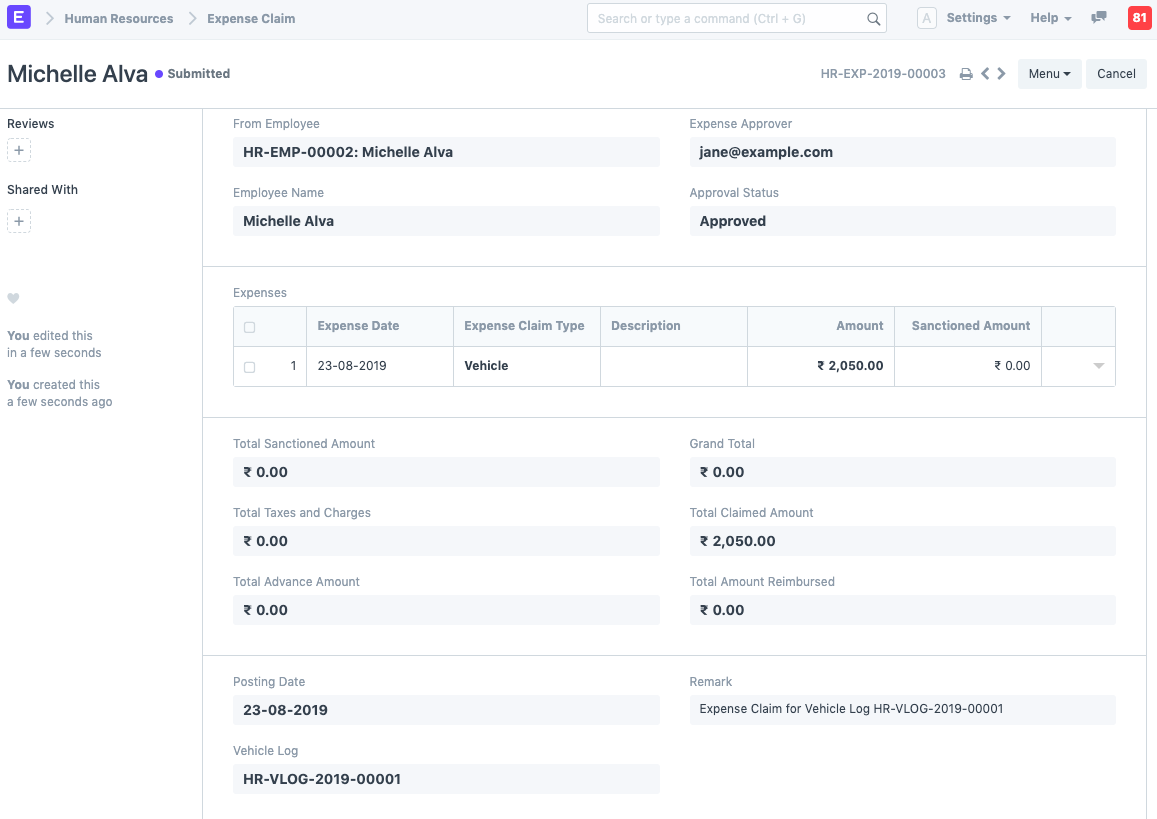
Vehicle Log
Vehicle Log
Odometer readings, fuel expenses, and service expense information are entered in the vehicle log.
To access Vehicle Log, go to:
Human Resources > Fleet Management > Vehicle Log
1. Prerequisites
You must produce the following documents before establishing a vehicle log:
- Vehicle
2. How to create a Vehicle Log
Navigate to the Vehicle Log List and select New.
Choose Employee and License Plate.
Come on, odometer reading date and odometer information (reading).
Insert the optional refueling information (fuel quantity, price, supplier, and invoice reference).
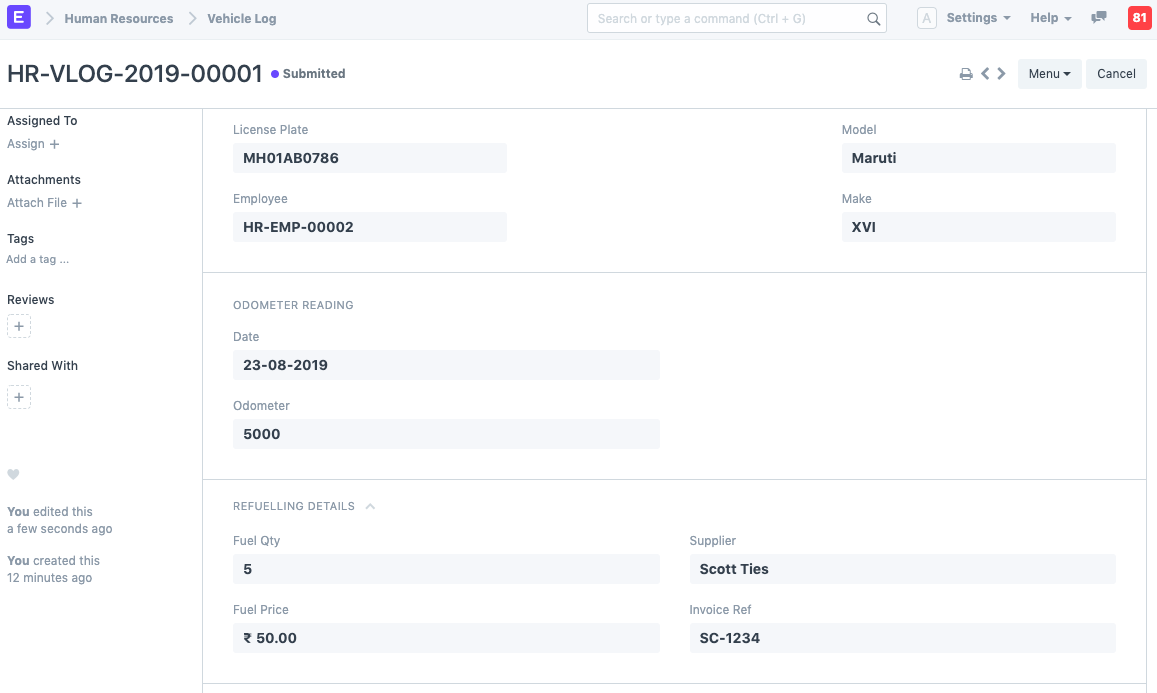
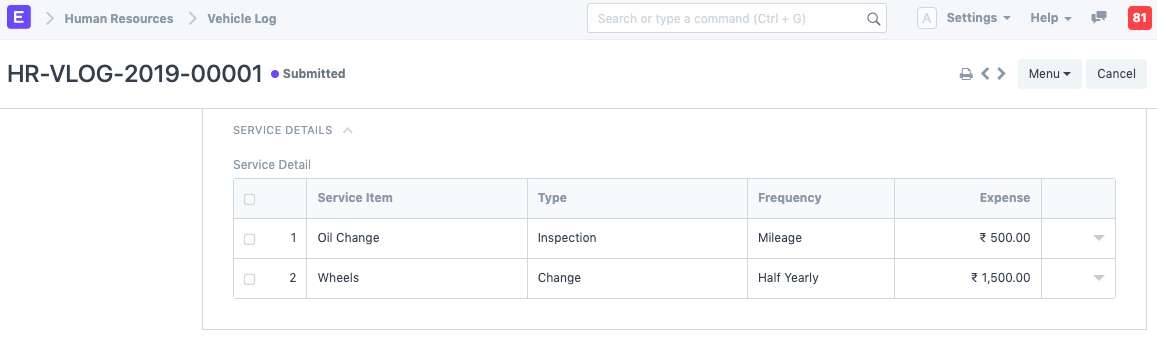
- Moreover, as demonstrated, Vehicle Service Information can also be included (optional)
- Save. The Model and Make values will be automatically fetched when the data has been stored.
3. Features
You can immediately create an expense claim against your vehicle expenses with ERPNext's Fleet Management feature.
3.1 Make Expense Claim against Vehicle Expenses
Choose Create Expense Claim from the menu. Only when vehicle logs have been submitted do you see this button.
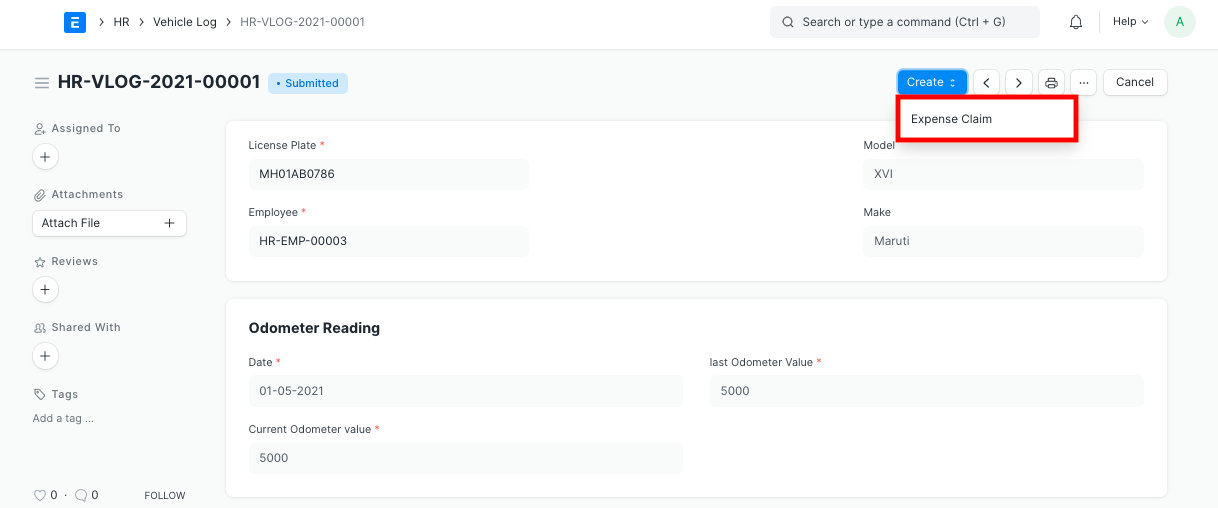
If you select "Make Expense Claim,"
The produced expense claim receives the Date, Employee, and Expense total.
Calculated and transferred to the expense claim amount is the total of the service and fuel costs.
The expense claim can be submitted by the employee for processing.