Homepage
Homepage
The default landing page for your website is called the homepage.
A default landing page is created for your website using the ERPNext Website Module. It can be modified in Homepage.
Go here: to see ERPNext's Home page.
Home > Website > Portal > Homepage
1. How to setup Home Page
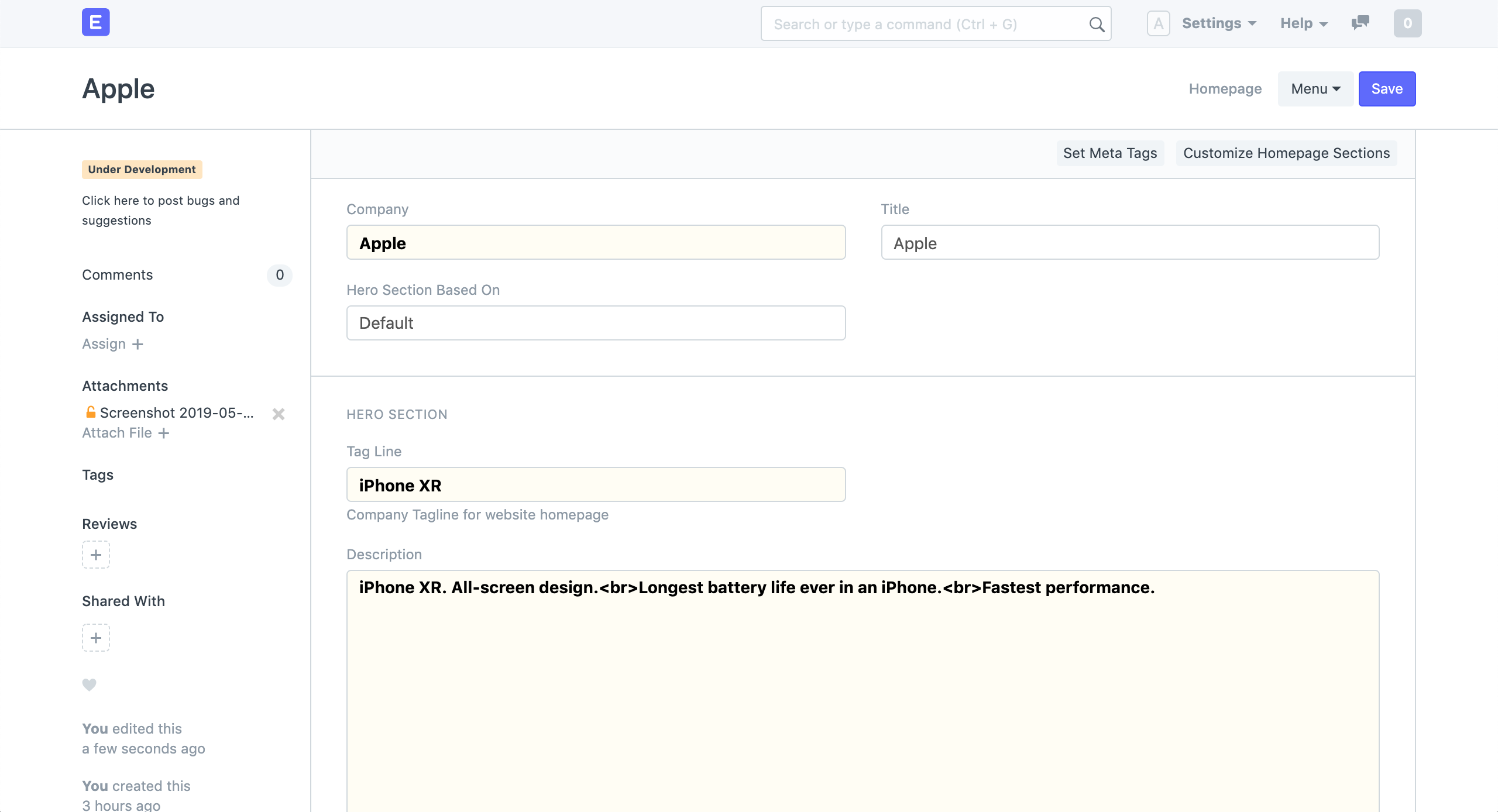
Choose the business.
Choose a title. The Browser Tab will display this.
Set up the Hero Section as described in the next section.
Homepage
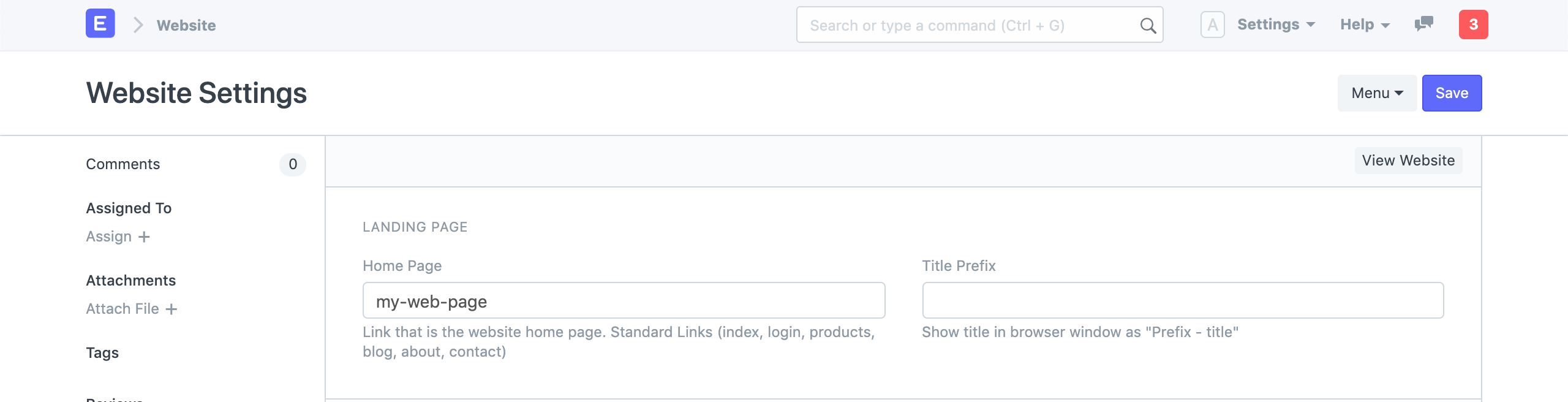
Make sure your default 'Home Page' is set as home in Website Settings for this to work.
2. Hero Section
The Hero Section's appearance can be altered in three different ways:
Tag Line and Description (Default).
Homepage Slideshow.
Custom Hero Section.
2.1 Tag Line and Description
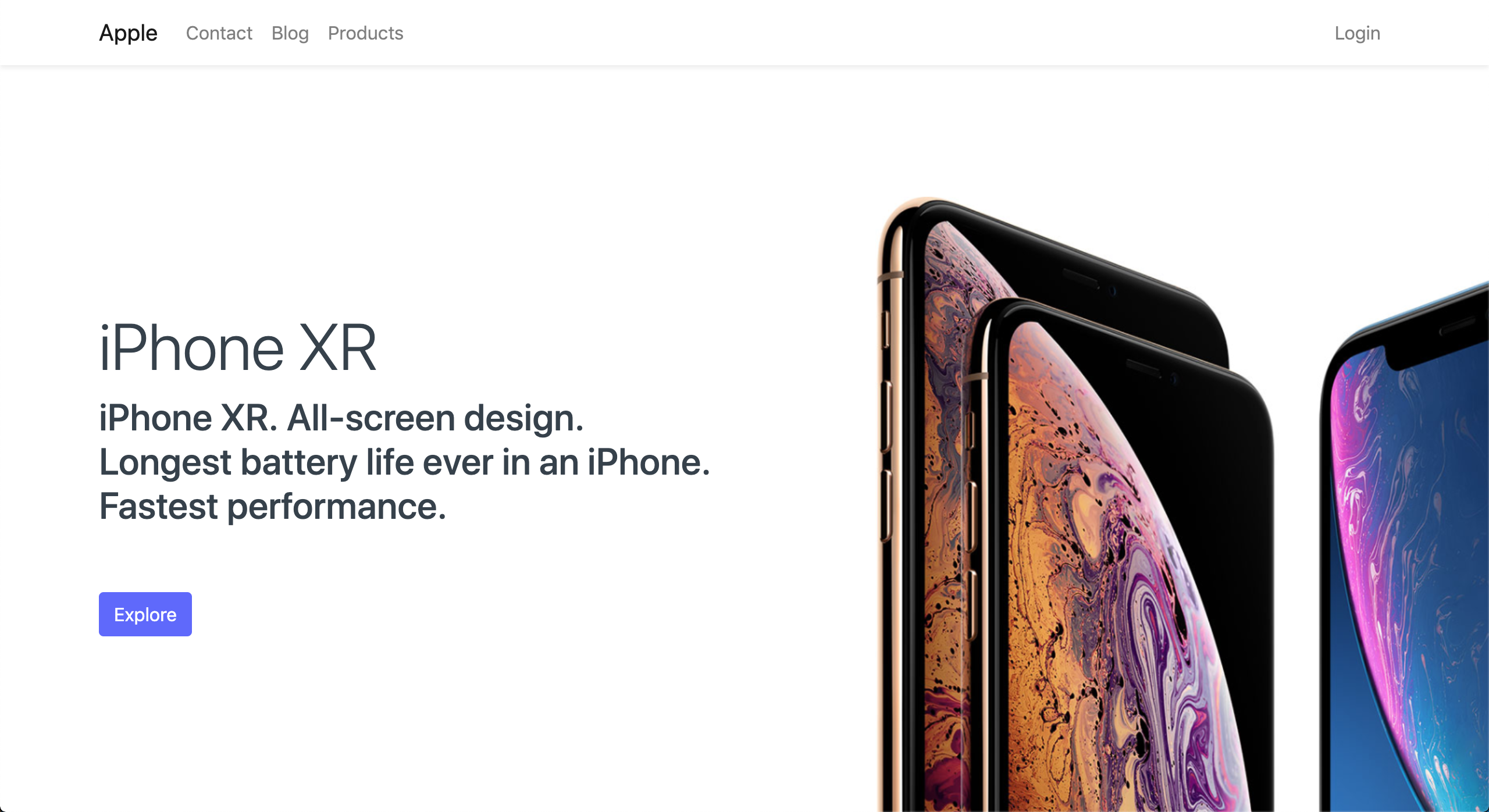
You'll have a decent-looking front page once you've chosen your Tag Line, Description, and Hero Picture. Under URL for "All Items," you can also modify the URL for the Browse button.
2.2 Homepage Slideshow
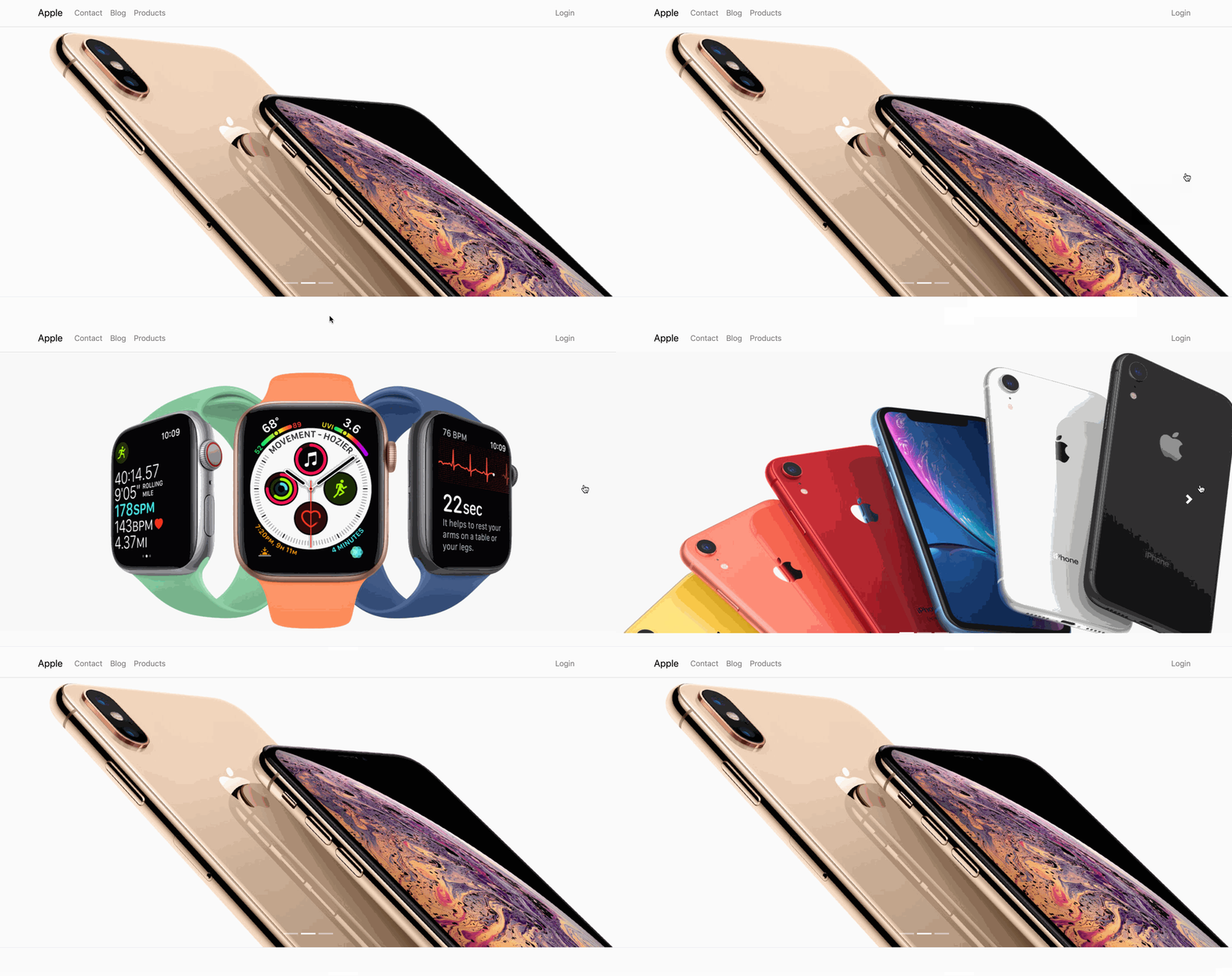
The Homepage Slideshow field will appear when the Hero Section Based On option is set to Slideshow.
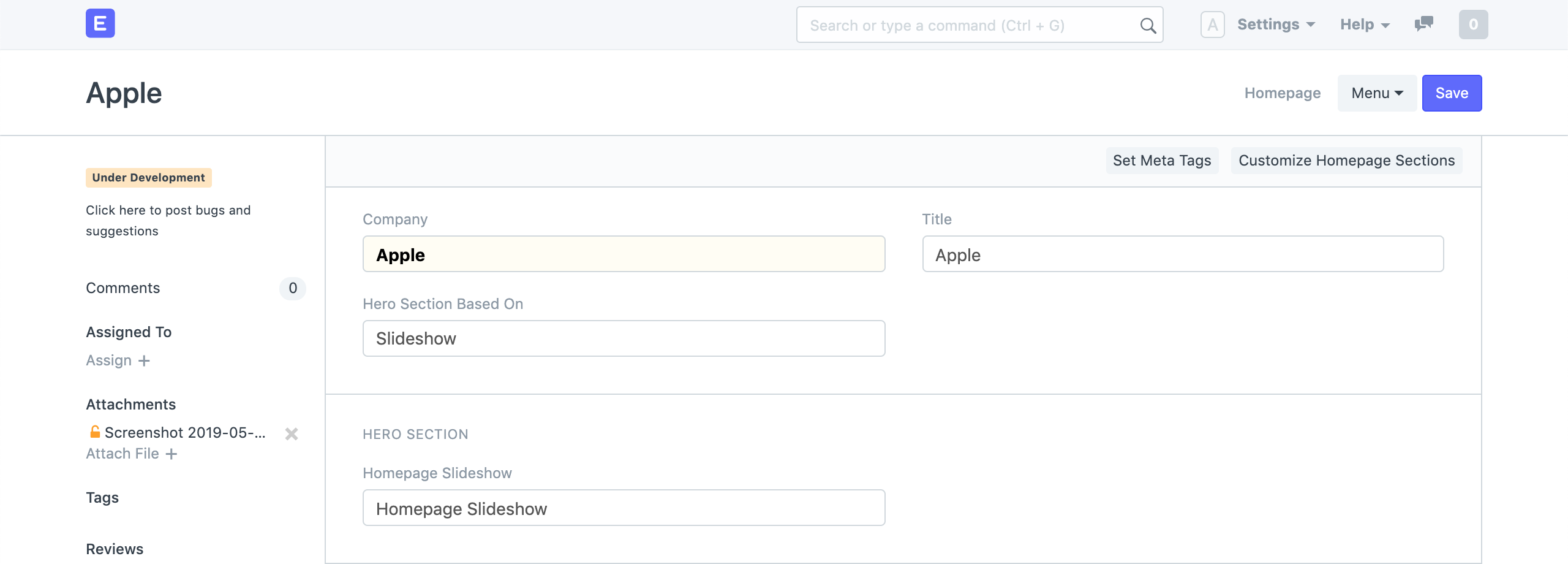
Choose a slide presentation from your library or start from scratch by following these steps:
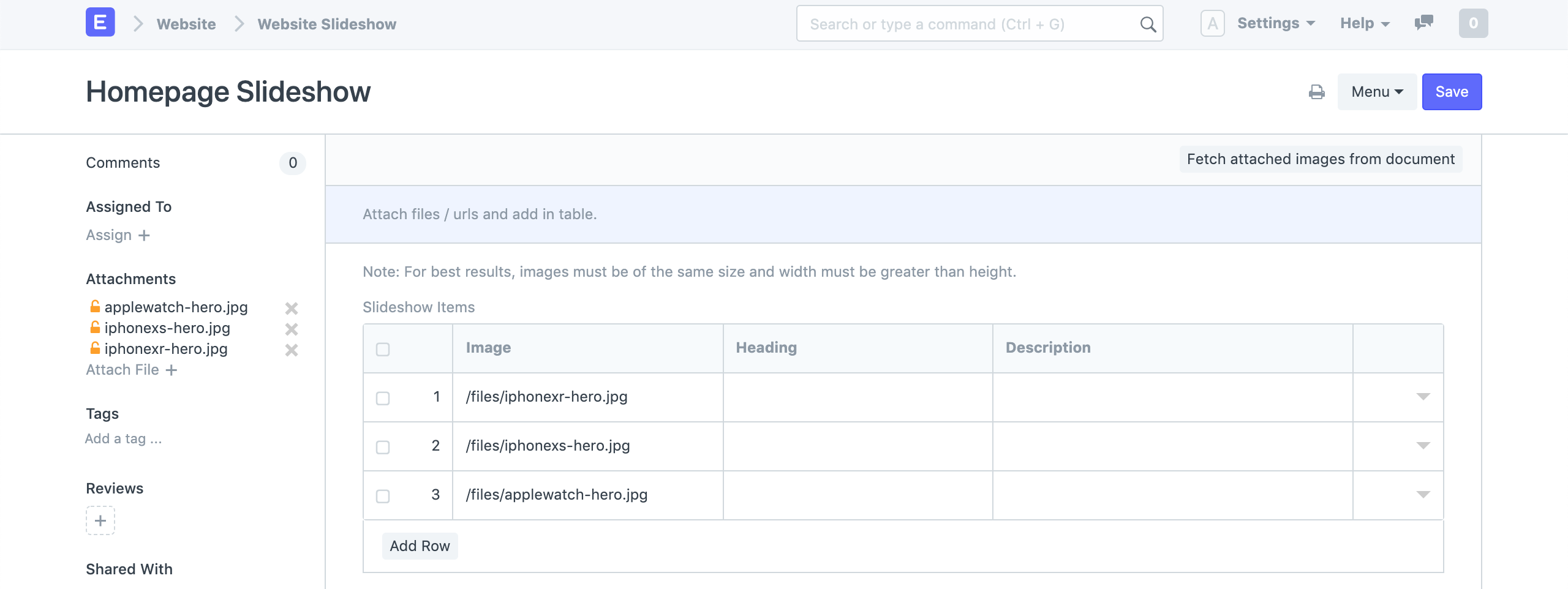
For optimum results, ensure that the width of each image in your slideshow is greater than the height.
2.3 Custom Hero Section
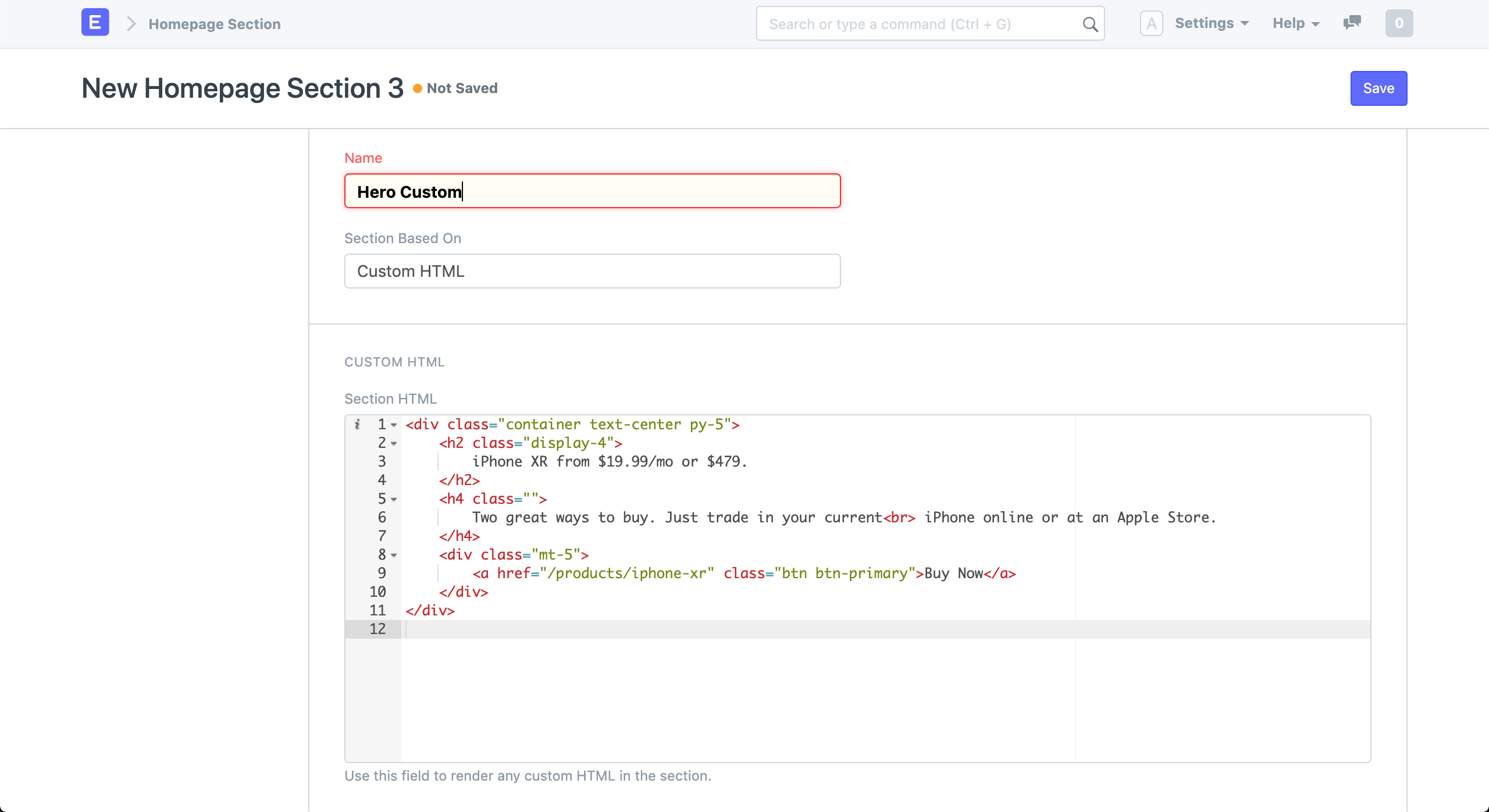
You are able to create your own HTML with the third category of Hero Sections.
Add a Hero Section Based On setting to the Hero Section.
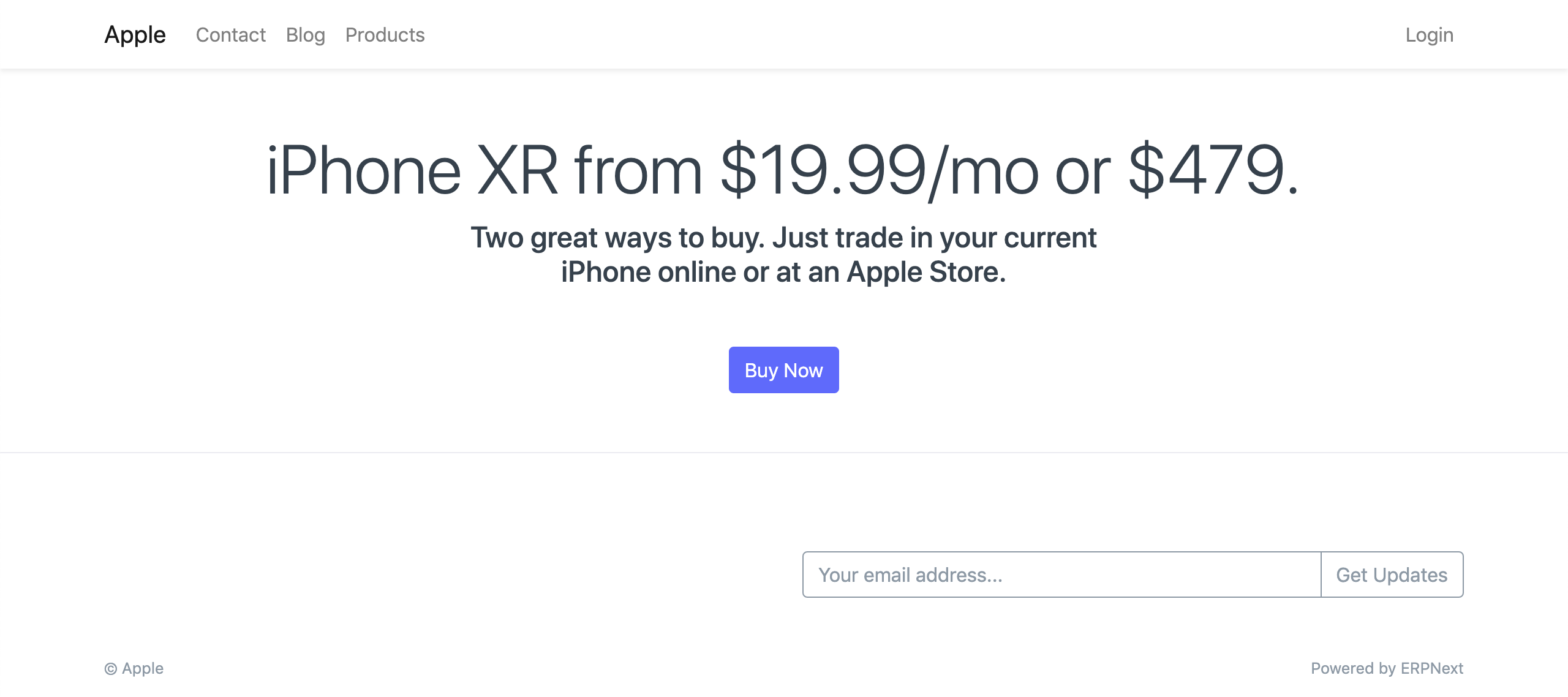
Make a new Hero Section now. Choose Custom HTML for Section Based On. In the Section HTML field, type your own HTML.

Any legitimate Bootstrap 4 markup is allowed here.
The appearance will be similar to this:
3. Featured Products
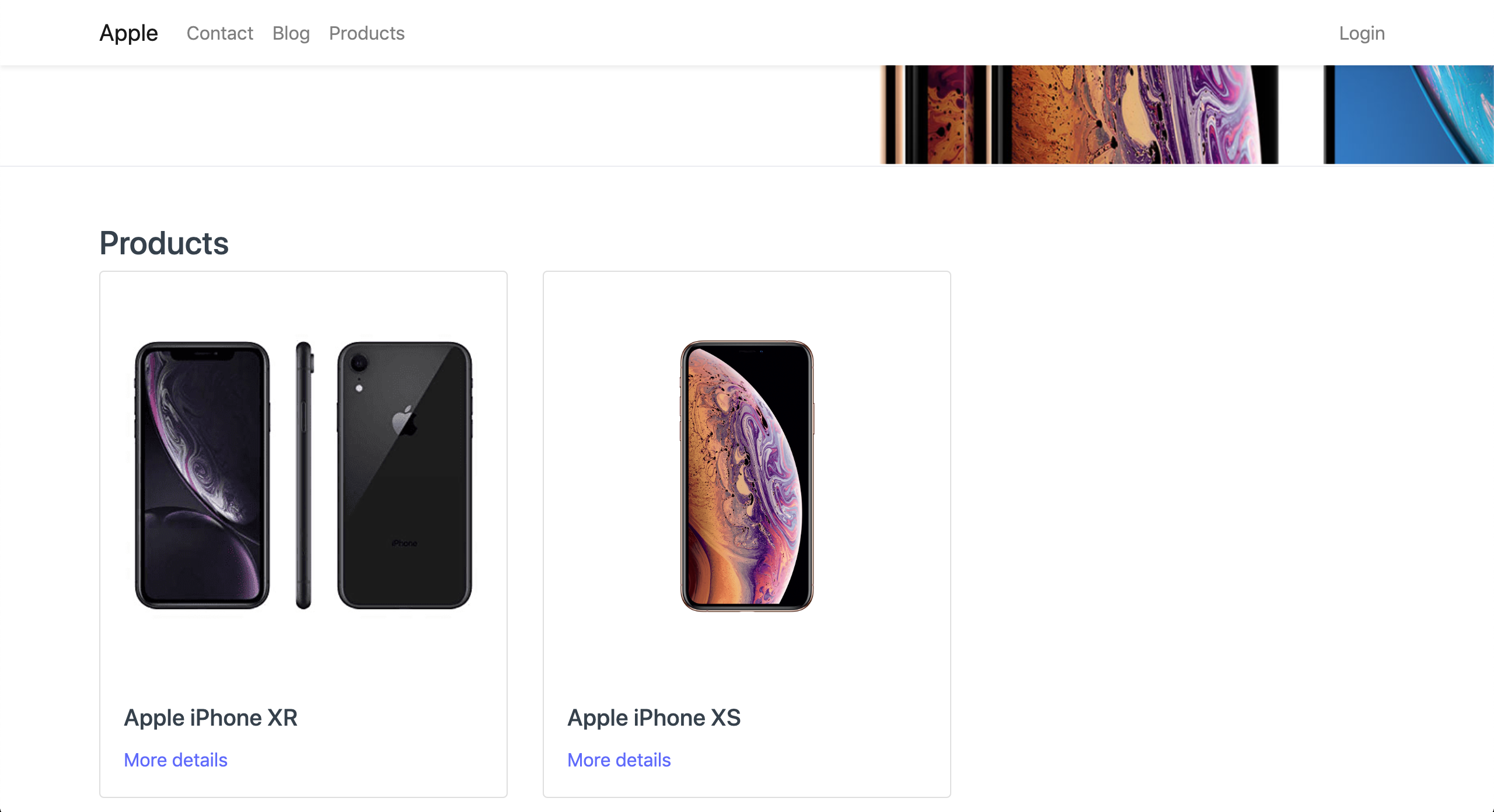
By including them in the Products table, you may display featured products on your homepage as well.
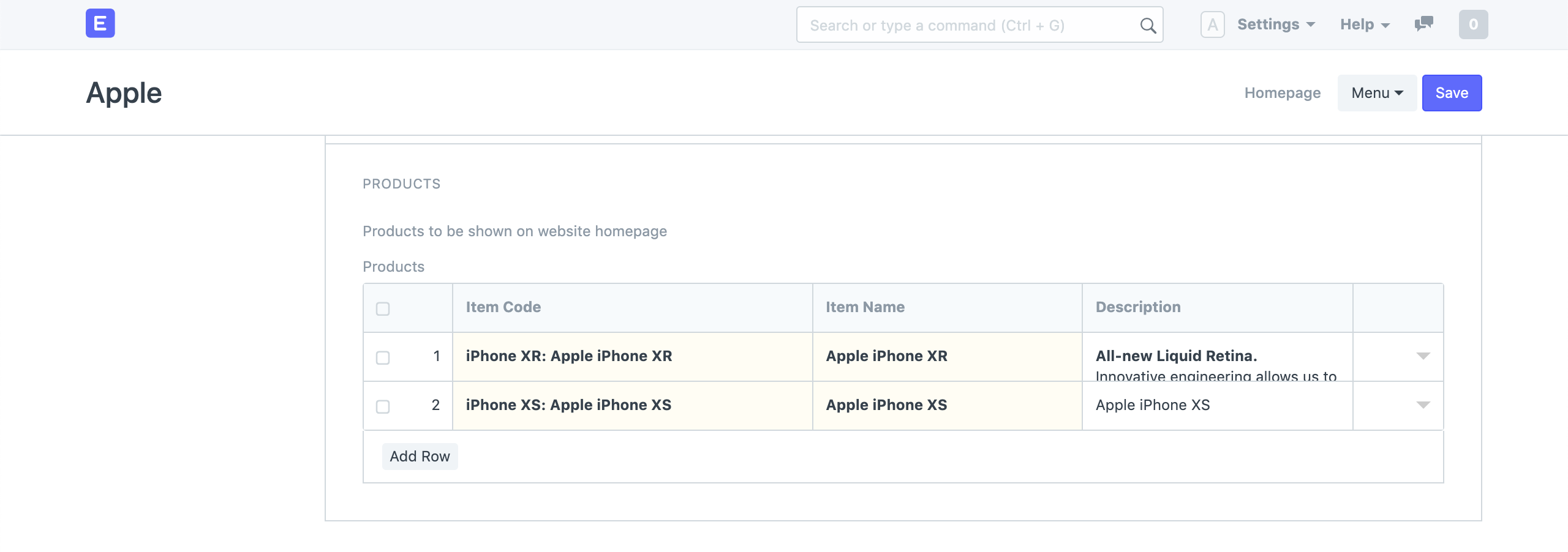
The appearance will be similar to this:
4. Homepage Section
By adding additional Homepage Sections, you can customize the sections that appear on your homepage.
Go to Website > Portal > Homepage Section
Card-based homepage sections or HTML-based ones can be used. Create Section Using Cards.
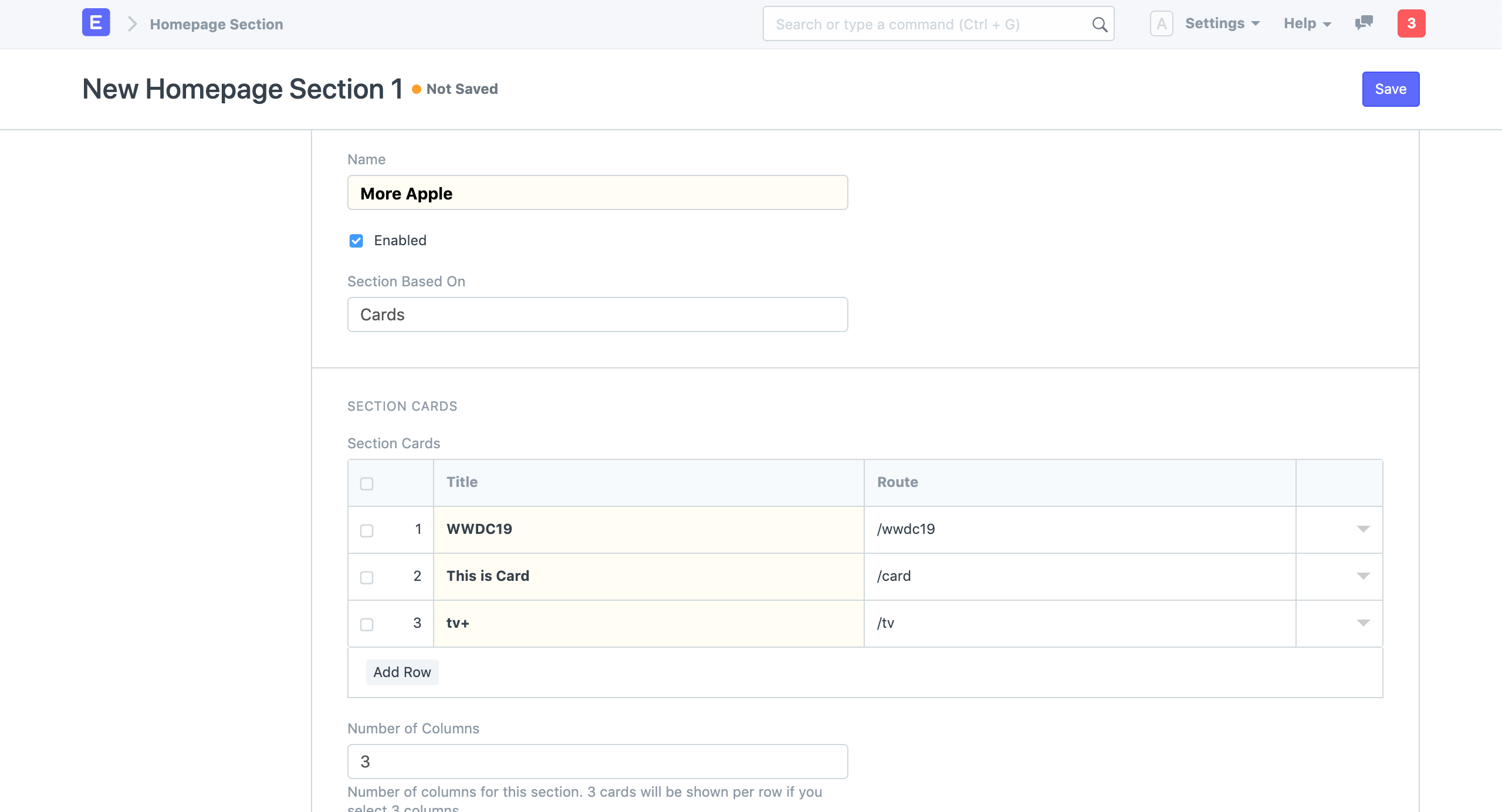
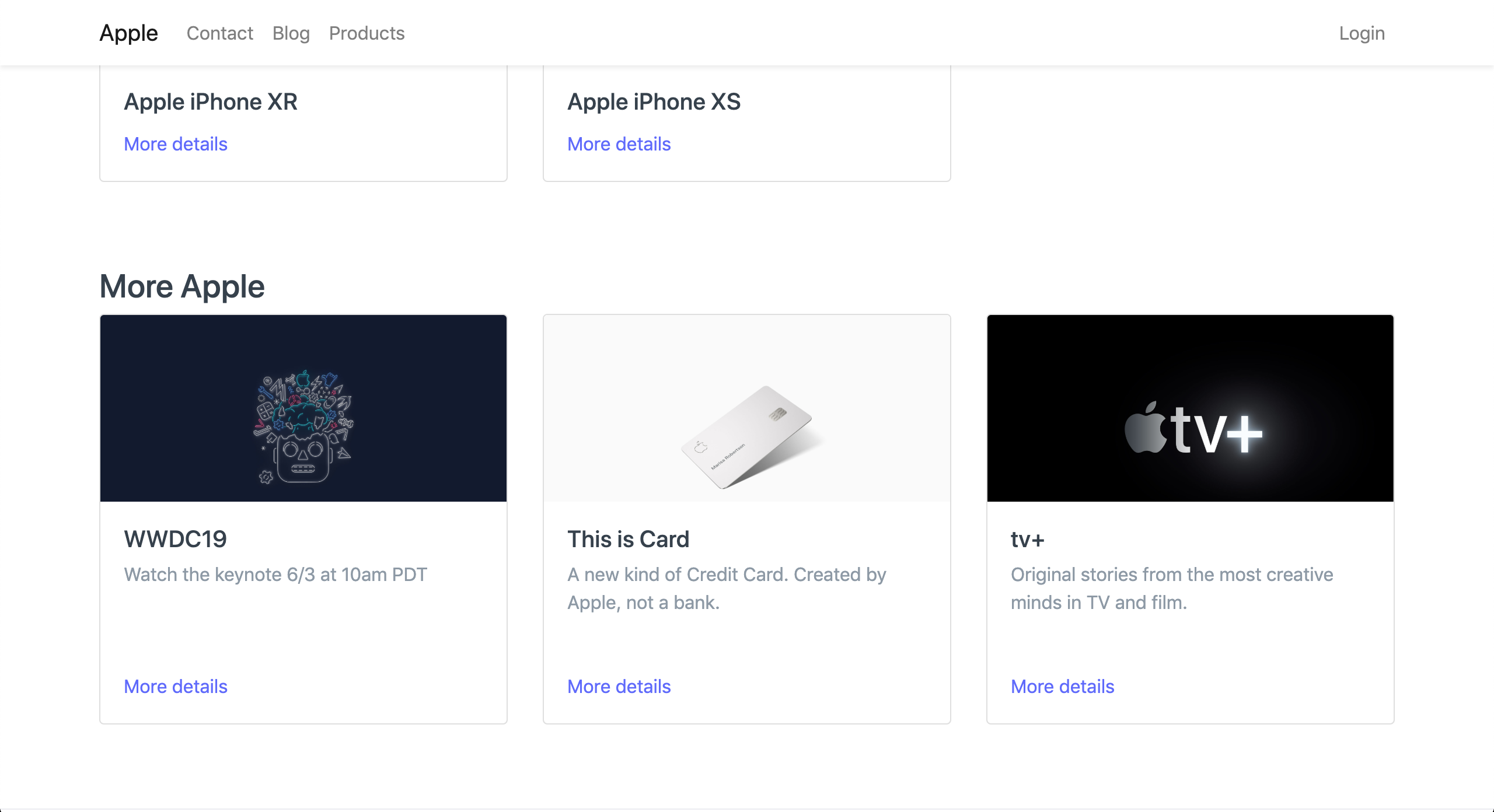
Provide information for each card in the Section Cards table, such as the Title, Subtitle, Picture, Content, and Route.
The appearance will be similar to this:
By adjusting the Section Order, you can also decide which of these sections appears first. First displayed will be 0, then 1 and so on.
To add Sections with Custom HTML refer Custom Hero Section.
5. Custom Homepage
If you don't want to utilize the default webpage mentioned above, ERPNext enables you to have a completely alternative one.
Creating a unique homepage:
Create a Web Page.
Go to Website > Setup > Website Settings.
Set Home Page as the route of your Web Page.