Inventory Dimension
Inventory Dimension
Introduced in Version 14
ERPNext uses inventory dimensions to track an inventory with many factors. ERPNext by default enables inventory tracking utilizing warehouses, batches, and serial numbers. Using the Inventory Dimension functionality, customers may set up inventory tracking with specific criteria. On the appropriate inventory papers, as well as in the stock ledger and stock balance report, the user has the option to choose the Inventory Dimension. You can examine dimension-wise stock ledger and stock balance reports with this functionality.
Go here: to get the list of Inventory Dimensions.
Stock > Settings > Inventory Dimension
Create Inventory Dimension
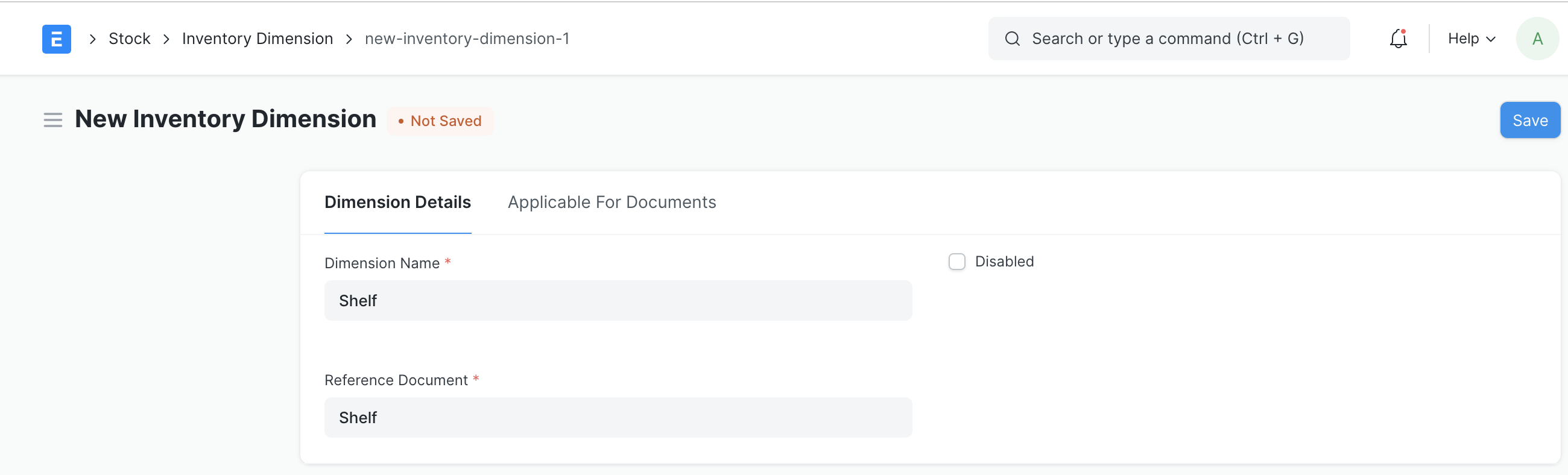
Choose the Reference Document you wish to use as a custom Inventory Dimension when you create a new entry.
Each non-child document in the reference document is available for selection.
The dimension name must then be entered by the user for the system to build a custom link field in the applicable documents.
Applicable For Documents
Apply to All Inventory Documents
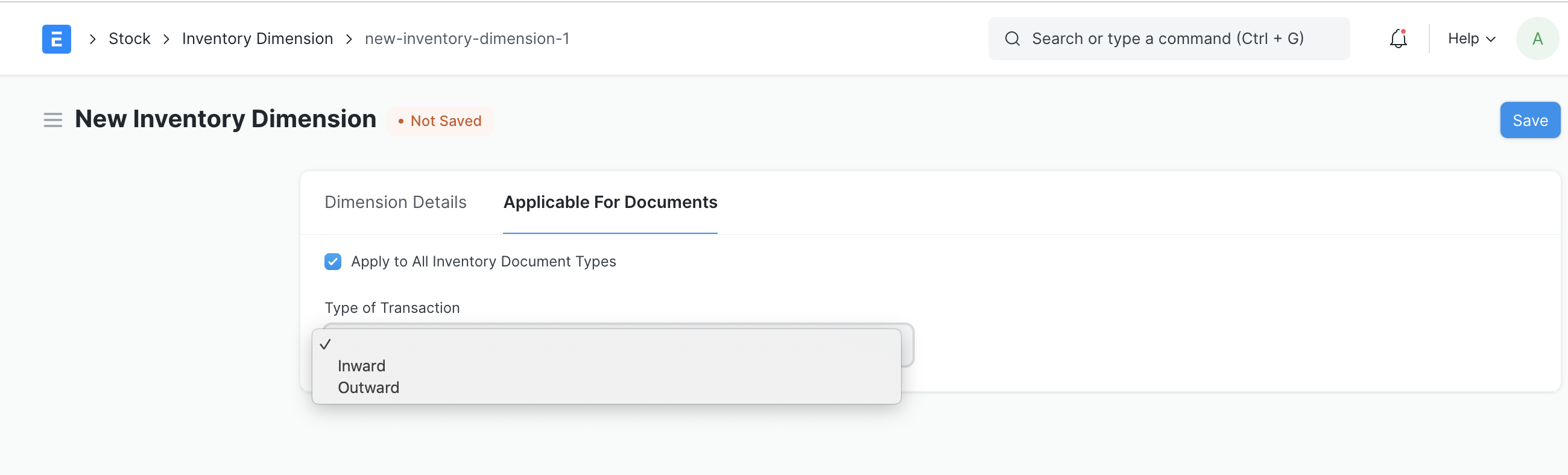
In the documents pertaining to inventory, it will be utilized to select the custom Dimension.
As an illustration, the user established an Inventory Dimension called "Shelf" and selected "Apply to All Inventory Document Types." Then, when Batch No. and Serial No. fields already exist in the inventory documents, the system creates the custom link field with the name "Shelf."
Apply to Specific Document
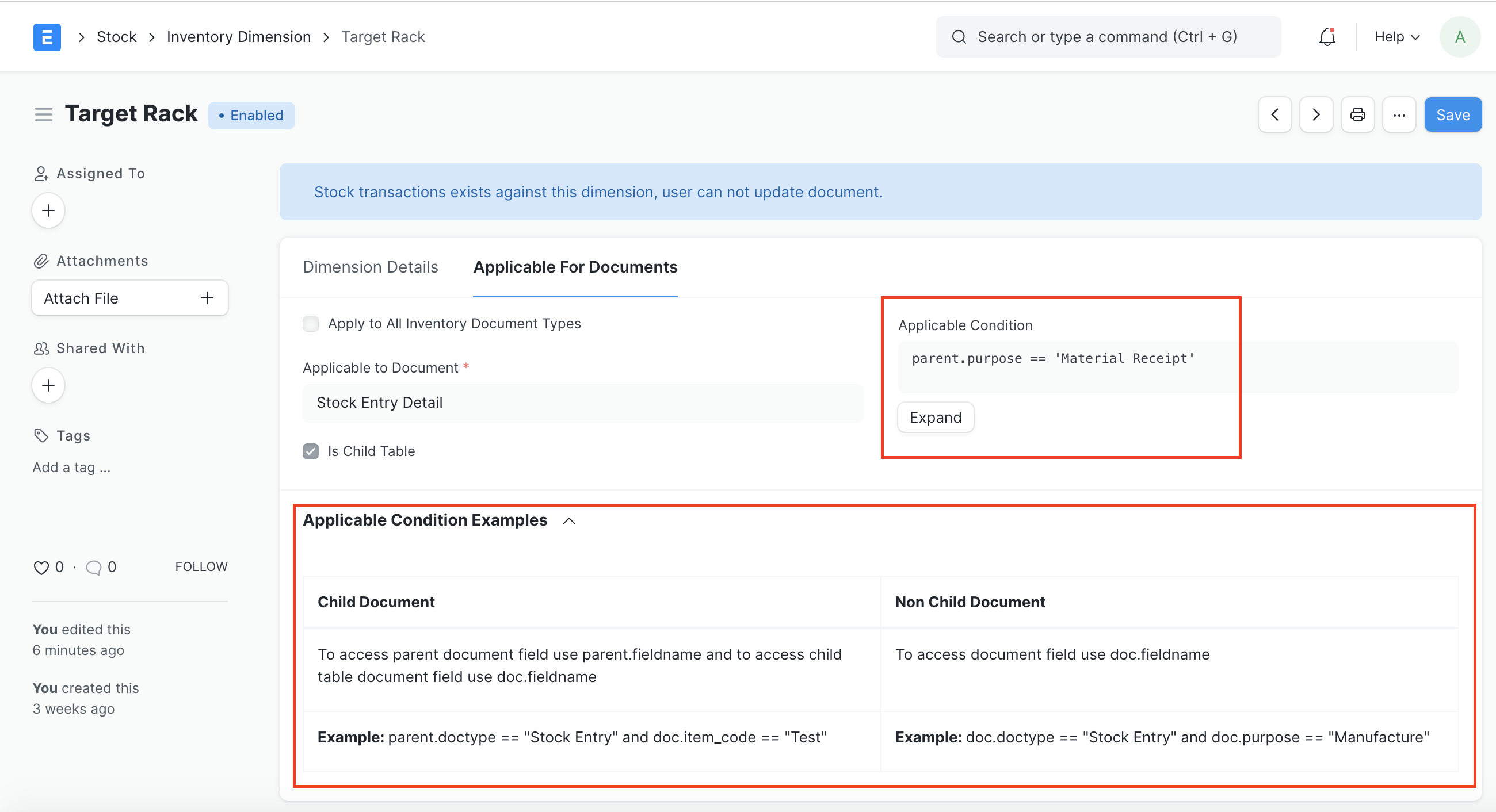
The checkbox "Apply to All Inventory Document Types" must be deselected in order to add Inventory Dimension to a specific document, and the appropriate document must be chosen in the "Applicable to Document" column.
Also, using "Applicable Condition," you can add Inventory Dimension for a specific condition, such as for Stock Entry Type Issue you want a distinct dimension as "From Shelf" and Stock Entry Type Material Receipt you want a separate dimension as "To Shelf."
Only when "Apply to All Inventory Document Types" is disabled will the term "Applicable Condition" be seen.
You can also use the "Type of Transaction" with options such as Inward or Outward for a condition
Use of Inventory Dimension
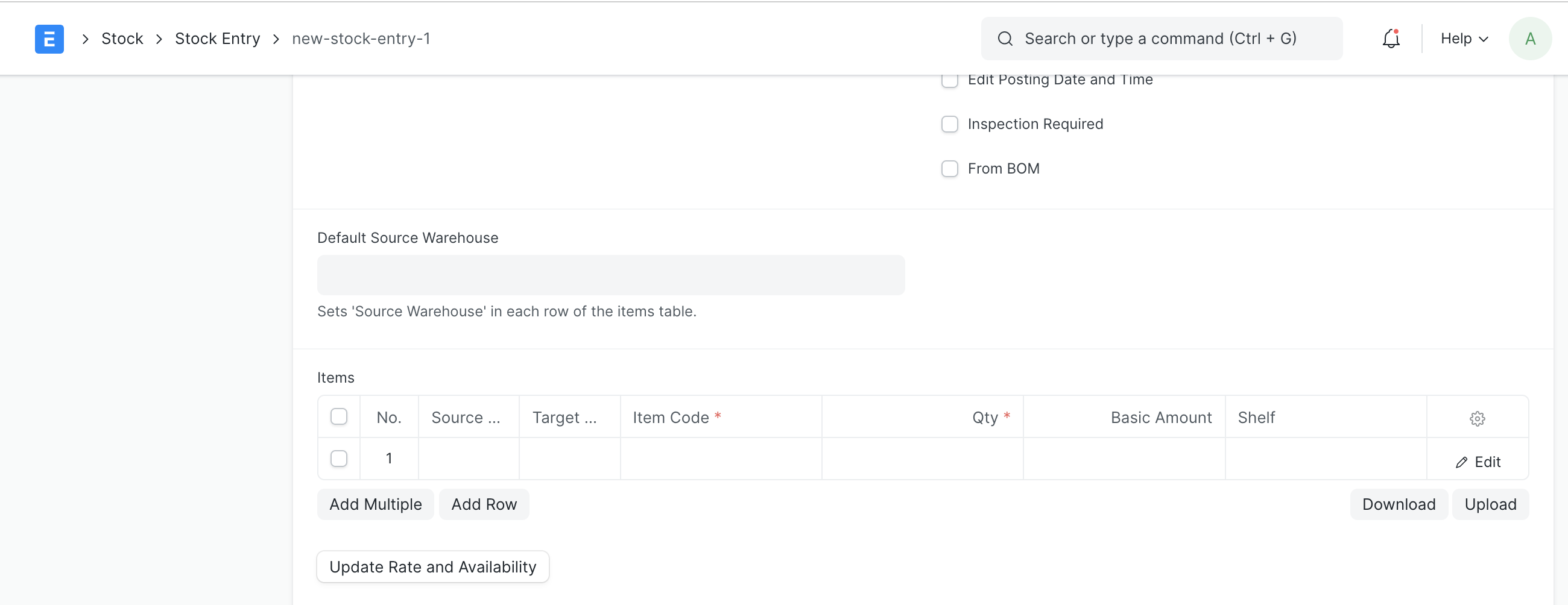
Upon the creation of the Inventory Dimension, the system will add a custom field in the relevant documents.
In the relevant transaction, the user has the opportunity to choose the Inventory Dimension.
For instance, suppose the user added "Shelf" as the Inventory Dimension in the Stock Entry Detail document. The kid table user then has the opportunity to choose a shelf in the stock entry (see above image). Stock ledgers with the chosen inventory dimensions will be created post-submission of the stock entry system.
Stock Balance and Stock Ledger Report
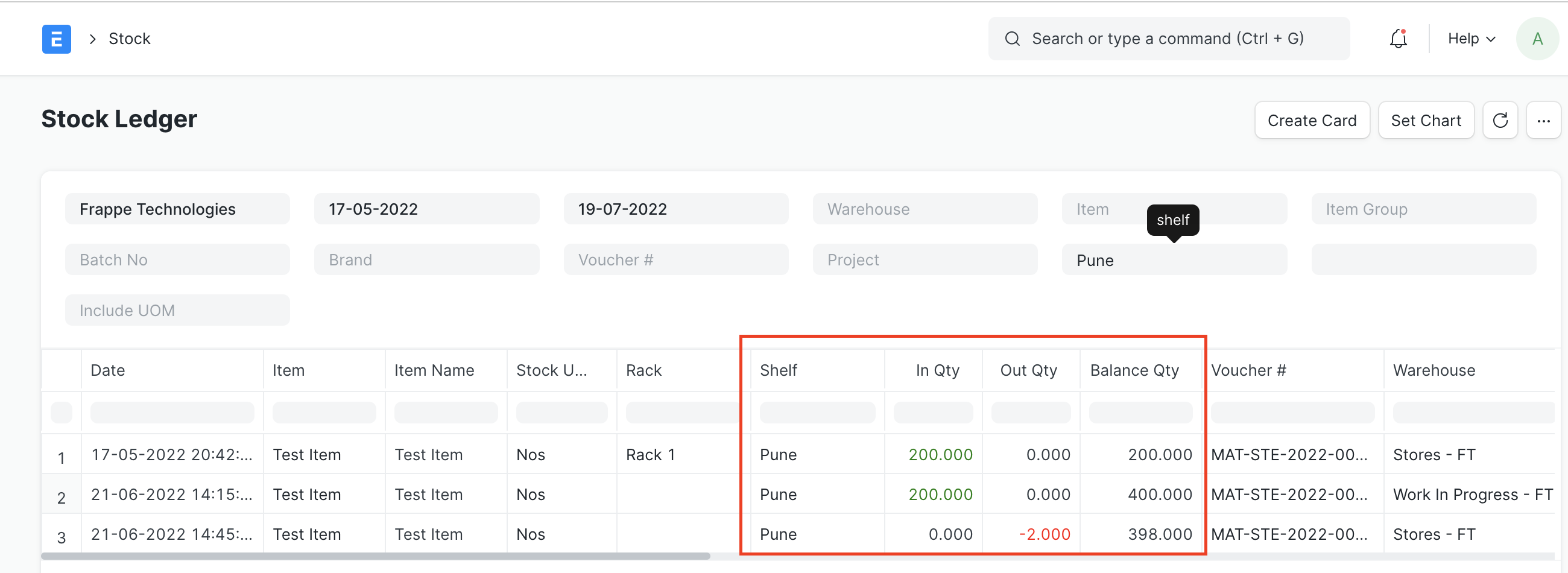
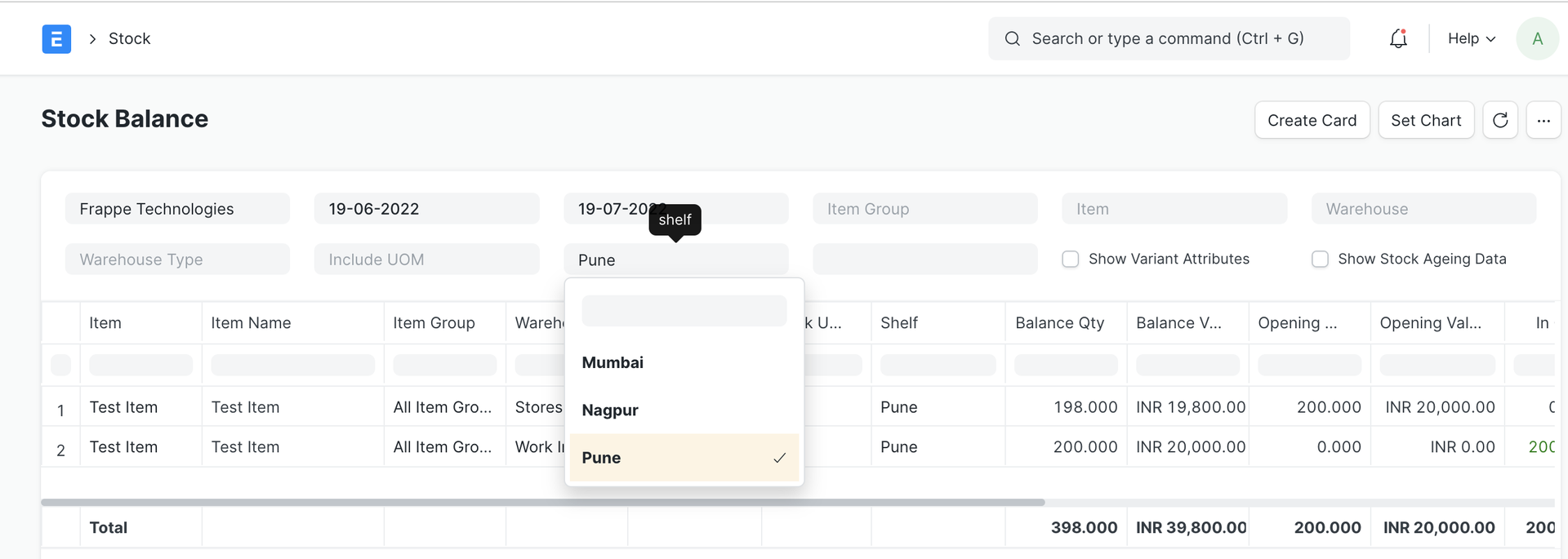
Users can use Inventory Dimension to filter the Stock Balance and Stock Ledger report.
With this feature, users can able to see Inventory Dimension wise available quantity
Stock Balance Report
Stock Ledger Report