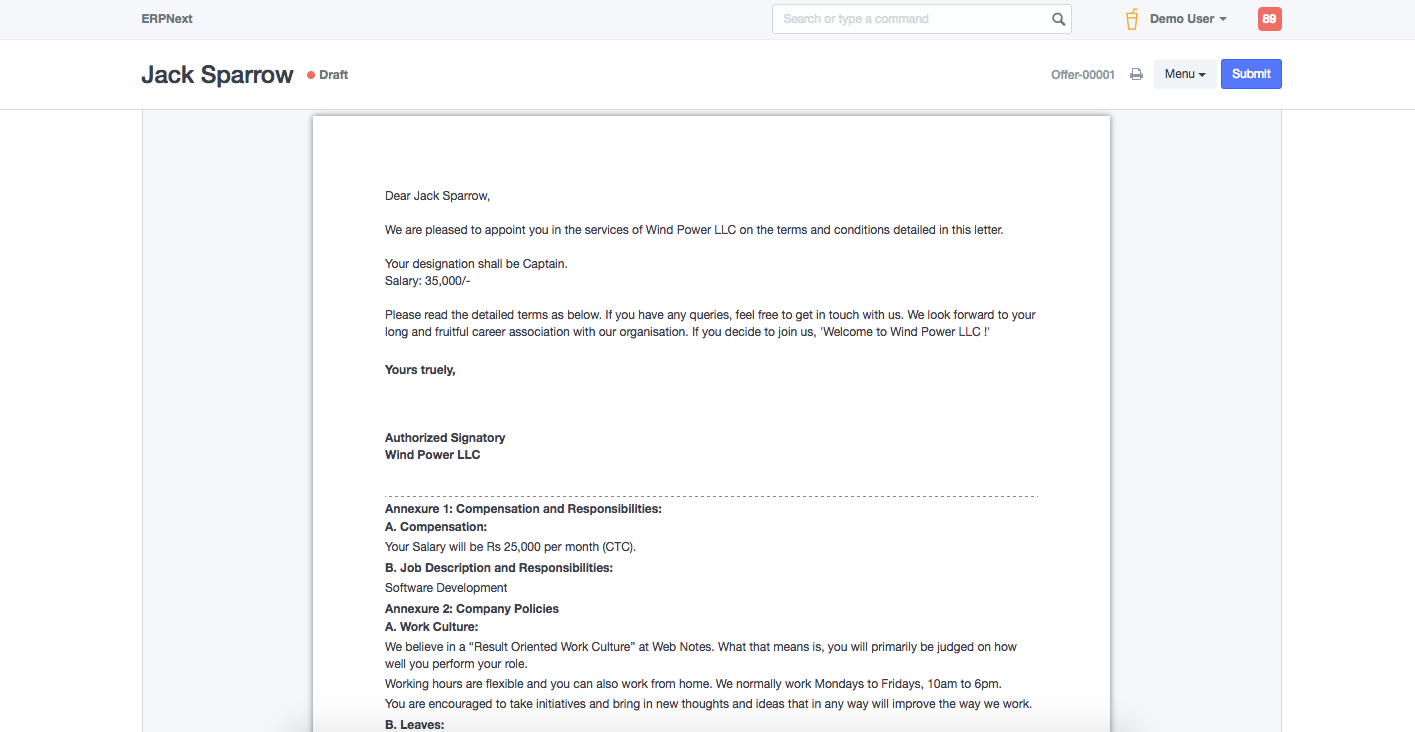
Job Offer
Job Offer
After the interview and selection process, the chosen candidates receive a job offer that includes, among other things, the offered pay package, designation, grade, department, and number of leave days.
You can keep track of the job offers you can make to applicants in ERPNext. Go to: to access Job Offer.
Home > Human Resource > Recruitment > Job Offer
1. Prerequisites
It is recommended to create the following before generating a job offer:
- Staffing Plan
- Job Applicant
- Job Opening
2. How to Create a Job Offer
1.Navigate to the Job Offer List and select New.
2.Choose the Offer Date, Designation, and Job Applicant.
3.Set the Employment Offer's Status (Awaiting Response, Accepted, Rejected).
4.Save and Send
.png)
Note: Only a job applicant may be the subject of a job offer.
3. Features
3.1 Job Offer Terms
You can enter the job offer terms here, including the job description, the notice period, any incentives, the number of vacation days per year, etc., and indicate its value and description.
3.2 Select Terms and Conditions
This section might include all terms and conditions pertaining to the job offer. Create a fresh Terms and Conditions template and attach it to the Job Offer to accomplish this.
3.3 Printing Details
You can create a pre-designed print format to print you Job Offer. To do so, select the Letter Head and Print Heading in the Printing Details section.