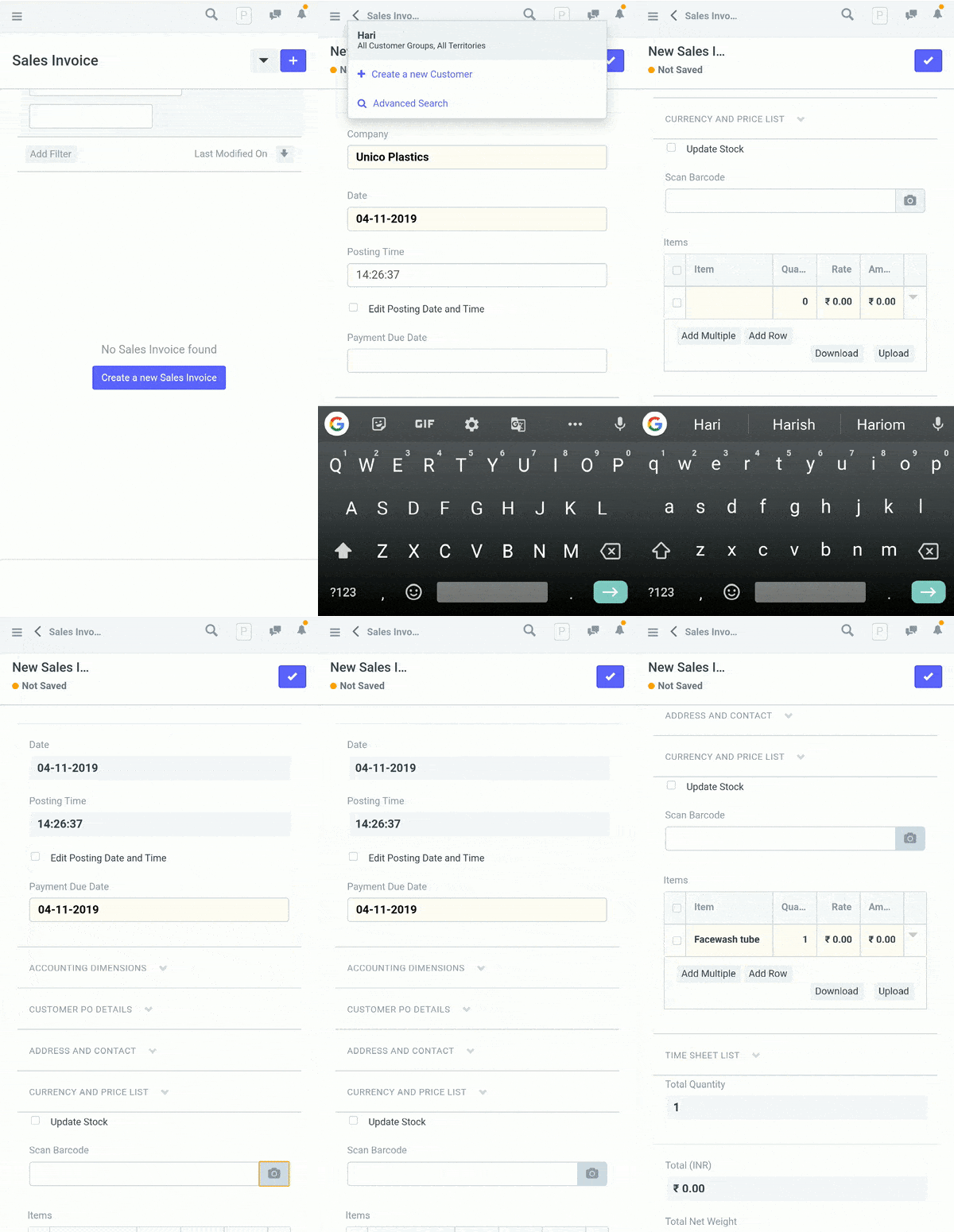
Track Items Using Barcode
Track Items Using Barcode
A value decoded into vertically spaced lines is a barcode. Similar to a keyboard, barcode scanners serve as the input device. The data is displayed on the computer screens at the cursor's point when it scans a barcode.
Item Master
You must open the Item record in order to set a specific item's barcode. Also, while creating a new item, you can enter a barcode.
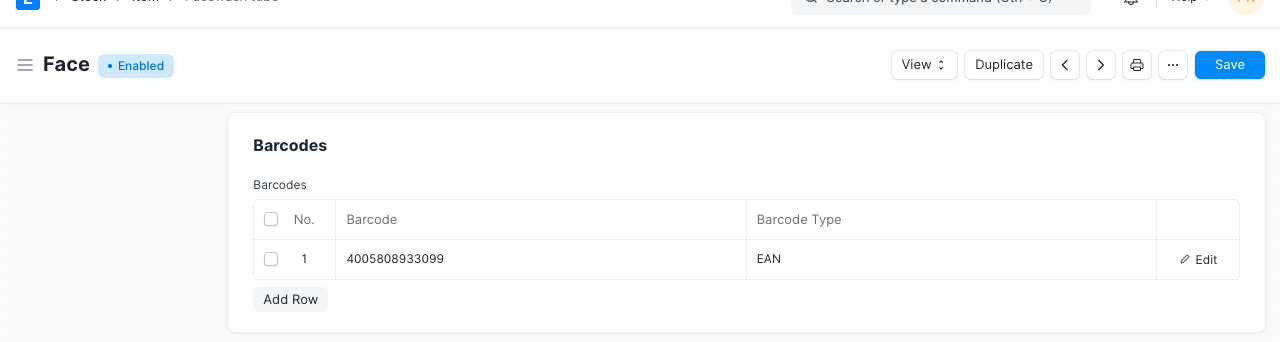
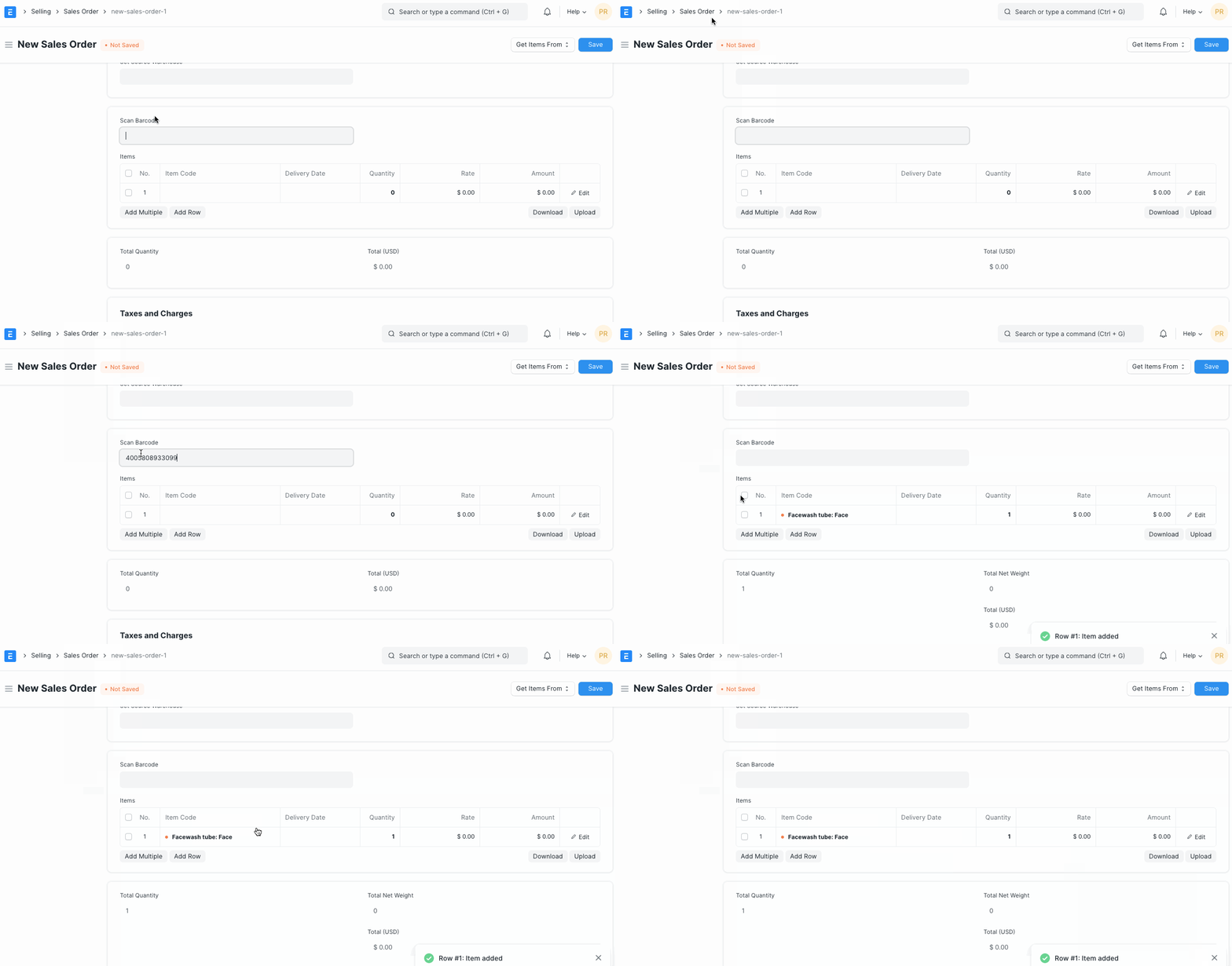
Items can be retrieved using a barcode once the barcode field in the item master has been modified. Only the transactions for Delivery Note, Sales Invoice, Purchase Receipt, and Stock Reconciliation will have access to this capability.
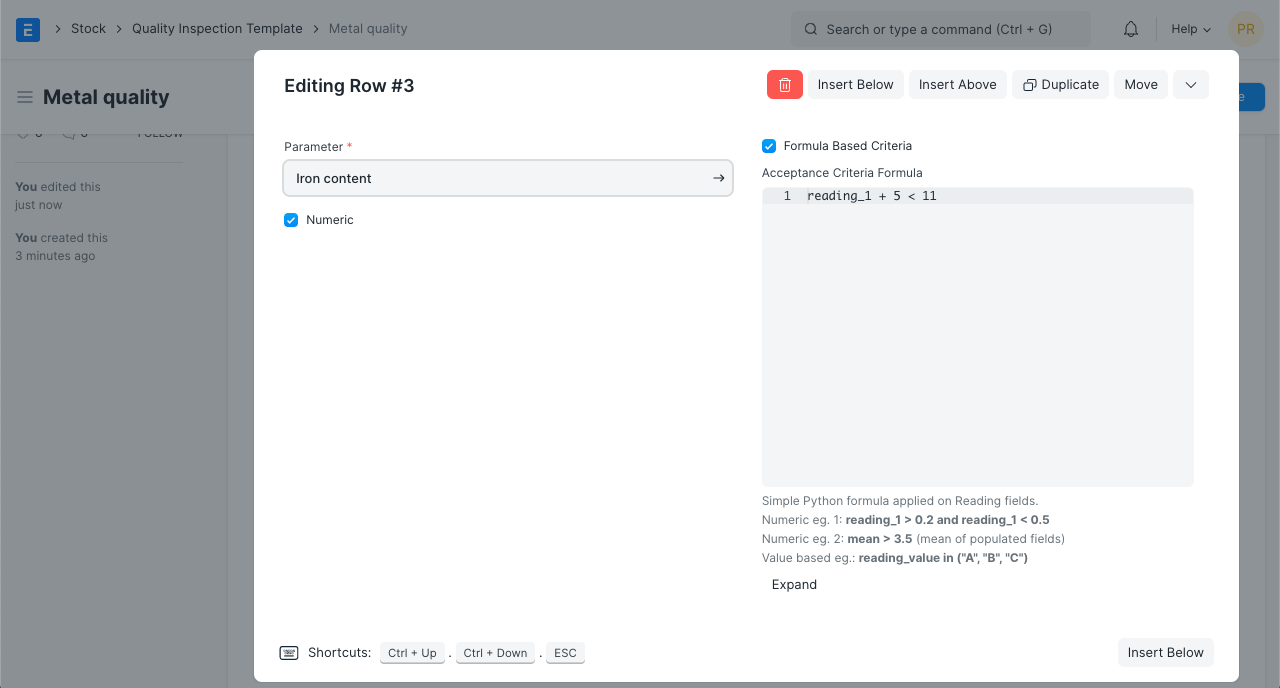
UOM specific barcode
For multiple types of packaging of the same item, such as the unit and box, you can also specify a distinct barcode. To have the UOM automatically selected when scanning items, select it in the Item Barcode table.
Using mobile phone / smartphone to scan and add items
You can add items and scan barcodes from your smartphone by logging into your ERPNext account, going to the Item master, and then clicking the Add Item button.