Twitter Settings
Twitter Settings
OAuth-related Twitter settings can be set up here. ERPNext uses the OAuth 2.0 Authentication Protocol to gain access to the API that allows for post sharing.
1. How to set up Twitter App
OAuth-related Twitter settings can be set up here. ERPNext uses the OAuth 2.0 Authentication Protocol to gain access to the API that allows for post sharing.
1.1 Create Twitter Developer App
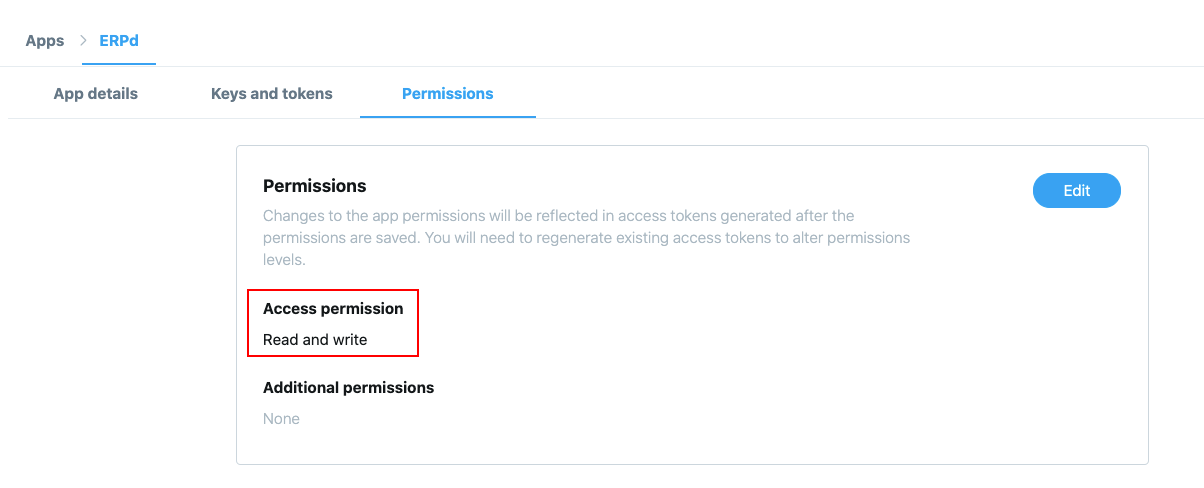
Create an app using the developer.twitter.com link and confirm that it has read and write access.
1.2. Configure Callback URL
Select your App and go to App Details.
Then go to Edit and click Edit Details.
Add your website URL in Callback URLs like: https://{yoursite}/api/method/erpnext.crm.doctype.twittersettings.twittersettings.callback
Click Save to make changes.

2. How to set up Twitter Settings
Go to: to access Twitter settings.
Home > CRM > Settings > Twitter Settings
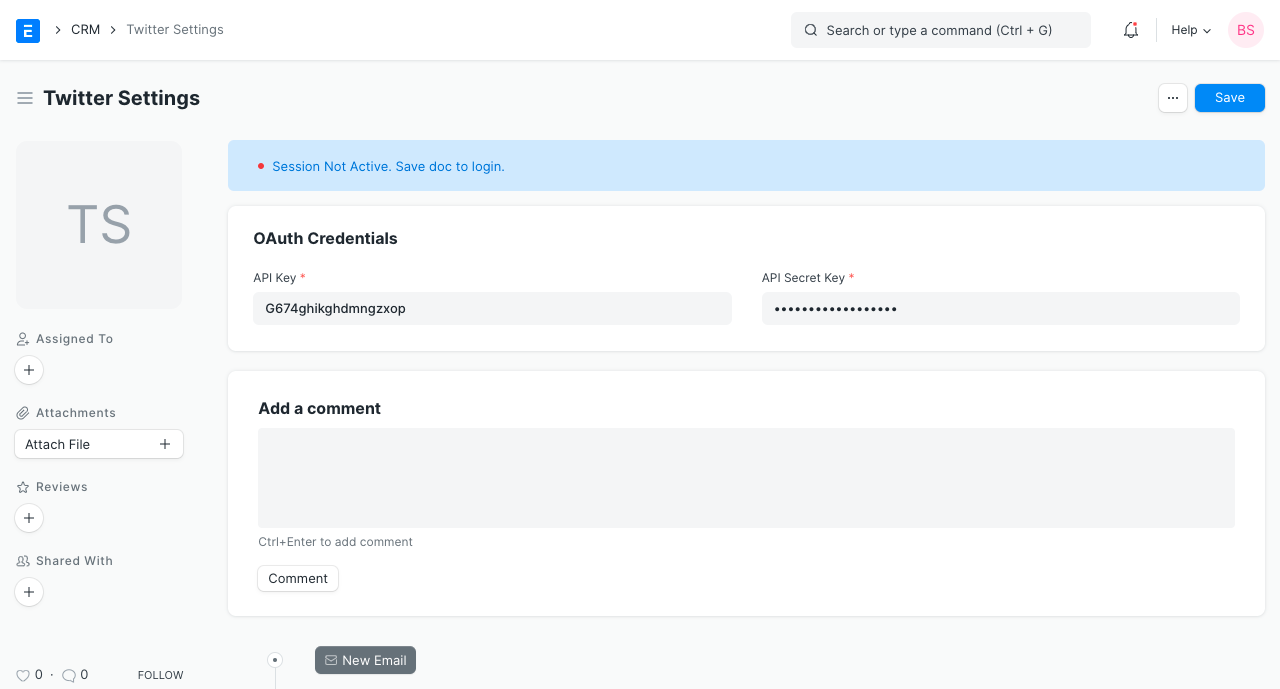
2.1 API Key and API Key Secret
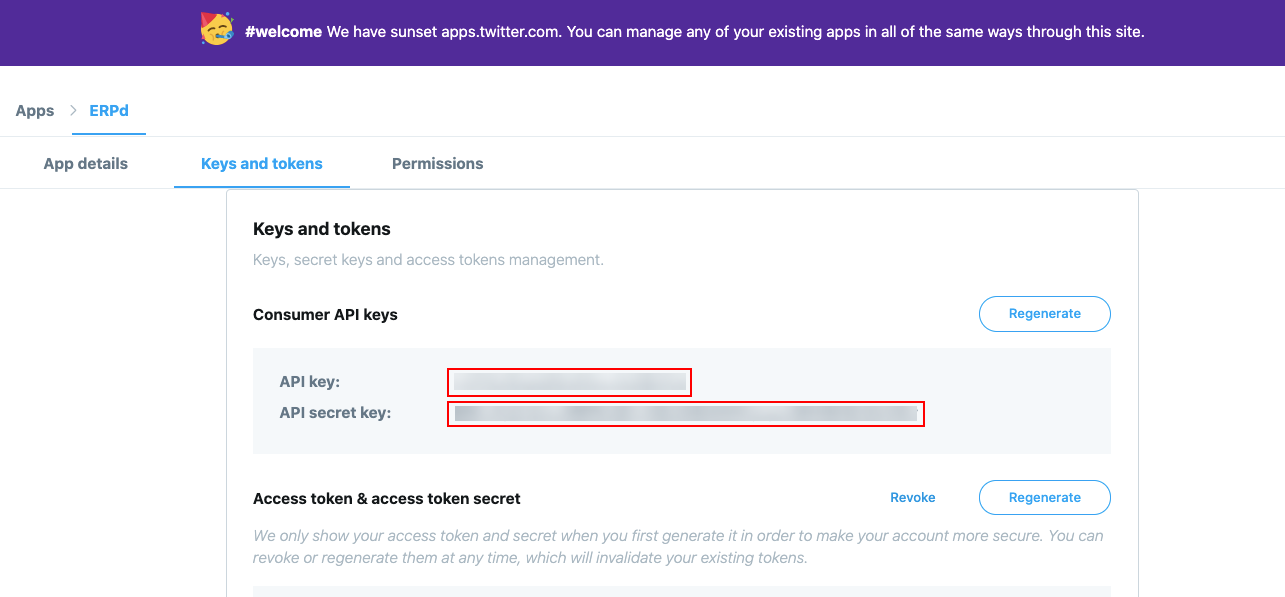
You may access your Twitter Developer account's API Key and API Key Secret by visiting:
https://developer.twitter.com/ > My Apps > {Your App} > Keys and tokens
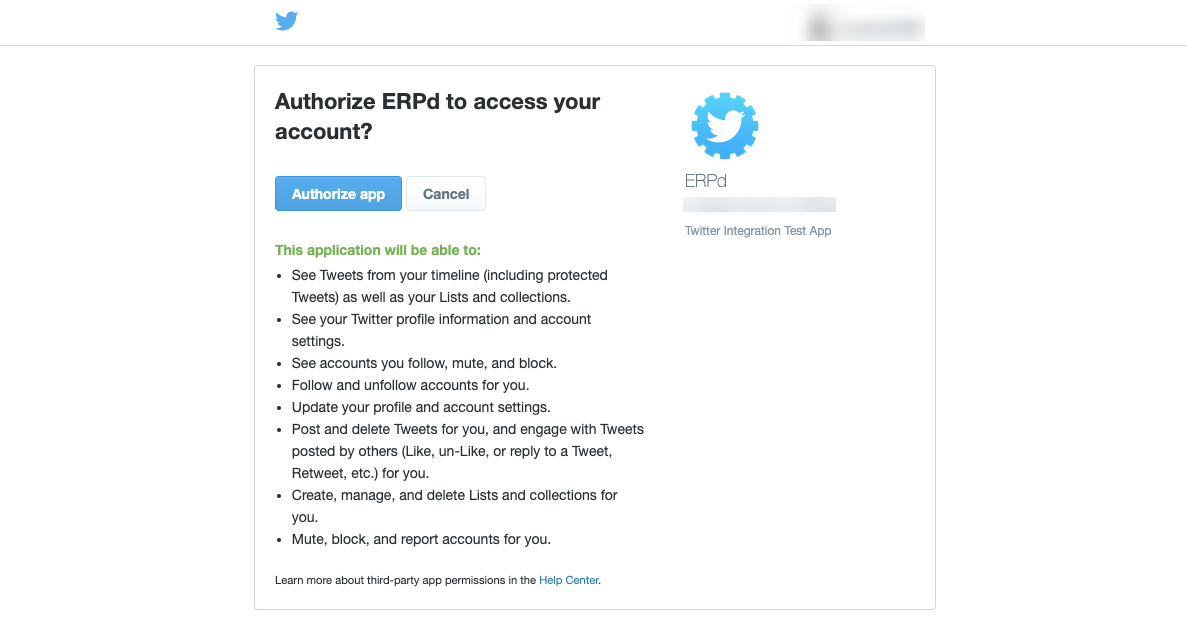
The member authorizes your application's request to access their member data and interact with Twitter once you save the document by putting in the API Key and API Key Secret. By entering proper Twitter credentials and selecting Authorize app, the member will be redirected to Twitter's sign-in page.