Landed cost Voucher
Landed cost Voucher
For creating a Landed cost voucher in ERPNext, a Purchase Receipt and Purchase Invoice are required.
While creating against a Purchase Invoice, the Update Stock option should be checked in the Purchase Invoice.
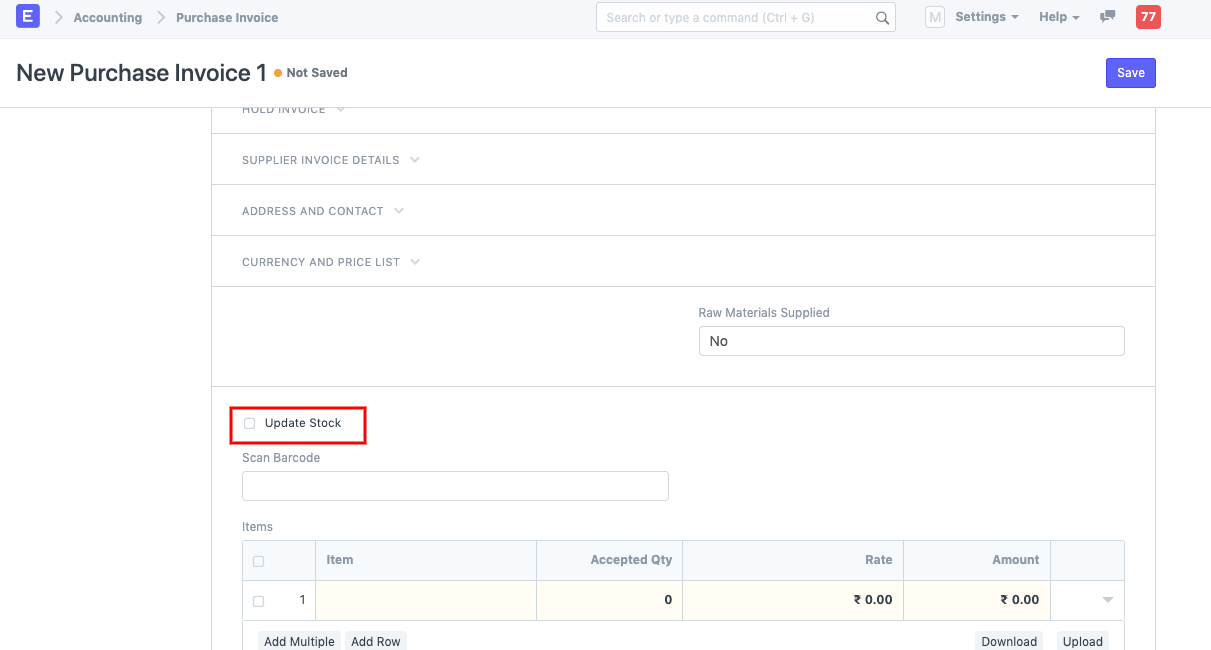
If this box is not selected, the Purchase Invoices will not be retrieved for the Landed Cost Voucher.
While creating against Purchase Receipt, the Maintain Stock box must be checked for the selected Item.
If you do not check this box, the Items will not be displayed when you click Get items from Purchase Receipt.
While creating a Landed cost Voucher, it is possible to add additional costs for items until they arrive in our Inventory.
Once these additional fees are added, they are included in the Item Valuation rate and the Item Rate is updated.
Purchase Receipt --> View --> Accounting Ledger Purchase Receipt --> View --> Accounting Ledger Purchase Receipt --> View --> Accounting Ledger
If additional charges must be charged to the Landed Cost Voucher, you can:
1.You can directly create a Payment Entry to cover additional costs for an Item and then create a Purchase Invoice with the Is Paid box checked —>. [In this instance, Purchase Invoice is optional unless the accounting effect is desired.]
2.You can create a Purchase Invoice for a Supplier for whom Additional Expenses are incurred, allowing you to view the Accounting effect of the expenses according to the Landed Cost Voucher, and then create a Payment entry against the Purchase Invoice.