Salary Component
Salary Component
Organizations provide salaries to their employees as compensation for the services they provide. Salary Components are the various elements that make up the salary structure.
The base wage, allowances, arrears, and other components of the employee's salary are just a few examples. You can define these Salary Components and its many properties using ERPNext.
Go to: to access Salary Component.
Home > Human Resources > Payroll > Salary Component
1. How to create a Salary Component
Creating a new Salary Component
Click on New under Salary Component List.
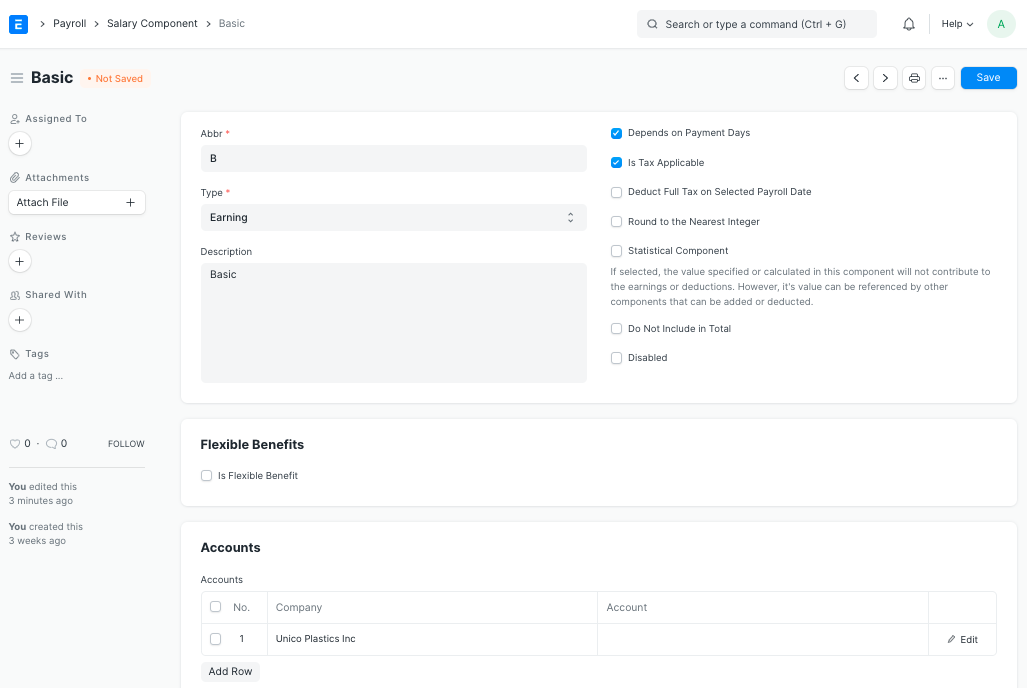
Type in the Name and Shorthand.
Describe the salary component by entering it (optional).
In the Accounts table, enter the company name and the Default Account for the Salary Component.
Save.
2. Features
Some of the Salary Component's additional characteristics, in addition to the necessary fields indicated above, are listed below:
2.1 Condition and Formula
This section allows for the specification of the condition and formula needed to calculate the salary component. The "Amount based on formula" checkbox must be enabled in order to specify the formula.
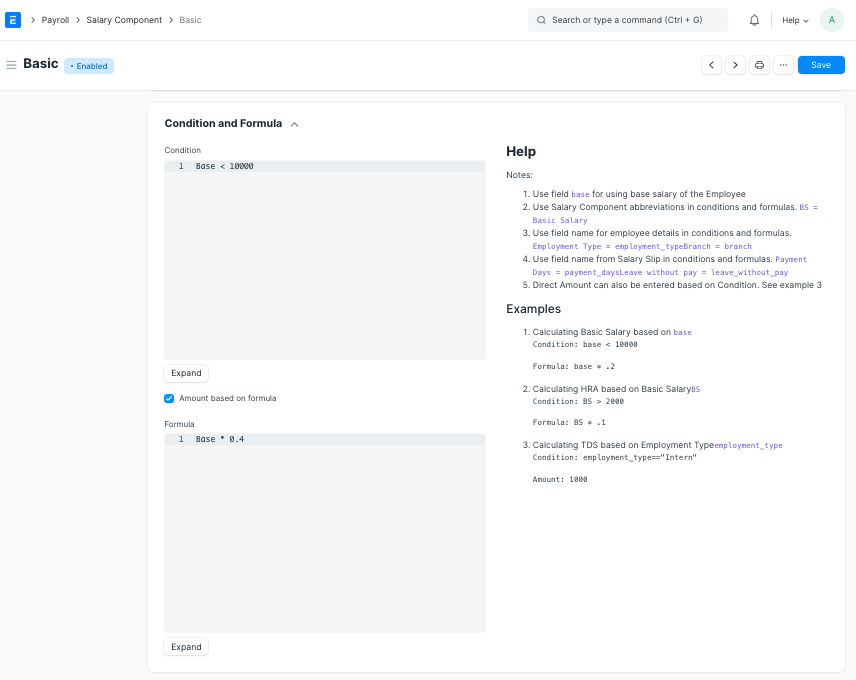
ERPNext enables you to directly input the amount in the Amount field if the Salary Component is based on a pre-defined value (disable the "Amount based on formula" checkbox).
Remember that this configuration is optional. Amount and Formula/Condition for a Pay Component can also be defined directly in the Salary Structure. When the component is selected, the details will be instantly obtained in the Salary Structure if they are defined in the Salary Component document itself.
2.2 Additional Properties
The following are some of the extra Salary Component elements that can be checked off using checkboxes:
- Is Payable:If the Salary Component is payable, choose this.
- **Depends on Payment Days:The Pay Component will be determined depending on the number of working days if this option is checked.
- Is Tax Applicable: Earning Components are eligible for this checkbox. By checking this box, tax can be charged on this salary component.
- Deduct Full Tax on Selected Payroll Date: The applicable tax amount on the additional amount will be subtracted on the particular payroll month if the box is ticked and the component is utilized in Additional Salary. If unchecked, the tax will be spread out over the remaining payment period months. For instance, if a bonus is paid out using Extra Salary in a certain month, you can only deduct the full tax amount for that month.
- Round to the Nearest Integer: By checking this box, you can round the value of this salary component to the closest whole number.
- Statistical Component: The value specified or calculated in this component will not be included in the earnings or deductions if this option is chosen. However, additional elements that can be increased or decreased can be used to reference its value. You do not need to set the Default Account if you designate a salary component as a statistical component. Moreover, this component could not be designated as a Flexible Benefit.
- Do Not Include in Total: By checking this option, the Total Salary will not include the Salary Component. It serves to define the CTC-related but non-payable component (e.g. Usage of Company Cars).
- Variable Based On Taxable Salary: Using the appropriate Income Tax Slab, the component is automatically calculated on taxable income (e.g. TDS or Income Tax).
- Exempted from Income Tax: If ticked, the whole amount will be subtracted from gross income before income tax is calculated, without a declaration or supporting documentation. For instance, in India, professional tax is subtracted from taxable income before determining income tax.
- Disabled:To disable this salary component, choose this checkbox. The Salary Structure cannot employ a Salary Component that is deactivated.
2.3 Flexible Benefits
If the salary component is an earning component, this part will display. Employees can choose the benefits they want or need from a variety of programs offered by their employer thanks to flexible benefit plans. These could consist of things like health insurance, pension plans, phone costs, etc. Check the "Is Flexible Benefit" item to designate a salary component as a flexible benefit.
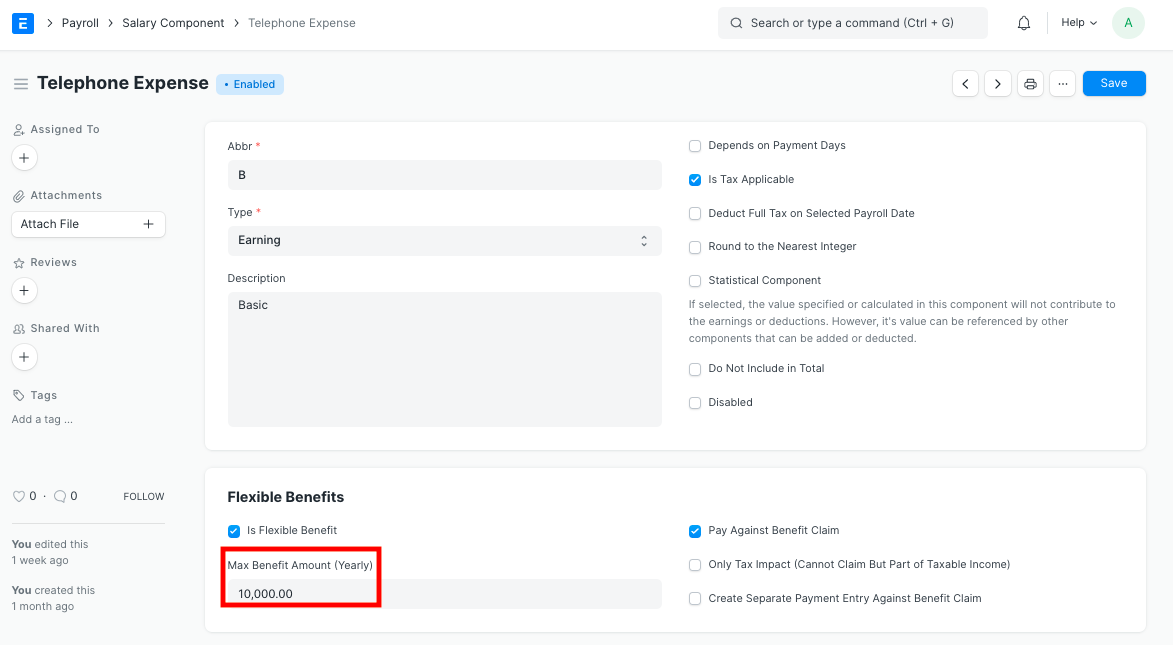
In the "Max Benefit Amount (Yearly)" section, enter the maximum annual benefit amount for this flexible benefit. The following are some of the extra Flexible Benefits qualities that can be turned on using checkboxes:
- Pay Against Benefit Claim: If you want to pay for this benefit through an employee benefit claim, check this box.
- Only Tax Impact (Cannot Claim But Part of Taxable Income):The flexible benefit will be included in taxable income if it is established.
- Create Separate Payment Entry Against Benefit Claim: When this checkbox is selected, you can enter a different payment against the Benefit Claim.