LinkedIn Settings
LinkedIn Settings
OAuth-related settings for LinkedIn can be set up here. ERPNext uses the OAuth 2.0 Authentication Protocol to gain access to the API that allows for post sharing.
1. How to set up LinkedIn Developer App
For your business, you must have the LinkedIn Developer App. This App and ERPNext communicate in order to share the post.
1.1 Create LinkedIn Developer App
The LinkedIn Developer App is a requirement for your business. In order to share the content, ERPNext communicates with this App.
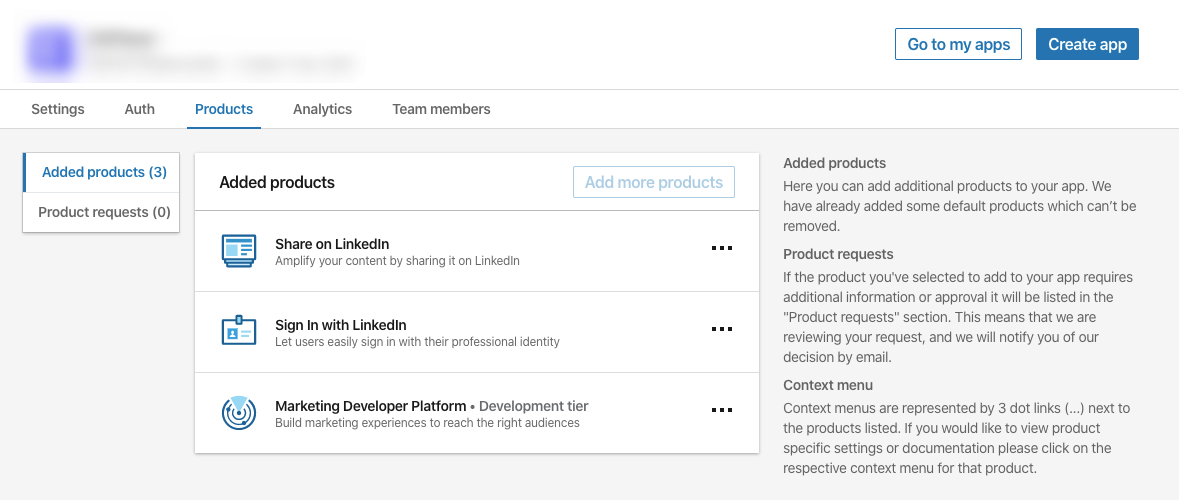
1.Share on LinkedIn
2.Sign In with LinkedIn
3.Marketing Developer Platform
1.2 Configure Redirect URLs:
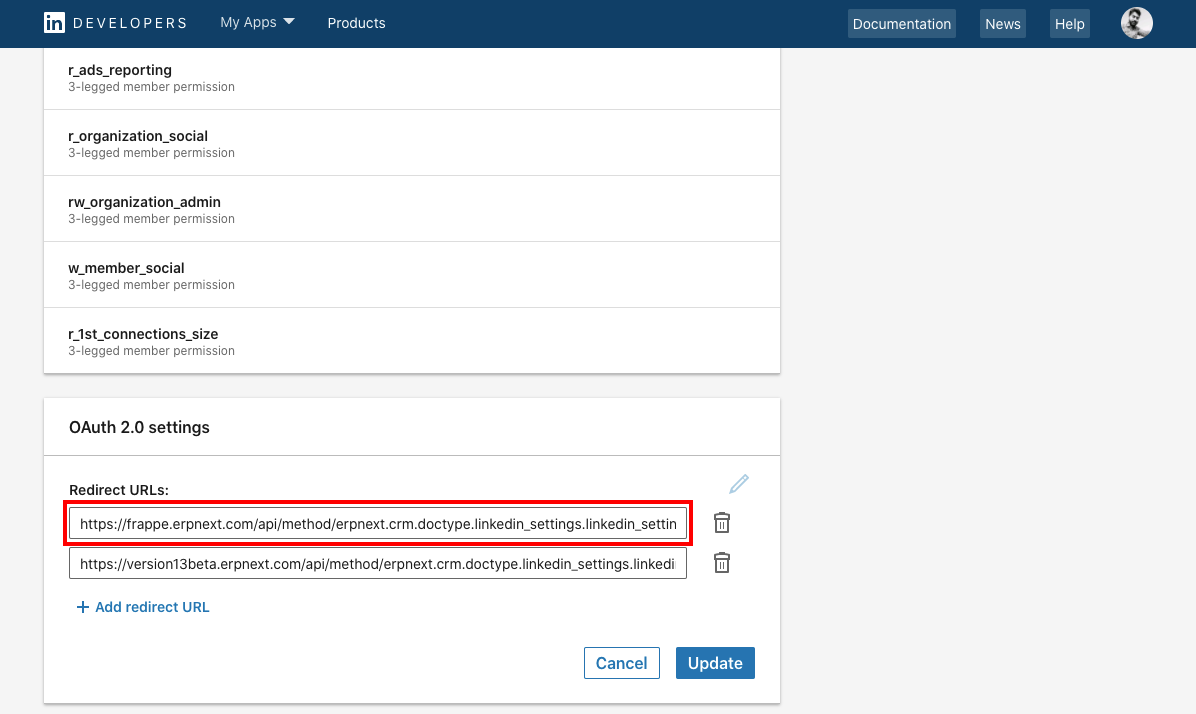
1.Goto your LinkedIn Developers App then Auth tab.
2.In OAuth 2.0 settings section add Redirect URLs: https://{yoursite}/api/method/erpnext.crm.doctype.linkedinsettings.linkedinsettings.callback
3.Click Update to make changes.
2. How to set up LinkedIn Settings
Go to: to access LinkedIn Settings.
Home > CRM > Settings > LinkedIn Settings
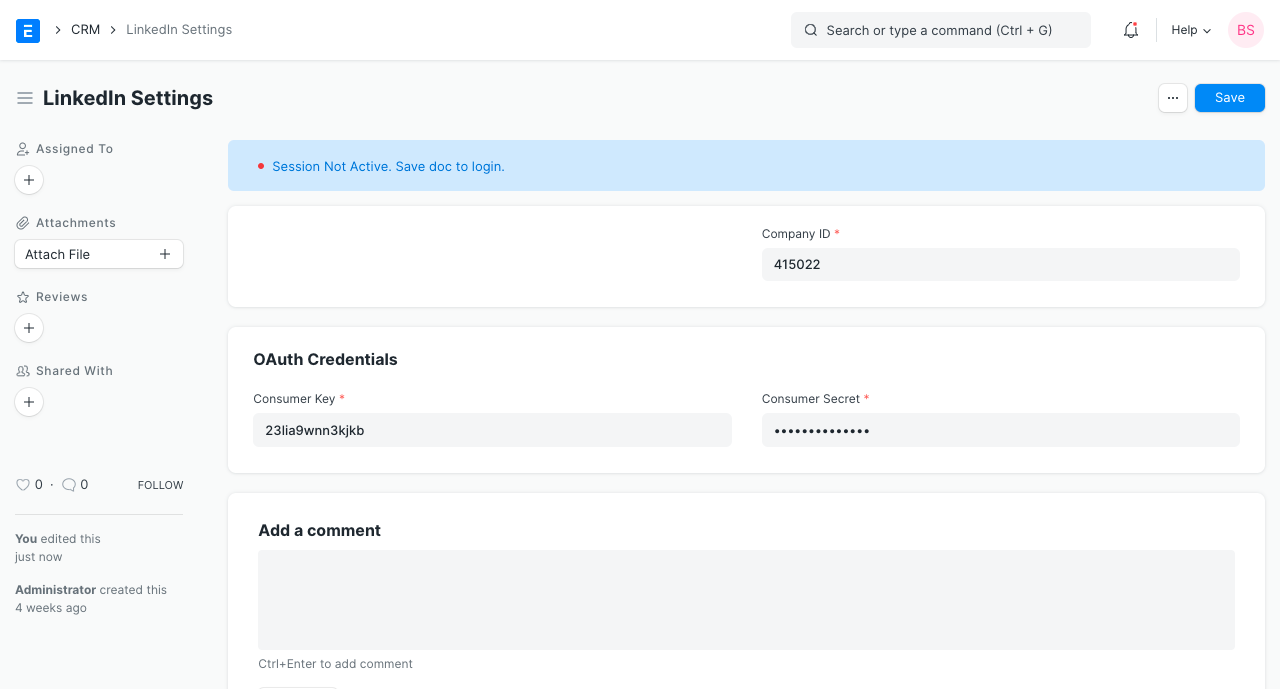
Company ID
Your LinkedIn Company URL contains the Business ID.

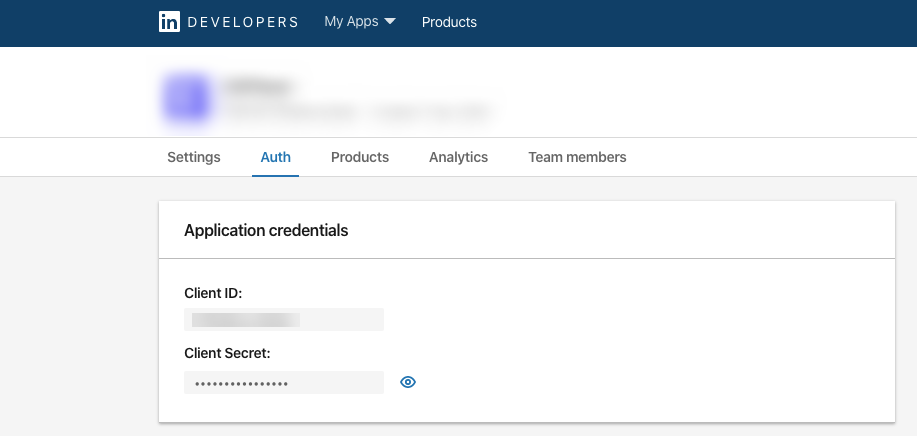
Consumer Key and Consumer Secret
Your LinkedIn Developer account will provide you with the Consumer Key and Consumer Secret.
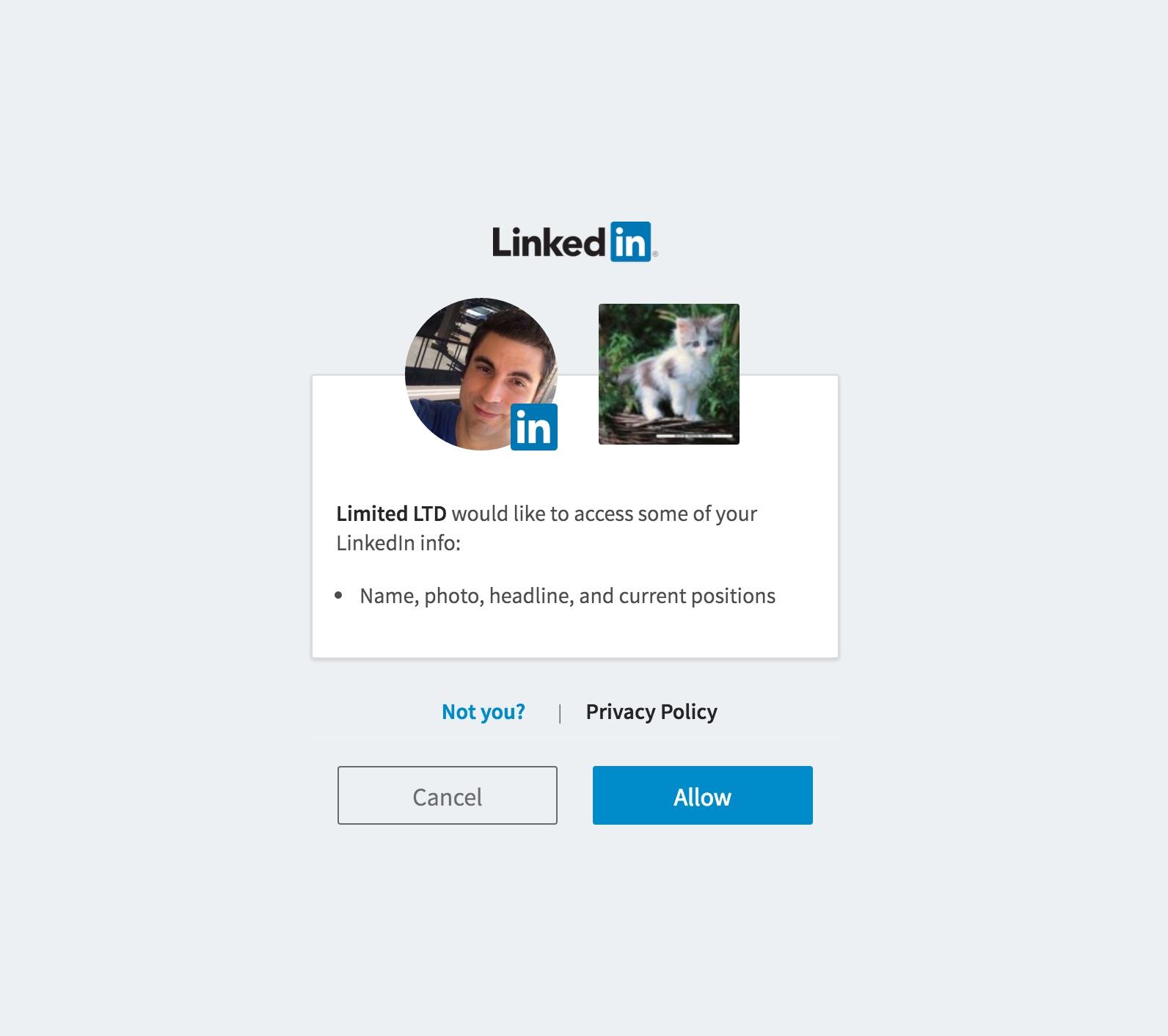
The member authorizes your application's request to access their member data and interact with LinkedIn on their behalf once you save the document by filling out Company ID, Consumer Key, and Consumer Secret. This action will redirect you to LinkedIn's sign-in page where you can sign in using your valid LinkedIn credentials.