Web Page Builder
Web Page Builder
Introduced in Version 13
You may easily create web pages with Page Builder by using pre-configured web templates.
1. How to create a page using Page Builder
To develop a Web page, adhere to the instructions.
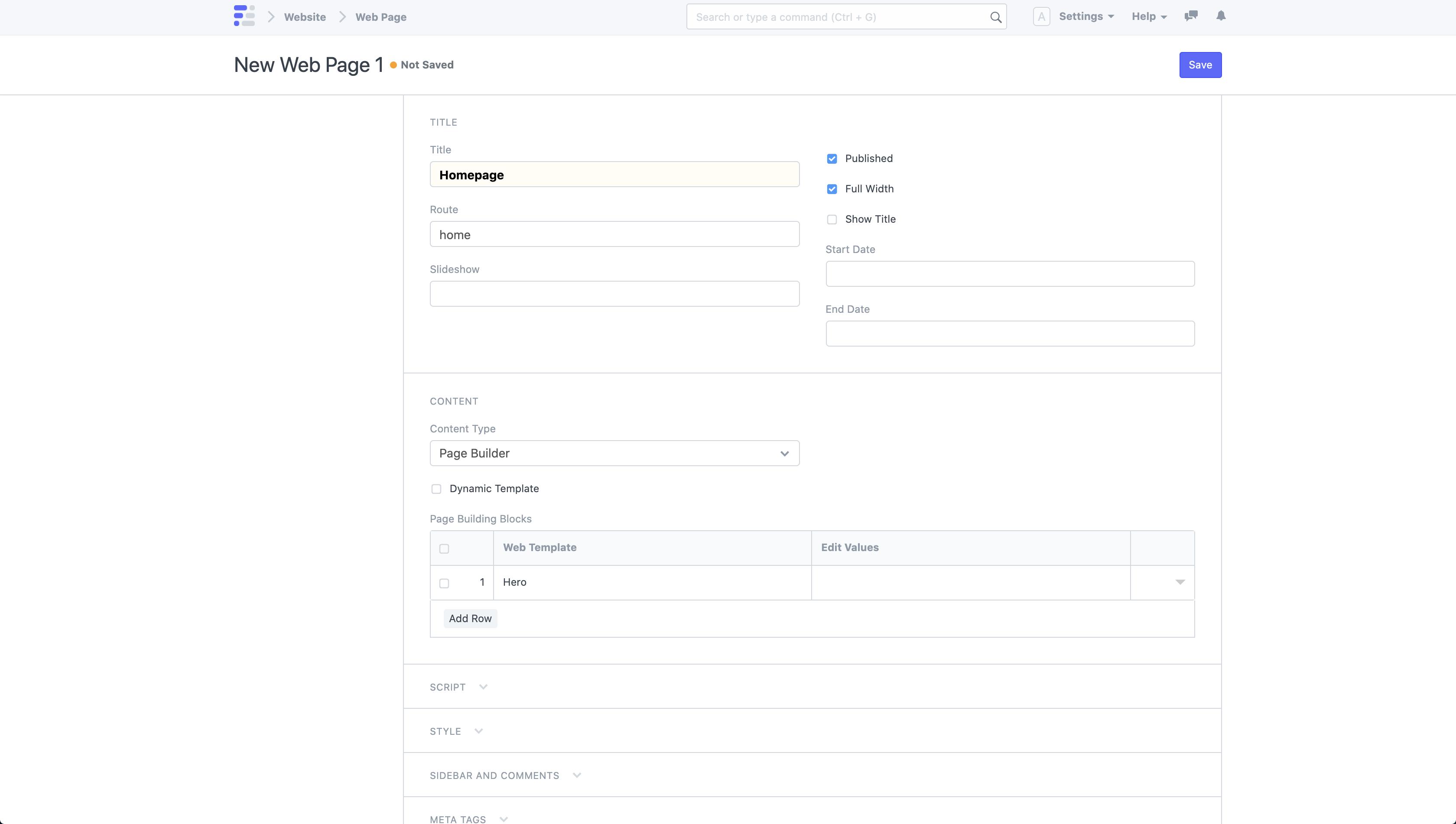
Check the "Full Width" checkbox to enable full width.
Choose Page Builder as the Content Type.
On the Page Building Blocks Table, select Add Row.
choosing a web template.
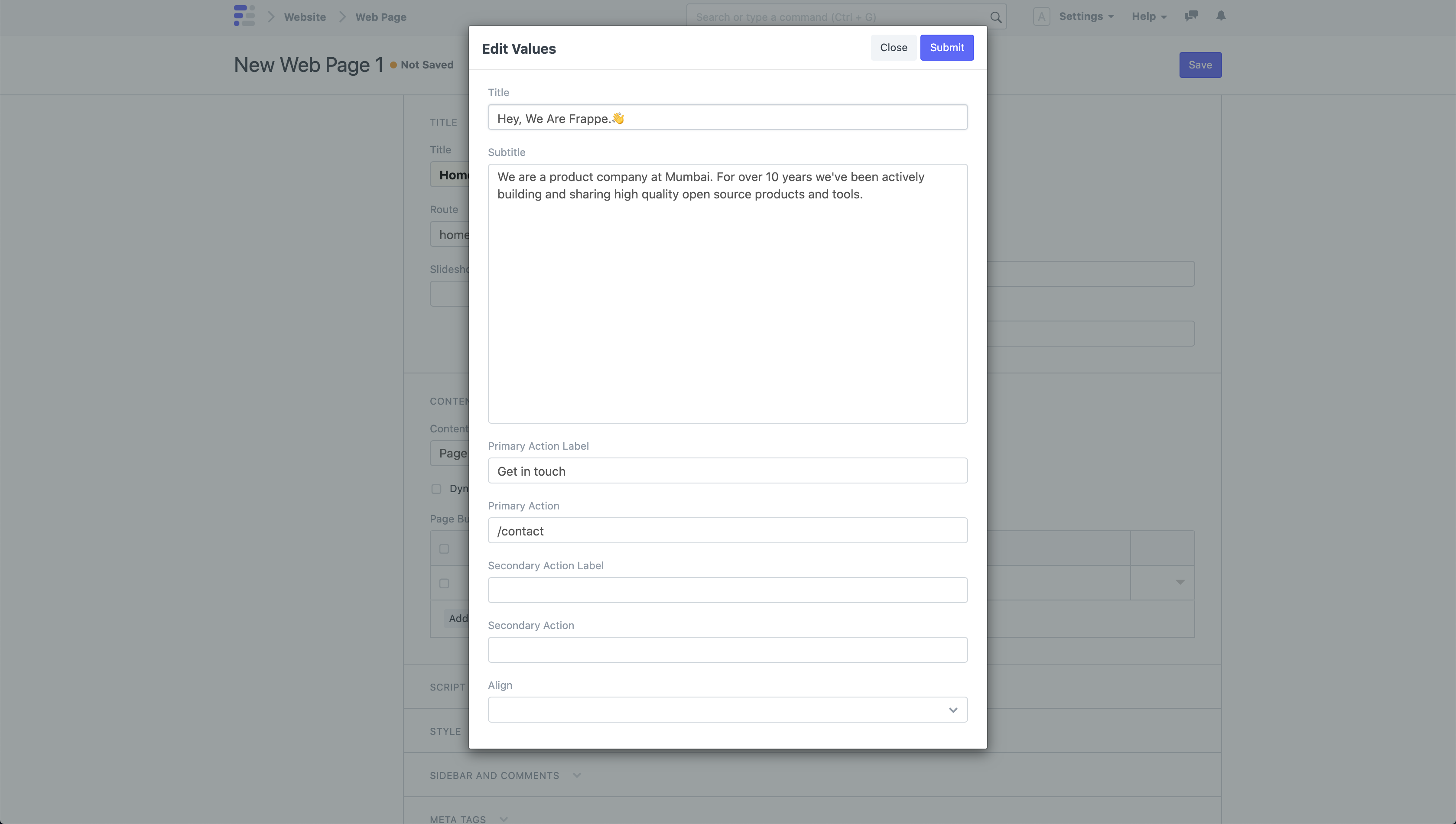
On the Edit Values button, click.
Click on Submit after entering settings in the dialog.
Choose Save.
Only after Published is checked will the web page be published.
Click on See on Website in the sidebar to view your website. ked.

1.1 Add Sections
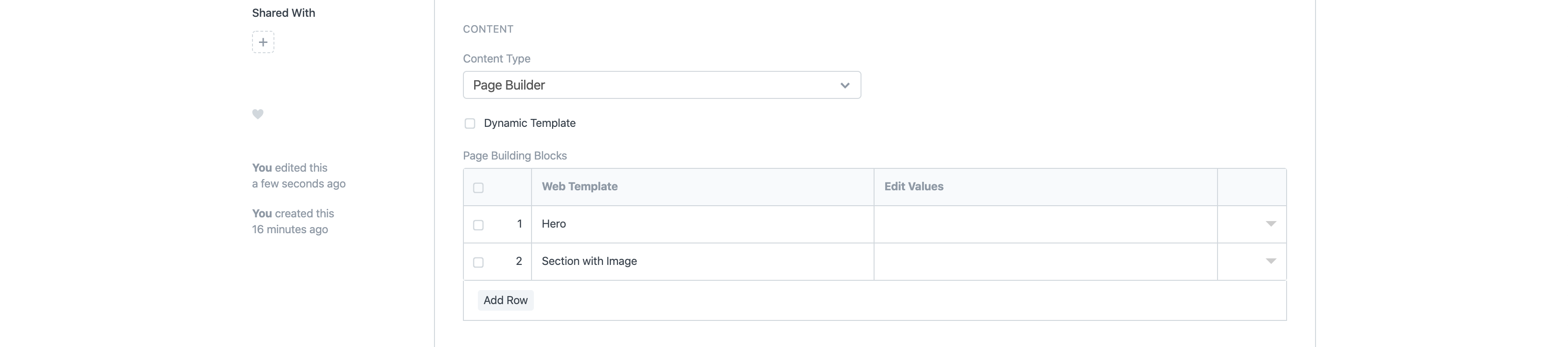
By adding more rows to the Page Building Blocks table, you can expand the number of parts on your page. For you to develop various types of pages, the framework includes a huge collection of web templates.

1.2 Section Options
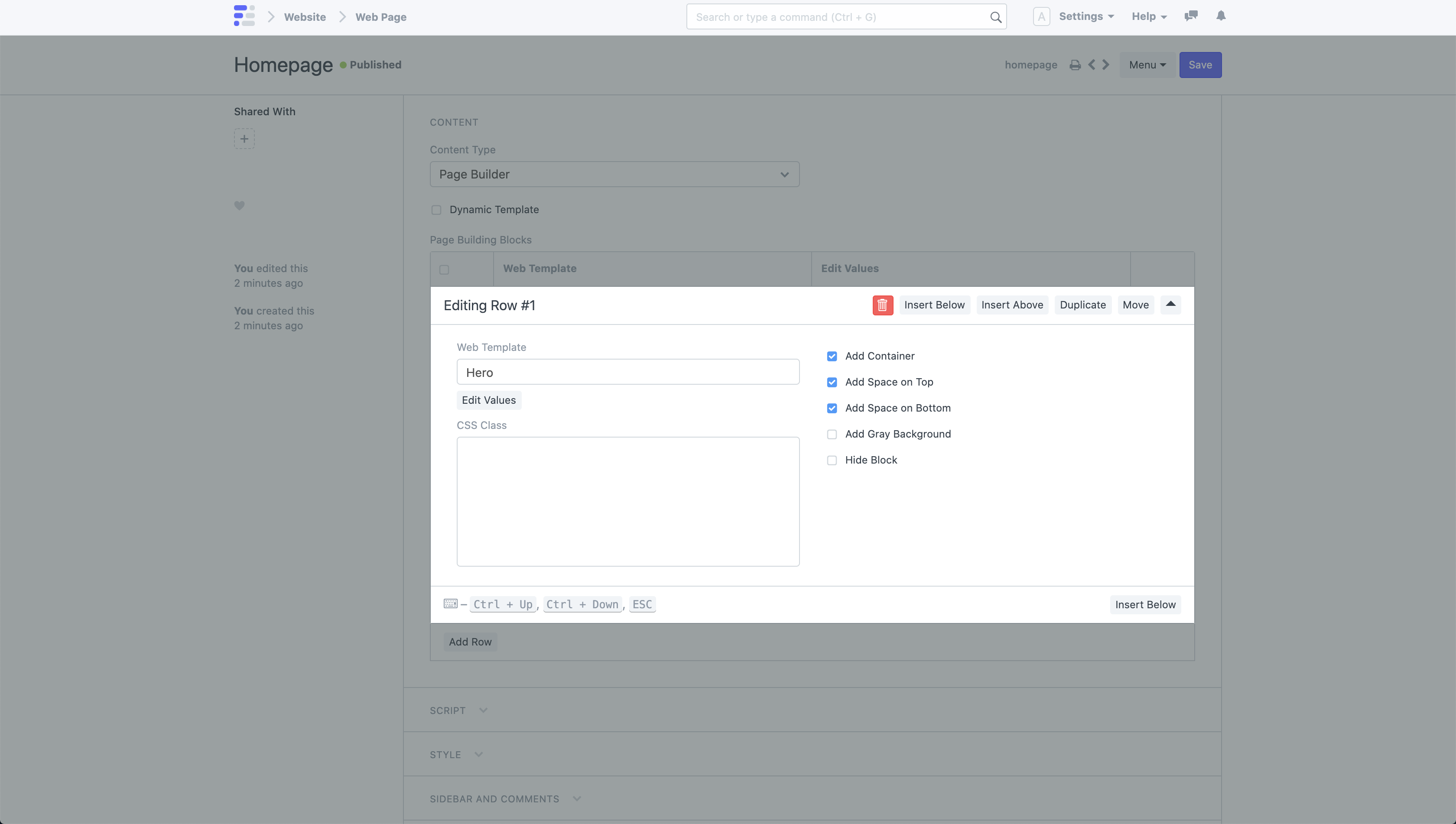
The following extra choices are available when you click a row in the Page Building Blocks table to enlarge it:
- Add Container: If checked, a centered, constrained box will be used to render the web template.
- Add Space on Top: If checked, it will increase the space above the section by a fair amount.
- Add Space on Bottom: If selected, it will significantly increase the space below the section.
- Add Gray Background: If checked, a gray background will be added to the section.
- Hide Block: The section block will be hidden if ticked.
- CSS Class: In the CSS field under the Style section, add any CSS class and style it.