Role Permission for Page and Report
Access to different pages and reports can be controlled in Role Permission for Page and Report
Sales Order, Customer, Supplier, etc. are examples of document kinds. They can include several documents of that type because they are a document type. A page, like Selling Settings, is a single page. Although you can generate numerous Sales Orders, you cannot create multiple Selling Settings.
In Geer ERP, users may create custom reports using Report Builder or Query Report as well as custom user interfaces using Pages. You can assign roles to users with Geer ERP's role-based permissions system. To access the page and report, the same role may be assigned.
The roles can be added directly in the page and report record if the user has developer mode enabled. In such instance, the JSON file for the page/report will likewise reflect the rights. Consider limiting the roles in Geer ERP that have access to specific pages and reports. You can achieve this by using the Role Permission for Page and Report setting.
Visit the following to acquire Role Permission for Page and Report:
Home > Users and Permissions > Role Permission for Page and Report
1. How to use Role Permission for Page and Report Tool
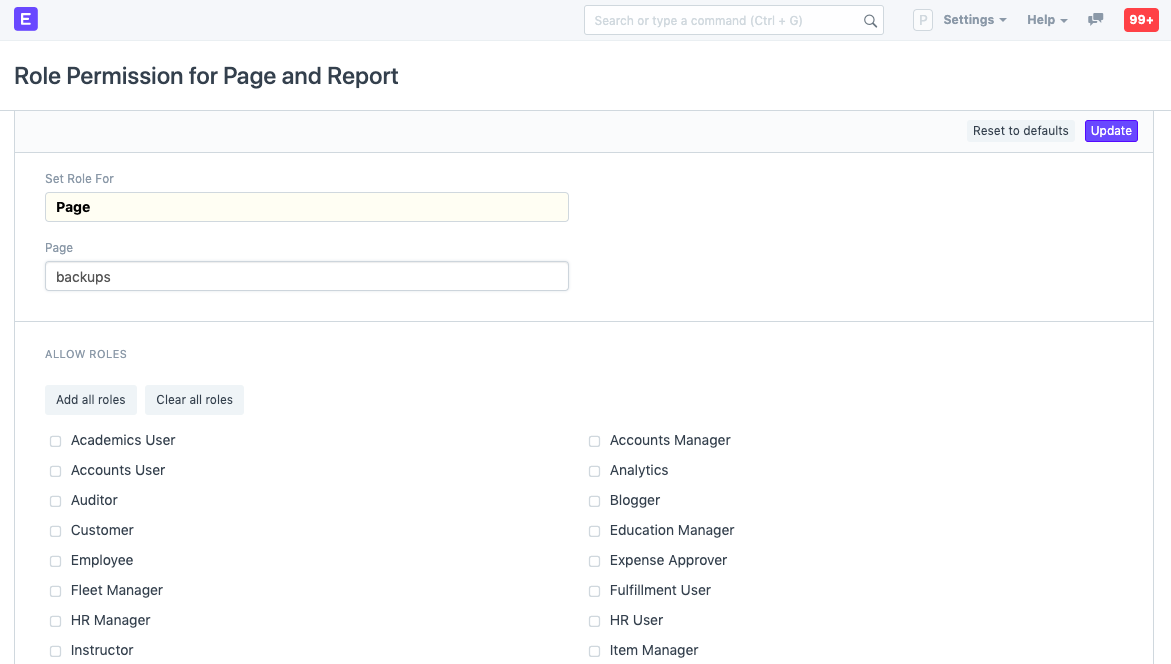
The user can assign roles to the page and report using the "Role Permission for Page and Report" page if developer mode is not enabled.
1.1 Reset to defaults
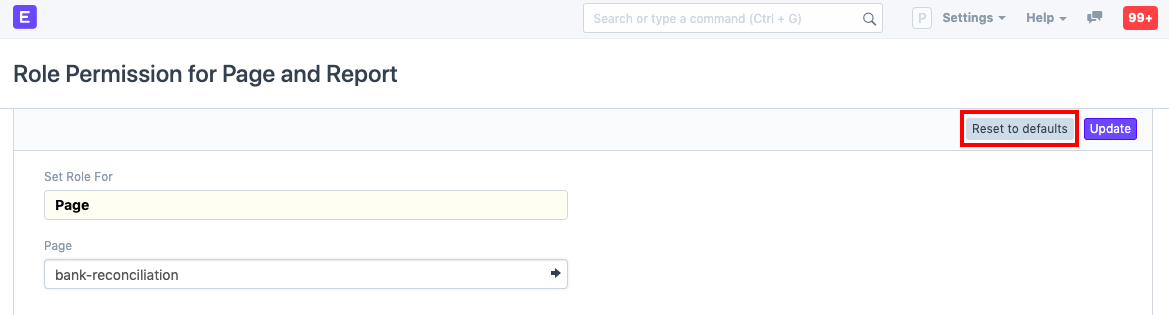
The user can delete the custom permissions that have been applied to a page or report by clicking the "Reset to Defaults" button. On that page or report, default permissions will then apply.
Setting Role Permissions from the Page/Report as a Developer
Role Permissions For Page
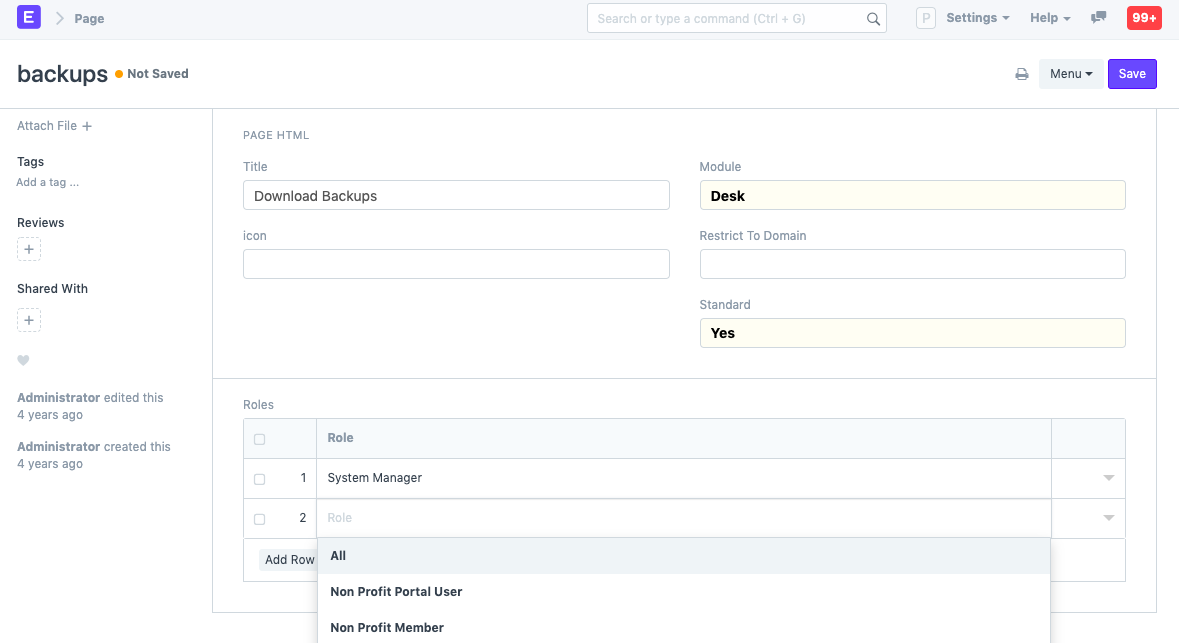
- Go to: Home > Developer > Page.
- Add a row and select which other roles can access the Page.
Role Permissions For Report
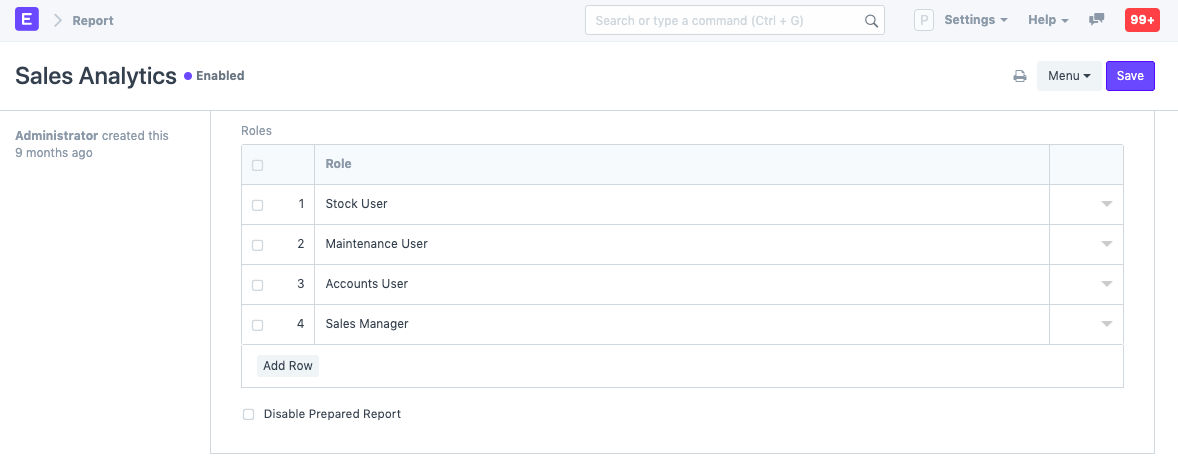
- Go to: Home > Developer > Report.
- Add rows with roles who can access the Report.