Setup Two Factor Authentication
Enable Two Factor Authentication (2FA)
Run the command to enable two-factor authentication.site [sitename] bench enable two factor auth set to true
==bench --site [sitename] set-config enabletwofactor_auth true==
Specify the following in System Settings
- The method of OTP validation (OTP App = TOTP using Soft or Hard Token while Email/SMS = HOTP using Email or SMS
- The expiry time for the QR Code on the server if OTP App is specified
- The OTP Issuer Name.
.png)
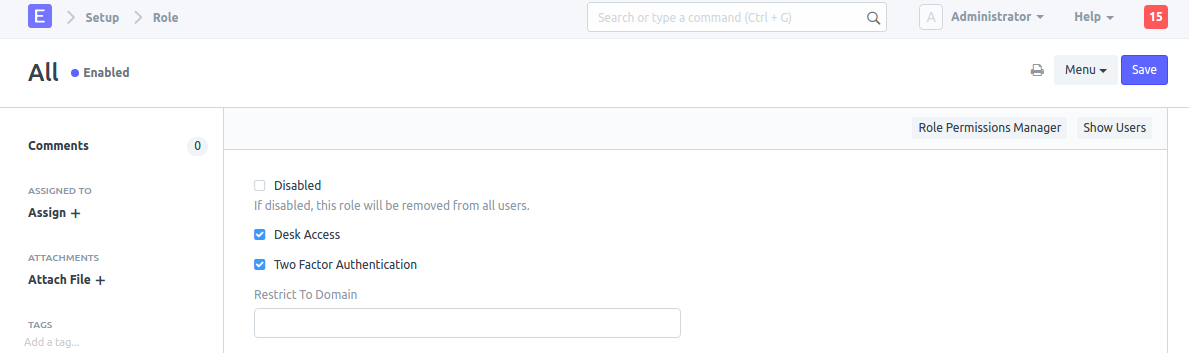
When 2FA is activated from setup, it also activates the role "All." In this method, a token-based second level authentication is required from all users, including the Administrator. The need to log in with a token can only be required for certain positions by unchecking the "Two Factor Authentication" checkbox in the "All" role and checking it in other roles. Web user login and API login are exempt from 2FA.
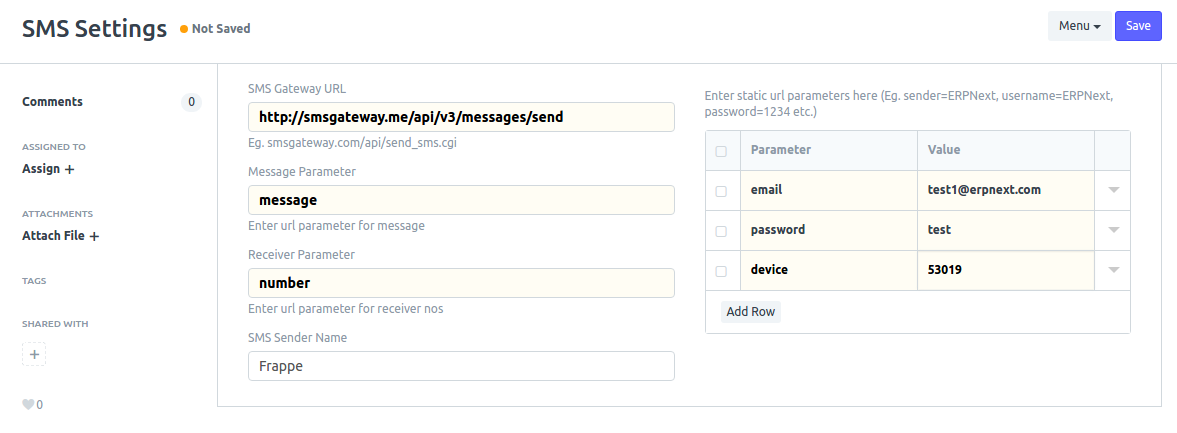
Please make sure that your SMS settings are updated if you're using SMS authentication.
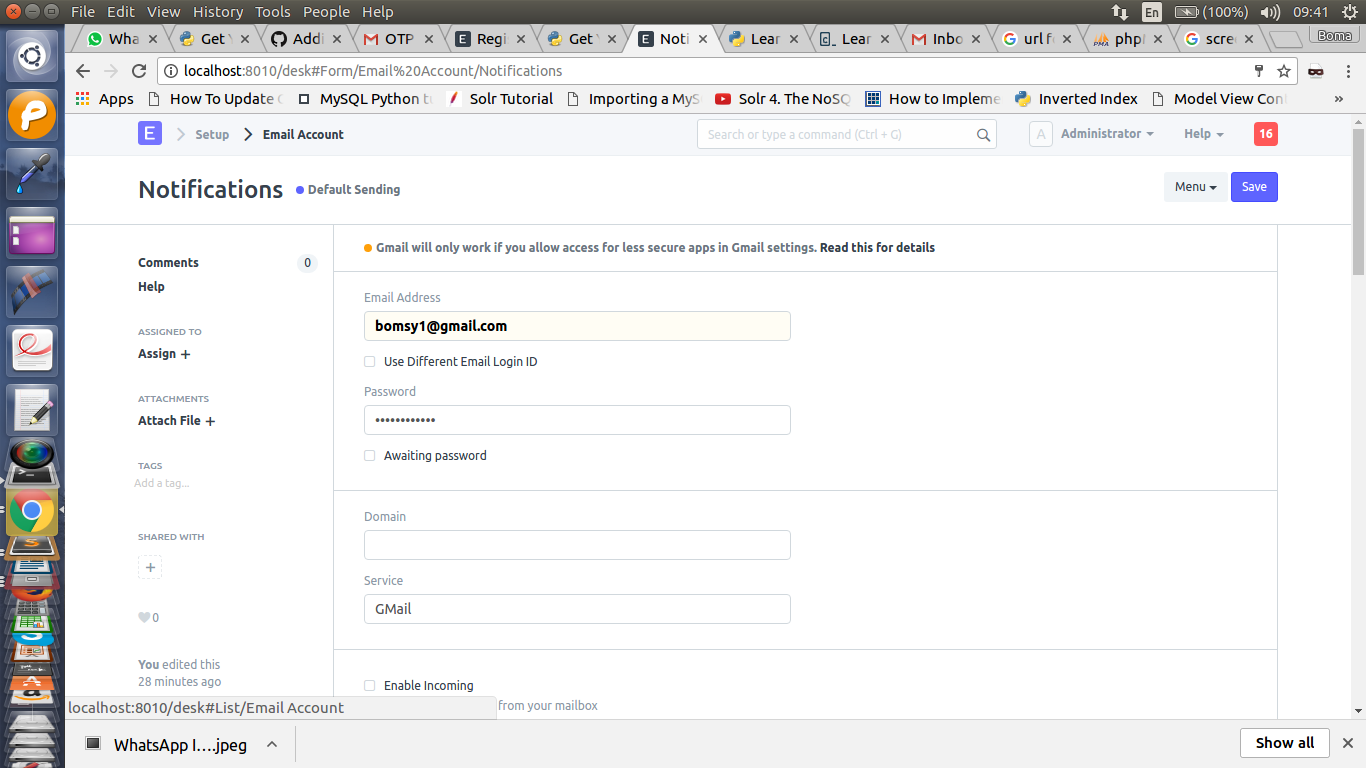
Make sure your outgoing Email account settings are updated if you use email.
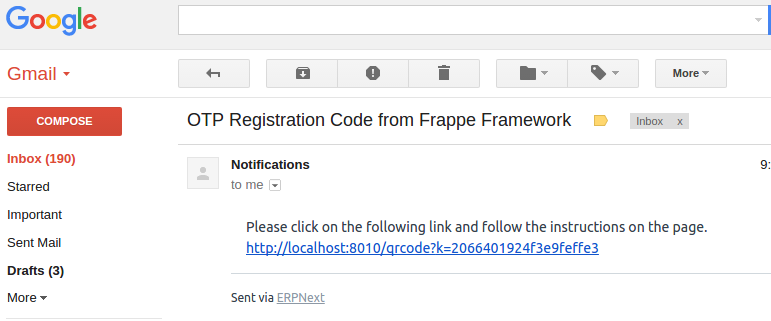
An email with a link to the QR Code is given to the new user when they attempt to log in for the first time on a system with two-factor authentication enabled and the OTP App authentication option.
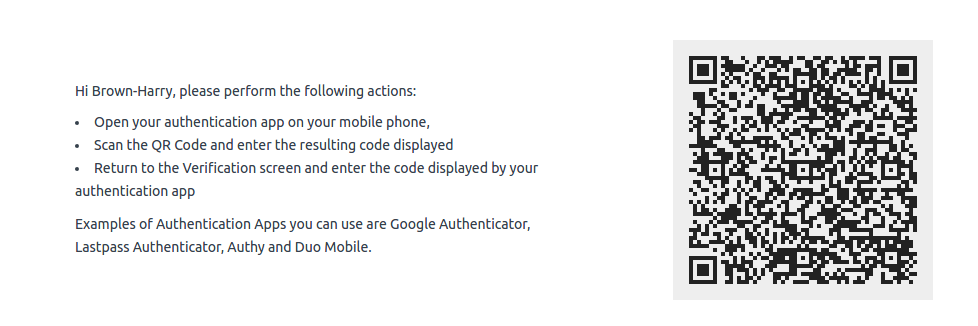
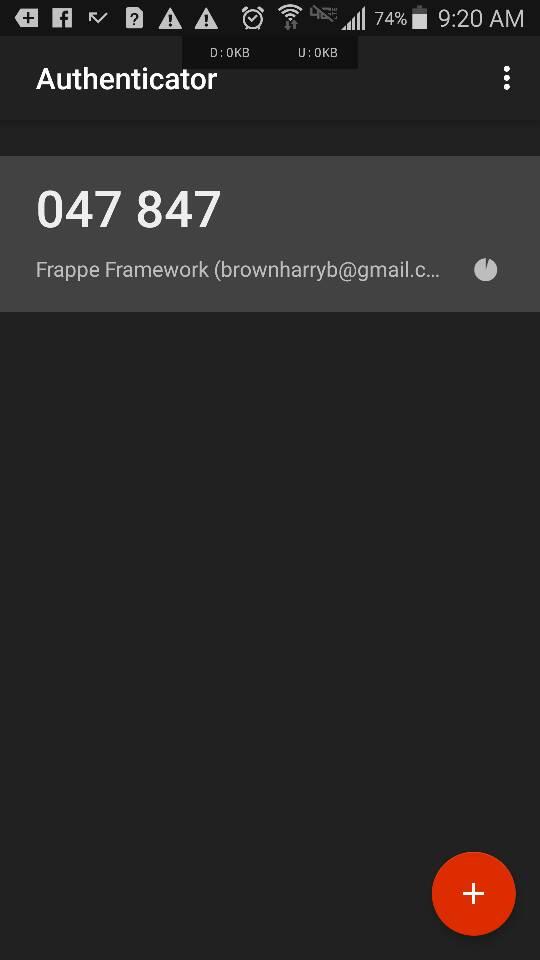
An authentication program like Google Authenticator that scans the QR Code registers the user's access and immediately begins generating login tokens for them.
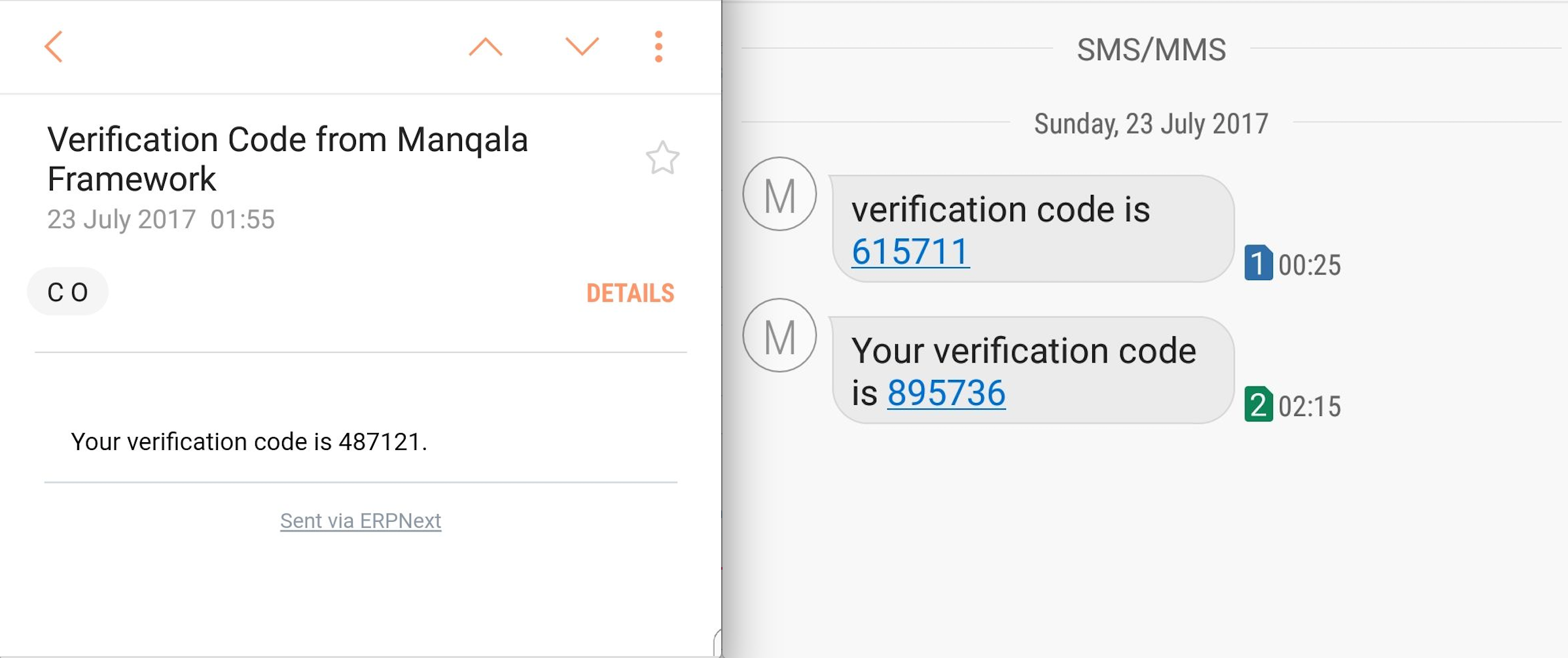
You receive notifications if either Email or SMS is used as the authentication method.
Frequently asked questions (FAQ)
Q. Even after going through the full process, I cannot log in.
The TOTP-based OTP mechanism used by Frappe is dependent on the system time of your device. Please check that the time on the device you're using matches the time on the Geer ERP server.