Using Prepared Report
Request Timed Out is a common error message that you could see while generating a report that deals with a lot of data, like a GL report for the entire year. This happens because there is a lot of data to analyze and present on the report page but insufficient server resources, which leads to a time out.
Geer ERP provides Prepared Reports to facilitate the processing of these reports (since v11). When a report is marked as a Prepared Report, a background job generates it, and after it is finished, users can access it.
Steps to Set Up Prepared Reports
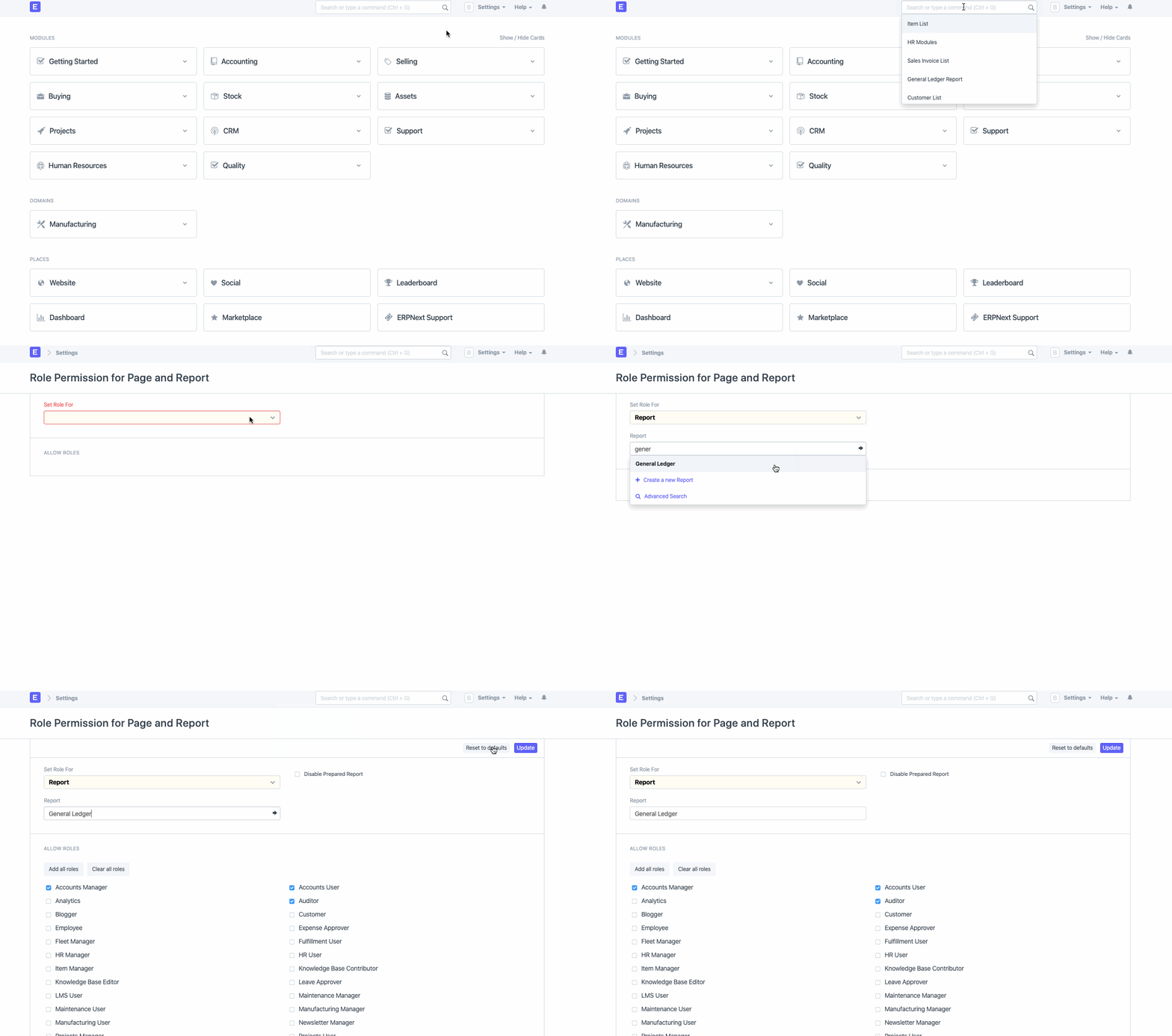
- Navigate to Role Permission for Pages and Reports.
- Select Report in the "Set Role For" field.
- Choose the report for which you wish to enable/disable prepared report in the "Report" section.
- To enable or disable the prepared report, use the Disable Prepared Report checkbox. The prepared report option for the chosen report will be disabled if the checkbox is ticked.
- Select Update.
How To Use A Prepared Report
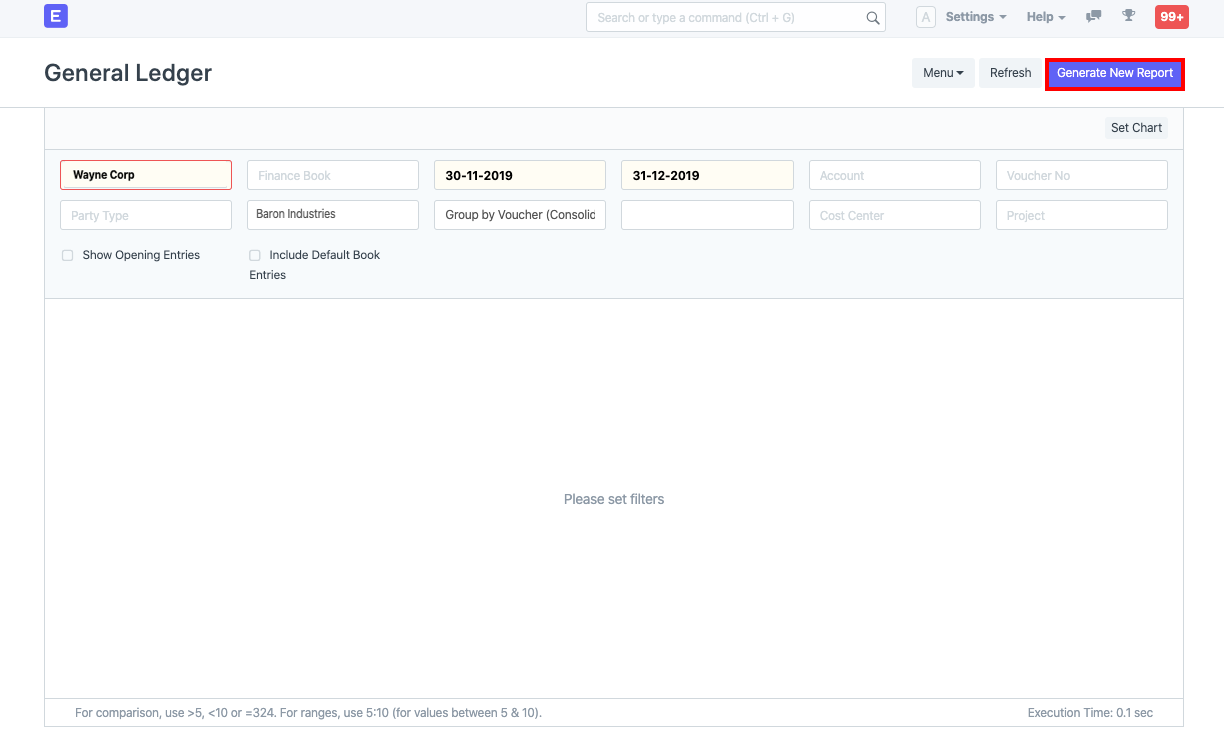
- Apply all necessary filters to the stated report (let's say General Ledger).
- You will see a Generate Report button if the prepared report option is enabled for that report. Press the same button.
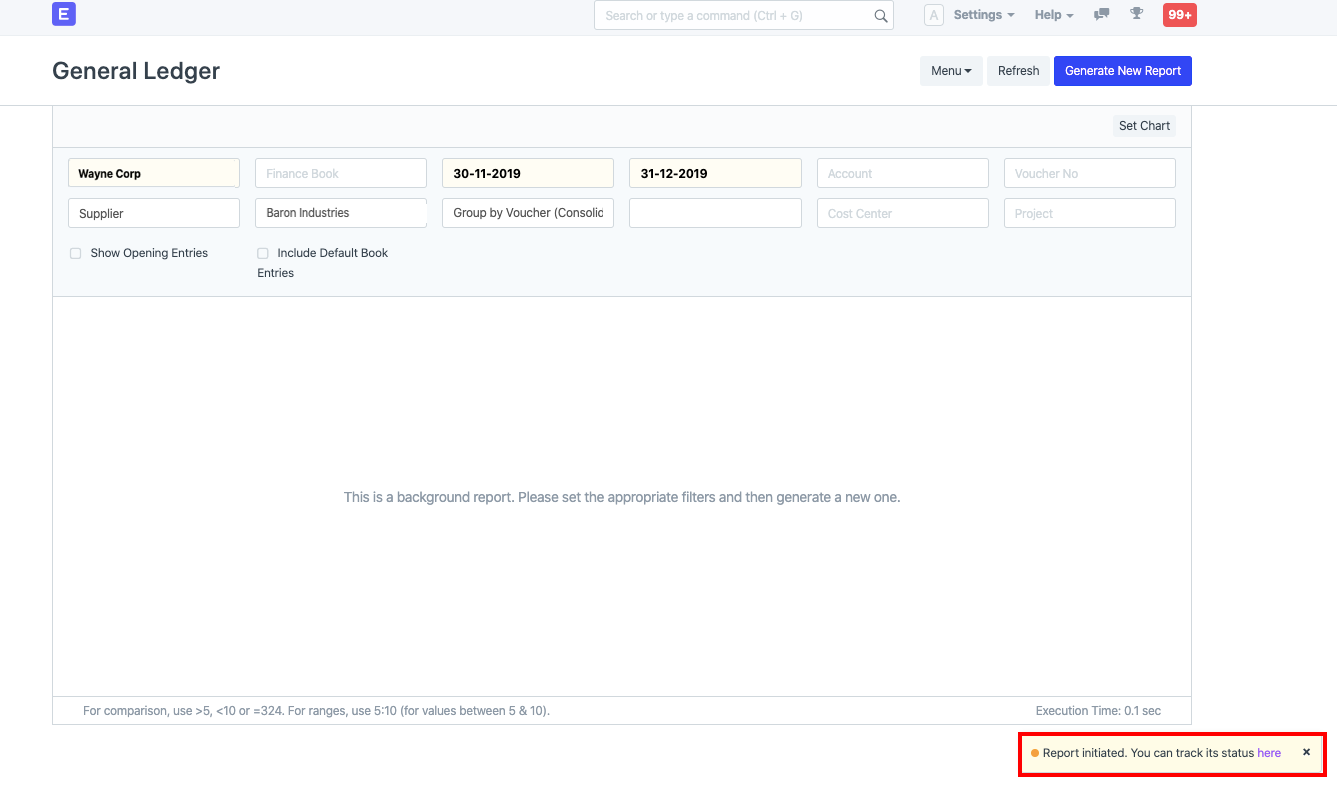
- A warning will appear in the bottom right corner of the screen "reporting has begun. You may monitor its progress here."
- To open the page for the report, you can either click here in the above message or wait on the aforementioned screen. This will bring up a new report page:
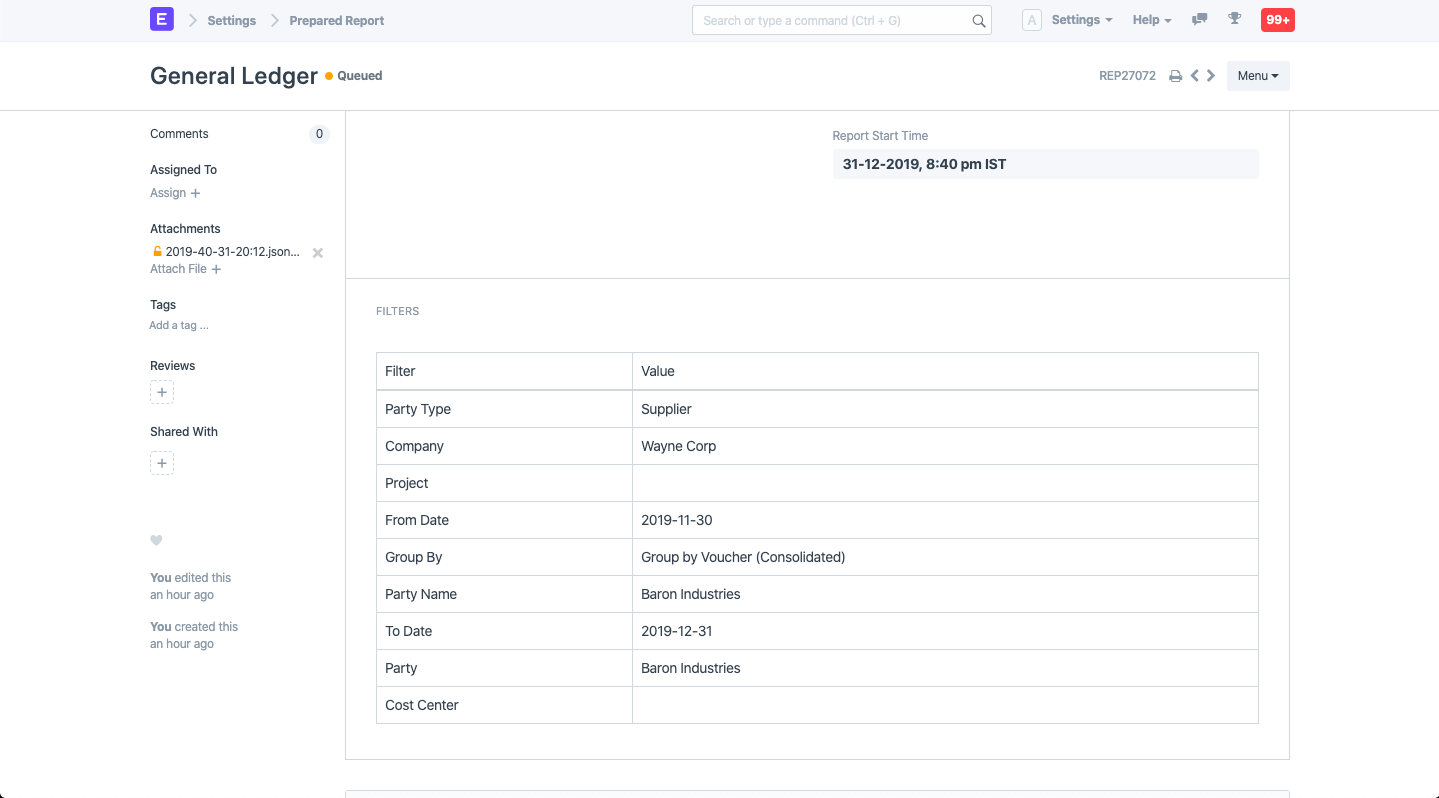
As you can see, the status of the report page is "Queued." You may examine the report by clicking the Show Report button that appears when it is ready:
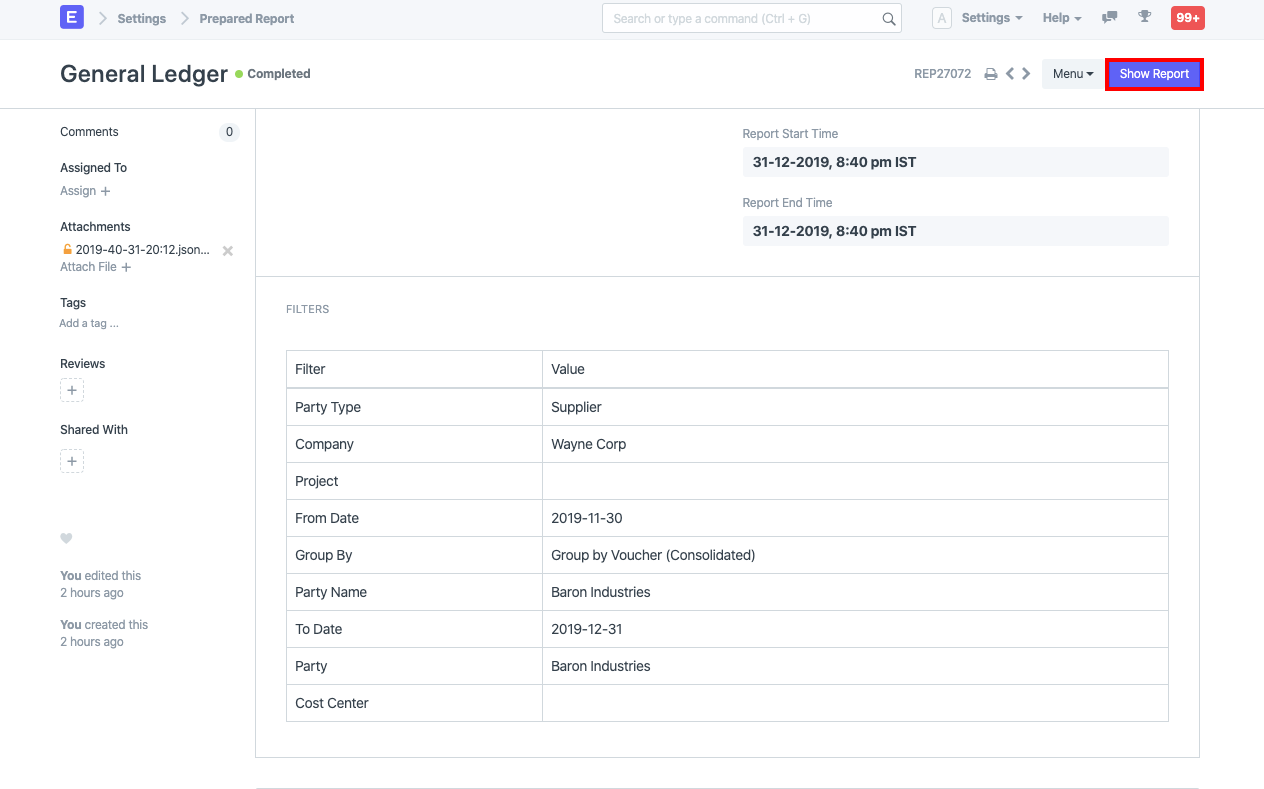
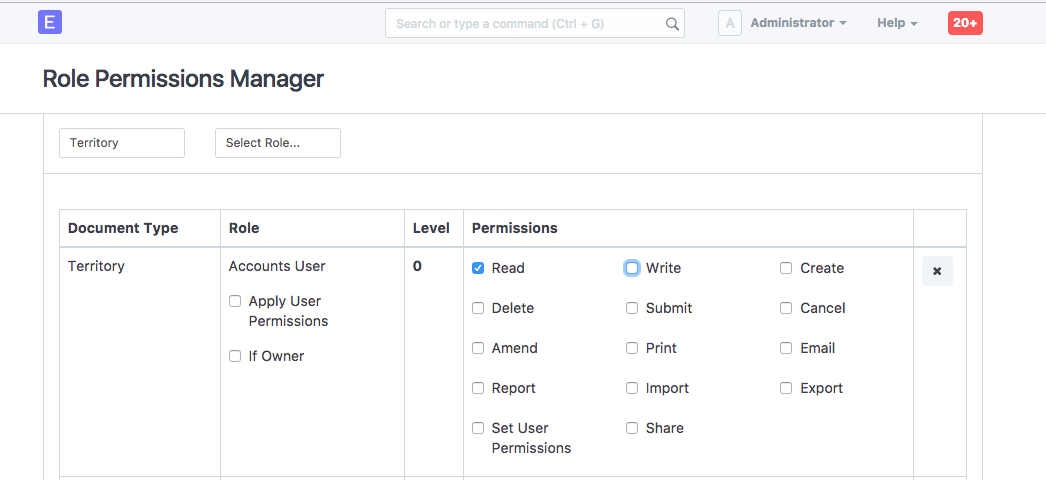
- Since Prepared Report is also a doctype, you may use the Role Permission Manager to allow access to examine the list of Prepared Reports.