Leave Period
Leave Period
A period of time for which leaves are granted is known as a leave period.
The majority of businesses manage leaves based on a leave period that corresponds to a fiscal year or a calendar year. Go to: to access Leave Period.
Home > Human Resources > Leaves > Leave Period
1. Prerequisites
The following should be established before a leave period:
- Company
- Holiday List
2. How to create a Leave Period
Go to the list of leave periods and select New.
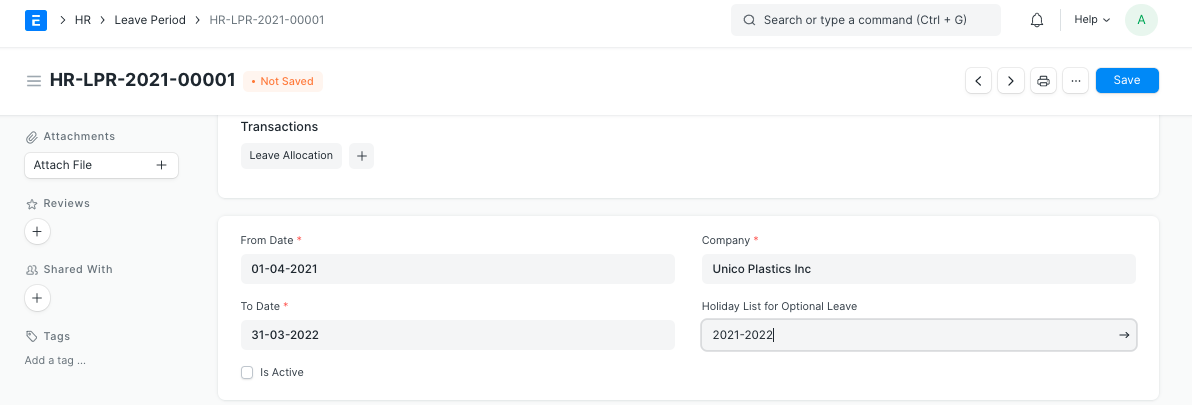
The From and To Dates of the Leave Period should be entered.
The Company name for which the Leave Period applies should be selected.
Save.
You can also choose a holiday list for optional leaves during the leave term, and this list will be taken into account when deciding how many optional leaves to grant during the period.
The "Holiday List for Optional Leaves" is distinct from the standard "Holiday List." This list will only include holidays that are optional. The Holiday List document can be used to create a "Holiday List for Optional Leaves." For a leave period, you can make two holiday lists, one with the standard set of holidays and the other with optional holidays.
If you want to allow this specific Leave Period, you may also tick the "Is Active" checkbox.
3. Granting leave using Leave Period
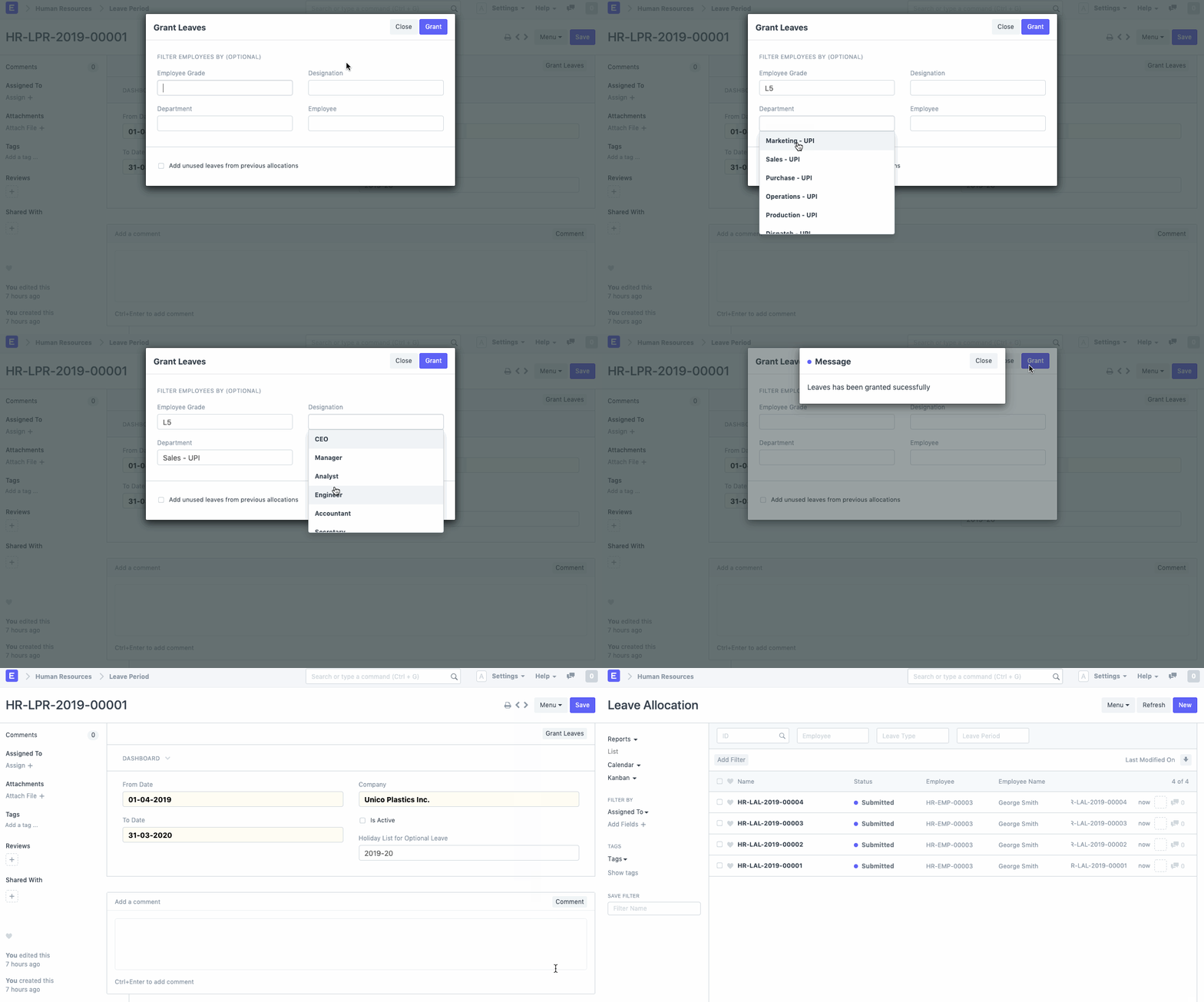
In version 12, the "Grant Leaves" button allowed for the granting of leaves throughout the Leave Period. The Leave Policy Assignment will be used to issue leaves in version 13.
The Leave Period will be utilized as a tool to assist you in granting leaves for a group of employees once the information has been saved.
The Grant button will generate leave allocations in accordance with each employee's specific leave policy. As demonstrated below, you can assign leaves based on Employee Grade, Department, or Designation.