Manage Tree Structures Masters
In Geer ERP, some masters are kept in a tree structure. You can put Parent masters and Child masters underneath those Parents with tree-structured masters. You may create sophisticated reports using this structure and monitor growth at every level of the hierarchy.
The masters that are kept in the tree structure are listed in part below.
Chart of Accounts
Chart of Cost Centers
Customer Group
Territory
Sales Person
Item Group
The steps to maintain and create records in the master tree structure are listed below. To comprehend controlling tree masters, let's look at the Territory master.
Step 1 : Go to Master
Selling, setup, and geography
Step 2 : Parent Territory
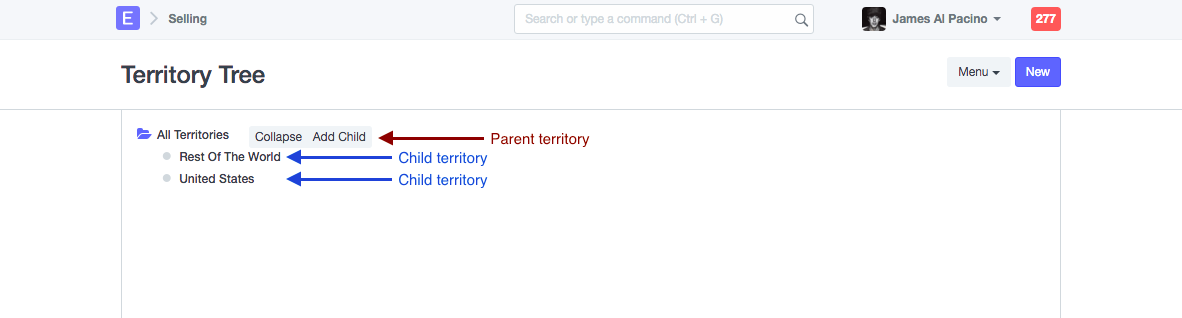
You can add a child territory by clicking on the Parent territory link. Under the parent group "All Territories," all default Territory groups will be presented. Additional Parent or Child Territory Groups may be added underneath it.
Step 3: Add new Territory
When you click Add Child, a dialog window with two fields will appear.
Territory Group Name
Territory Name provided here will be used to save the territory.
Group Node
If Group Node is chosen, this Territory will be formed as the Parent, allowing you to create more sub-territories underneath it. If you choose No, it will become a child territory that you can choose from in another master.
In other masters and transactions, only child Territory Groups are selectable.
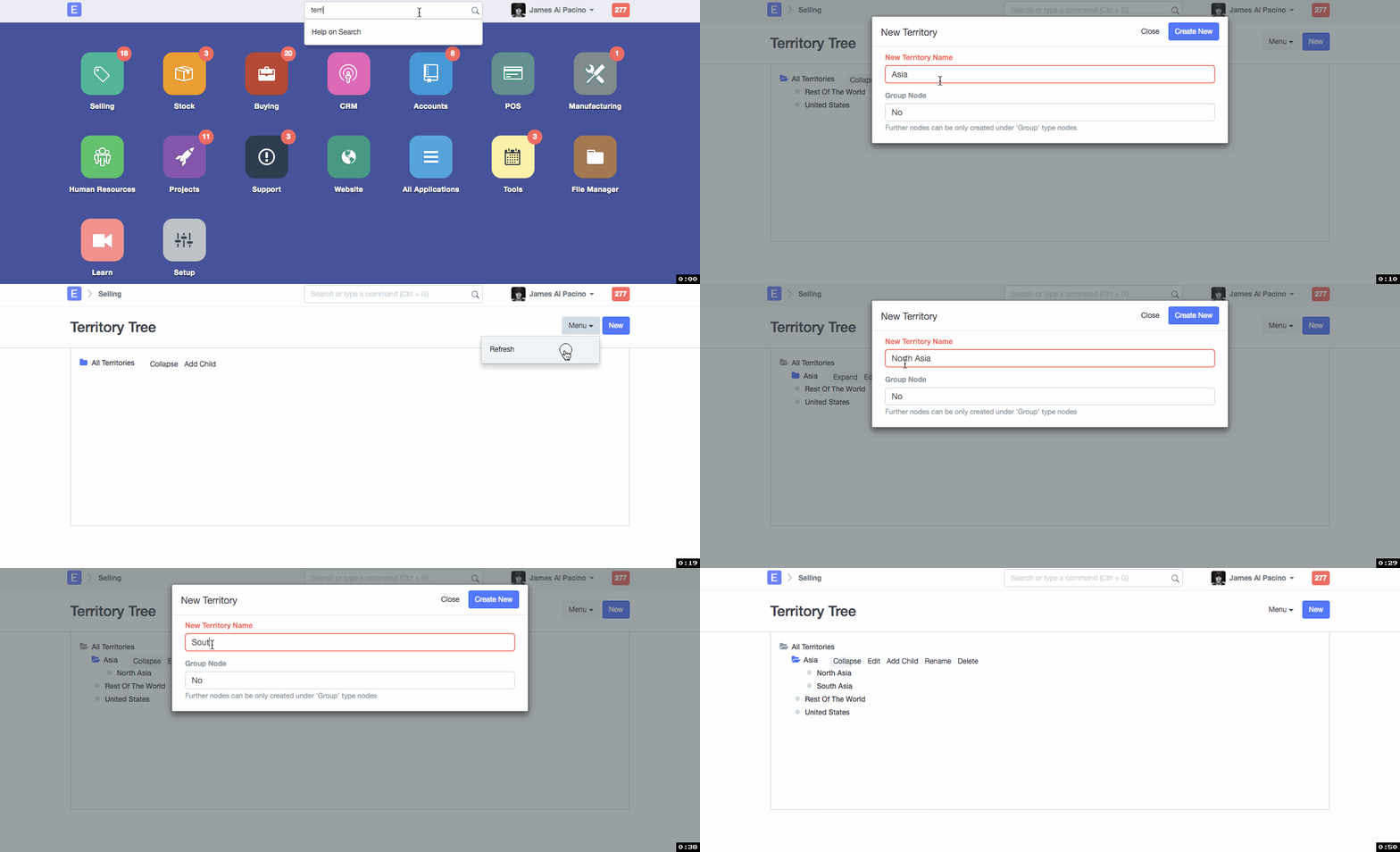
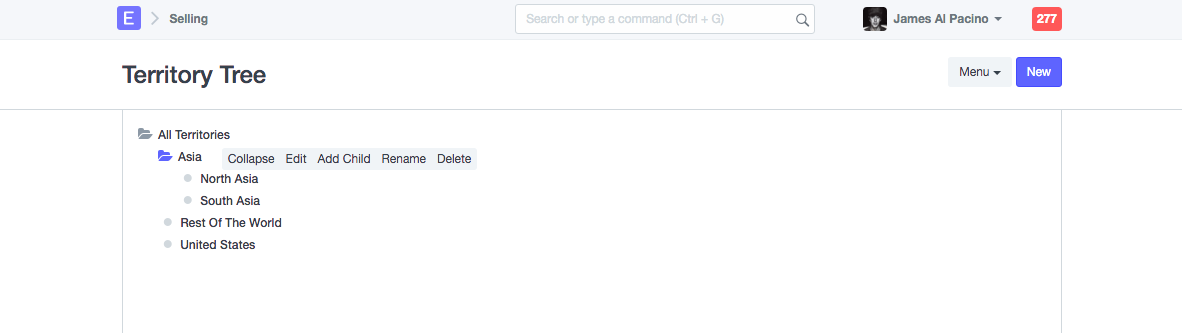
The list of Child Territories under a Parent Territory will look like this.
You can manage other tree masters in Geer ERP by following these instructions.