Promotional Scheme
Promotional Scheme
Introduced in version 12
An ad hoc discount on one or more products is referred to as a promotional scheme.
Businesses benefit from promotional strategies by lowering prices temporarily in order to draw in more customers. In ERPNext, they are simply configured. Each slab system that will produce the price rule has a promotional strategy associated to it.
The system generates a Price Rule after designing a Promotional Scheme. There may be many Price Rules connected to a Promotional Scheme. A promotional scheme in ERPNext is a simpler way to handle pricing on numerous items and groups based on various parties and circumstances.
Go here: to see the list of promotional schemes.
Home > Selling > Items and Pricing > Promotional Scheme
1. Prerequisites
Prior to developing and implementing a promotional scheme, it is advised to first develop the following:
1.Item
2.Item Group
3.Customer
4.Supplier
2. How to create a Promotional Scheme
1.Go to the Promotional Scheme list and click on New.
2.Enter a title for the rule.
3.Select what to Apply On like Item Code, Item Group, Brand, or Transaction. Selecting Transaction will apply the scheme on the total amount of the transaction.
4.Based on the 'Apply On', system will give you the provision to select the Item Code / Item Group / Brand in the table.
5.Select whether the scheme is for Selling, Buying, or both and set the party information.
6.In the Price Discount Slabs table, set the price discount, product discount.
7.Users can also apply the discount on the other Item Code / Item Group / Brand by selecting the value for Apply Rule On Other field.
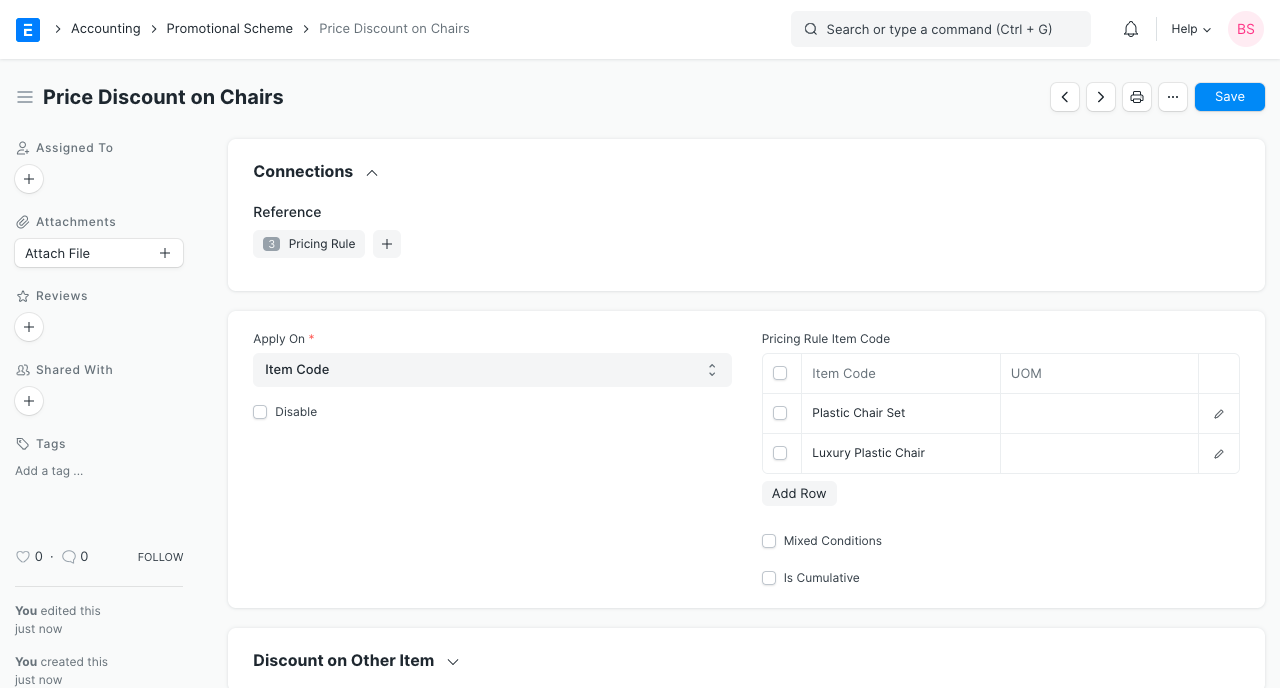
8.Save.
Note: On saving a Promotional Scheme, a new Pricing Rule is created.
2.1 Additional fields when creating a Promotional Scheme
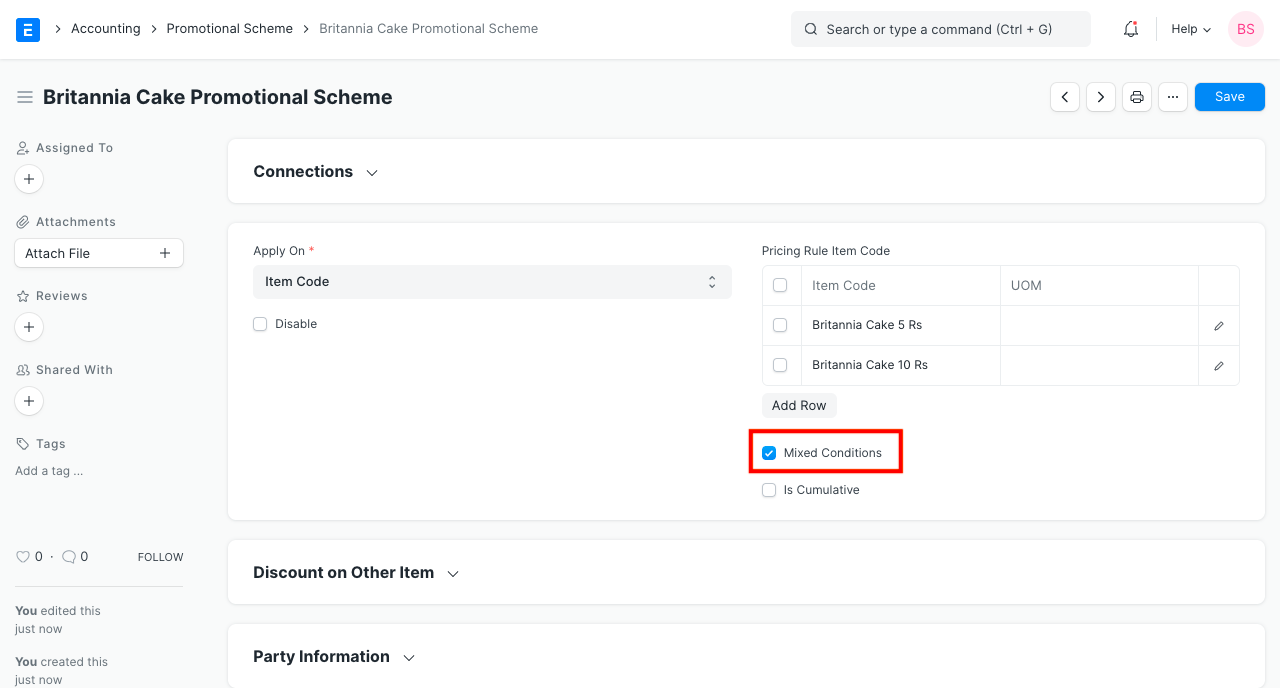
*Mixed Conditions * If you choose two or more items while establishing the minimum and maximum quantities. Only if the total quantity of the Items equals the predetermined quantities will the promotional scheme be put into effect. If you, for instance, construct a promotional scheme on items 1 and 2 with a minimum and maximum number of 30, the promotional scheme will only be applicable if the total quantity is 30.
*Is Cumulative *
The Promotional Scheme may be applied cumulatively if this option is enabled. For this, you must set the "Min Amt" and "Max Amt" values.
Imagine a situation where the Min Amt and Max Amt are 1,500 and 2,000 respectively. Currently, the promotional scheme will not be used if one transaction is created for 1,400. But, the promotional scheme will be used when creating a second invoice for $600. This occurred as a result of the invoices' combined total of 2,000 dollars. Keep in mind that only the most recent transaction that exceeds the cumulative limit will receive the discount.
If a customer purchases an item more than once and you want to thank him with discounts or special prices, you can use this to do so.
3. Features
3.1 Apply Scheme On Other Item
This function verifies the first item's condition while applying a scheme, discount, or rate to a different item.
Set Item1 and Item2 in the "Apply Rule On" table, for instance, and Item3 with "Apply Rule On Other." The Price Rule will now be applied to Item3 if the transaction contains Items1,2, and 3. This is because the first two Items were included in the transaction.
3.2 Party Information
Decide whether the promotional plan is for buying or selling the product.
You can assign applicability to one of the following masters depending on your choice.
1.Customer
2.Customer Group
3.Territory
4.Sales Partner
5.Campaign
6.Supplier
7.Supplier Group
3.3 Validity
Also, you can provide a range of dates for the Promotional Scheme's validity. This is beneficial for a marketing campaign. The Promotional Scheme will not have a time limit if the dates are left blank.
Currency: By specifying a currency in this field, the promotional scheme will only be implemented when the transaction's currency matches.
3.4 Price Discount Slabs
Rules Diescription: To remember the details of this promotional scheme, enter a description.
Quantity and Amount Indicate the minimum or maximum quantity, dollar amount, or quantity of an item for which this promotional scheme should be in effect.
The Promotional Scheme will not be implemented at all if the quantity or amount is less than or greater than the limits outlined here. If you have the options Mixed Conditions or Cumulative activated, it will, however, be used.
Setting the Discount/Rate * *Rate: The new rate for an item will be this. For instance, if you normally sell an item for 100 but wish to sell it to a certain party for 112, choose Rate and set the Rate to 112.
Discount Percentage: You can choose a certain discount %. For instance, a 500 dollar item would cost 450 dollars after a 10% reduction.
Discount Amount::There will be a set discount amount applied. The Discount Amount option can be used to define a requirement, for instance, that an item sold for 100 must be sold with a discount of 7.
*Filters for setting discount *
Warehouse: If a warehouse is indicated here, only if the item is chosen from that warehouse will the promotional scheme be applied.
Priority: Take into account a group of items from which you want to impose strict guidelines on a single item.
Threshold for Suggestion: This is the value that the system will use to alert you to change the quantity of an item for a discount. For instance, the system would alert you to add 1 more item before the discount becomes effective if the Minimum Quantity is 10 and the Threshold is 9. This likewise holds true for the determined sum.
Validate Rule:You cannot apply a different rate or discount if the price you entered is invalid for the item.
3.5 Product Discount Slabs
When one or more Items are free with the purchase of other Items, a Product Discount is available. This table's fields are largely identical to those in the section before it.
The extra options are: * Same Item: Choose this checkbox to give the same item for free (a product discount) when another item is purchased. Uncheck the box and choose the item you wish to give away for free if you want to donate another item.
Apply Multiple Pricing RulesTo comprehend this, think of a 500-rate item. P1 and P2 are the two pricing rules listed there. P1 offers a 10% discount, whereas P2 offers a 5% one. When this option is enabled, a total of 15% will be applied to the item rate, which results in 425.
UoM: Only if the UoM set here corresponds with the transaction will the promotional scheme be applicable.
Rate: The Supplier may supply an item for free, but there may still be taxes that are due. If you enter a rate here, the customer will be responsible for all associated taxes.
4. Promotional Scheme types
4.1 Price Discount
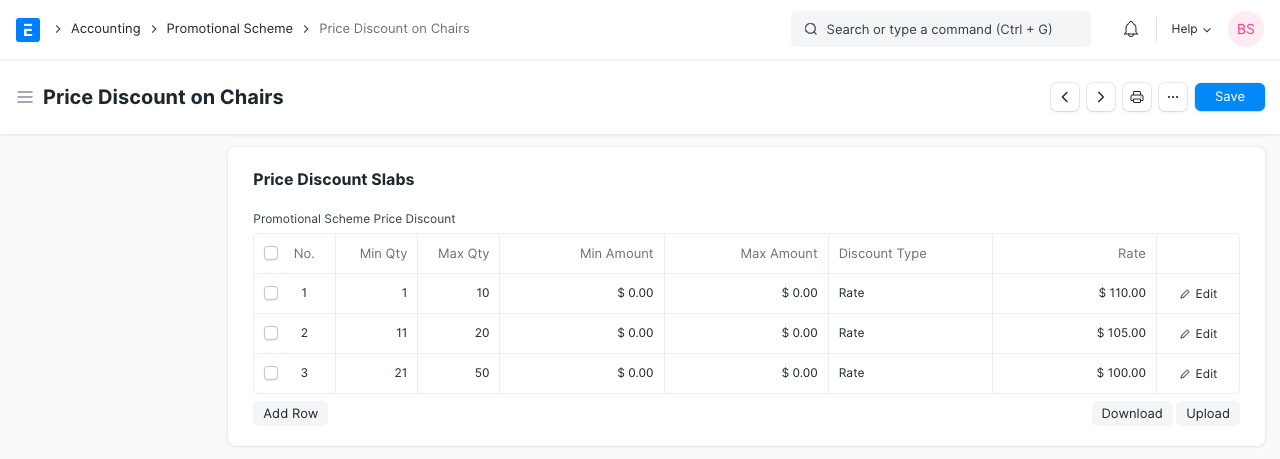
The customer has the opportunity to establish the discount in this sort of promotional scheme in terms of % or amount depending on the minimum and maximum quantities of the products as well as the minimum and maximum prices. Moreover, users can build a system that allows them to set a flat rate for a product depending on number or product amount.
4.2 Product Discount
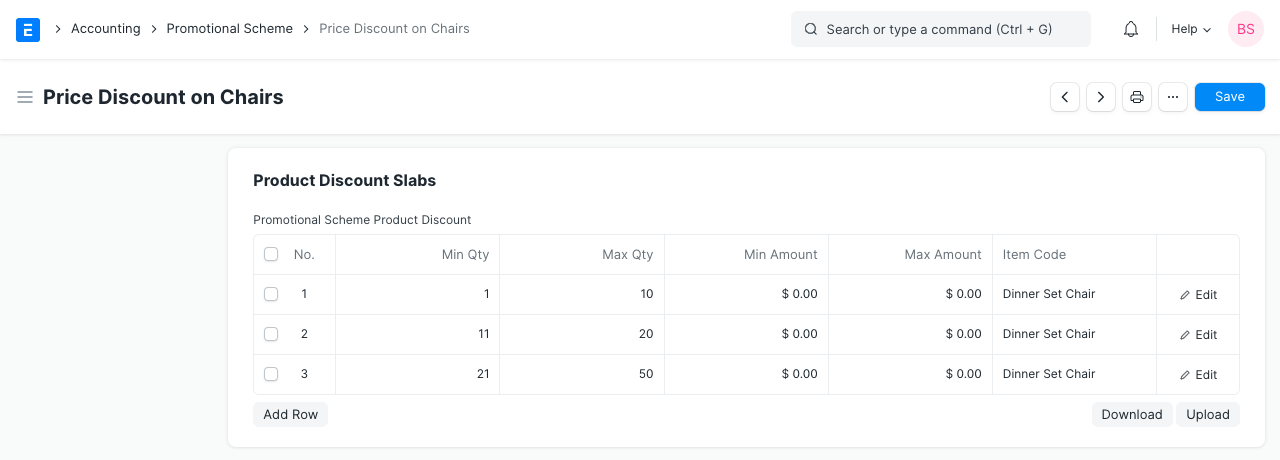
With this form of promotional strategy, the user has the opportunity to provide a free product in exchange for the purchase of the same or a different product, subject to criteria such as minimum and maximum purchases and quantities.
5. How to configure a Promotional Scheme (Examples)
Let's use some examples to better understand how to set up a promotional plan in ERPNext.
*5.1 Mixed Conditions Schemes * Britannia Cake 5 Rs packets in 10 quantities and Britannia Cake 10 Rs packets in 5 quantities were purchased by Customer A. The Supplier now wishes to offer Customer A a 10% discount. Also, this supplier wishes to provide Customer B, who bought 15 packets of Britannia Cake for 5 Rs, a 10% discount.
Thus, the supplier will only offer the discount on the Britannia Cake 5 Rs and Britannia Cake 10 Rs to his customers who have bought 15 quantities of each product or the combined amount of the two items.
The steps are as follows in order to configure this in ERPNext:
1.Set Apply On as Item Code.
2.Set the Item Code Britannia Cake 5 Rs, Britannia Cake 10 Rs in the Pricing Rule Item Code table.
3.Enable the "Mixed Conditions" field.
4.In the price discount table, set the min qty, max qty as 15.
5.Set the discount type as Discount Percentage and rate as 10.
5.2 To apply a discount on other Item
Britannia Cake 5 Rs packets in 30 quantities and Britannia Cake 15 Rs packets in 2 quantities were purchased by Customer A. The vendor wants to charge a flat fee of 12 for the Britannia Cake, which costs 15 Rs. Thus, Britannia Cake 15 Rupees has an initial price of 15.
The restriction will only be applied, according to the supplier, if the customer has bought at least 30 units of either the Britannia Cake 5 Rs or Britannia Cake 10 Rs.
The steps are as follows in order to configure this in ERPNext.
1.Set Apply On as Item Code.
2.Set the item code Britannia Cake 5 Rs, Britannia Cake 10 Rs in the Pricing Rule Item Code table.
3.Apply Rule On Other as Item Code and set Item Code as Britannia Cake 15 Rs.
4.In the price discount table, set the min qty as 30.
5.Set the discount type as Rate and rate as 12.
.png)