Item Price
Item Price
The record for keeping track of an item's selling and buying rates is called Item Price.
1. How to create Item Price
- One can access a fresh Item Price form in one of two ways:
Selling/Buying/Stock > Items and Pricing > Item Price > New.
Or
Stock > Item > Click on "+" next to Item Price.
Choose the item. It will retrieve the name, UoM, and description.
Choose the price list you want to use, whether it's the selling or buying price or another one you could have made.
In the Rate area, type the exact rate.
Save.
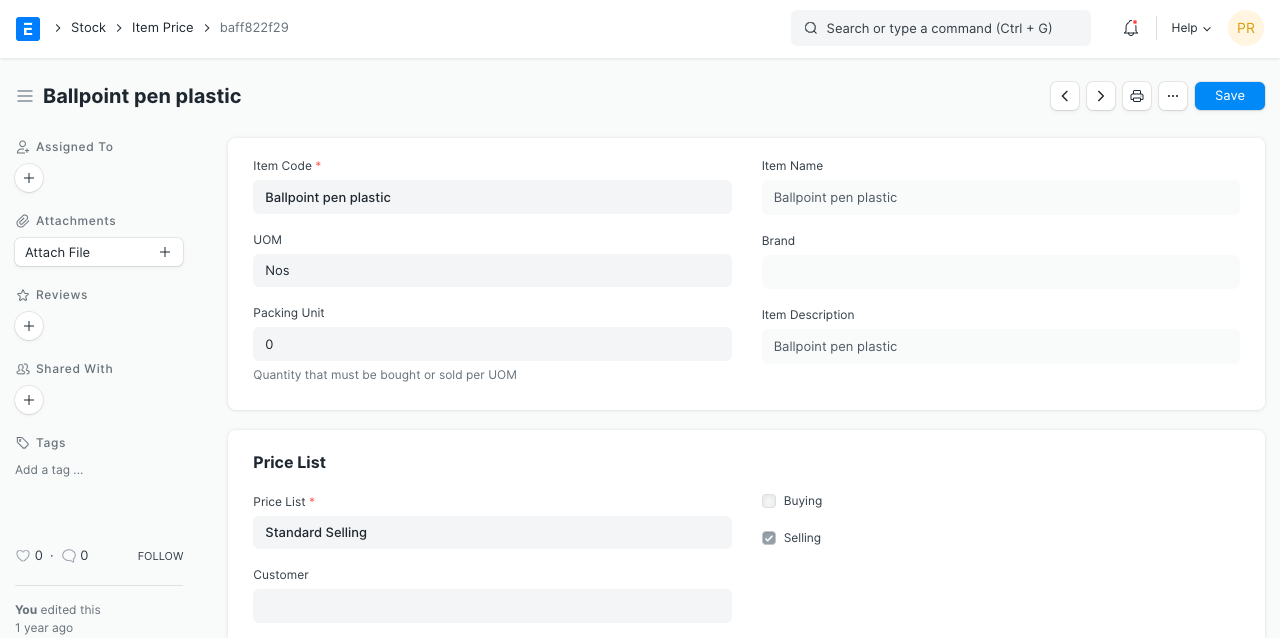
1.1 Selecting the Price List
To track the selling and buying price of an item separately, you can establish different price lists for that item in ERPNext. You can make numerous Selling Price Lists for an item if its selling prices vary depending on the Territory or due to other factors.
While choosing a price list, its currency and suitability for selling, purchasing, or both will also be fetched. You must select "Price List" in the transaction's Currency and Price List section in order to have the item price fetched during sales or purchases.
Go here: to view the prices of every item.
Stock > Stock Reports > Item Price Stock
Visit the Price Lists page to know more.
2. Features
2.1 Unit of Measurement (UOM)
When a single item is sold in various UOMs, the user can add UOM-specific item prices. Take rice as an example. If consumers choose to include the UOM in the item prices, the item price will be adjusted based on the UOM chosen in the transaction.
2.2 Packing Unit
This is the amount that needs to be purchased or sold for each unit of measurement. For instance, if UOM is one and Packing Unit is two, two things will be traded. Although 0 is the default, non-integer UoM might be used, such as 1.5kg of oats for 1 packing unit. If you keep it at 0, no transaction will be impacted.
2.3 Minimum quantity
The minimum number of things that must be purchased for this price to be valid and updated in the item price list is this.
2.4 Applying Price List to a specific Customer/Supplier
A customer field will display if you choose a selling price list, allowing you to tie this item price to a particular customer. A Supplier field will also display if you choose a Purchasing Price List, allowing you to choose a single Supplier.
2.5 Applying Price List to a specific Batch
Moreover, you can associate a specific batch with an item price, which will be applied when that batch is chosen in the transaction.
2.6 Validity
Here, the fields "Valid From" and "Valid Upto" are present. You can set the Valid From and Valid Upto dates to determine when the item price will expire. Valid from is set to the date you generated the item price.
2.7 Lead Time in days
the time in days that it takes the merchandise to arrive at the warehouse. Depending on how long it will take the same thing to arrive from various sellers, you can establish varying item prices.
2.8 Note
Any message on the item price may be added in this field.