Kanban Board
Kanban Board is a tool which will give you a descriptive layout of your data in Geer ERP based on status and a virtual board.
This board will be made up of cards that represent the different Documents specified under a certain Document Type and are arranged in accordance with the stage of operation of the transactions indicated by the Status Columns. By moving the cards across the board, it is simple to alter their status.
A Kanban board facilitates real-time team collaboration while helping to visualize, manage, and optimize work-flow.
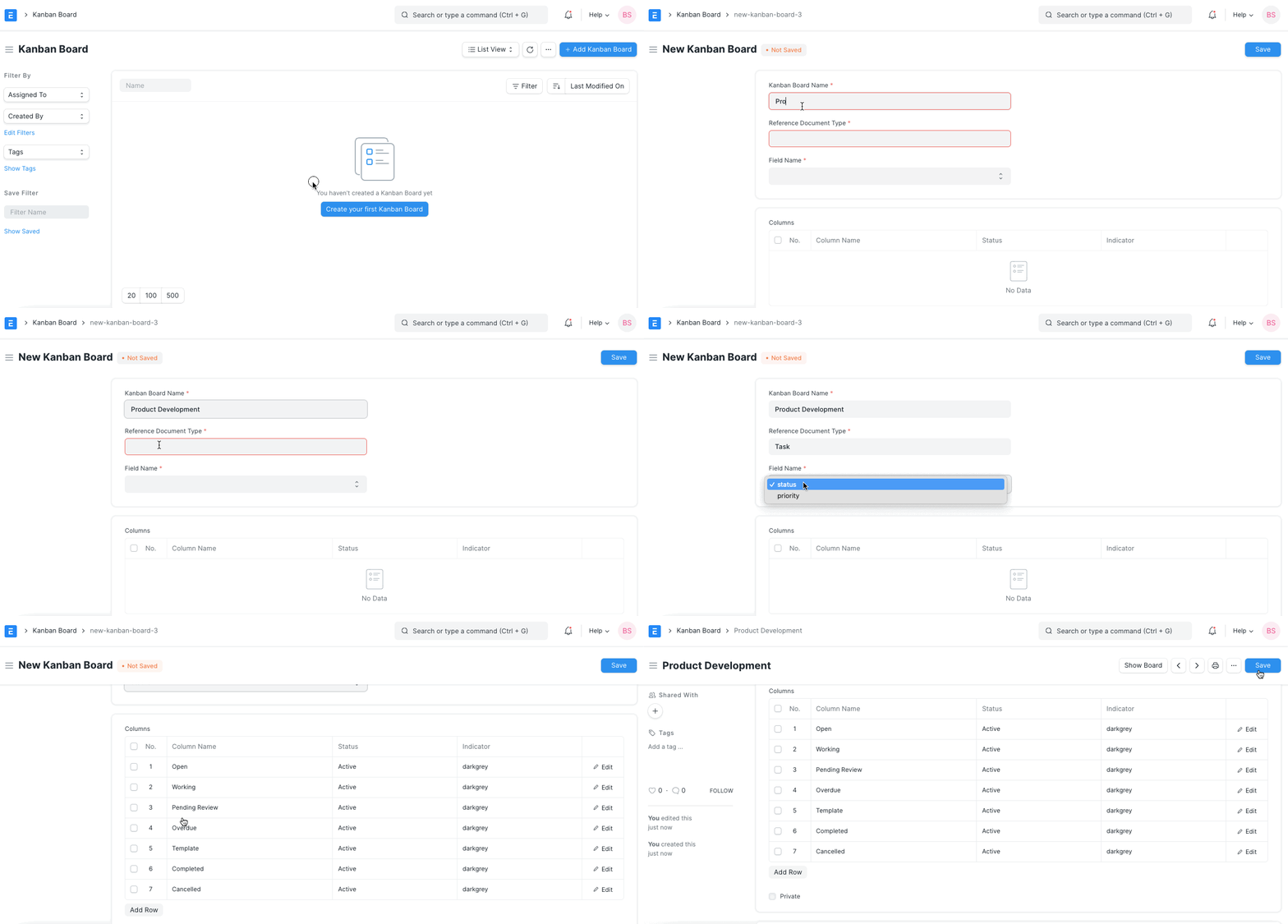
Creating a new Kanban Board
Adding new Card/Document
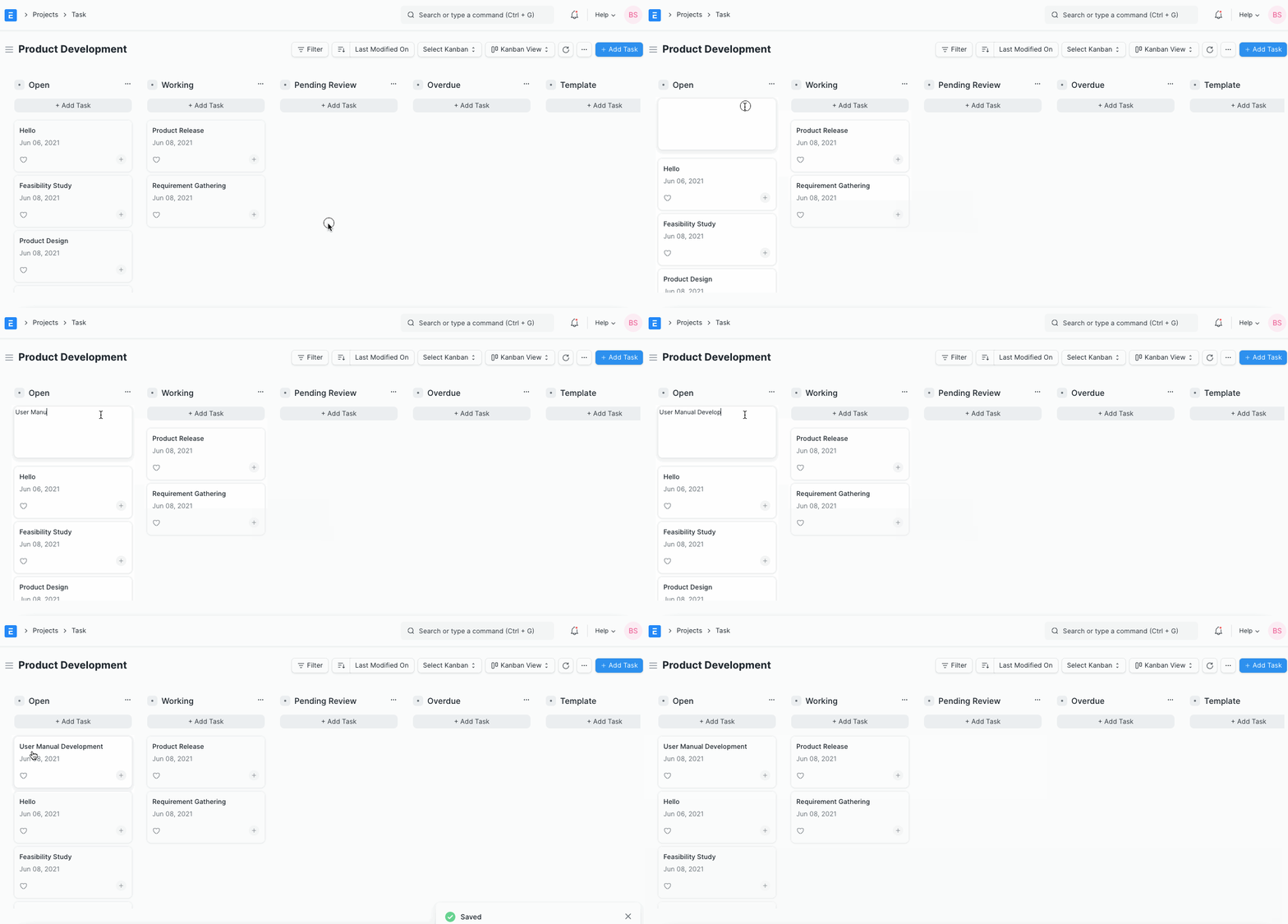
Click Add Tasks to add cards to the Kanban board. Clicking on the card will take you to the Task Doc type where you can continue to add and update card details. From there, you may edit the card's details.
Update Cards/Document Status
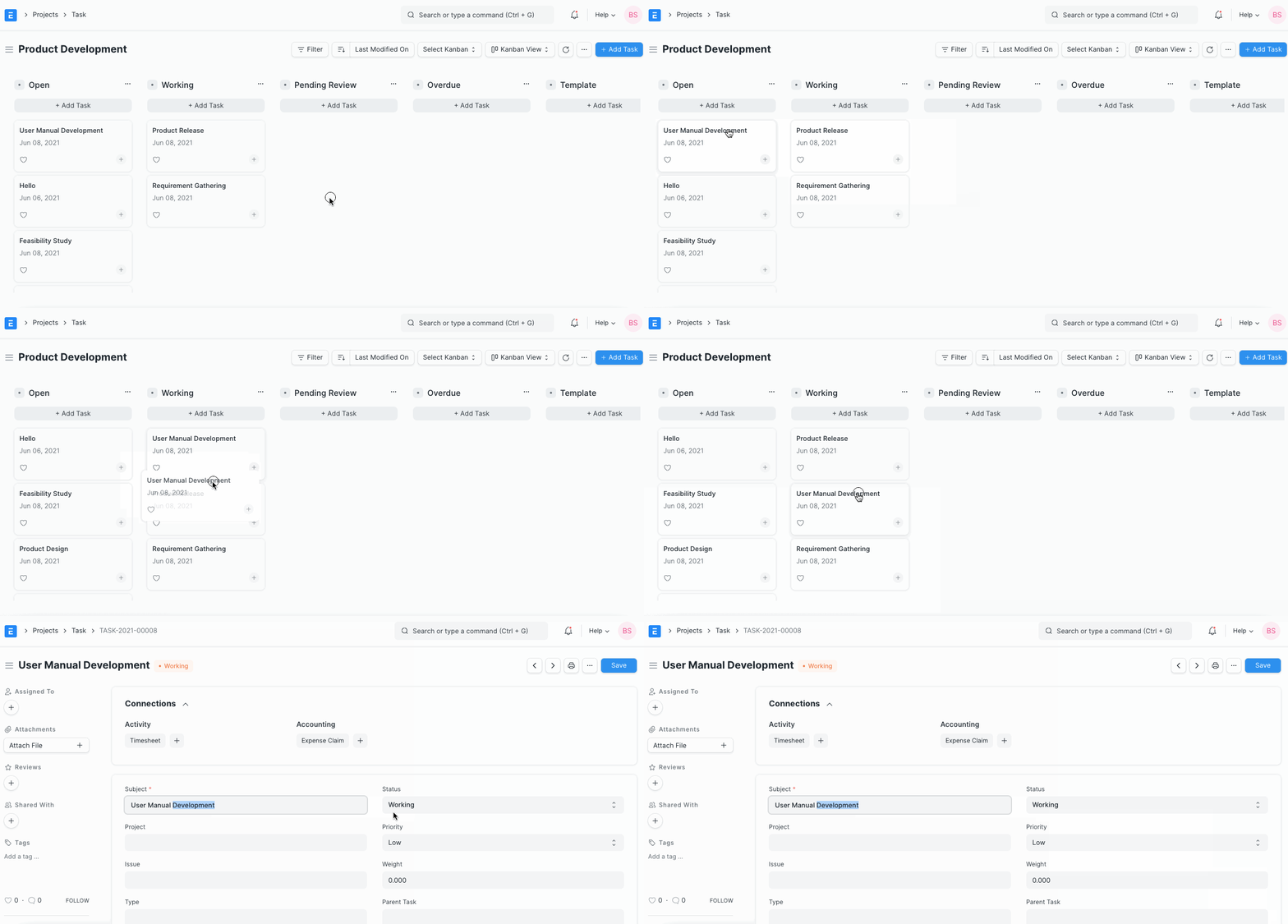
You can drag and drop the cards into the appropriate column based on the Task state. For instance, you can change the task card's status from Open to Working if work on it is ongoing.
Manage Columns
Click Add columns to add extra columns to the Kanban board.
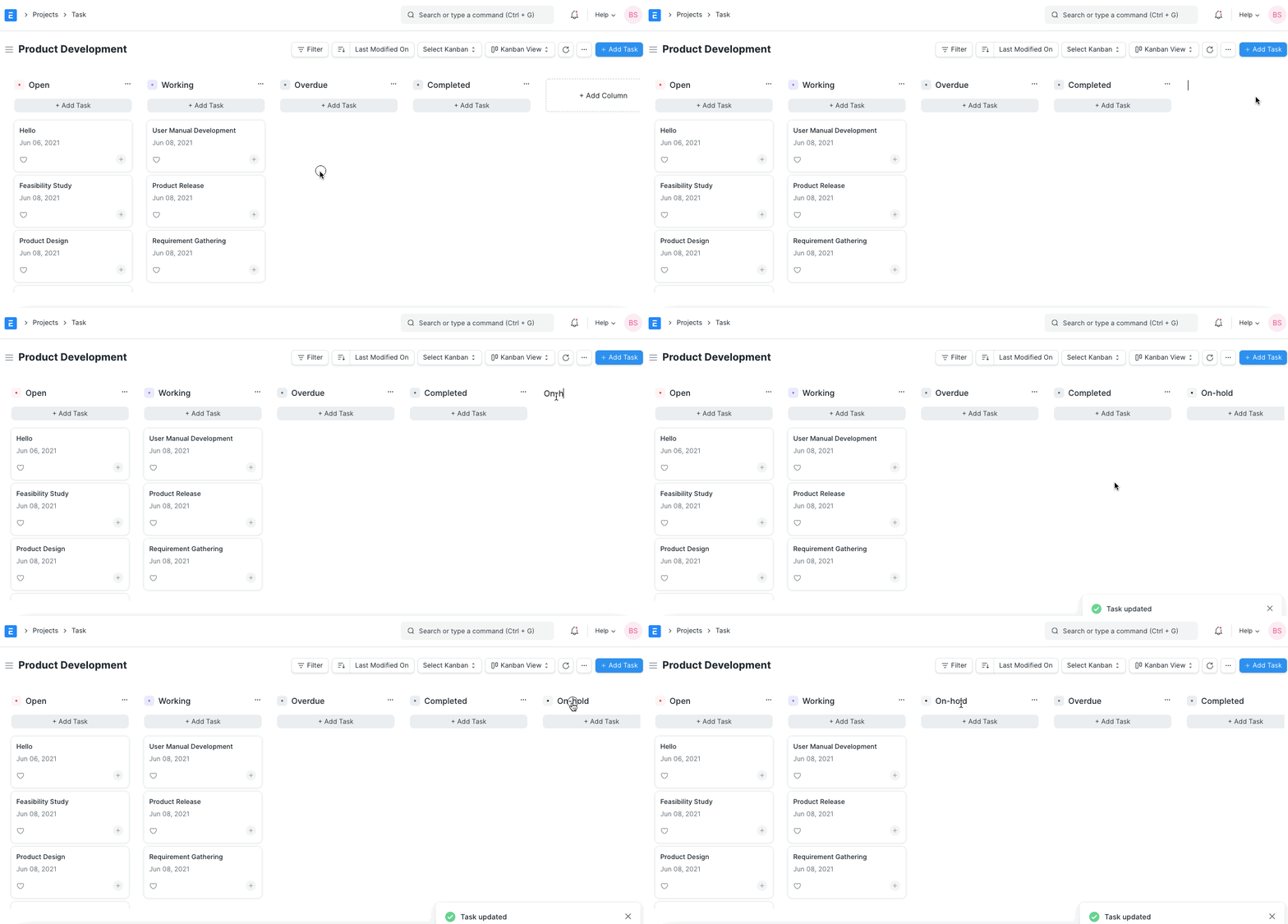
Additionally, you can give columns a color.
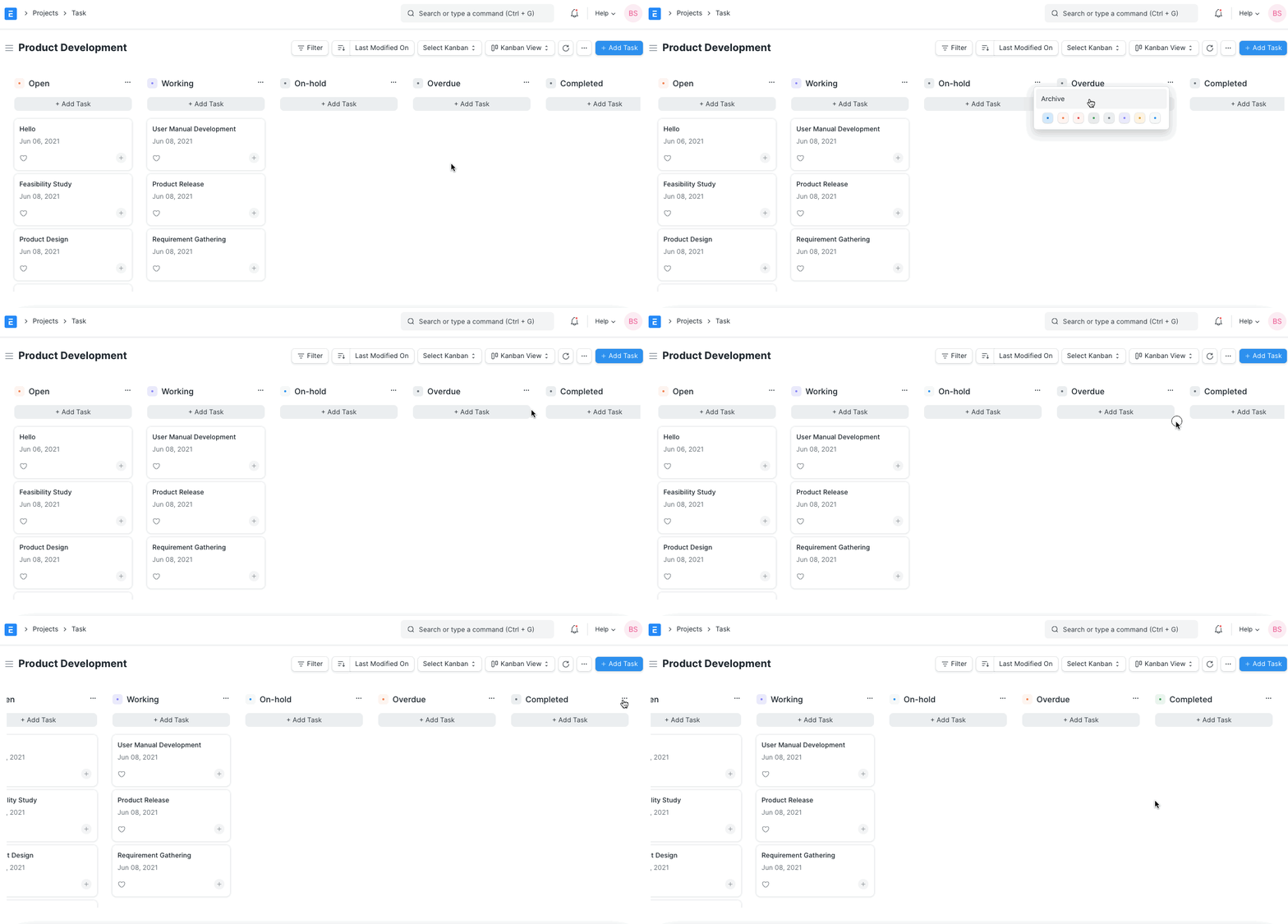
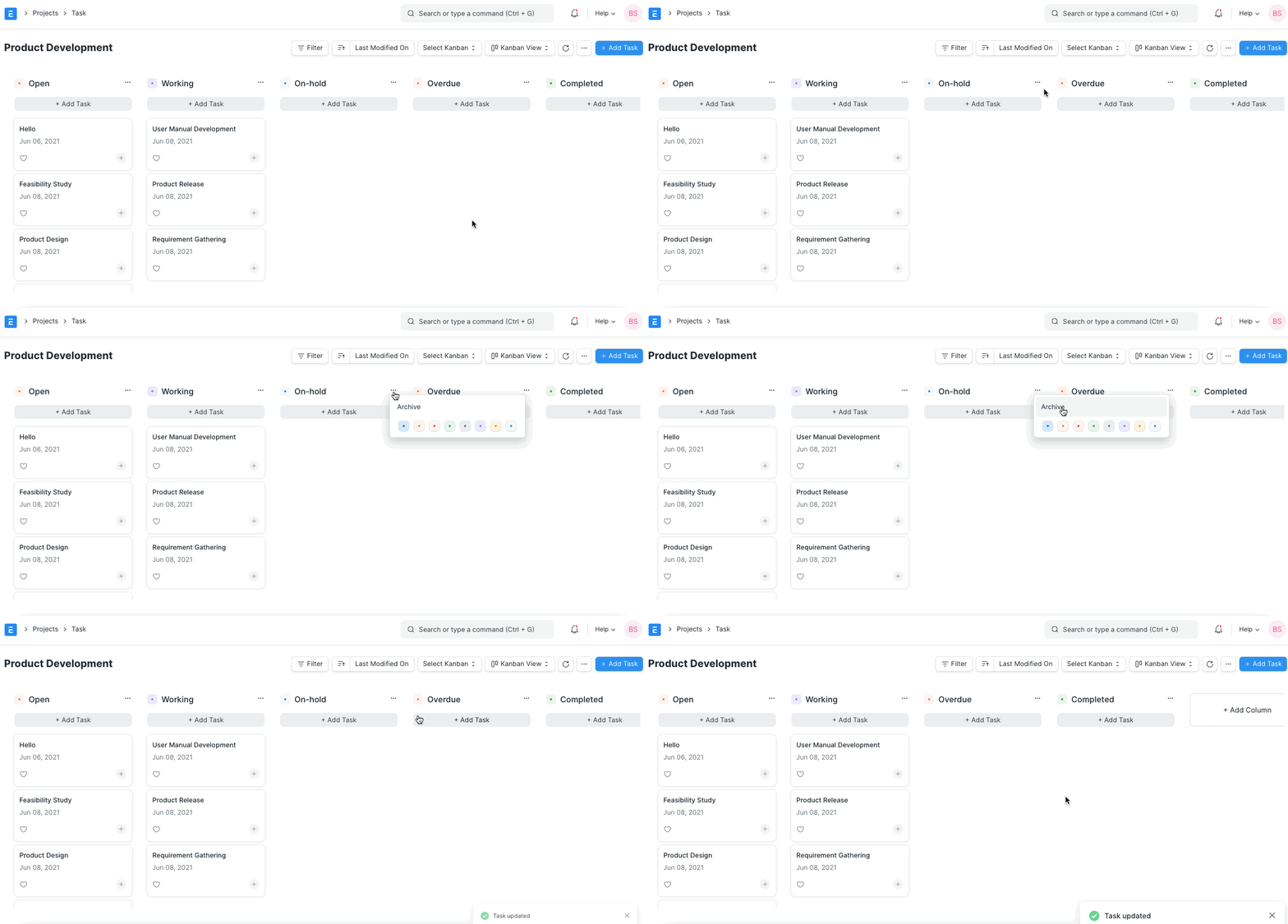
The columns that have been added to a Kanban board can also be archived and restored. To do this, select Archive from the card's drop-down menu. Once archived, you can restore the column from the Kanban board's list of archived columns.
Filters
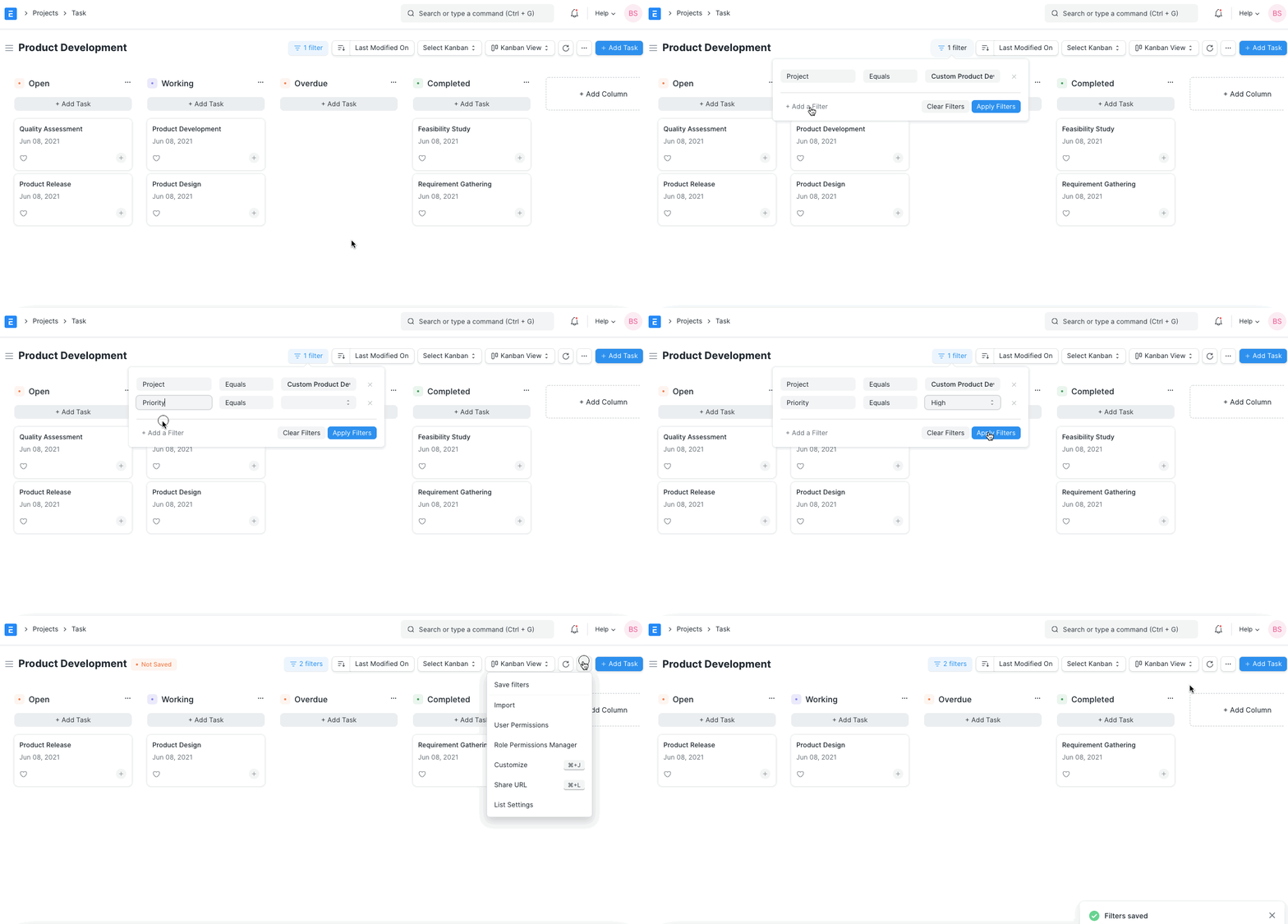
Numerous Kanban Boards based on various filters are possible. Select "Save filters" from the menu to save filters for a Kanban Board.